Fireflies Settings: Complete Overview & Configuration Guide
Last updated: April 16, 2026
Fireflies Settings is designed to be easy to navigate, so you can quickly find and adjust what you need. Each section is organized to help you manage your meetings and preferences without any hassle, including how your meetings are recorded, processed, and shared—all in one place.
This guide provides a complete overview of all settings sections, what each one does, and where to find more detailed instructions. Use it to quickly explore and customize the settings that work best for you.
Let's get started 🚀
🚀 How to access Settings
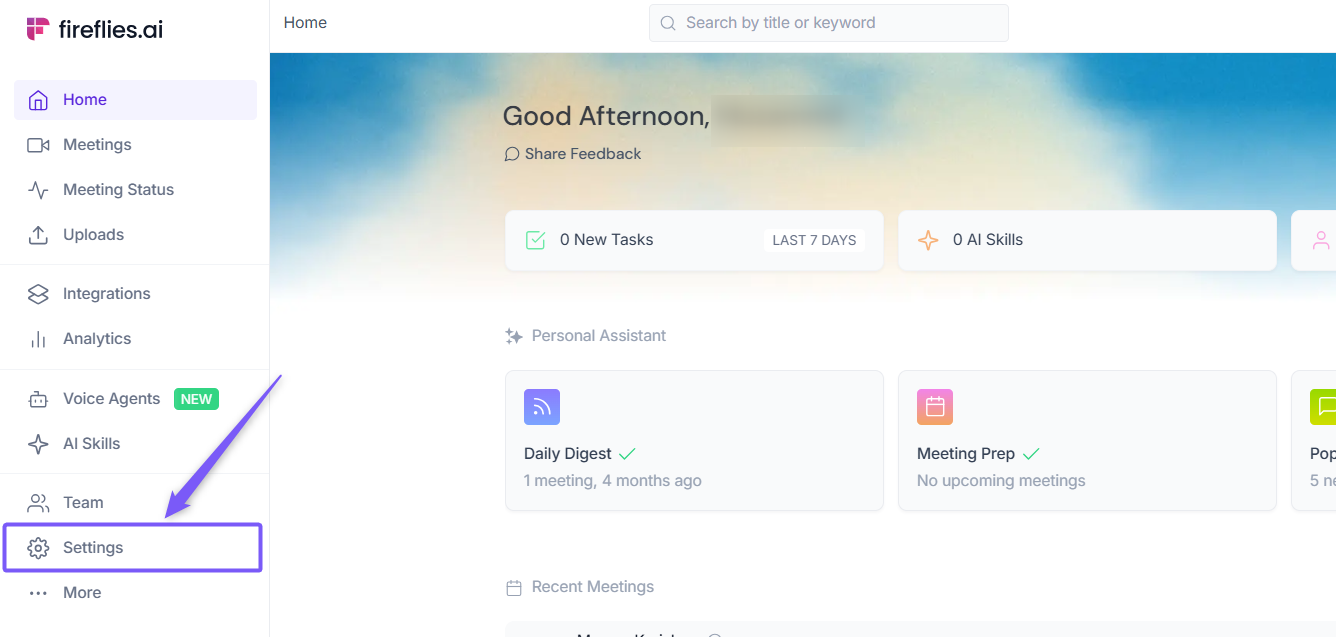
Log in to your Fireflies account and go to Settings from the main dashboard.
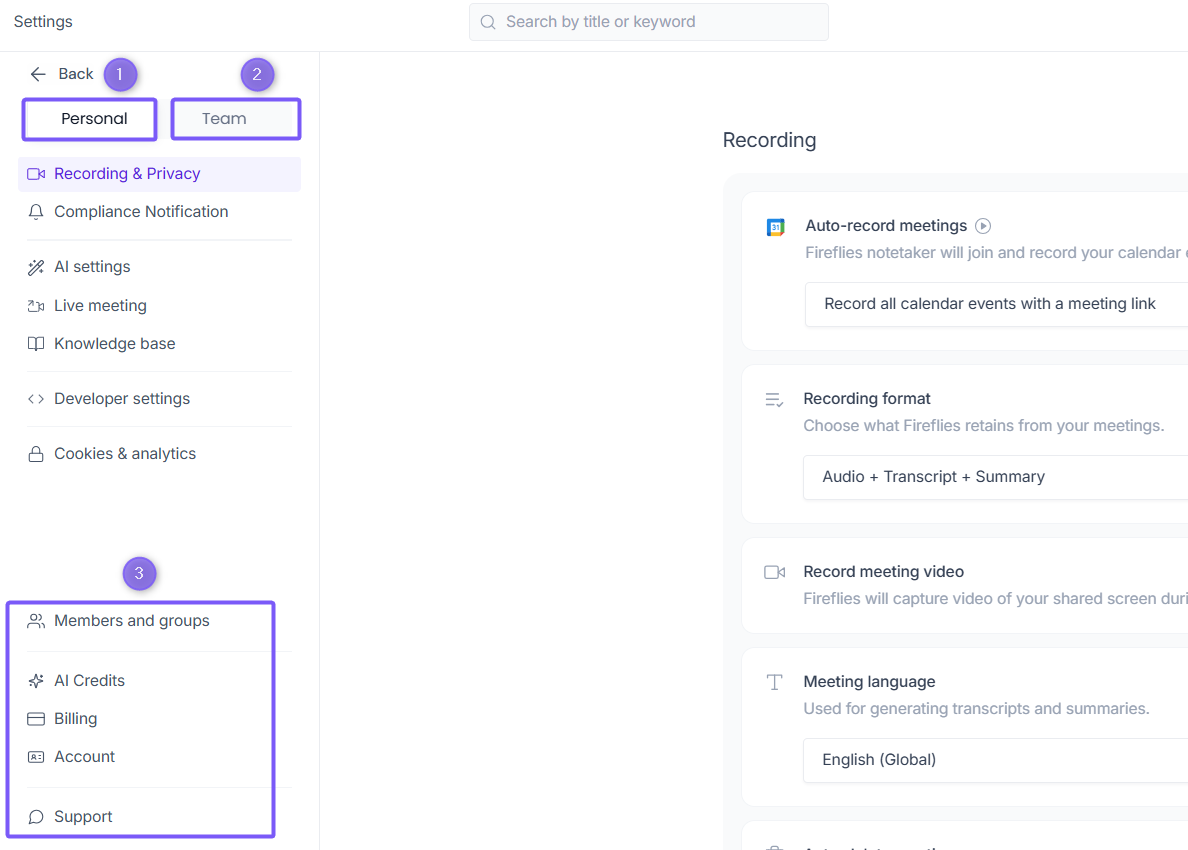
At the top of the Settings page, select either the Personal tab or the Team tab depending on what you want to configure.
Fireflies Settings is organized into three areas:
Personal Settings — Controls for your account, like recording preferences, AI behavior, and notifications.
Team Settings — Admin controls that apply across your workspace.
Workspace & Account Settings — Shared settings like members, billing, AI credits, Account, and Support available at the bottom of the left sidebar.
👤 Personal Settings
The Personal Settings tab lets you manage how Fireflies works for your meetings and preferences. These settings apply only to your account. Your teammates won't be affected by changes you make here.
To access: Settings → Team tab.
🎥Recording & Privacy
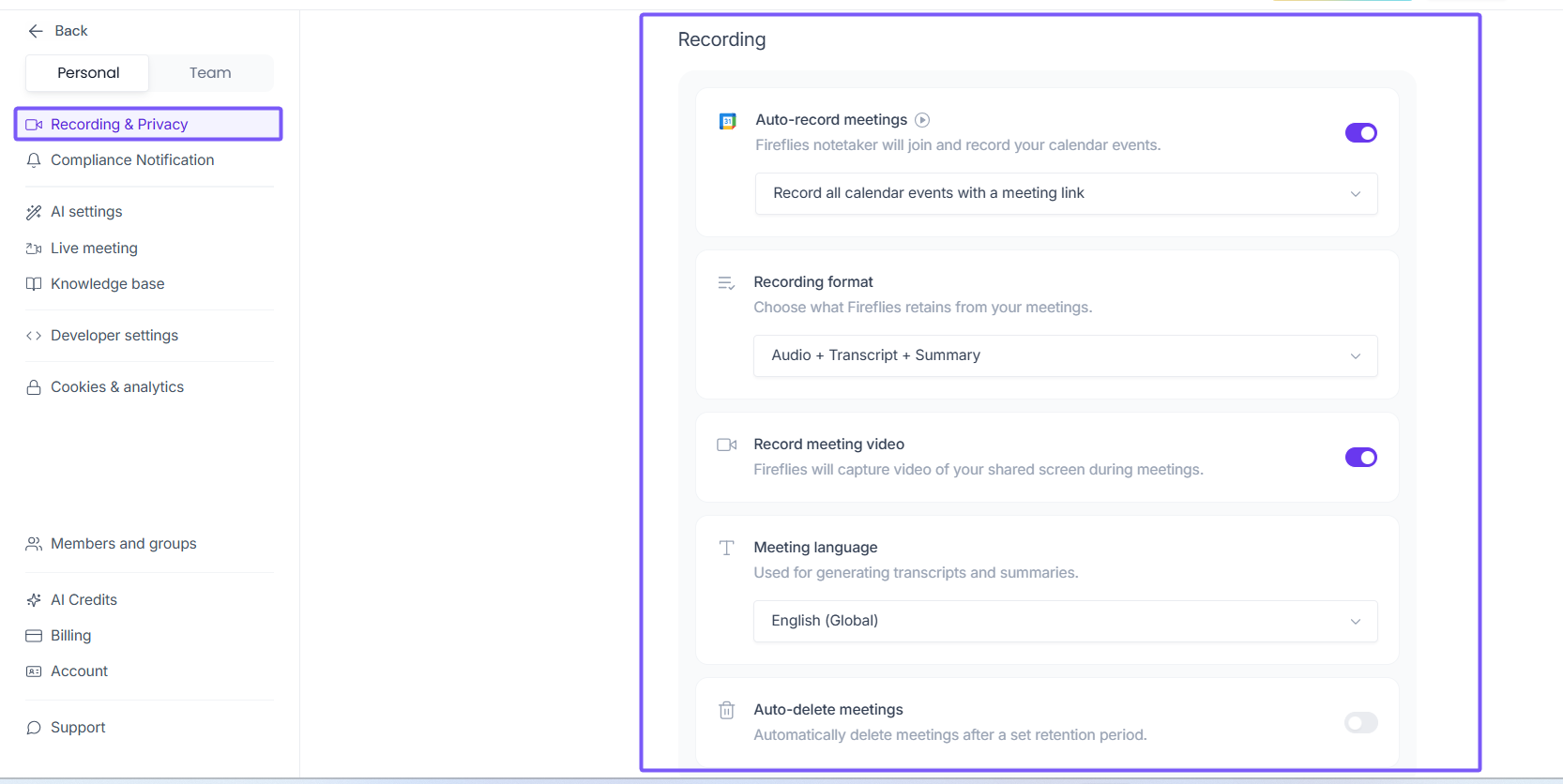
This section controls how Fireflies records your meetings — what gets captured, in what format, who can view it, and when it gets deleted. It's the most detailed section in Personal Settings.
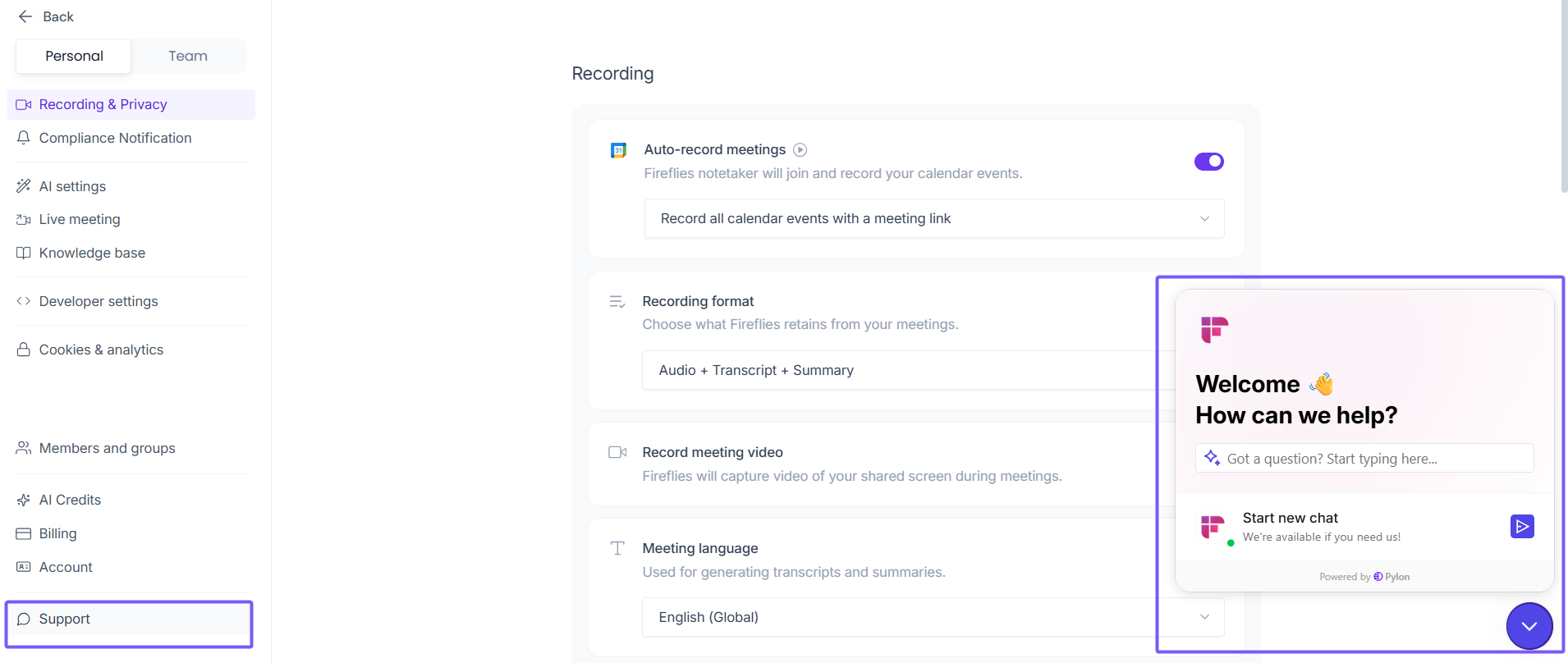
Recording
Setting | What it does |
Fireflies automatically joins and records your calendar events. Choose to record all events or only those with a meeting link. | |
Choose what Fireflies retains from each meeting:
| |
When turned on, Fireflies captures video of your shared screen during meetings. | |
Set the language used to generate transcripts and summaries (e.g., English Global). | |
Automatically deletes meeting recordings after a set retention period. Off by default. |
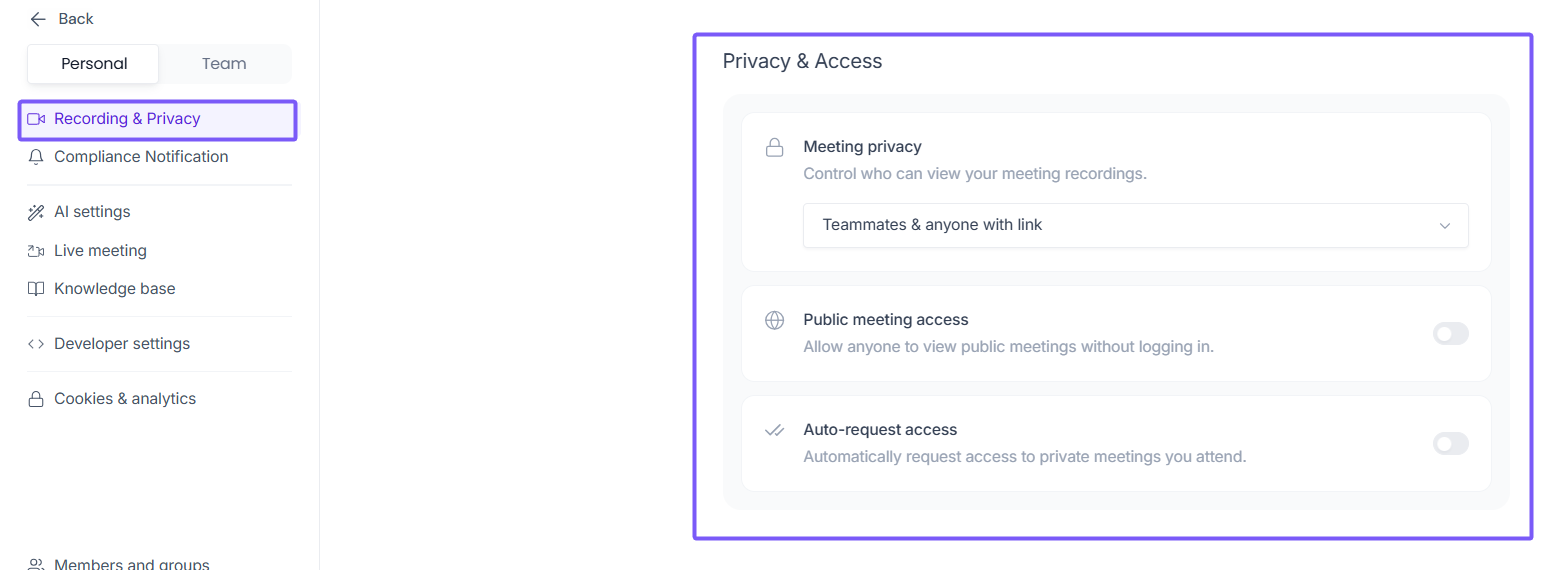
Privacy & Access
Setting | What it does |
Control who can view your meeting recordings. Default is Teammates & anyone with link. | |
Allow anyone to view public meetings without needing to log in. | |
Auto-request access | Automatically send an access request for private meetings you attend. |
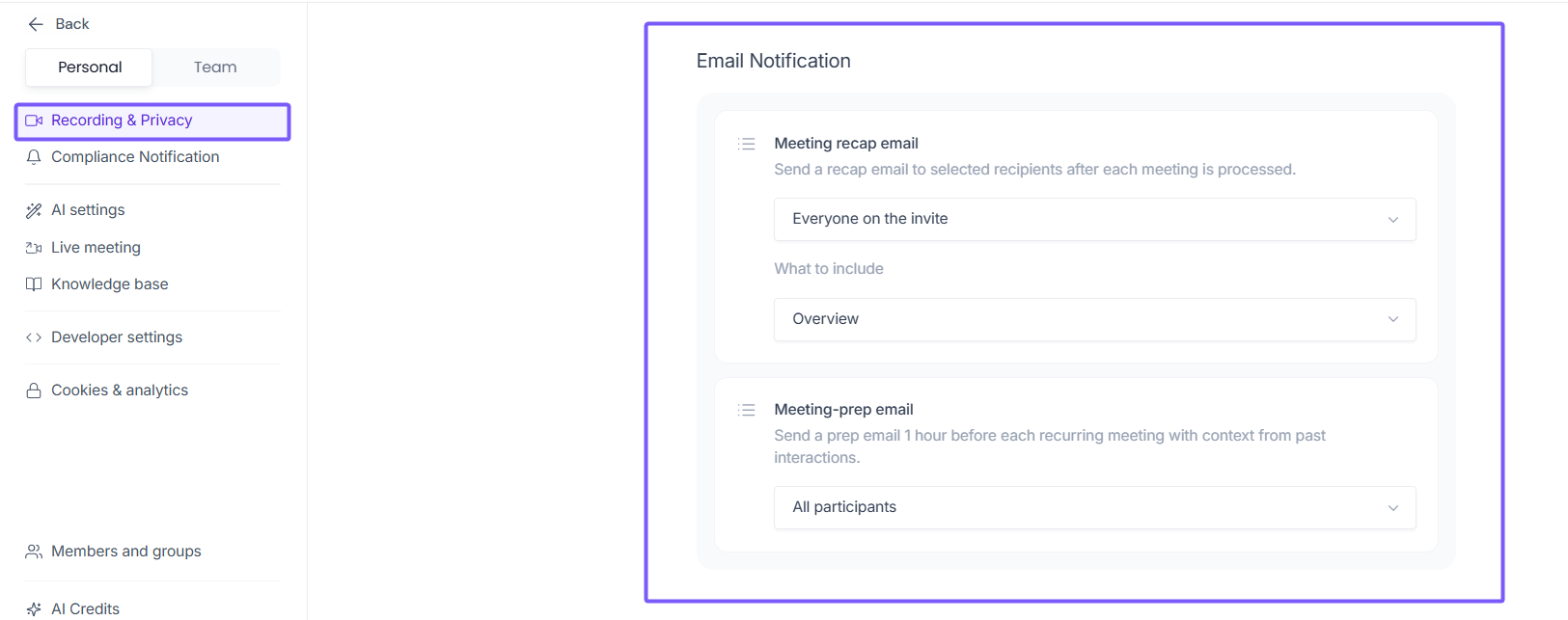
Email Notification
Setting | What it does |
Sends a summary email to selected recipients after each meeting is processed. You choose who gets it and what to include (e.g., Overview, Action Items). | |
Sends a prep email 1 hour before a recurring meeting, with context pulled from past interactions with the same participants. |
Recording Rules
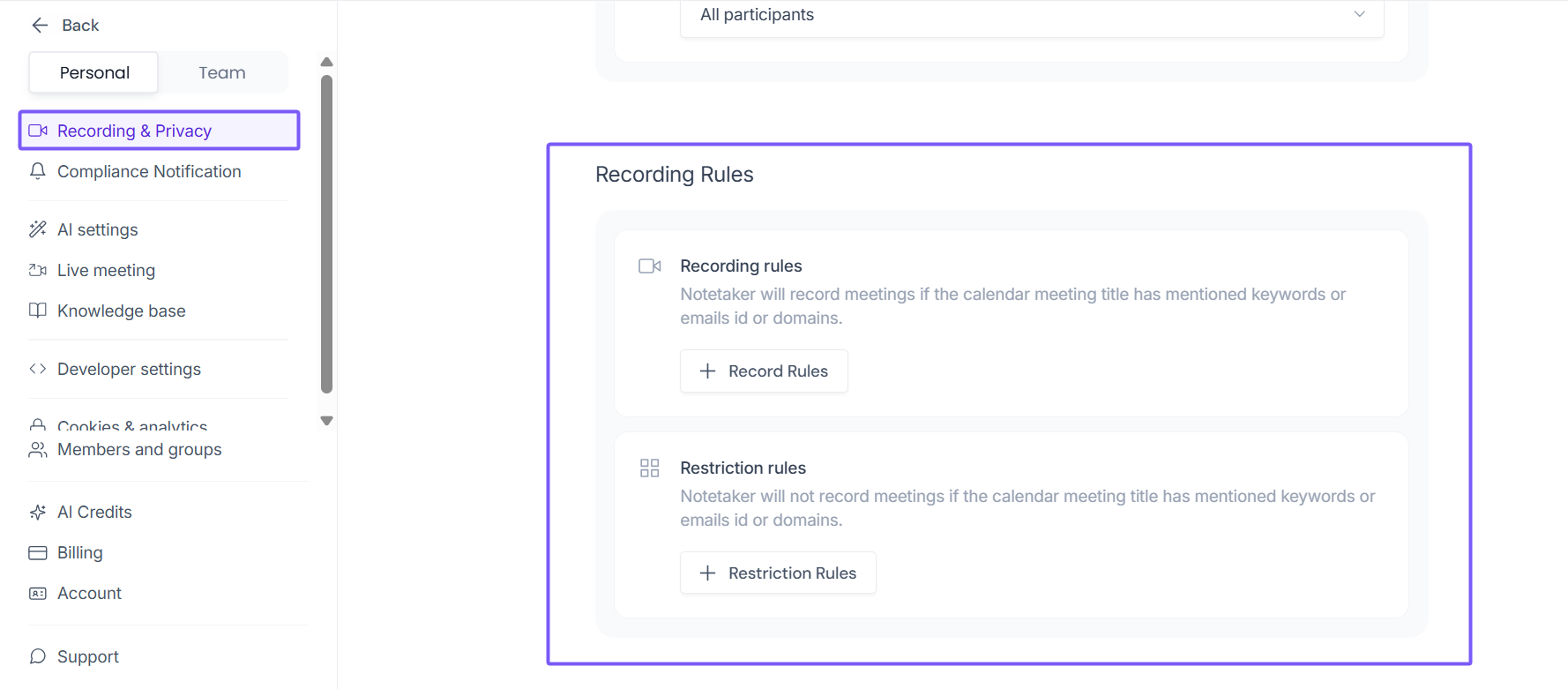
Use these rules to give Fireflies precise instructions on which meetings to join — and which to skip.
Setting | What it does |
Recording rules | Fireflies will only record a meeting if the calendar invite contains specific keywords, emails, or domains that you define. |
Restriction rules | Fireflies will skip a meeting if the calendar invite contains specific keywords, emails, or domains that you define. |
📌 Learn more: How to set meeting rules
🔔 Compliance Notification
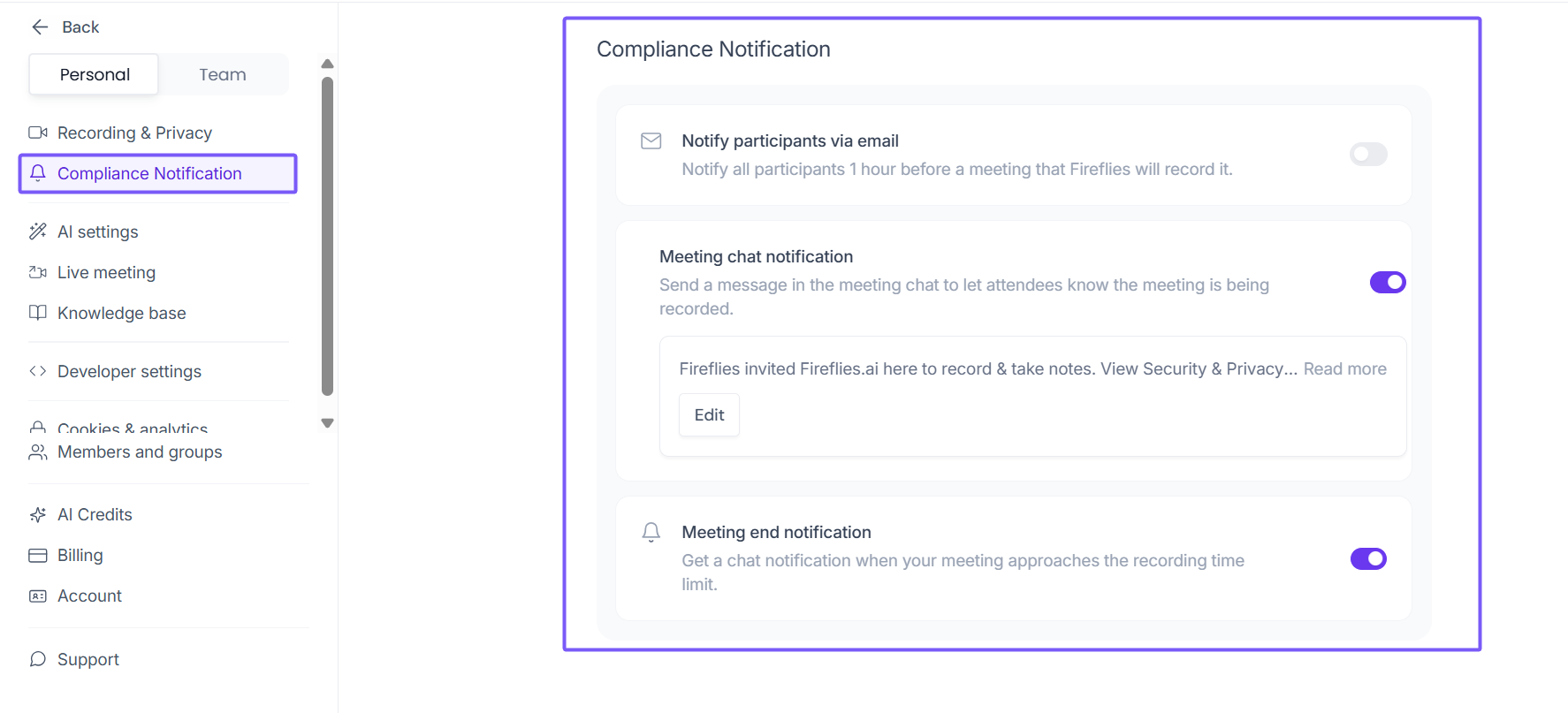
These settings make sure meeting participants know they're being recorded. This matters for privacy laws in many regions — for example, some countries require all participants to be notified before a recording starts.
Setting | What it does |
Notify participants via email | Sends an email to all participants 1 hour before a meeting that Fireflies will record. Off by default. |
Meeting chat notification | Posts a message in the meeting chat when Fireflies joins, letting attendees know the session is being recorded. The message text is editable. |
Meeting end notification | Sends a chat notification when your meeting is approaching the recording time limit. |
📌 Learn more: Recording consent and compliance settings
🤖 AI Settings
This section controls how Fireflies uses AI to analyze your meetings — and who on your team can access the AI tools you build.
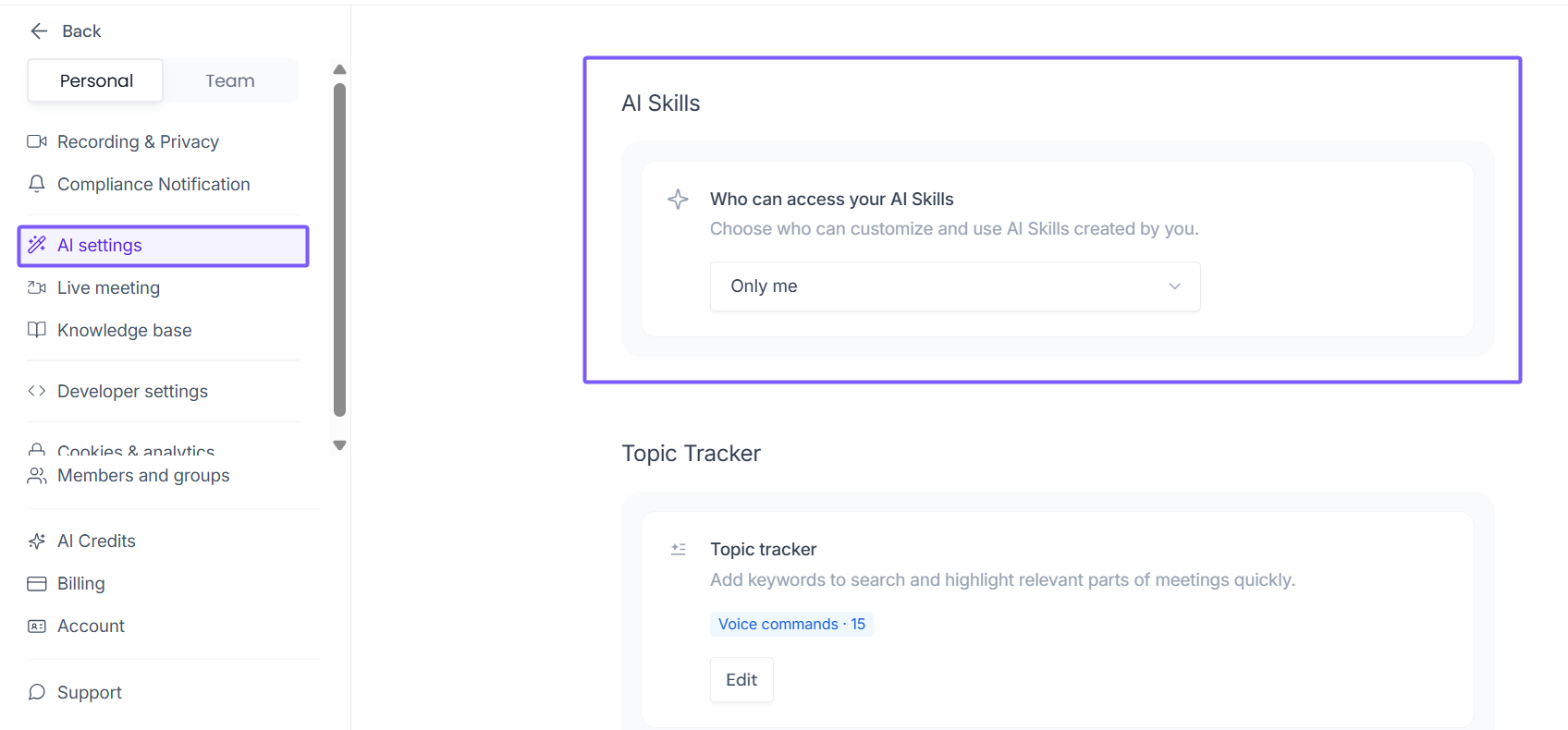
AI Skills are custom prompts or workflows you create inside Fireflies to extract specific insights from your meetings — for example, generating a sales call summary or pulling competitor mentions.
Who can access your AI Skills— Choose who can view and use the AI Skills you've created. Options include Only me or your broader team.
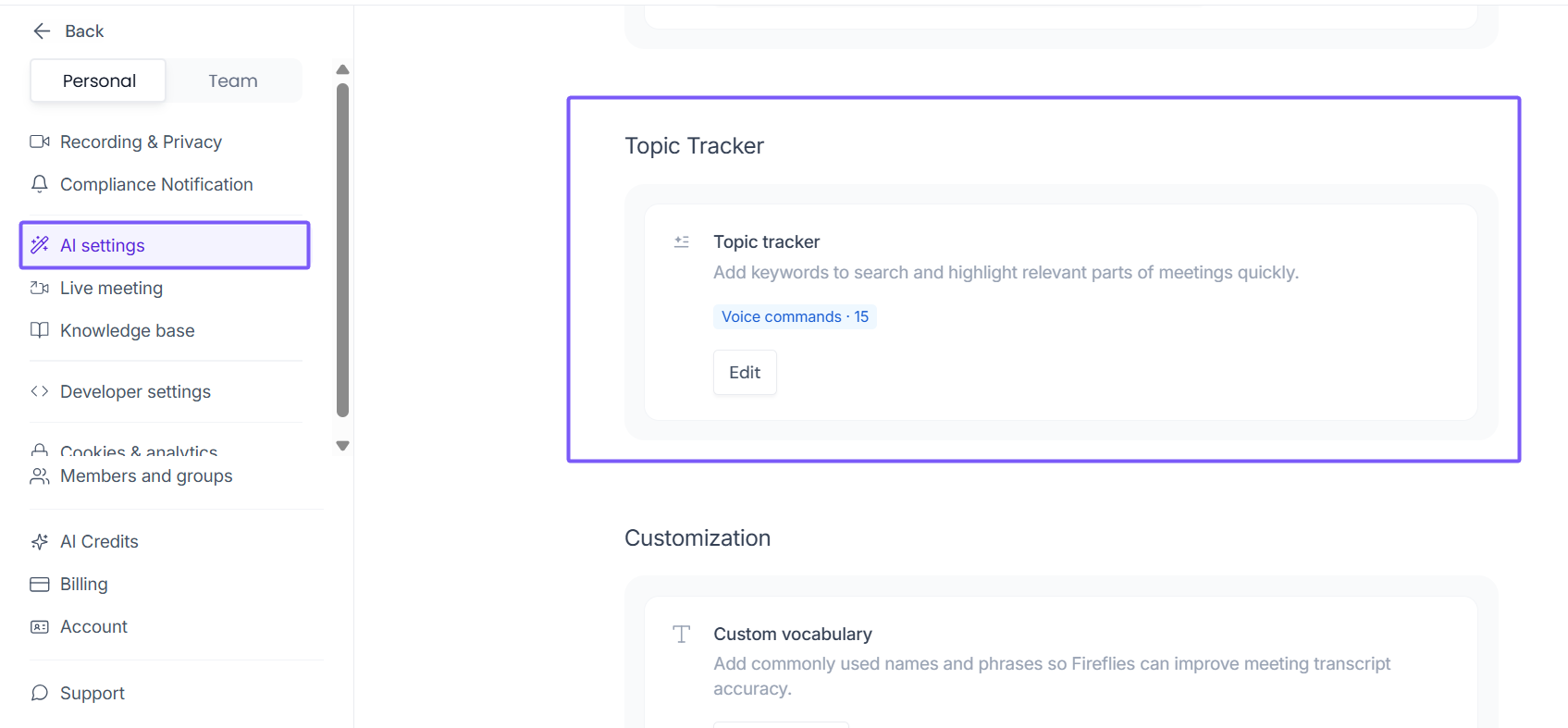
Topic Tracker
Topic Tracker monitors specific keywords across all your meetings and highlights the moments where they were mentioned.
Topic tracker— Add keywords like "pricing", "churn", or "roadmap" and Fireflies will flag those moments in every transcript automatically. You can also set voice commands to trigger topic tracking live during a meeting.
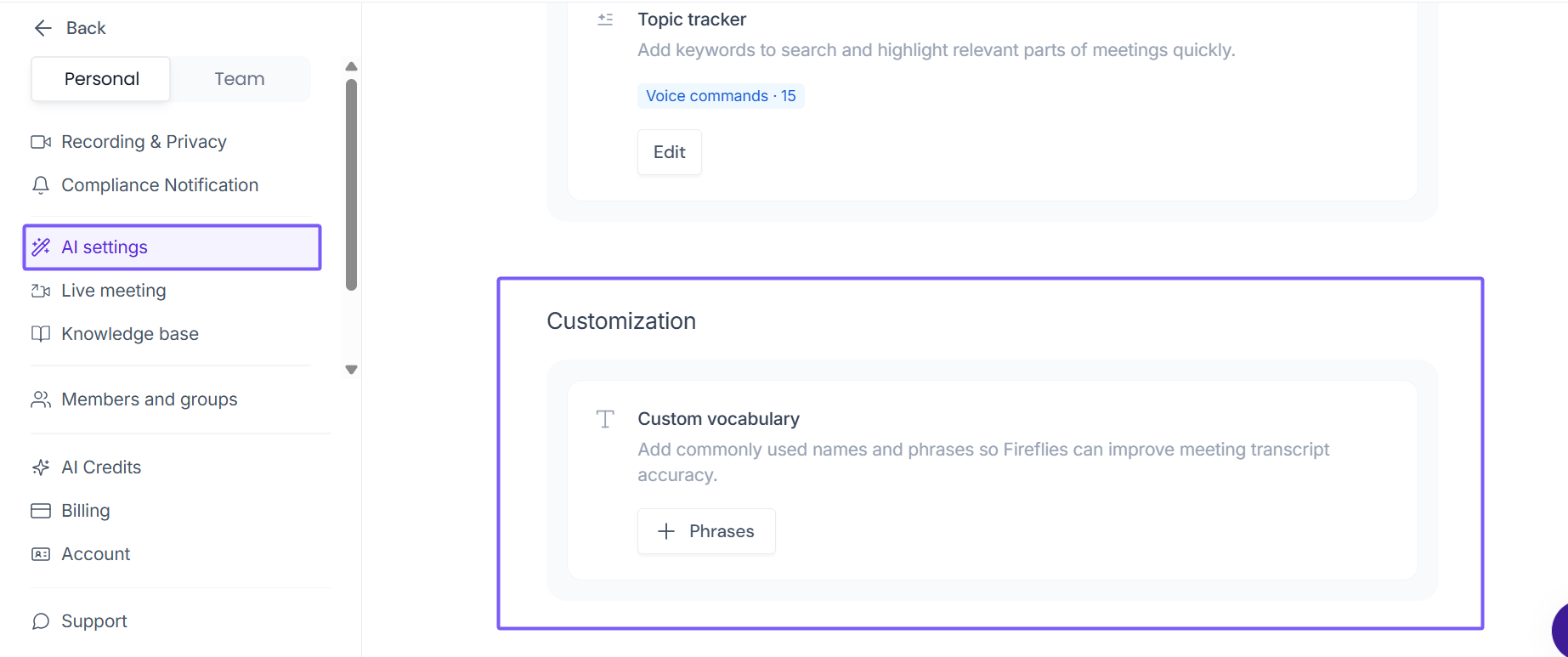
Customization
Custom vocabulary— Add names, acronyms, or technical terms your team uses regularly. This helps Fireflies transcribe them correctly and improves overall accuracy.
📡 Live Meeting
Live Meeting settings control what Fireflies does while a call is happening — from sharing real-time transcripts to responding to voice commands mid-meeting.
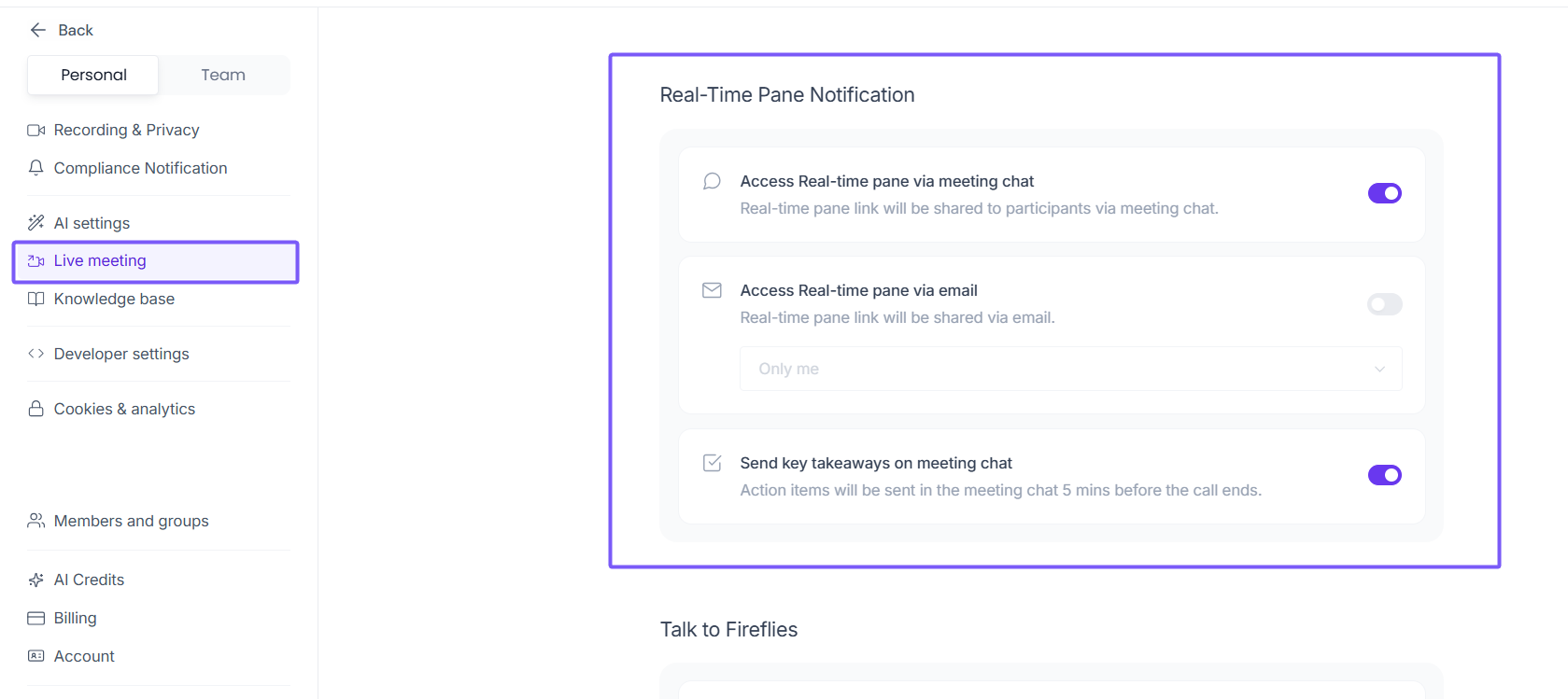
Real-Time Pane Notification
The Real-Time Pane is a live view of your transcript and key discussion points as the conversation unfolds.
Setting | What it does |
Access Real-time pane via meeting chat | Shares a link to the real-time pane in the meeting chat so participants can follow along. |
Access Real-time pane via email | Sends the real-time pane link by email. You choose who receives it. |
Send key takeaways on meeting chat | Posts action items and key points in the meeting chat 5 minutes before the call ends. |
📌 Learn more: Learn about Fireflies Live Assist (real-time pane)
Talk to Fireflies
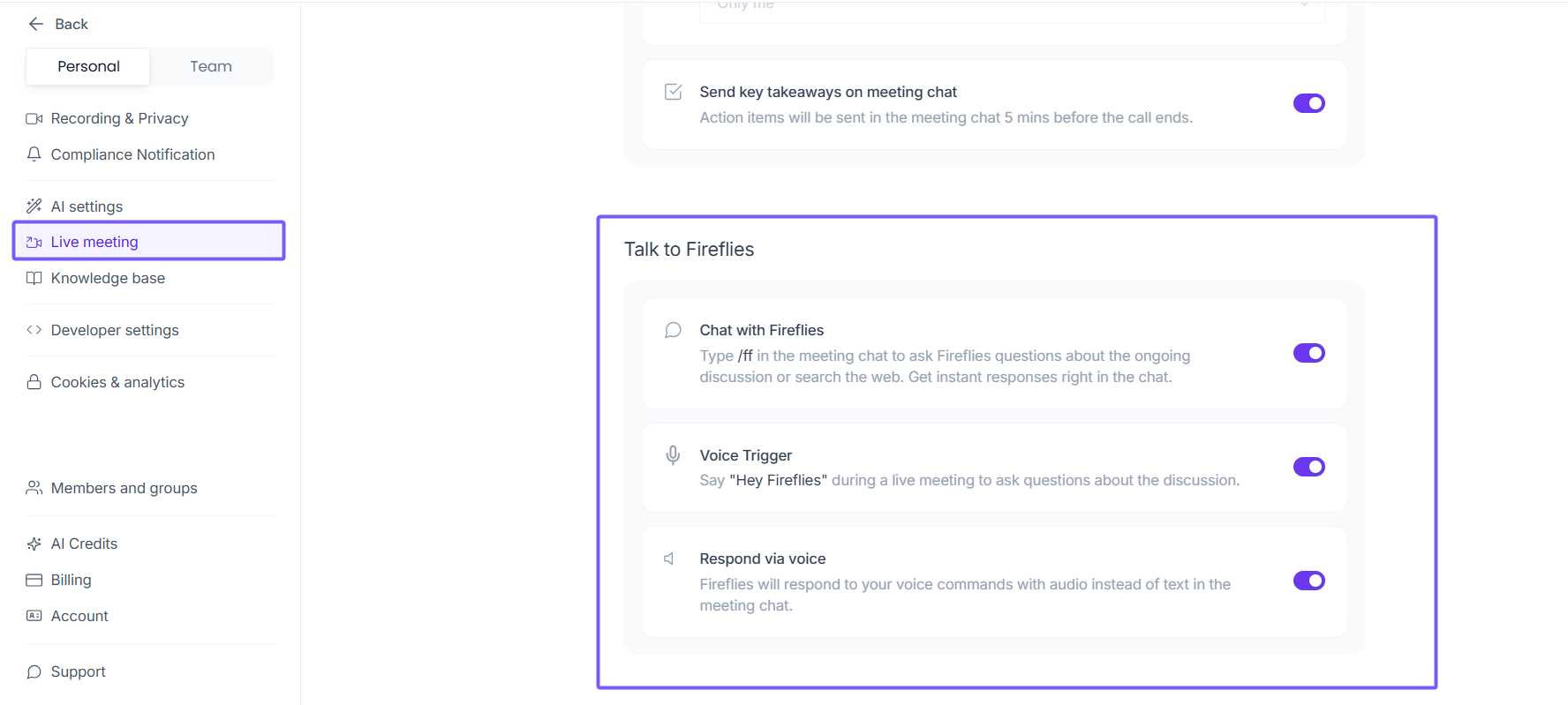
These settings let you interact with Fireflies directly while a meeting is in progress — without leaving the call.
Setting | What it does |
Chat with Fireflies | Type /ff in the meeting chat to ask Fireflies a question about the ongoing discussion. You'll get an instant response in the chat. |
Voice Trigger | Say "Hey Fireflies" out loud during a meeting to ask a question. No typing needed. |
Respond via voice | When enabled, Fireflies responds to your voice commands with audio instead of a text message in the meeting chat. |
📌Learn more: Talk to Fireflies in live meetings
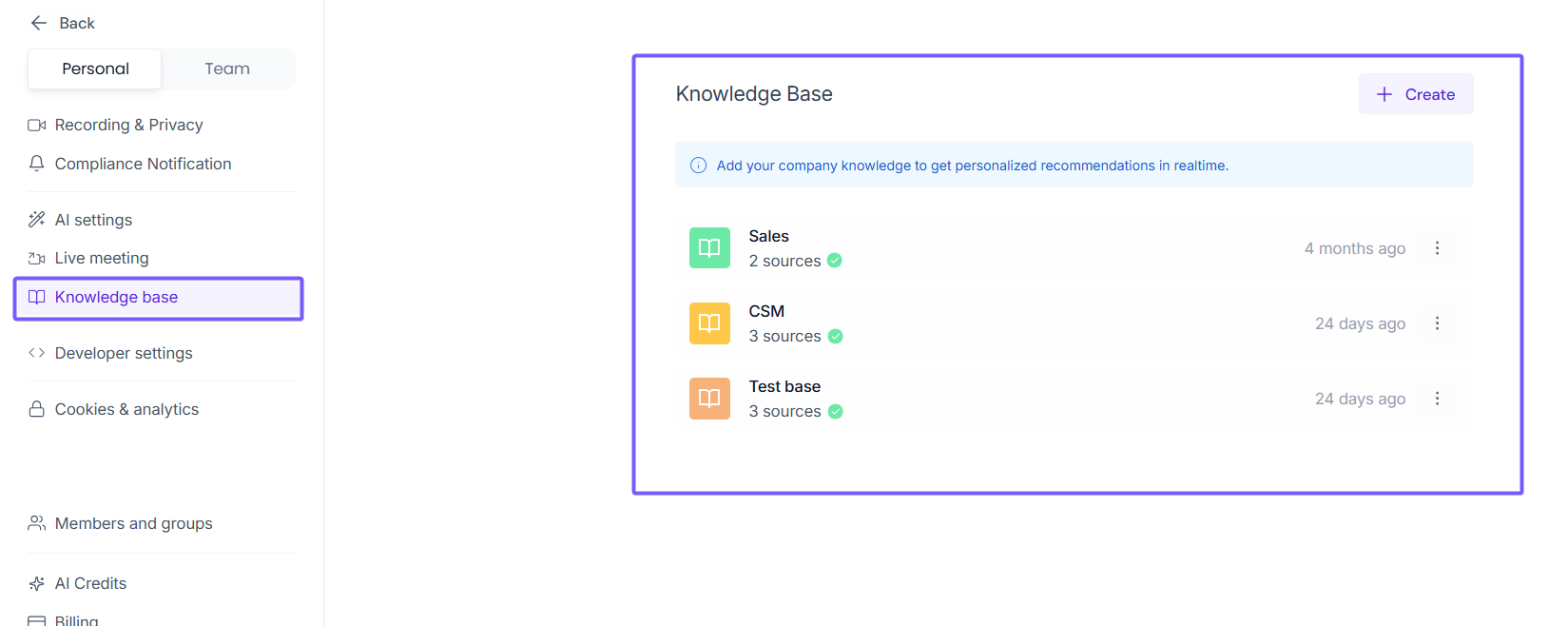
📚 Knowledge Base
Knowledge Base allows you store company-specific content—like playbooks, product docs, or FAQs—so Fireflies can use it during Live Assist to provide real-time suggestions and answers in meetings.
📌 Learn more about: Setting up your Knowledge Base
🛠 Developer Settings
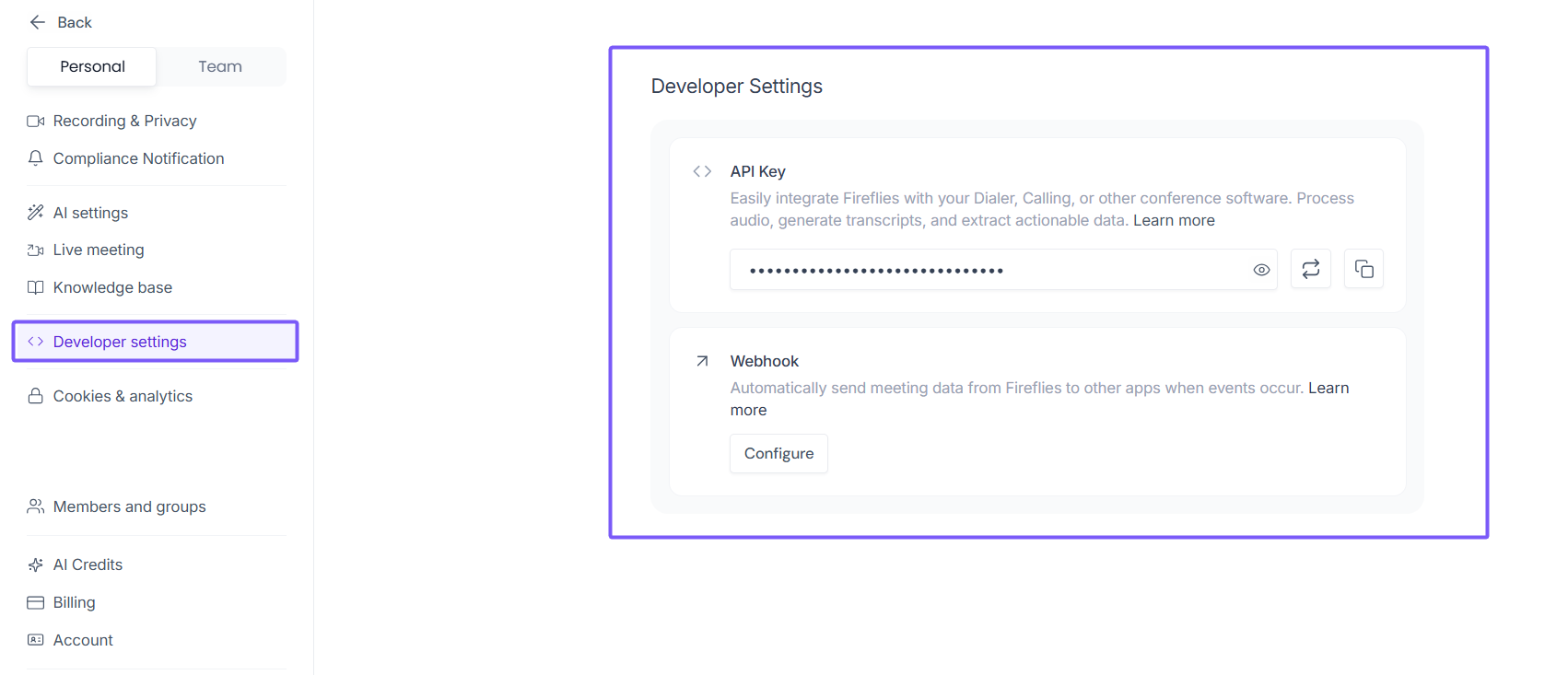
For teams that want to connect Fireflies to their own tools, dialers, or internal systems using code.
API Key— Your unique key for connecting Fireflies to external apps via the Fireflies API. Use it to push audio files, pull transcripts, or extract structured data. Use the regenerate icon to reset your key if needed.
Webhook— Configure a webhook URL so Fireflies automatically sends meeting data to another app whenever a specific event occurs — for example, when a meeting finishes processing. Click Configure to set it up.
📌 Learn more: Fireflies API Documentation
🍪 Cookies & Analytics
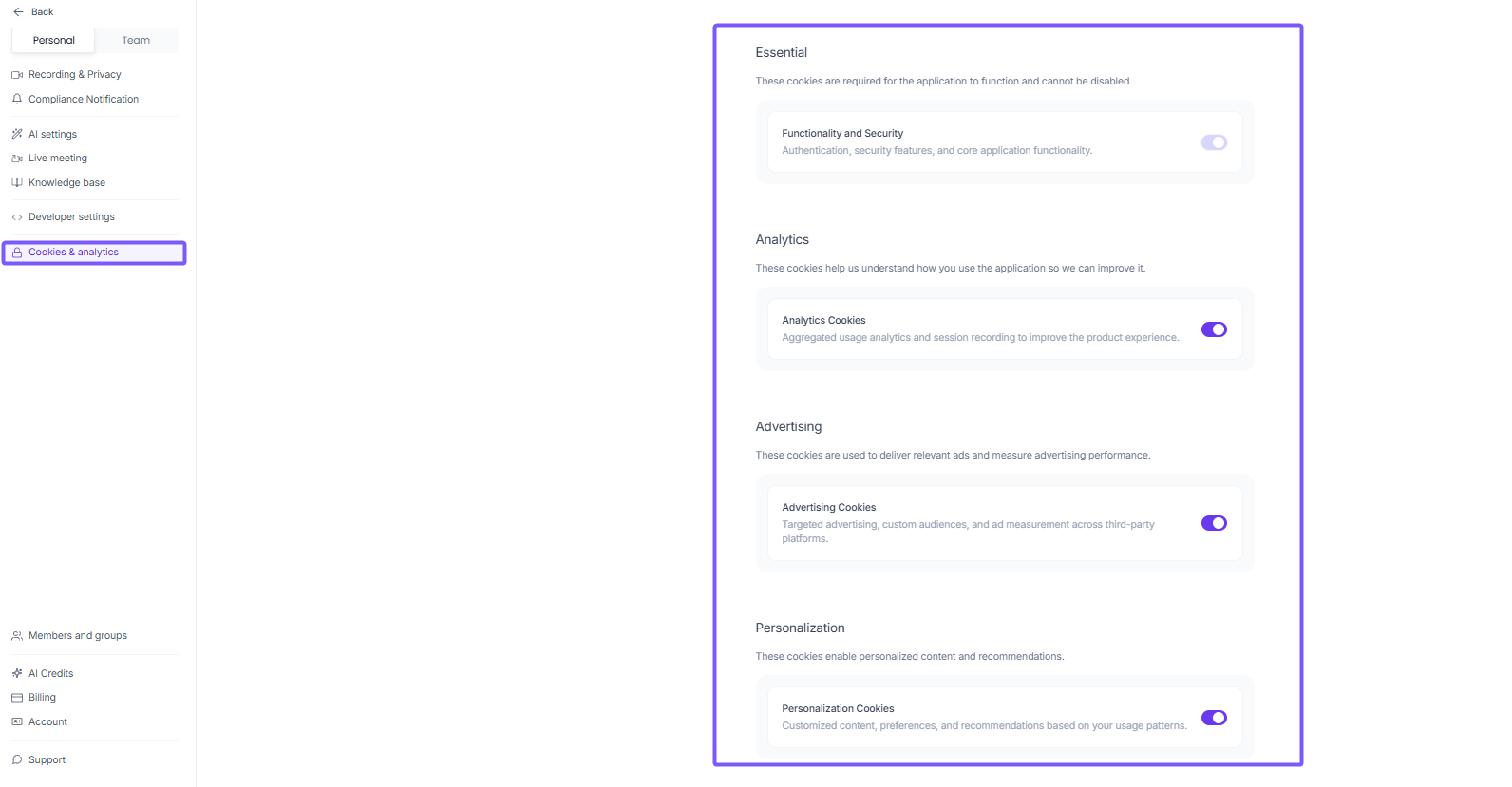
Manage the cookies Fireflies uses on your account. Some are required for the app to work; others are optional and can be turned off.
Setting | What it does |
Functionality and Security | Required for login, security features, and core app functionality. Cannot be disabled. |
Analytics Cookies | Help Fireflies understand how you use the app so the product team can improve it. Includes session recording and usage data. |
Advertising Cookies | Used to deliver relevant ads and measure ad performance across third-party platforms. Optional. |
Personalization Cookies | Enable personalized content and recommendations based on your usage patterns. Optional. |
📌 Functionality and Security cookies are always on and cannot be turned off. All other categories can be toggled.
👥Team Settings
Team Settings are for workspace admins only. Changes here apply across your entire Fireflies workspace — not just your own account.
To access: Settings → Team tab.
🎥 Recording & Privacy
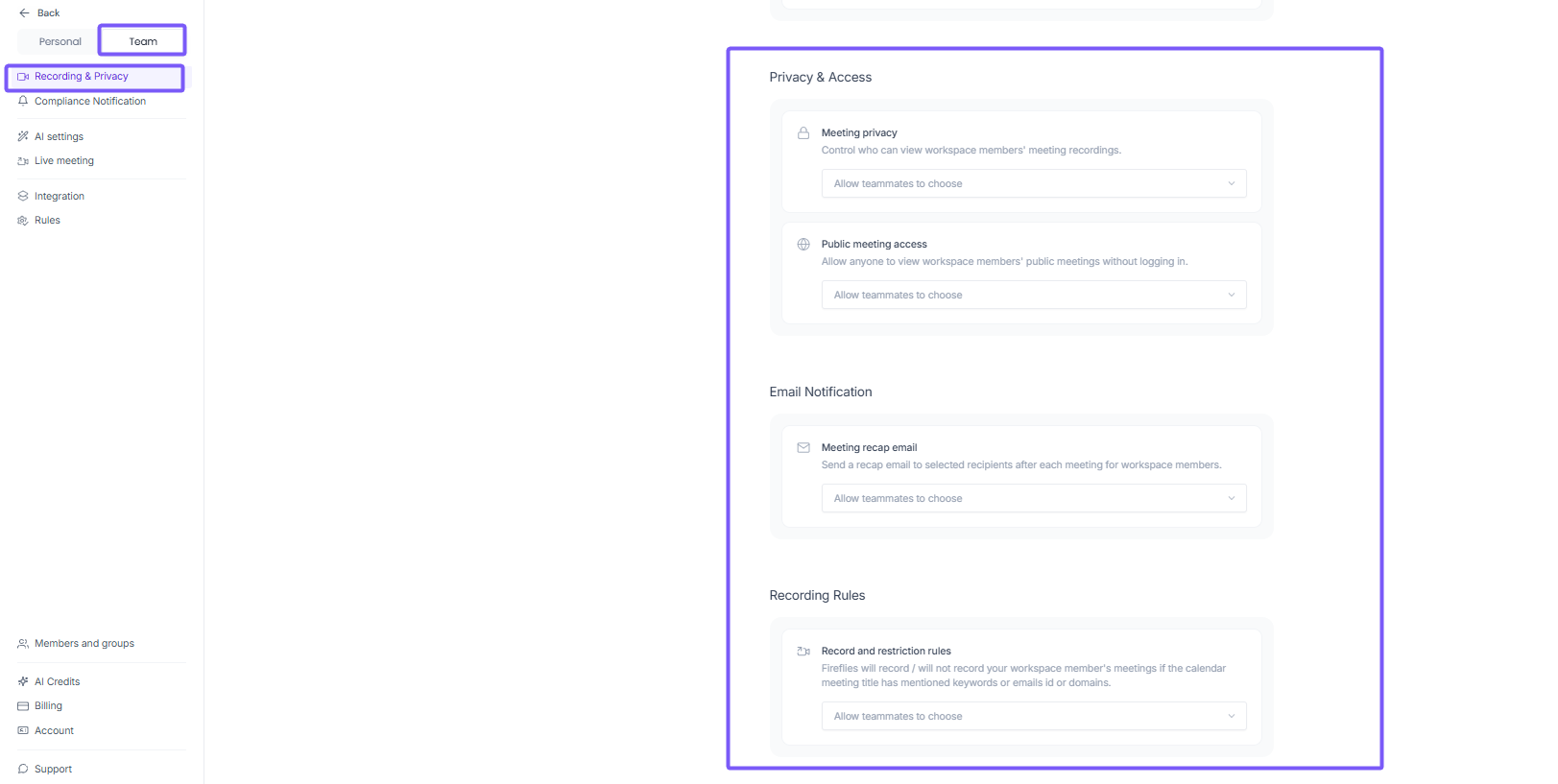
Controls organization-wide defaults for how workspace members' meetings are recorded and who can access them.
Privacy & Access
Setting | What it does |
Meeting privacy | Controls who can view workspace members' meeting recordings. Admins can allow teammates to choose their own setting or enforce one across the workspace. |
Public meeting access | Allow anyone to view workspace members' public meetings without logging in. |
Email Notification
Setting | What it does |
Meeting recap email | Send a recap email to selected recipients after each meeting for workspace members. Admins can allow teammates to choose or enforce a default. |
Recording Rules
Setting | What it does |
Record and restriction rules | Fireflies will record / will not record workspace members' meetings if the calendar meeting title has mentioned keywords, emails, or domains. Admins can allow teammates to choose or enable it for all. |
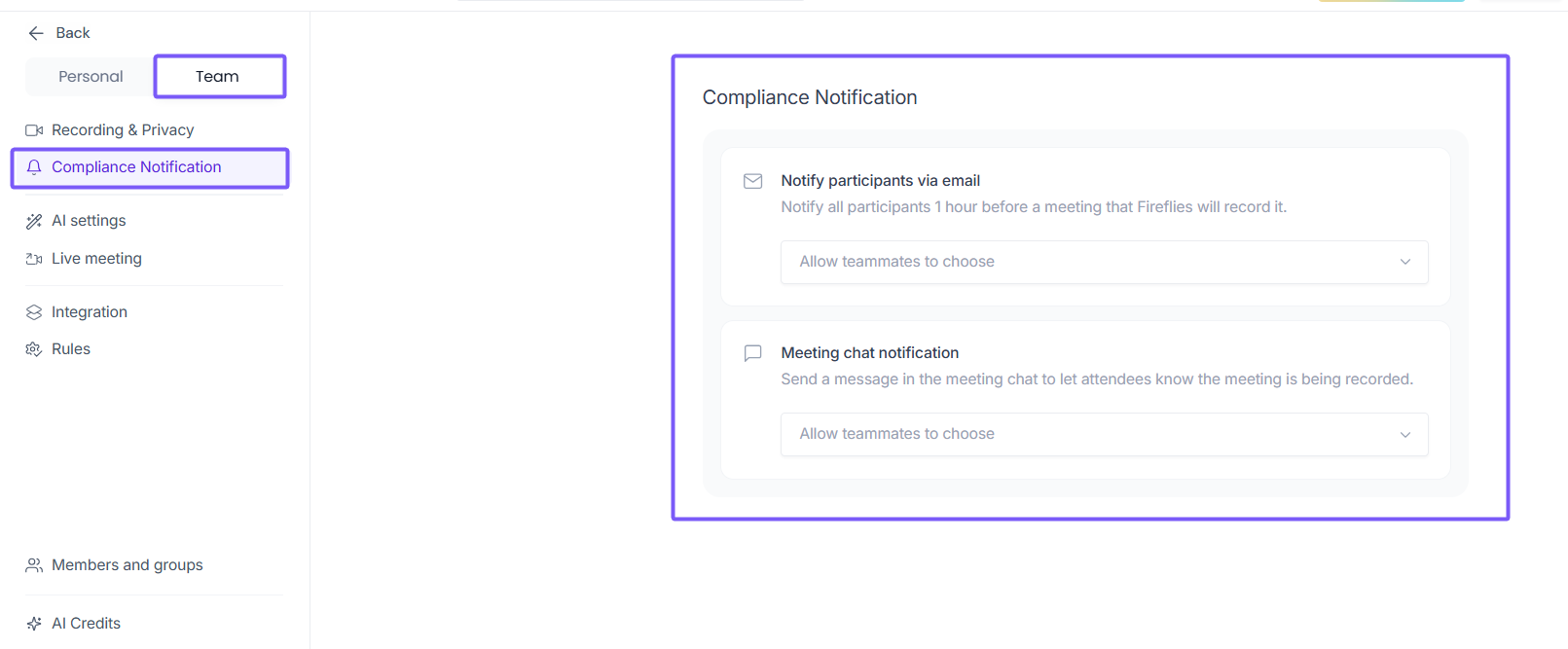
🔔 Compliance Notification
Setting | What it does |
Notify participants via email | Notifies all participants 1 hour before a meeting that Fireflies will record it. Admins can allow teammates to choose or enforce this setting. |
Meeting chat notification | Sends a message in the meeting chat to let attendees know the meeting is being recorded. |
🤖 AI Settings
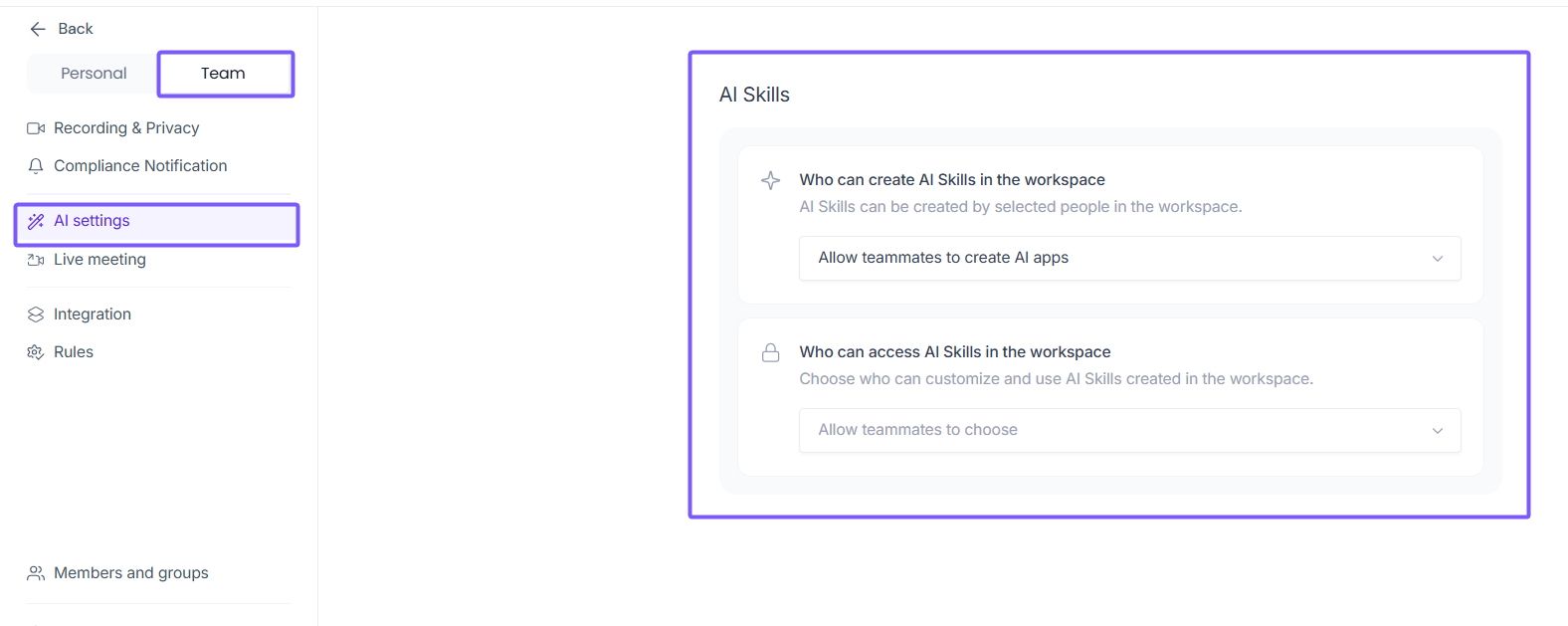
Setting | What it does |
Who can create AI Skills in the workspace | Control which workspace members can build AI Skills. Default is Allow teammates to create AI apps. |
Who can access AI Skills in the workspace | Control who can customize and use AI Skills created in the workspace. |
📌 Learn more about AI Skills: Create automated workflows from your meetings
📡 Live Meeting
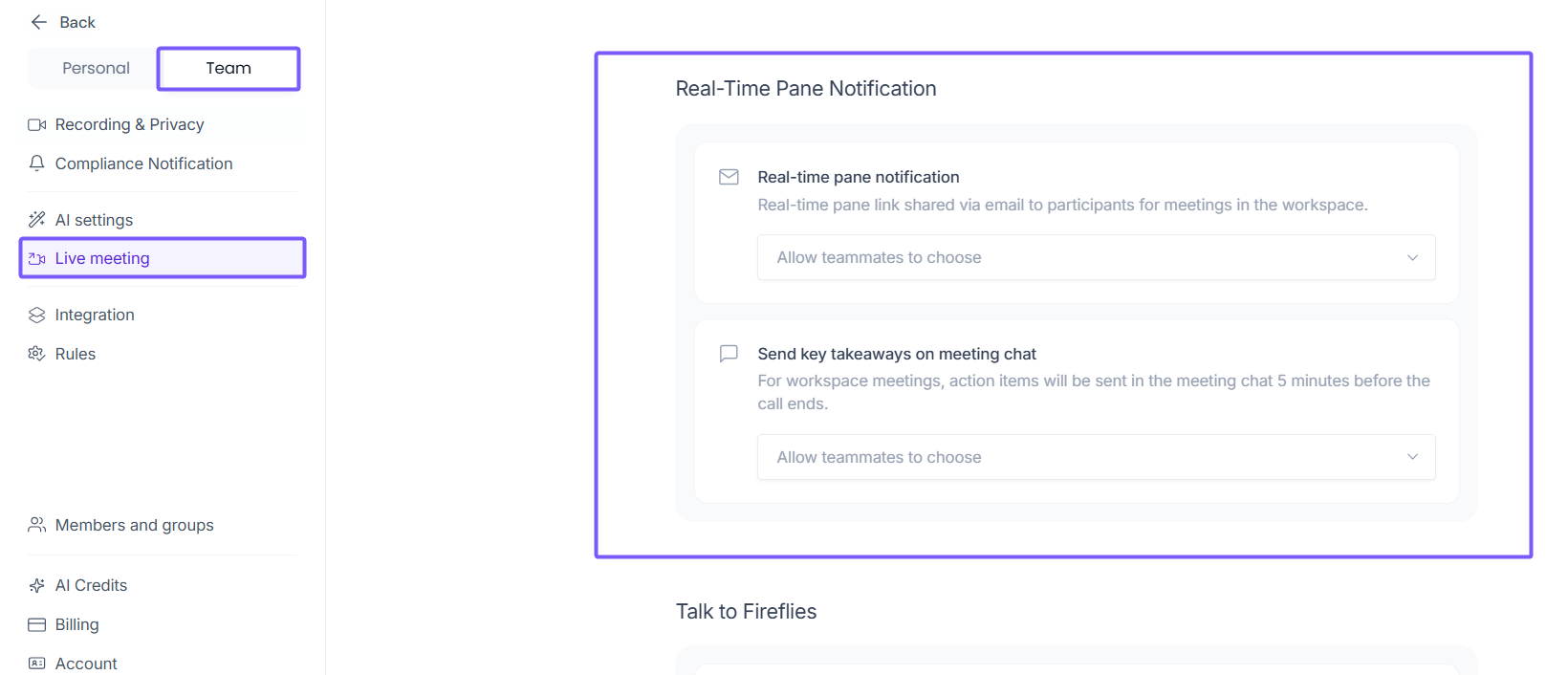
Real-Time Pane Notification
Setting | What it does |
Real-time pane notification | Real-time pane link shared via email to participants for meetings in the workspace. |
Send key takeaways on meeting chat | Action items sent in the meeting chat 5 minutes before the call ends for workspace meetings. |
Talk to Fireflies
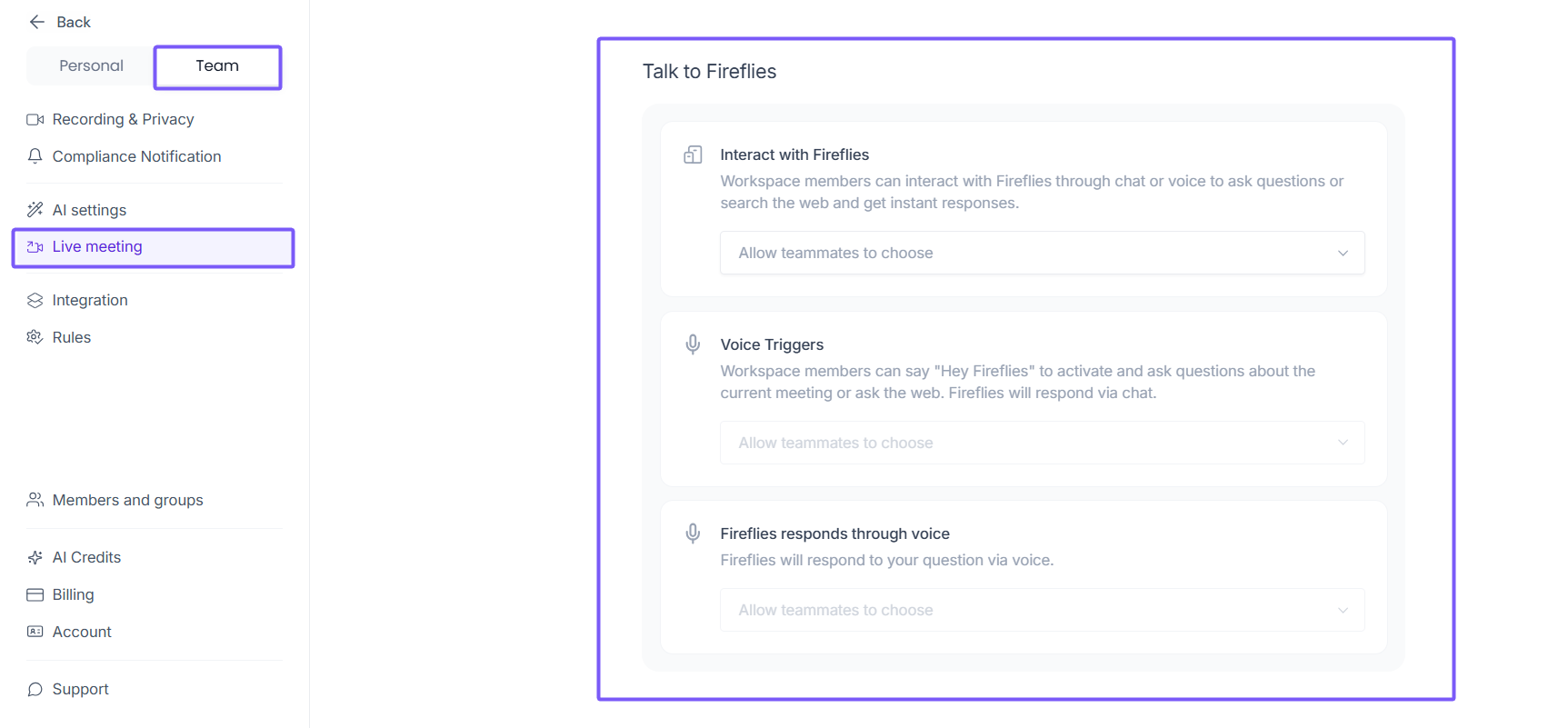
Setting | What it does |
Interact with Fireflies | Workspace members can interact with Fireflies through chat or voice to ask questions or search the web. |
Voice Triggers | Workspace members can say "Hey Fireflies" to activate and ask questions about the current meeting. |
Fireflies responds through voice | Fireflies will respond to questions via voice instead of text. |
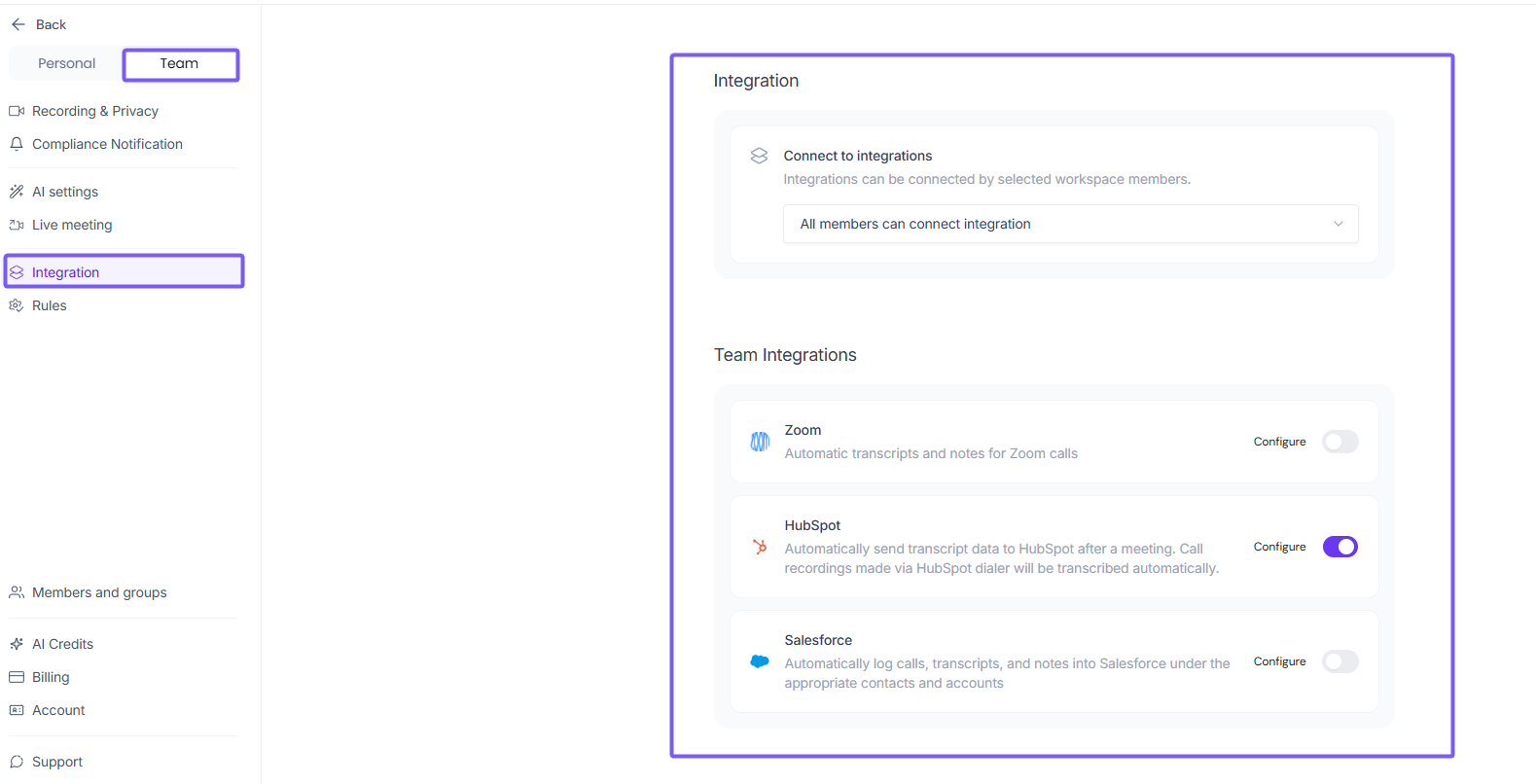
🔗 Integration
Setting | What it does |
Connect to integrations | Control who in the workspace can connect integrations — all members or admins only. |
Zoom | Automatic transcripts and notes for Zoom calls across the workspace. |
HubSpot | Automatically sends transcript data to HubSpot after a meeting. Call recordings via HubSpot dialer are transcribed automatically. |
Salesforce | Automatically logs calls, transcripts, and notes into Salesforce under the appropriate contacts and accounts. |
🧩Rules
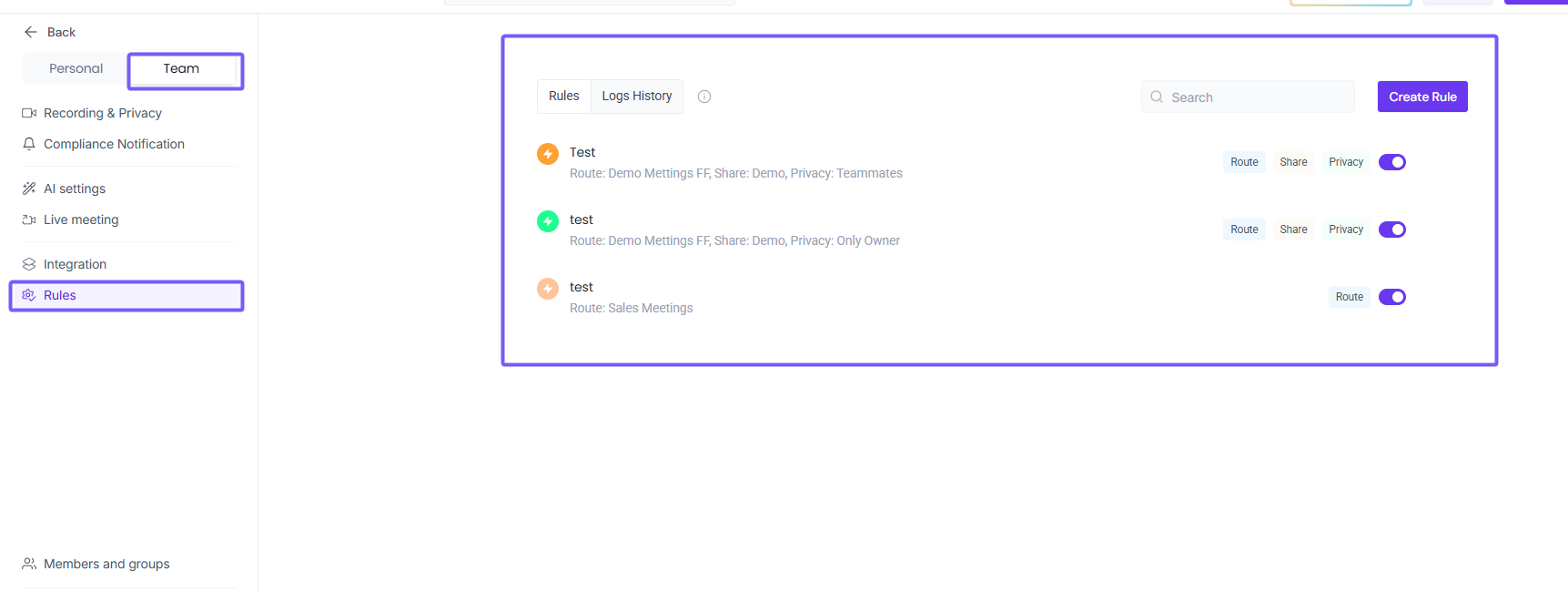
Create and manage routing rules that automatically apply settings to meetings based on conditions you define — such as routing specific meeting types to different teams, controlling sharing, or setting privacy levels. You can also view a full log history of how rules have been applied.
📌 Learn more: Learn about the Rules Engine feature
🏢 Workspace or Account Settings
Workspace Settings are shared across your entire organization. These are not inside the Personal or Team tab — you'll find them at the bottom of the left sidebar in Settings. Click any section to jump directly to it.
👥 Members & Groups
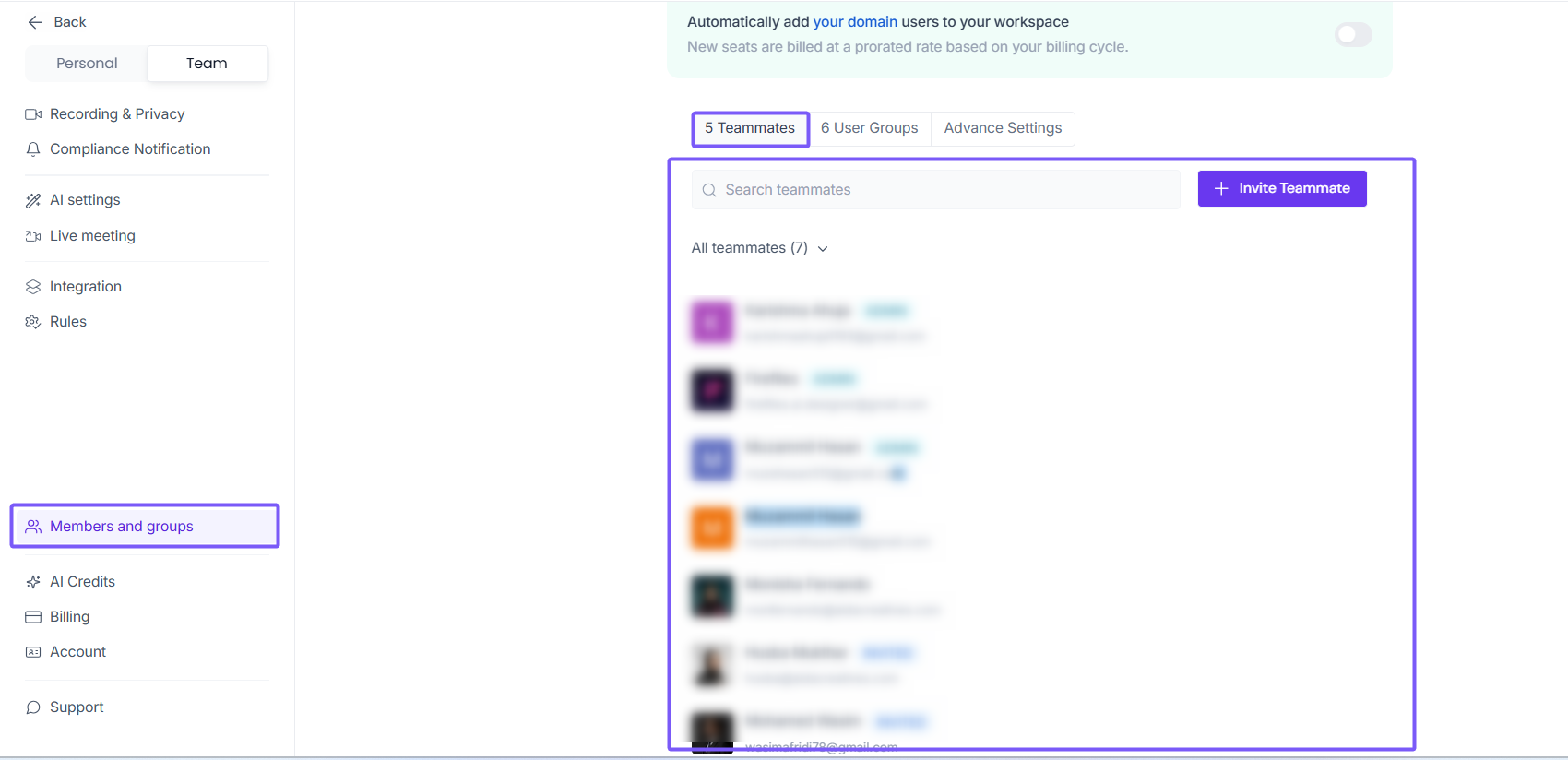
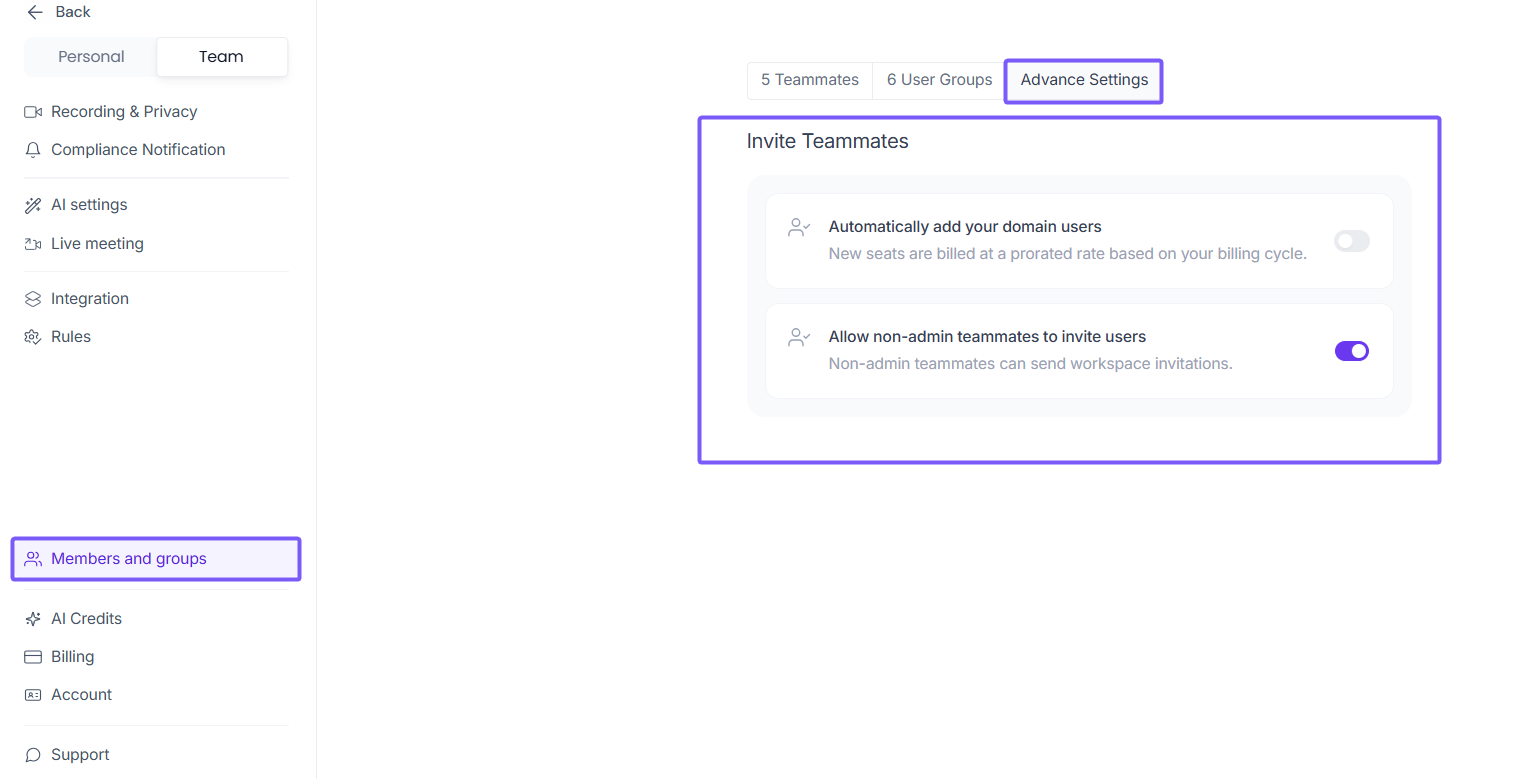
View and manage all members in your workspace, organize them into groups, and control invite permissions.
Shows all workspace members and their roles (Admin, Invited, etc.). You can search for members and invite new teammates directly from this tab.
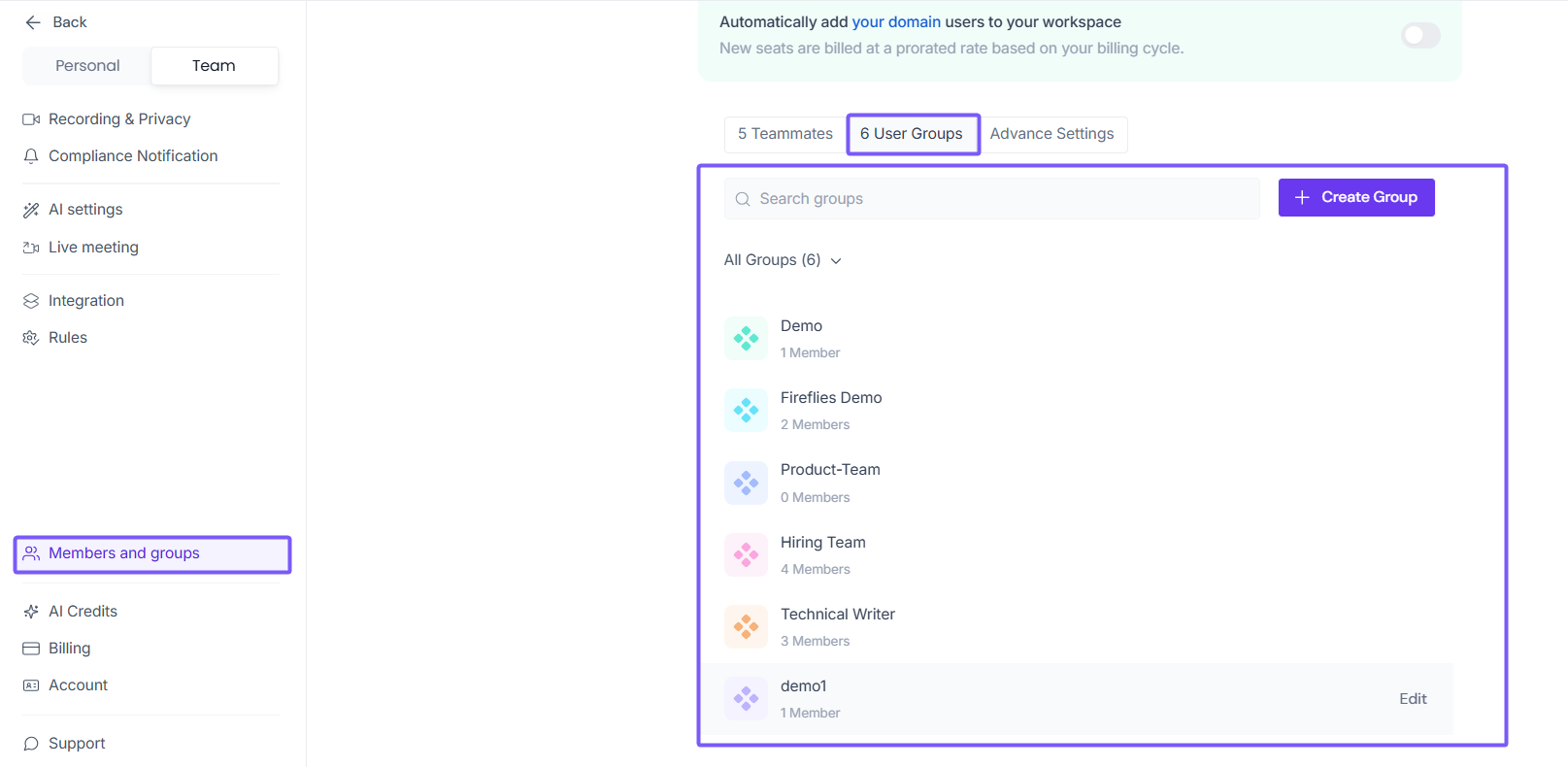
Create and manage groups (e.g., Demo, Product Team, Hiring Team) to organize members and control access to meetings and AI Skills.
Advance Settings
Setting | What it does |
Automatically adds users from your domain to the workspace. New seats are billed at a prorated rate. Off by default. | |
When enabled, non-admin members can also send workspace invitations. |
⚡AI Credits
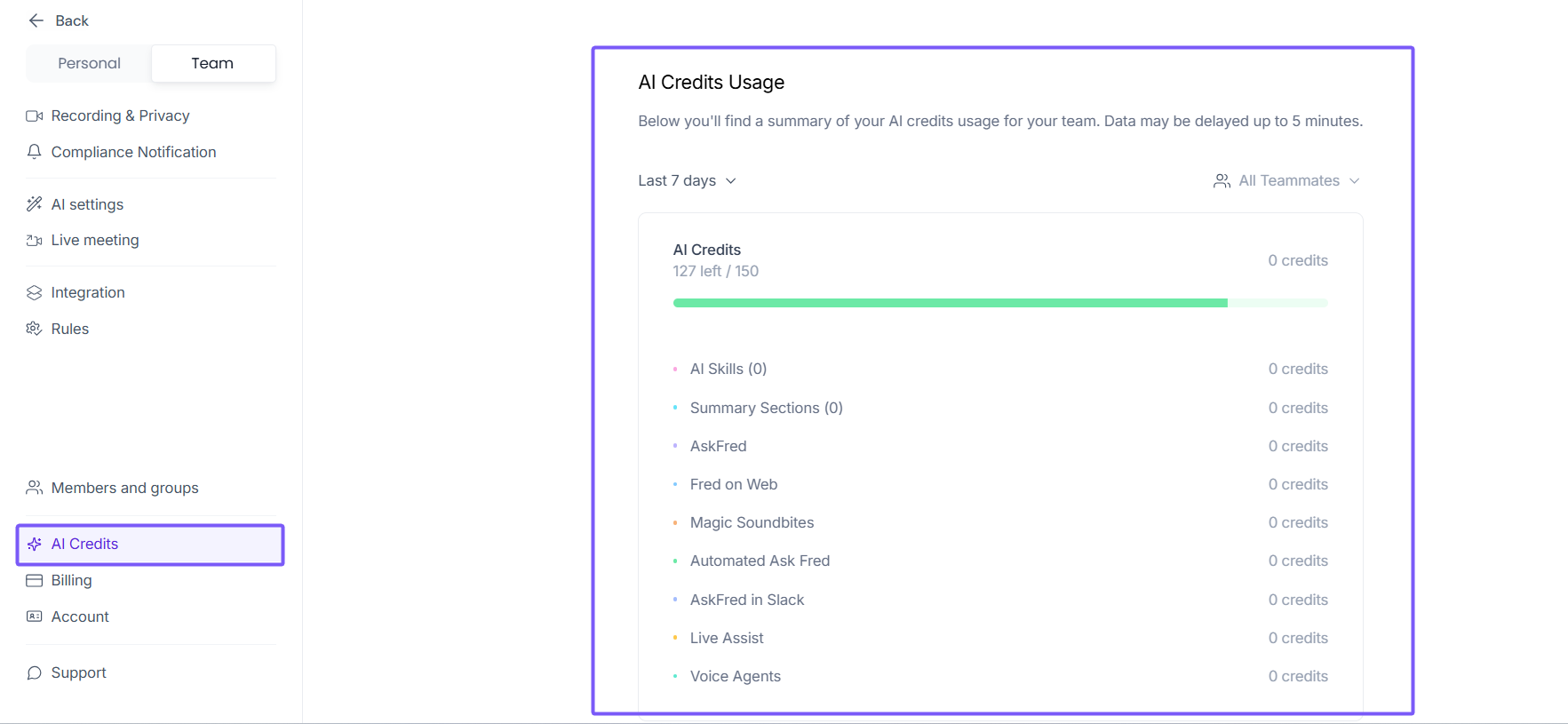
Track your workspace's AI credit usage across all features. Credits are consumed by AI Skills, meeting summaries, AskFred, Live Assist, Voice Agents, and more. You can filter usage by date and by teammate, and purchase additional credits from this page.
📌 Learn more: AI Credits Overview
Billing
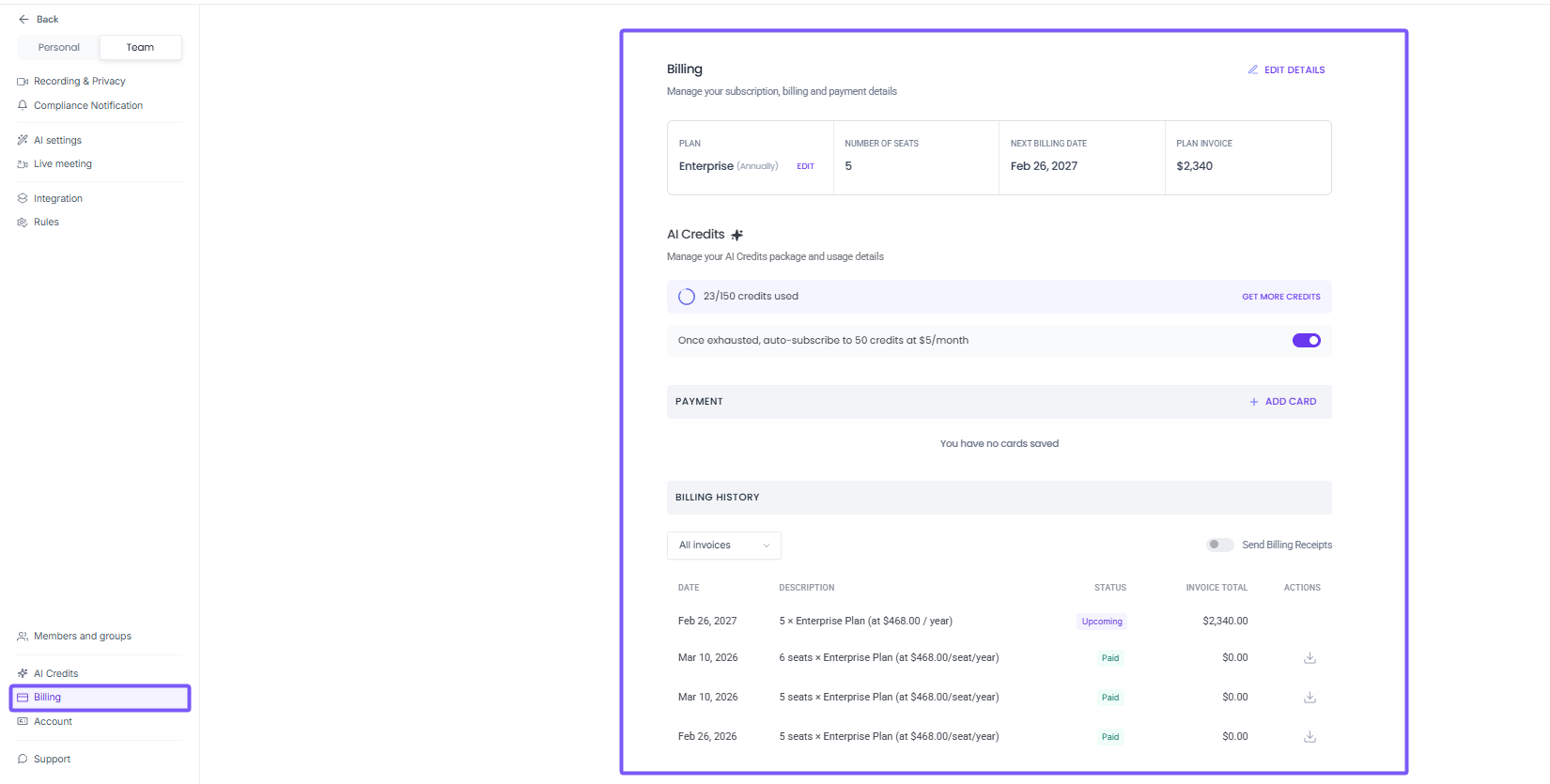
Manage your subscription, seats, payment method, and invoice history. You can view your current plan, next billing date, and download past invoices directly from this page.
→ Learn more: Billing & Subscription Guide
Account Settings
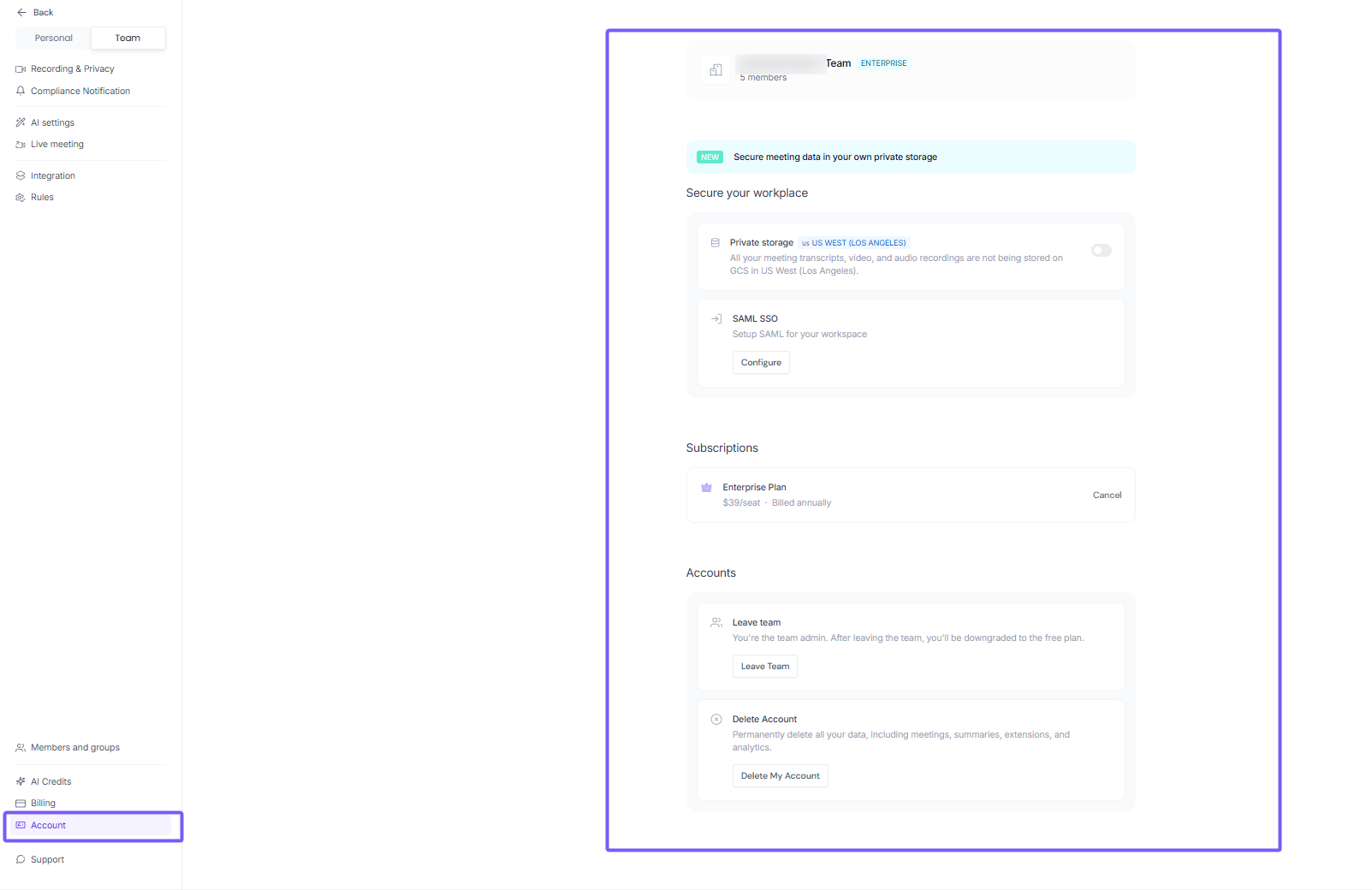
Manage workspace-level preferences, security settings, and account actions.
Setting | What it does |
Store your meeting transcripts, video, and audio recordings in your own private storage instead of Fireflies servers. | |
Set up SAML-based single sign-on for your workspace. Click Configure to get started. | |
View and manage your current plan. Cancel your subscription from here. | |
Leave team | Leave the workspace. If you're the admin, leaving will downgrade your account to the free plan. |
Permanently delete all your data including meetings, summaries, and extensions. |
🆘 Support
Access help and get assistance when needed.
When you open this section, a support chat widget appears in the bottom-right corner, where you can quickly ask questions or contact the support team.
💡Next steps
Use this guide to quickly understand your settings, find what you need, and explore linked guides for more details.