How to stop or revoke Fireflies access to your Google account and calendar
Last updated: April 13, 2026
Want to stop Fireflies from accessing your Google Calendar or disconnect it completely? Depending on your needs, you can either fully revoke access or limit how Fireflies interacts with your calendar.
This guide walks you through both options so you can choose the level of access that works best for you.
Option 1: Delete your account (Complete removal)
To completely remove Fireflies’ access to your Google account and calendar, you’ll need to delete your Fireflies account.
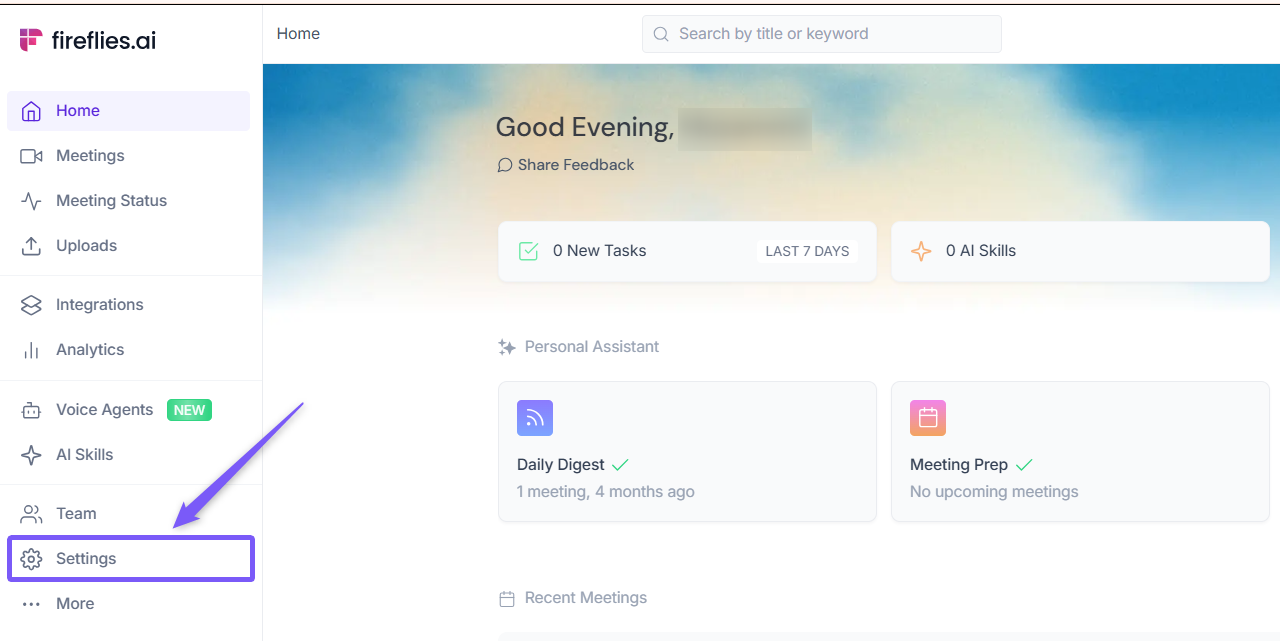
Open your Fireflies web app and click on Settings in the main navigation menu.
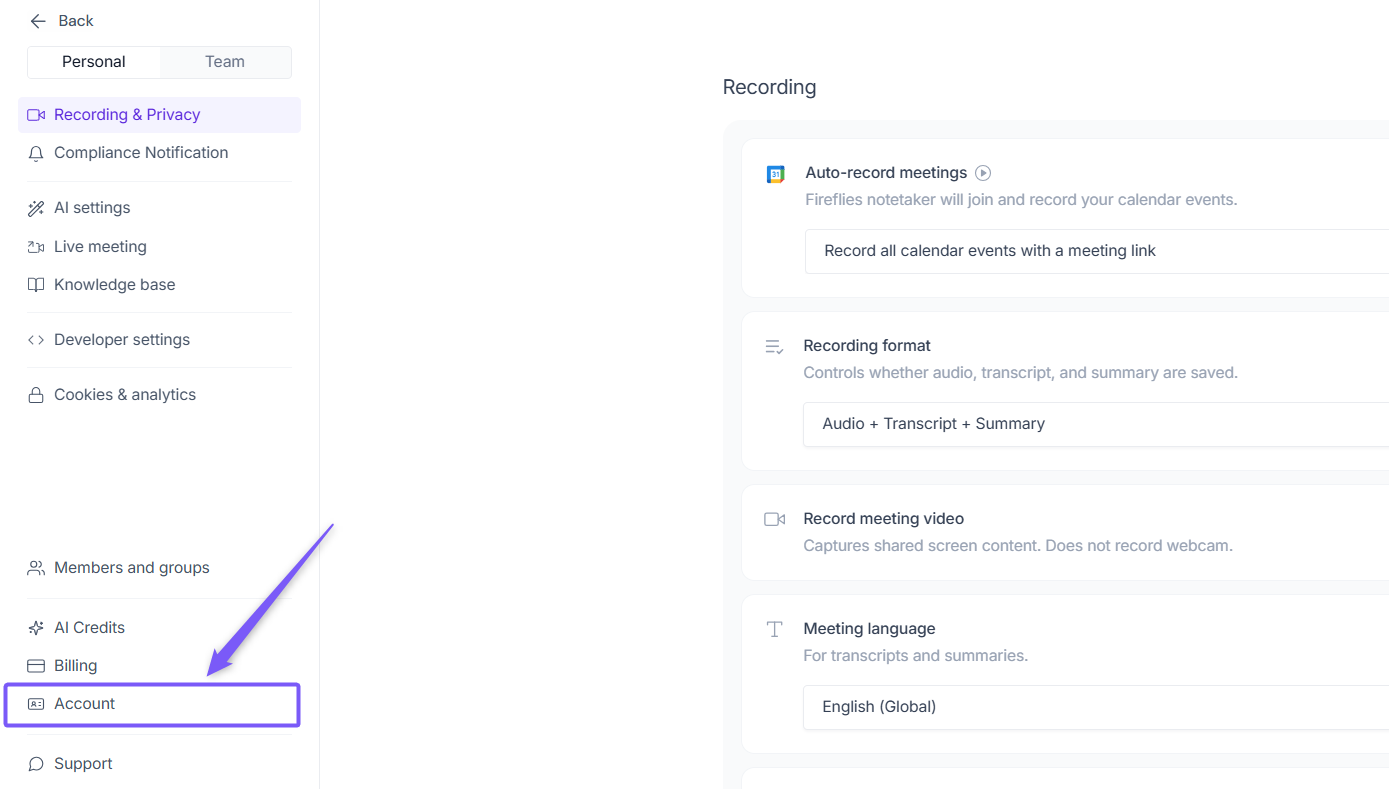
From the bottom-left menu, select Account.
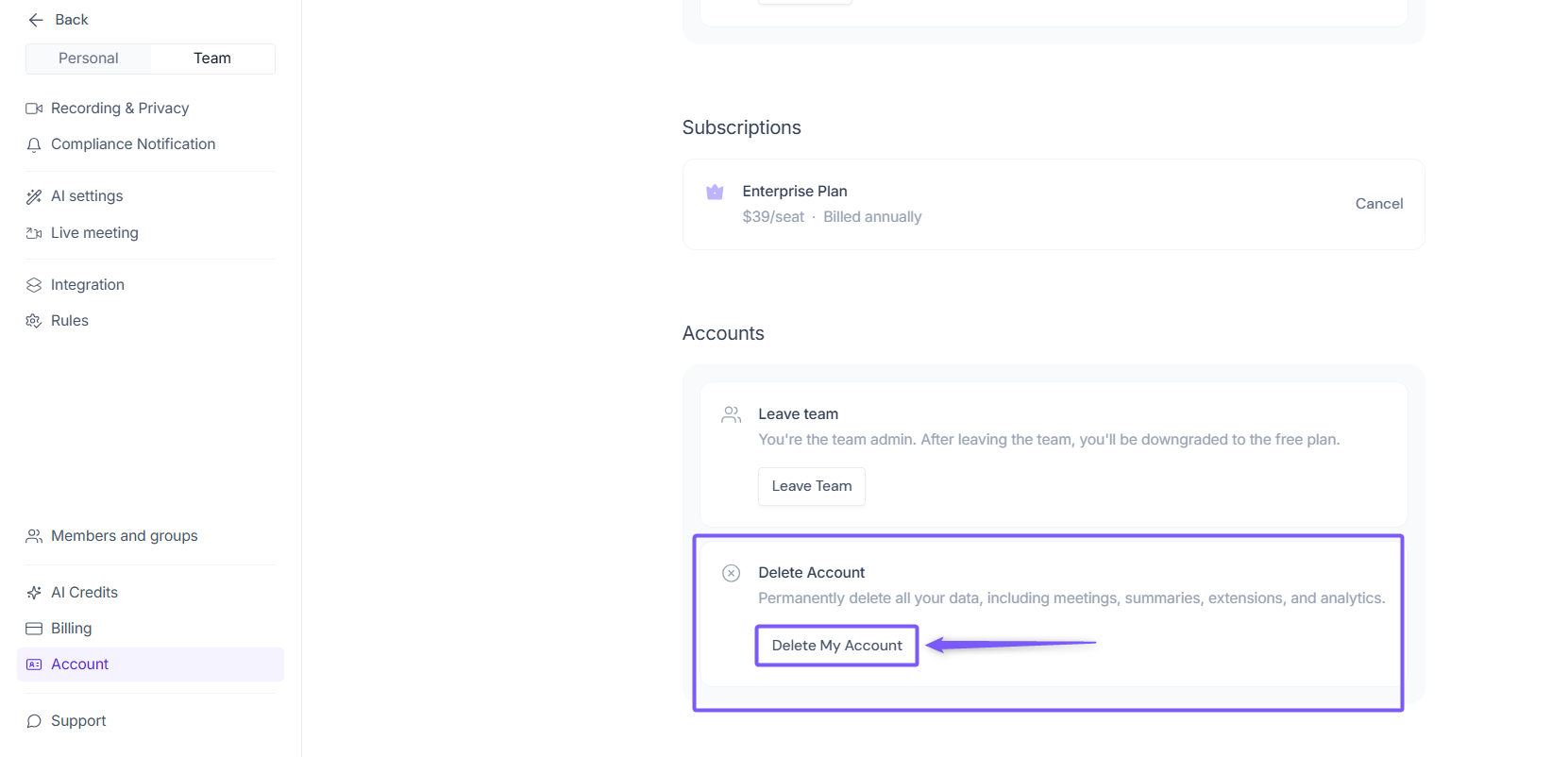
Scroll down to the Delete Account section and click on the Delete my account button
Follow the on-screen steps to complete the deletion.
👉 For detailed steps and what happens after deletion, check this out: How to delete your Fireflies account.
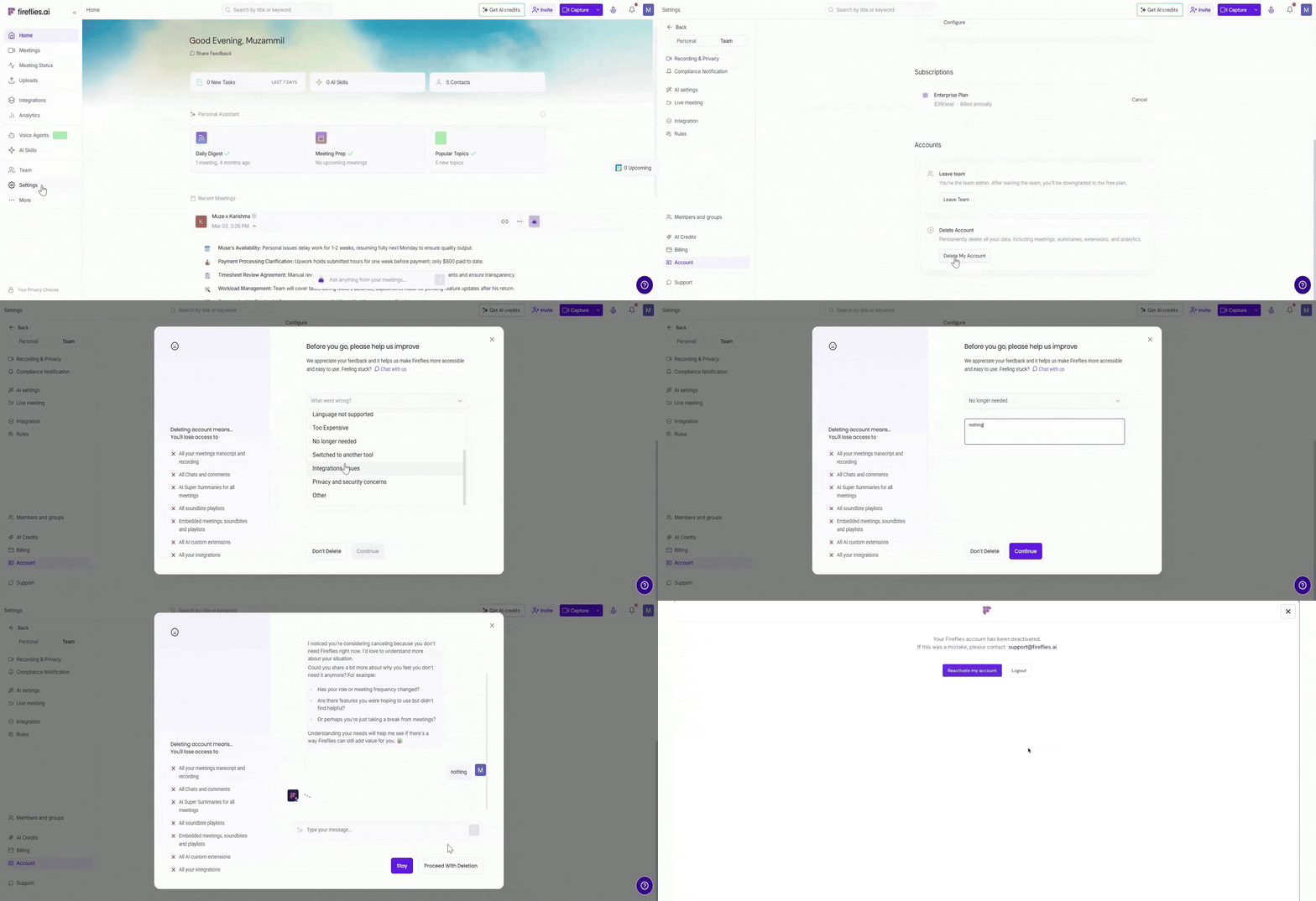
This will completely remove Fireflies’ access to your calendar and prevent it from joining any future meetings.
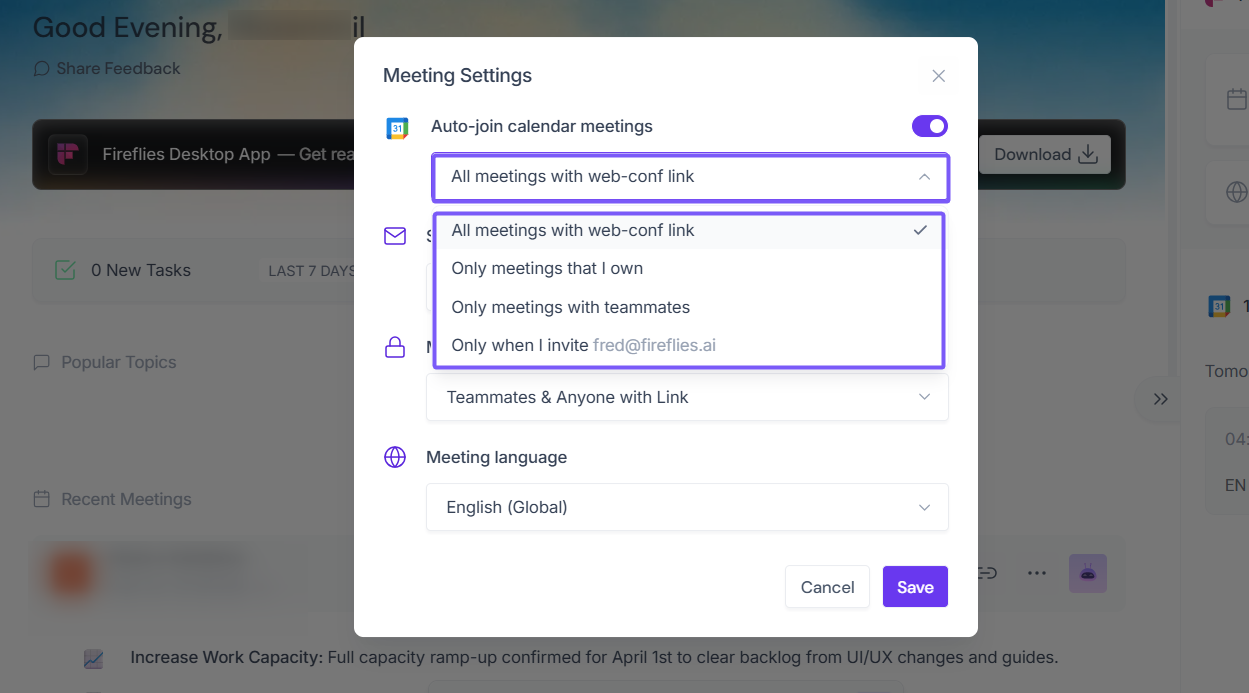
Option 2: Adjust Auto-record settings (Partial control)
If you want to keep your Fireflies account but control when it accesses your calendar, you can update your Auto-record meetings settings.
👉 For detailed steps, see: How to set Fireflies to join only meetings you want
This allows you to limit calendar access while continuing to use Fireflies.
To completely remove Fireflies' access to your Google account, deleting your account (Option 1) is the most effective solution.