Talk to Fireflies in Live Meetings
Last updated: November 23, 2026
Looking to dictate text anywhere with your voice? That's a different feature: Fireflies Talk, our desktop dictation feature. Learn more about Fireflies Talk
Use Talk to Fireflies (in partnership with Perplexity) to ask AskFred questions, capture action items, bookmark key moments, or look up information on the web during a live meeting. Type /ff followed by your request in the meeting chat. Fireflies replies in the chat.
🔧 Step 1: Enable Talk to Fireflies
Before using Talk to Fireflies, make sure it’s enabled in your account.
A. From Your Personal Settings
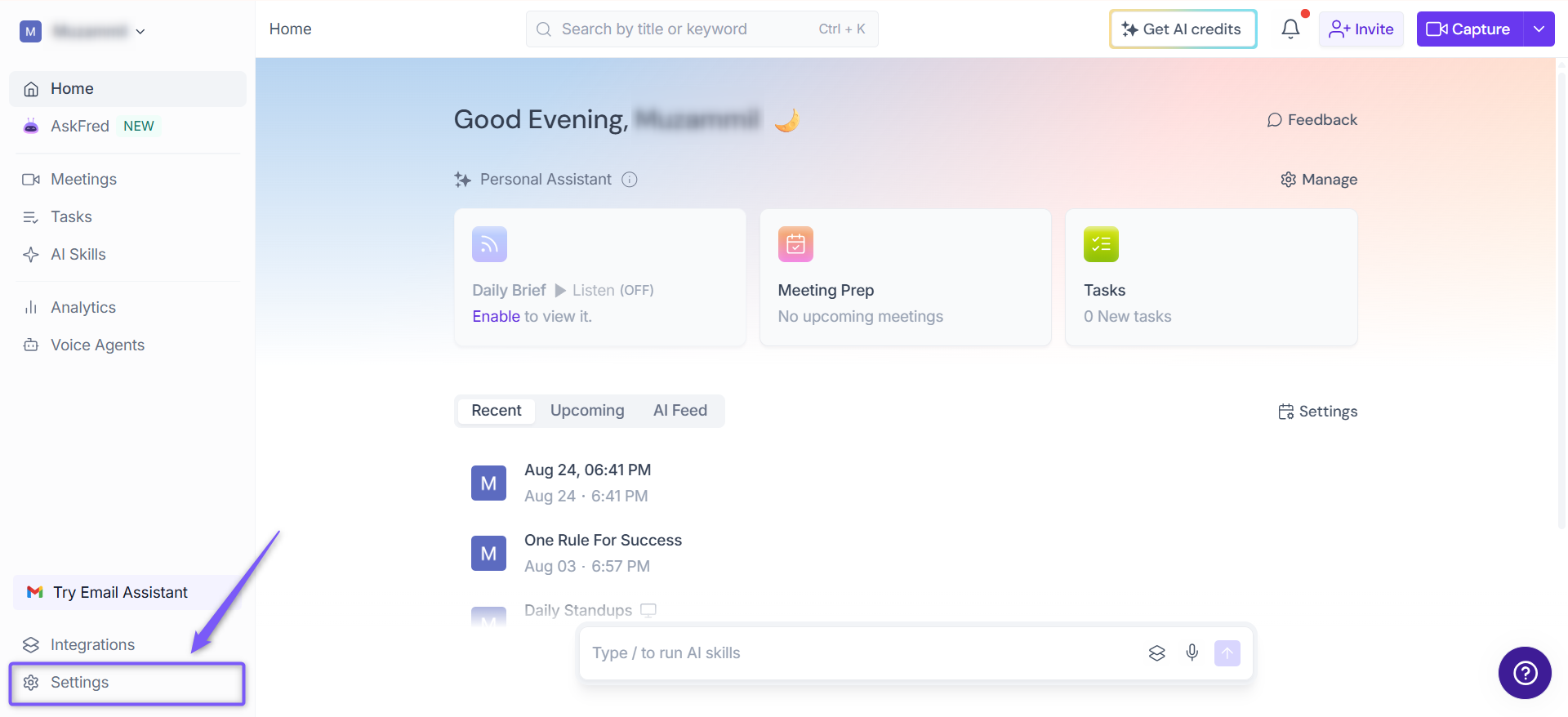
1. Go to the Fireflies web app and click the Settings from left side menu.
2. In the Personal tab, select Live Assist.
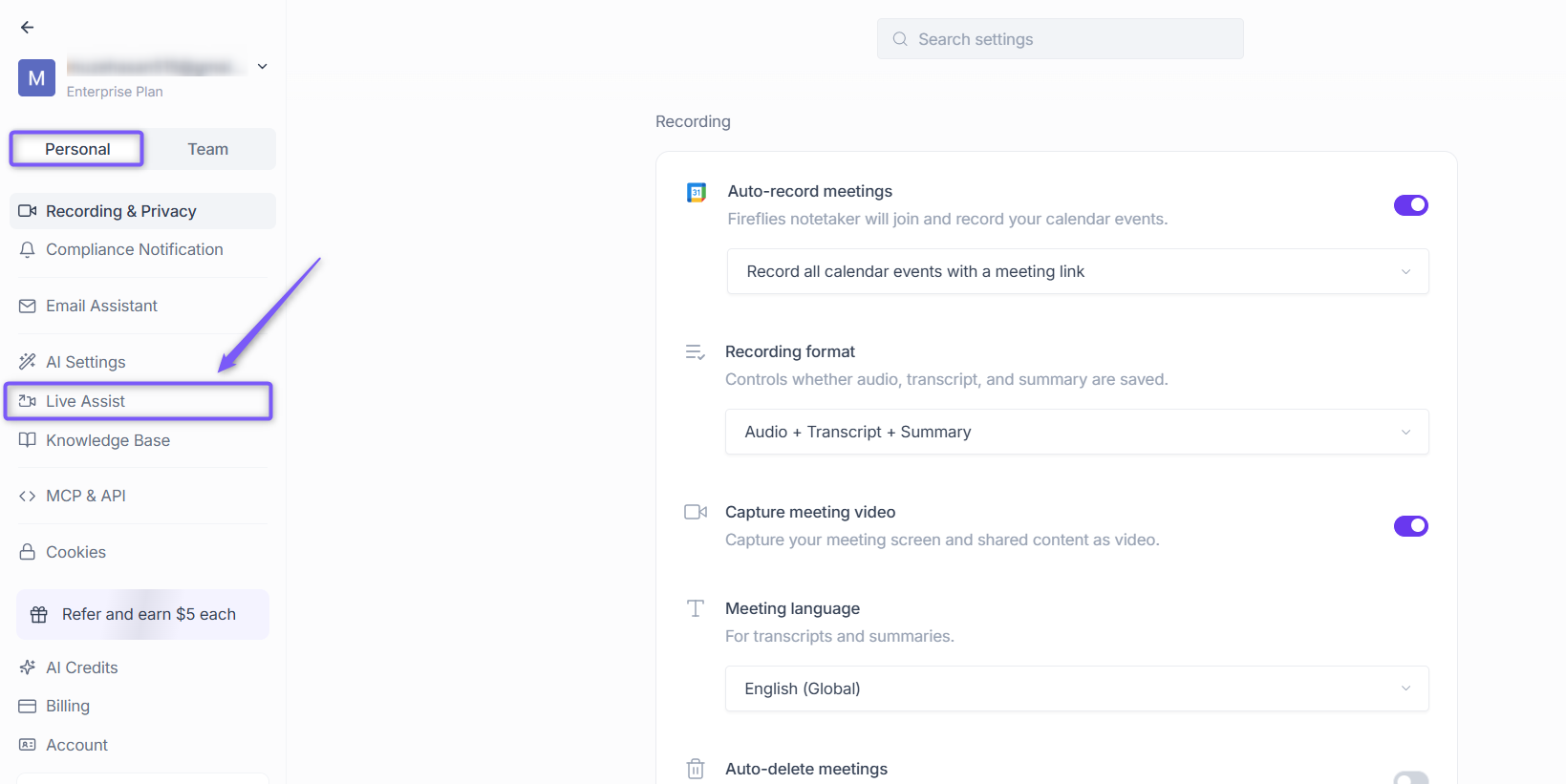
3. Scroll to Talk to Fireflies.
4. Toggle ON Chat with Fireflies (default: ON)
🔔 When enabled, Fireflies sends a message in your meeting chat to let everyone know it’s active.
ℹ Note: This feature is available on Google Meet, Microsoft Teams, and Zoom.
B. For Admins
1. Navigate to Settings and switch to the Team tab.
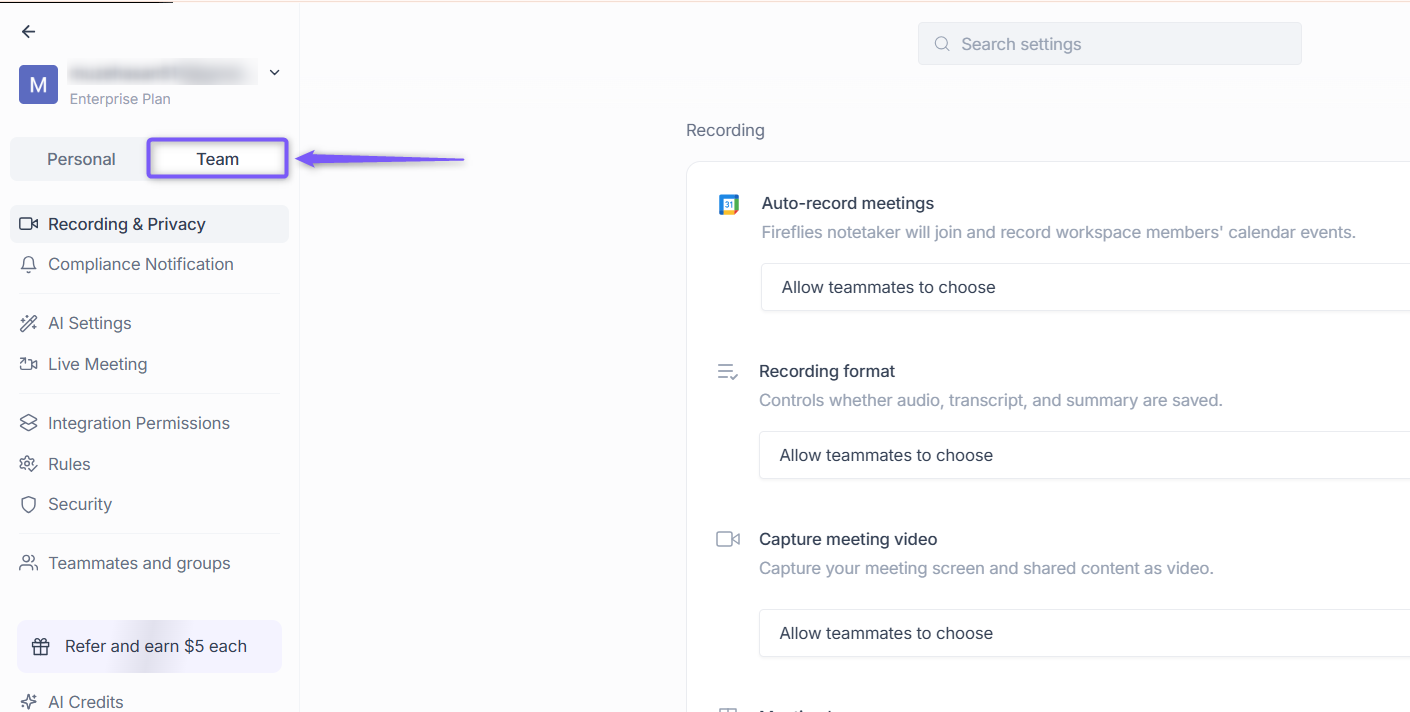
2. Navigate to Live meeting (Team tab) from the left panel.
3. Under the Live Meeting section, scroll down to locate Talk to Fireflies.
Use Interact with Fireflies to control who can use /ff in meeting chat.
Choose how the setting applies across your workspace.
Allow teammates to choose – lets each user decide their own preference
Enable for all teammates – turns the setting on for everyone in the workspace
Disable for all teammates – turns the setting off for everyone in the workspace
🎙 Step 2: How to Use Talk to Fireflies in a Meeting
Open your meeting chat
Type:
/fffollowed by your requestExample:
/ff What have we discussed so far today?
Fireflies replies in the meeting chat. Web searches may take a few seconds longer than questions about the meeting.
💬 What You Can Ask Fireflies To Do (With Real Examples)
1. ⏪ Catch Up Without Asking People to Repeat
Type: /ff Catch me up on the meeting so far
2. 📌 Bookmark Important Decisions and Capture Action Items
Type: /ff Add action item for Jane to follow up with client after call and bookmark this
3. 🧠 Ask Questions About the Ongoing Meeting
Type: /ff What did Jane say about the email performance timings?
4. 🌐 Ask Real-Time Questions From the Web
Type: /ff Compare Tesla vs BYD EV sales globally in Q1 2025.
5. 🔢 Run Quick Calculations or Projections
Type: /ff What’s the ROI on $1,000 monthly over 4 months at 18% return?
6. 📄 Wrap Up With a Meeting Summary
Type: /ff What did we cover today and what are the next steps?
✅ Where & Who Can Use It?
Platforms: Google Meet, Zoom, Microsoft Teams
Languages: Fireflies supports 60+ languages. Set your meeting language in Language Settings.
Plans: Available to all users, including Free
Access: Any participant on the call can use Talk to Fireflies
Orb animations: Available on Google Meet, Microsoft Teams, and Zoom across all plans, including Free.
💡 Tips to Make the Most of It
Keep requests short and specific.
Give Fireflies a few seconds to reply in the meeting chat.