How to Create a Link to a Specific Time in Your Meeting Transcript
Last updated: February 9, 2026
Need to point someone to a specific moment in your meeting?
You can create a direct link to that exact point in the transcript. When someone opens the link, the meeting starts from the right time, so they don’t have to scroll or search to find what you’re talking about.
Let's get started 🚀
Step 1: Log in to your Fireflies account and go to the Meetings page.
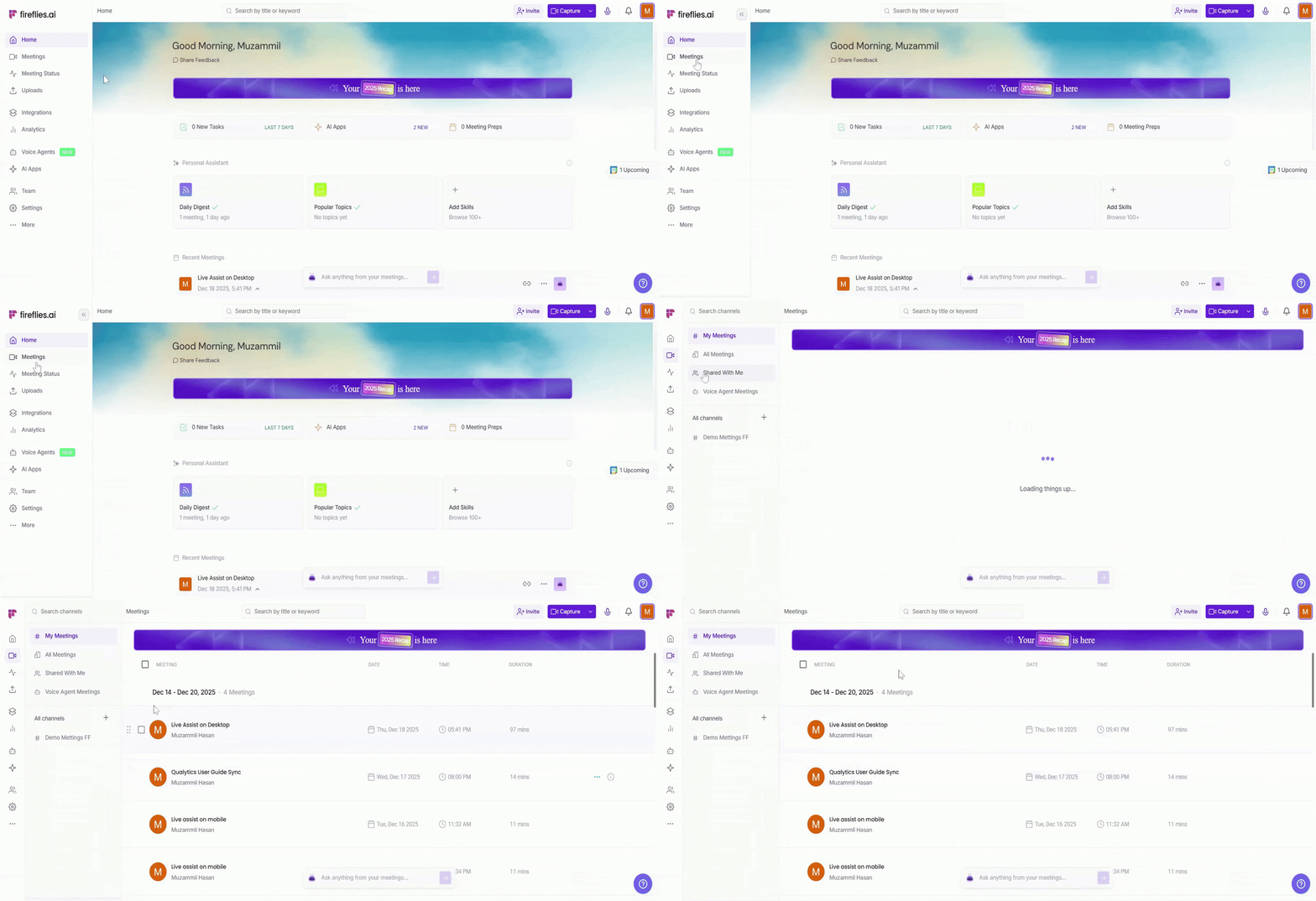
Step 2: Open the meeting you want to share.
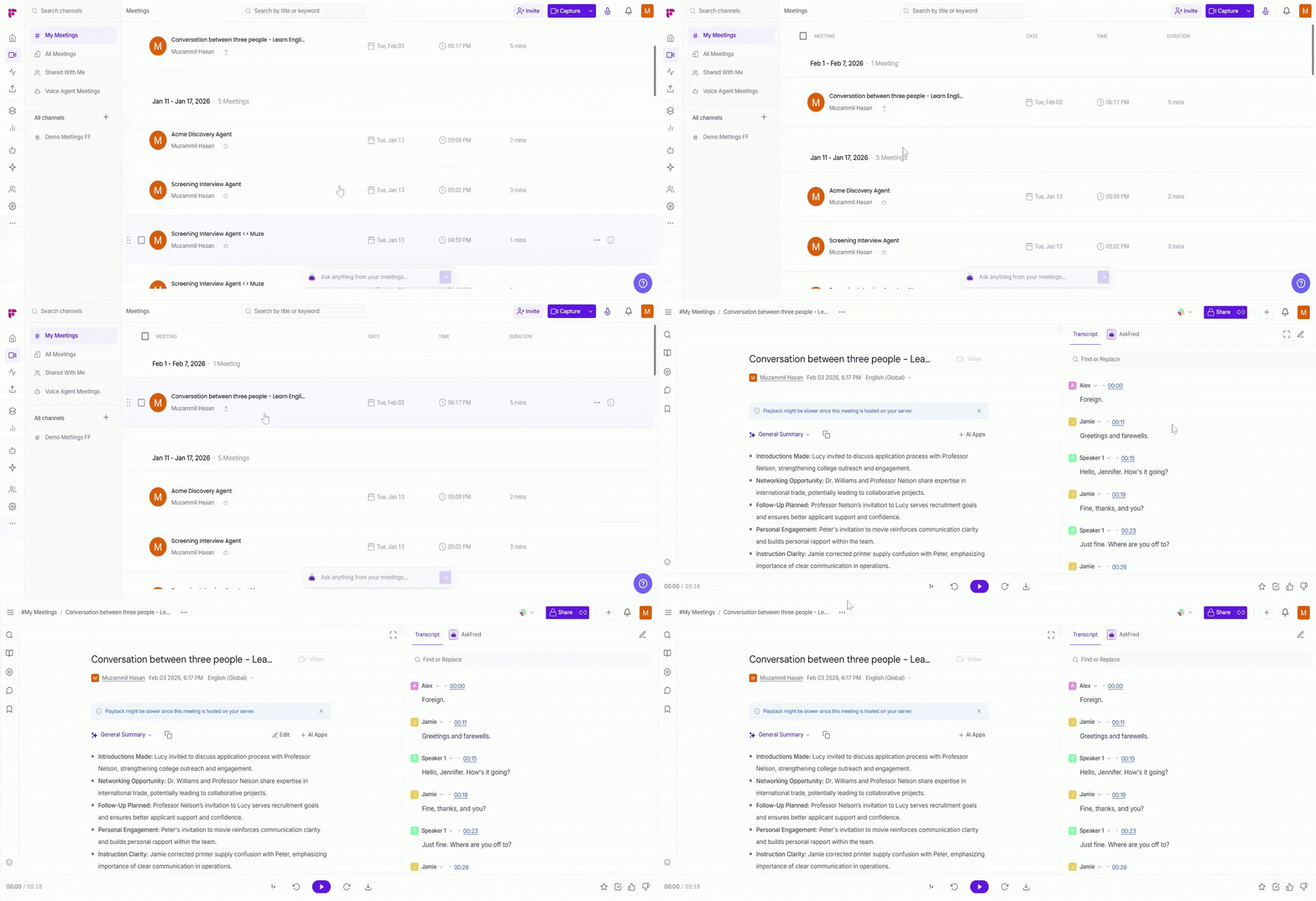
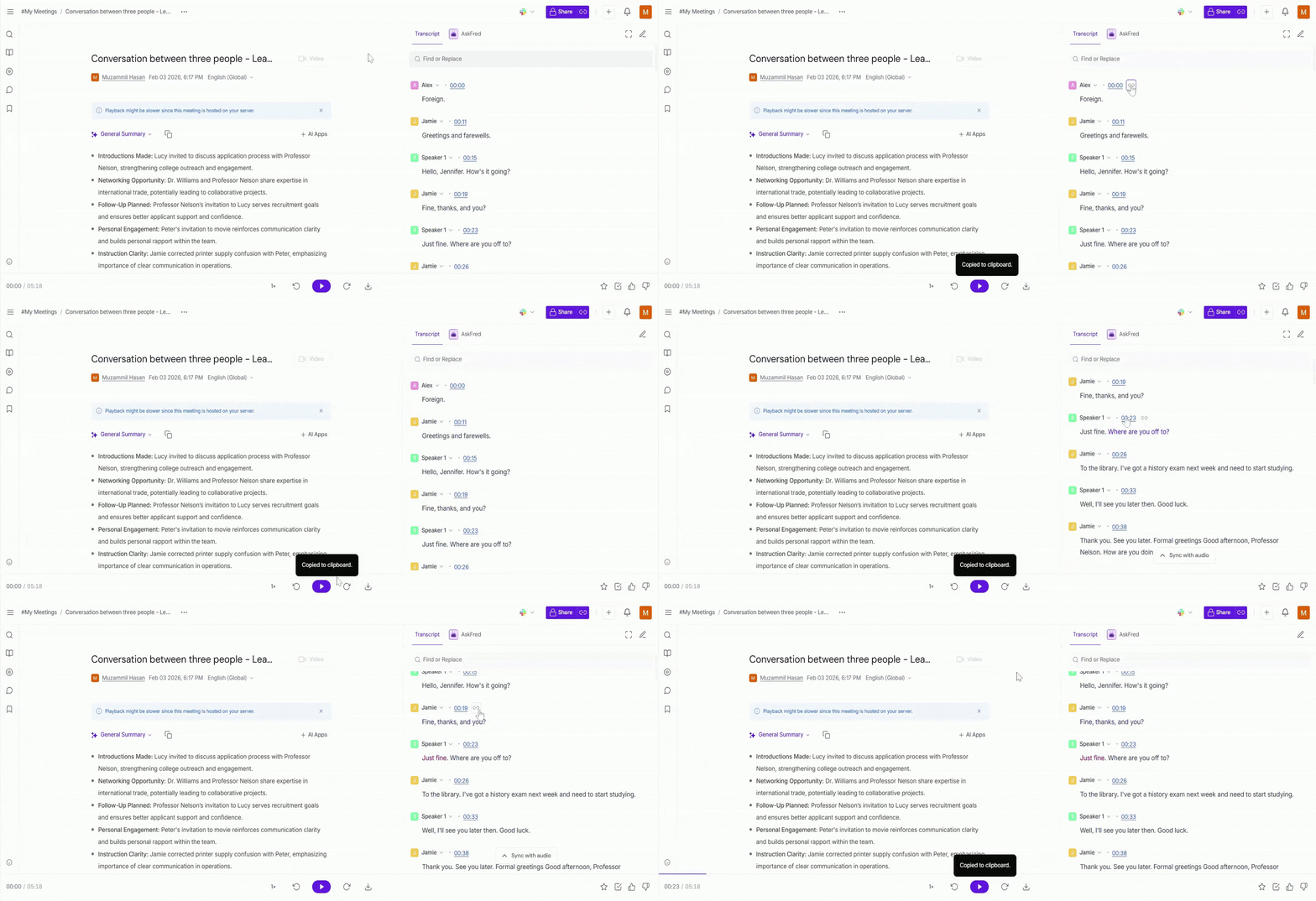
Step 3:. You have two ways to copy a link to a specific moment:
Method 1: Link from a timestamp
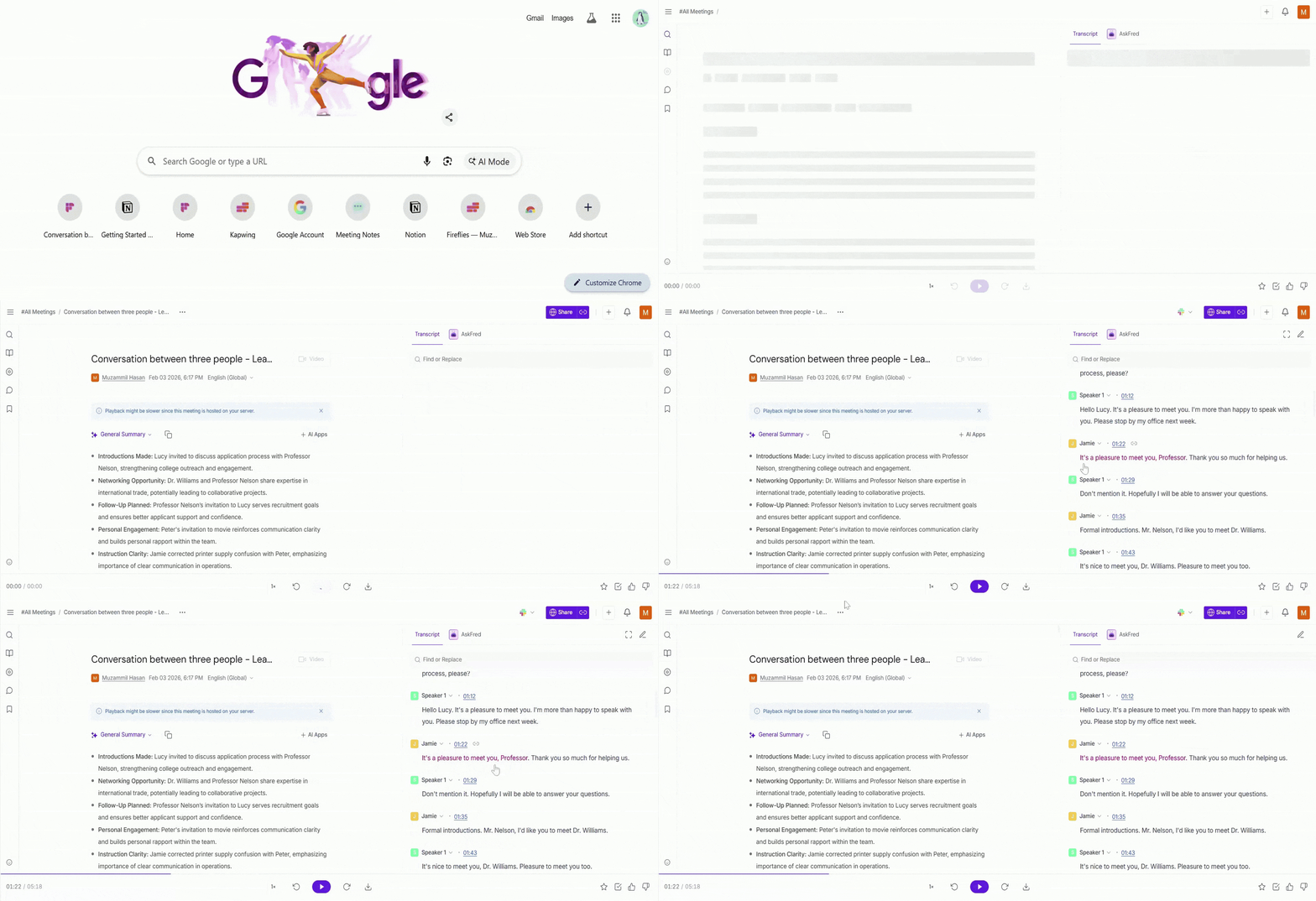
Hover over any transcript segment
Click the link icon that appears next to the timestamp
The link is automatically copied to your clipboard
Method 2: Link from selected text
Highlight the specific text you want to share
Click the link icon that appears
The link is automatically copied to your clipboard
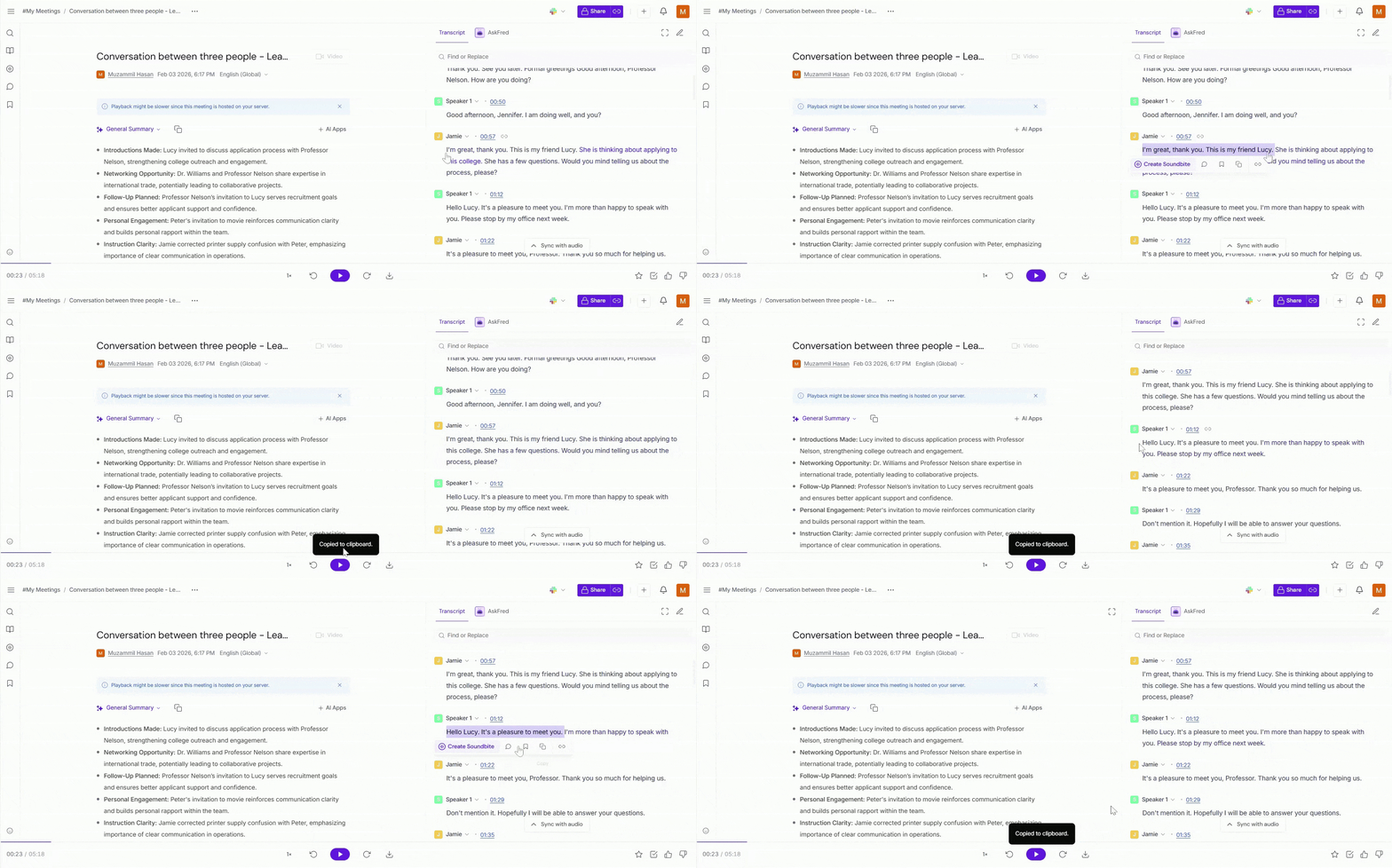
A message saying Copied to Clipboard will appear at the bottom of your screen. This means the link is ready to share.
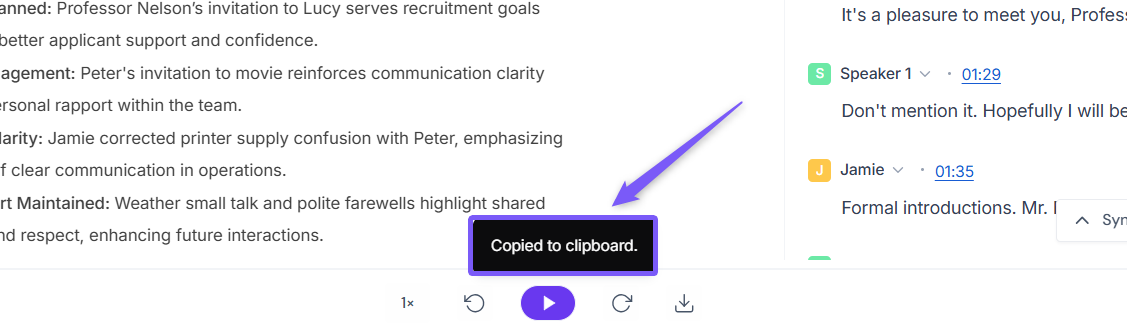
Step 4:. Once copied, share the link with your team or colleagues. The link opens the transcript from the selected timestamp.
📌 Important: Only people with access to the meeting can open the timestamped link. If someone can’t view it, update the meeting’s viewing permissions.
You can control who can see your meeting recordings by updating these settings. Learn how to set viewing permissions for your meetings →