How to share meeting transcripts and summaries privately via user emails
Last updated: February 16, 2026
This guide explains how to share meeting transcripts and summaries privately with specific people using their email addresses.
🚀 Sharing Meetings Privately
Log in to your Fireflies account and click on the Meetings tab from the left-hand menu to open your meeting notebook.
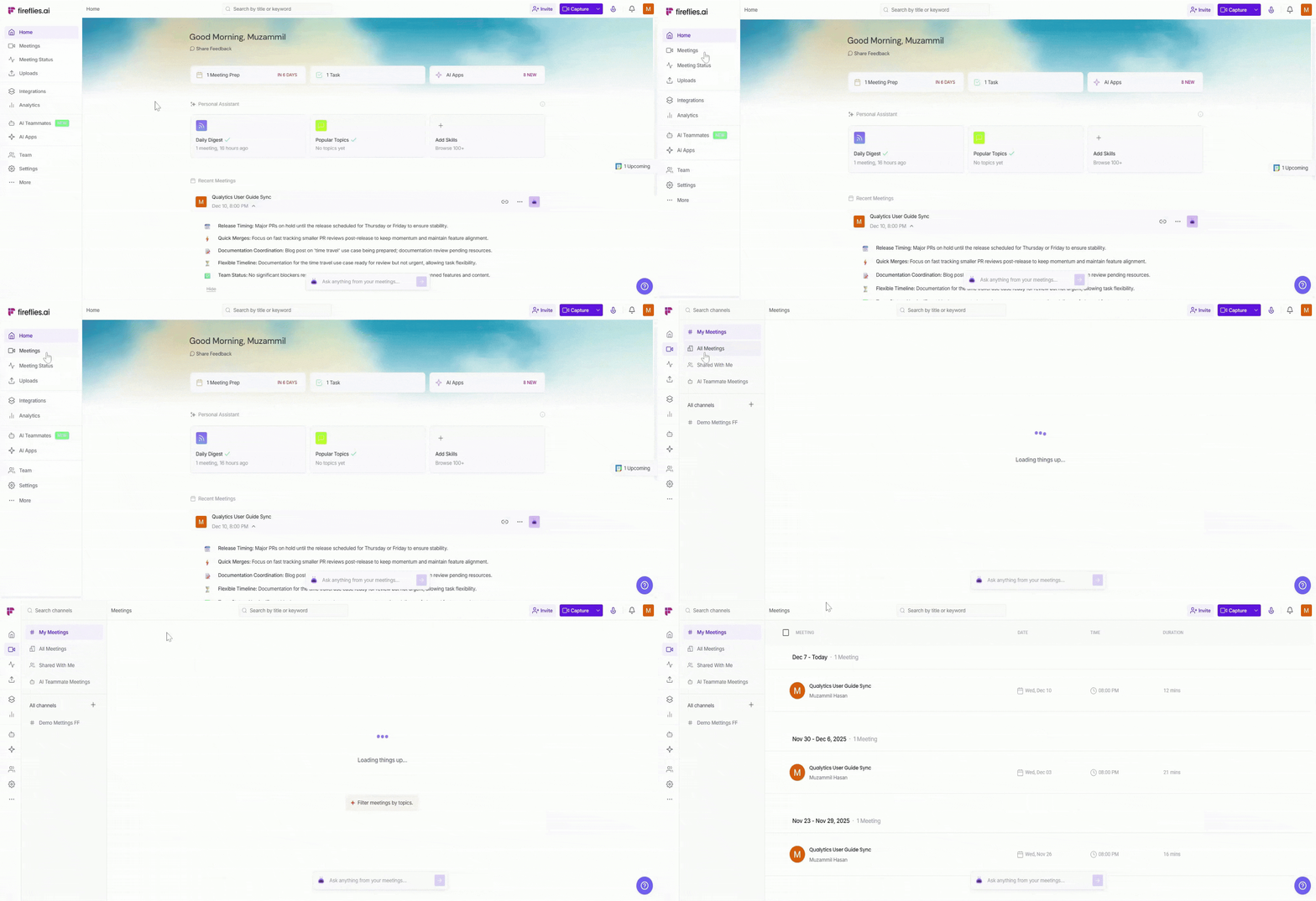
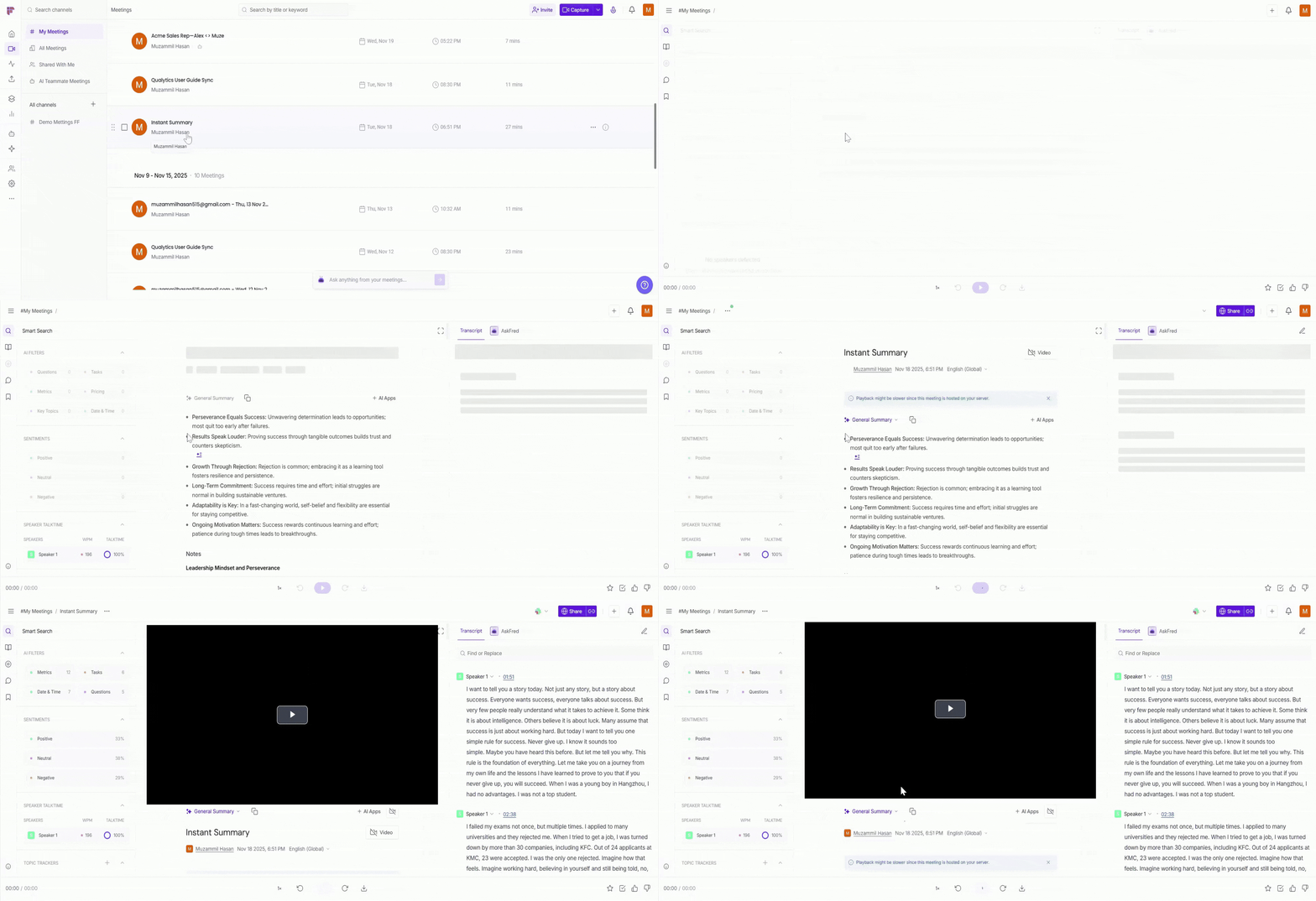
Open the meeting you want to share from your Meetings notebook.
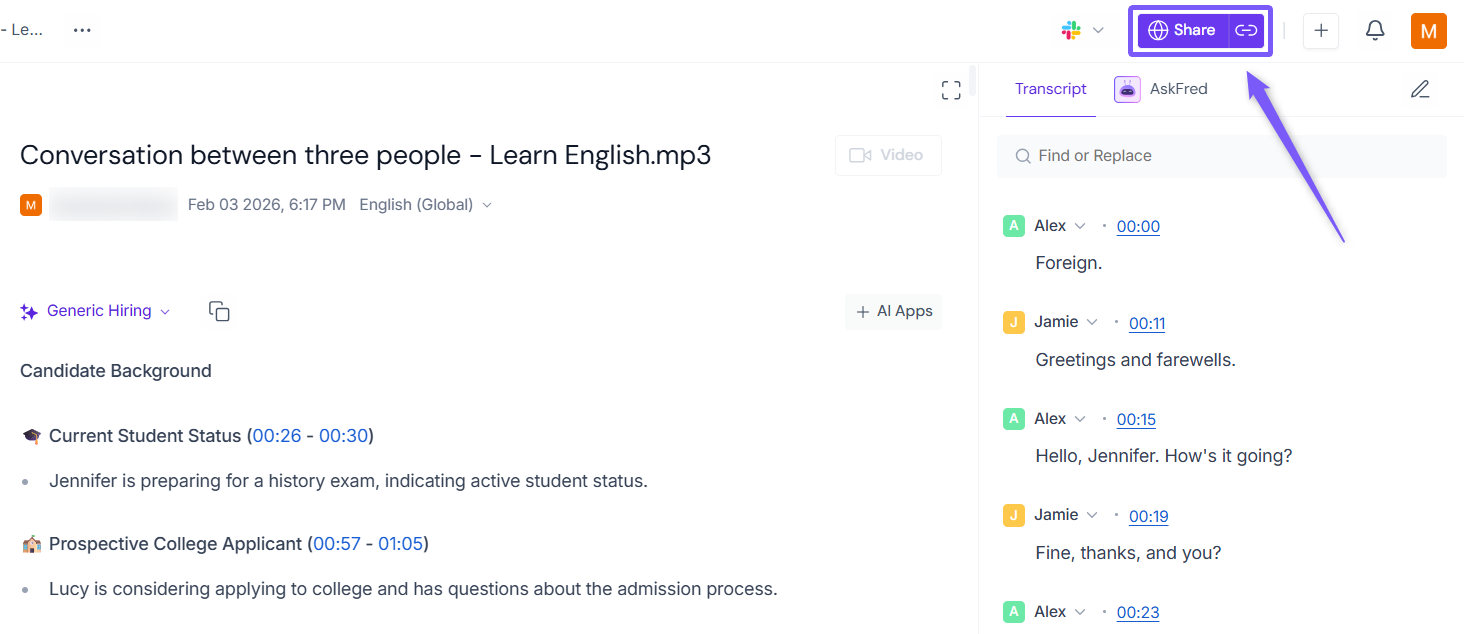
Click Share.
Click on the Privacy Setting dropdown and select Only Owner as the privacy setting value.
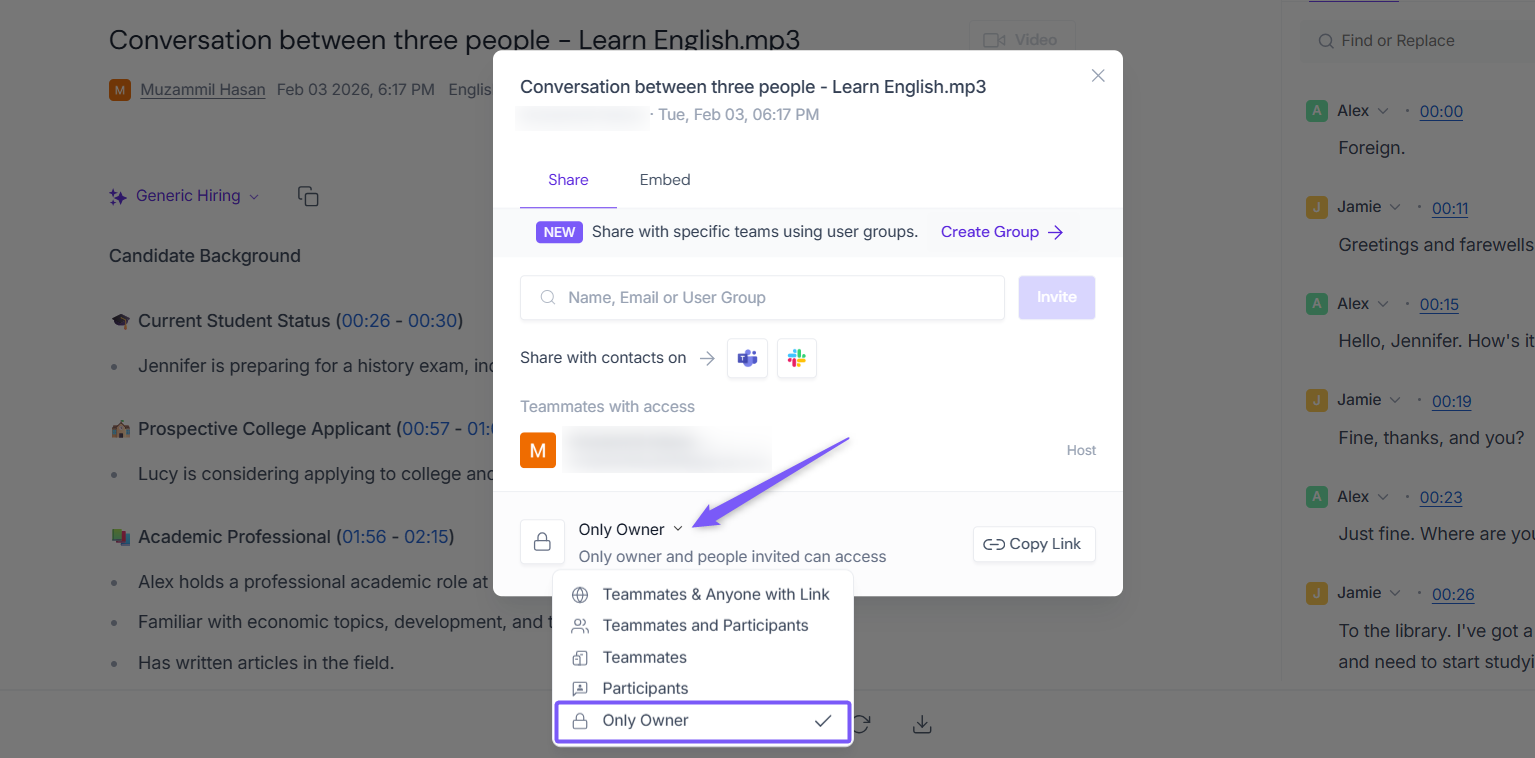
This makes the meeting private or accessible only to the owner.
By default, all meetings are set to "Teammates & Anyone with Link," which allows anyone with the link to view them.
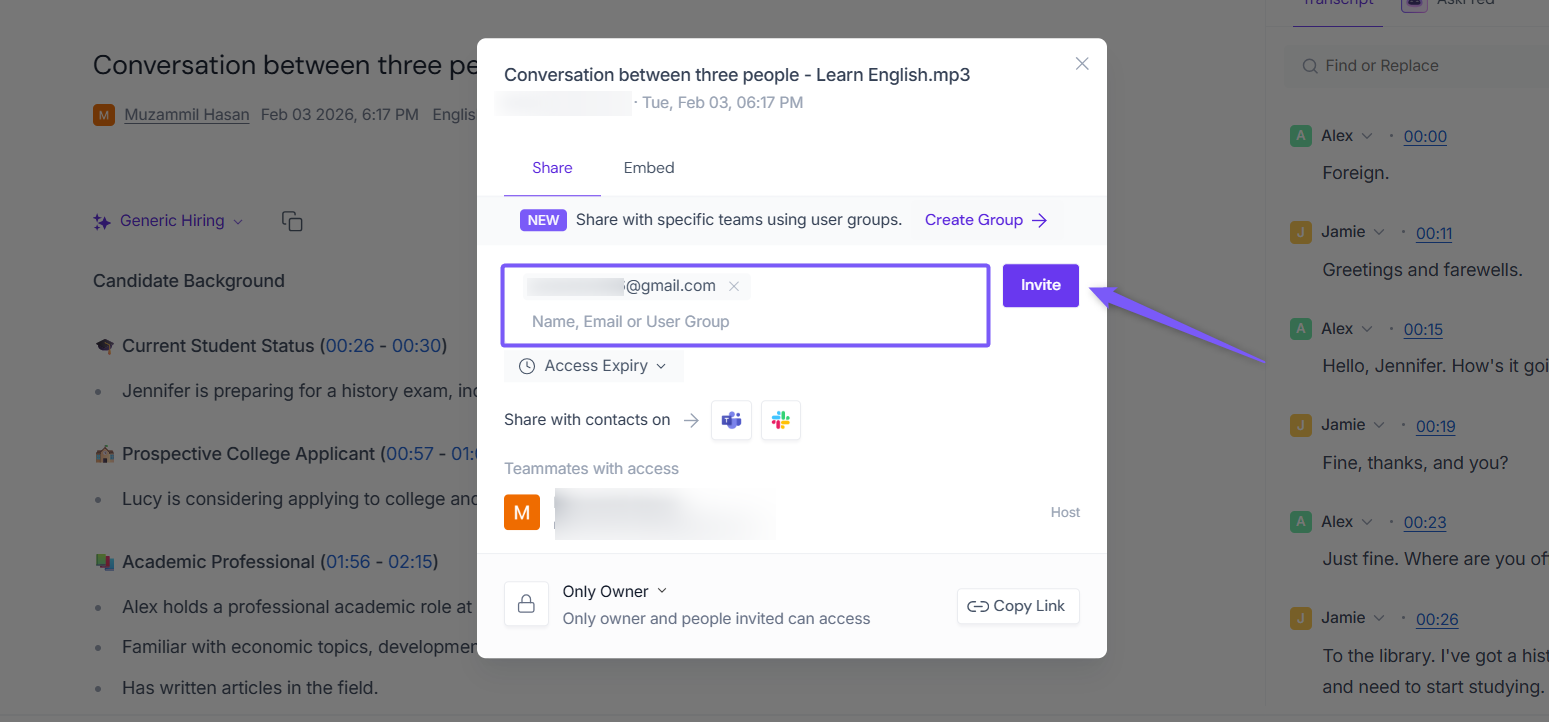
Next, to share this meeting with specific users via email, enter the participant’s email address into the search box and click Invite.
Fireflies will send them an email with the meeting recap link.
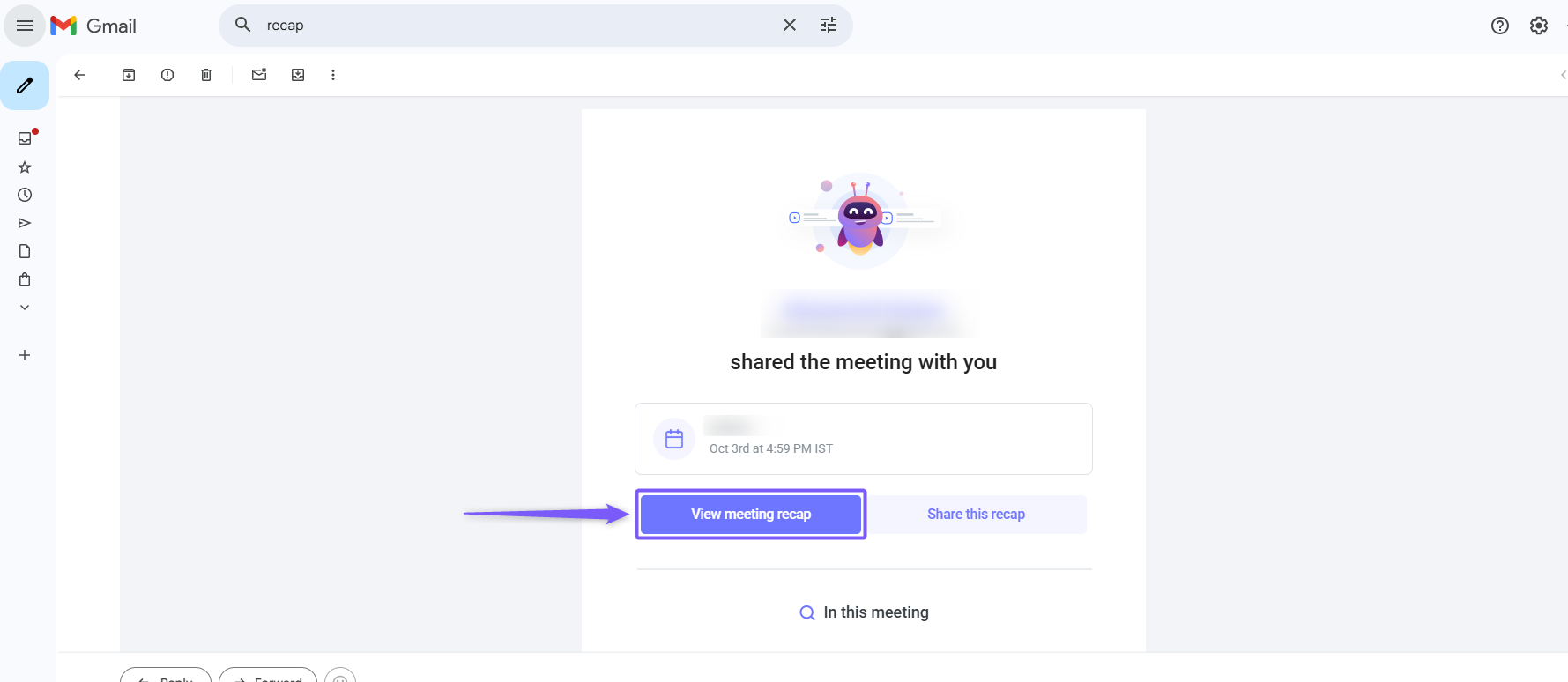
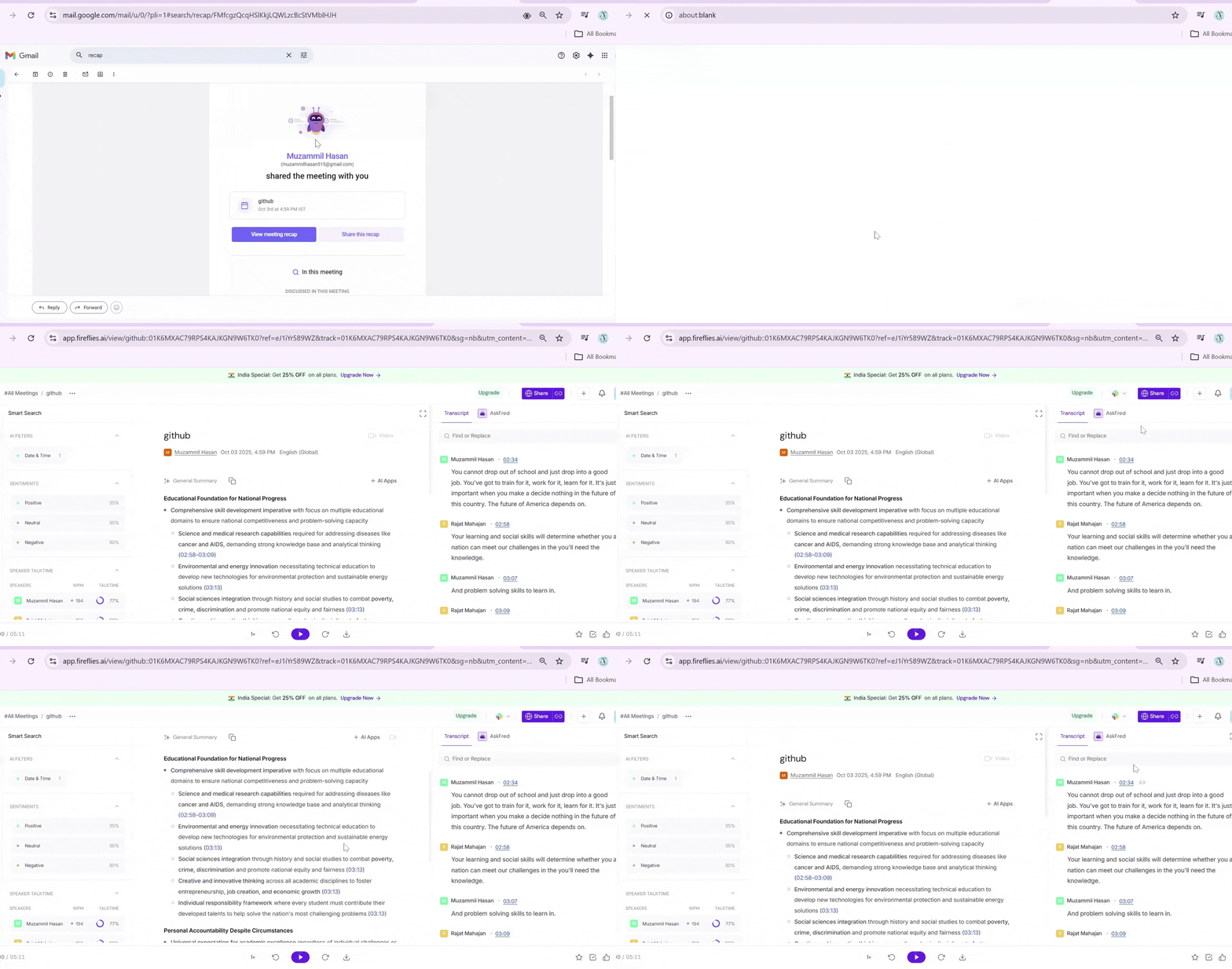
Participants can click on the link and view the full meeting transcript and summary.
📌 Related Guides
How to Share Meeting Transcripts and Summaries → Learn more different ways to tp share the meeting recap.
Learn About the Fireflies Notepad → Understand the features of the Notepad and how how customize the meeting notes.
How to Edit Meeting Transcripts on the Fireflies Notepad → Follow step-by-step instructions to update and modify your meeting transcripts.
Learn About User Groups → Discover how user groups work and how to create user groups and share meeting recap.