How to configure your meeting recap email settings
Last updated: October 8, 2026
Not all meetings need to be shared with everyone—and not everyone needs to receive the recap via email.
This guide helps you:
Choose who receives the meeting recap email automatically.
Customize what content gets included in the email.
Stop receiving meeting recap emails when you don't want them.
This guide is only about recap email settings, if you're trying to control who can access the full meeting inside Fireflies, see:
📄 Control Who Can View Your Meeting Recaps (Privacy Settings)
📩 Choose who should get recap emails
Why it matters and what it looks like:
You might want to send the recap only to yourself, your team, or everyone invited—Fireflies gives you control.
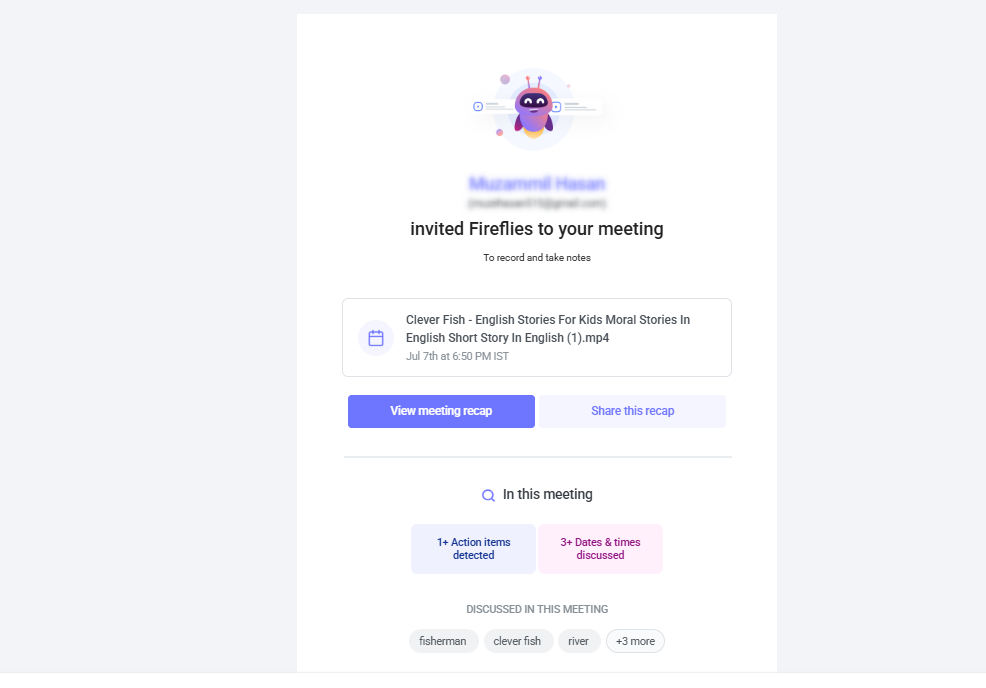
There are two ways to set this:
Option 1: From Fireflies Home Dashboard
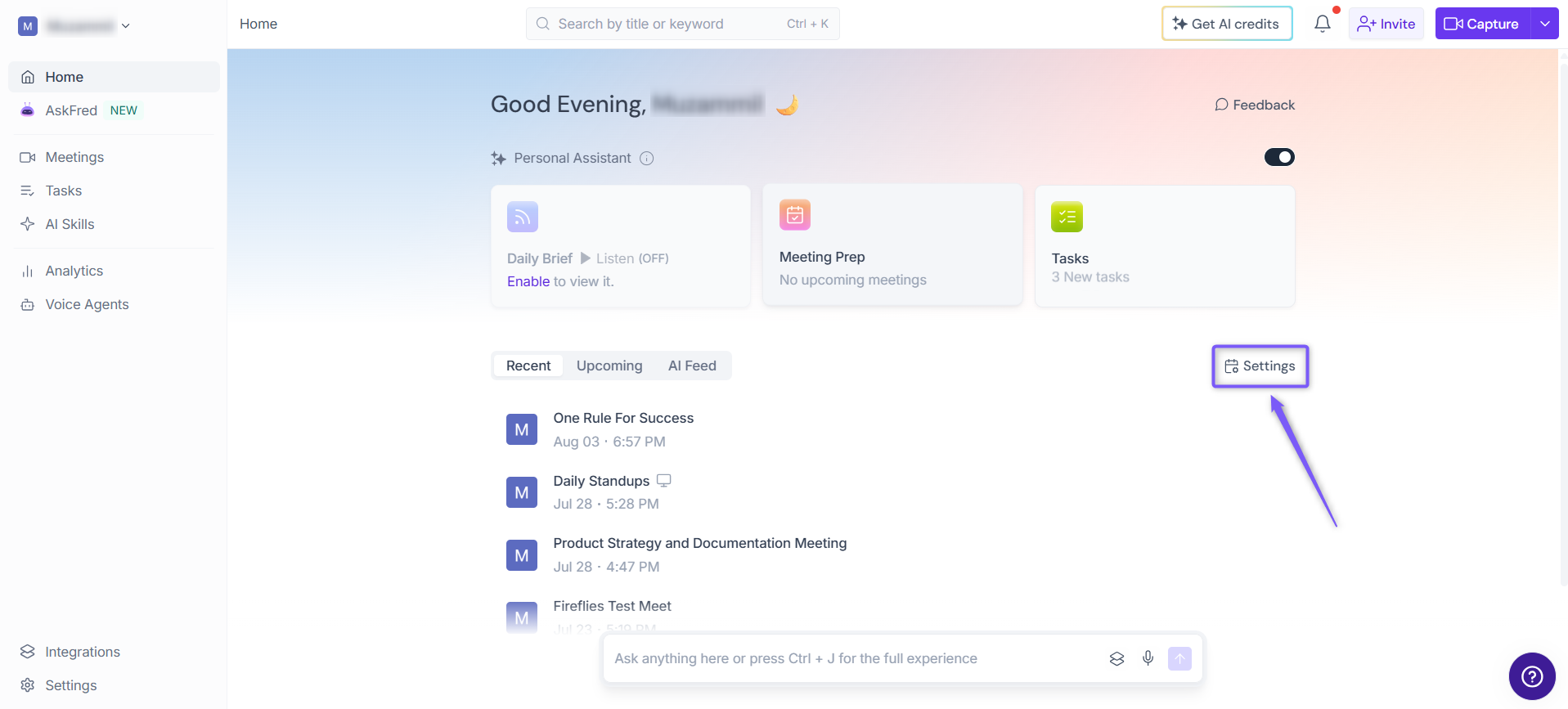
1. From the Fireflies Home page, click Settings on the right side of the page.
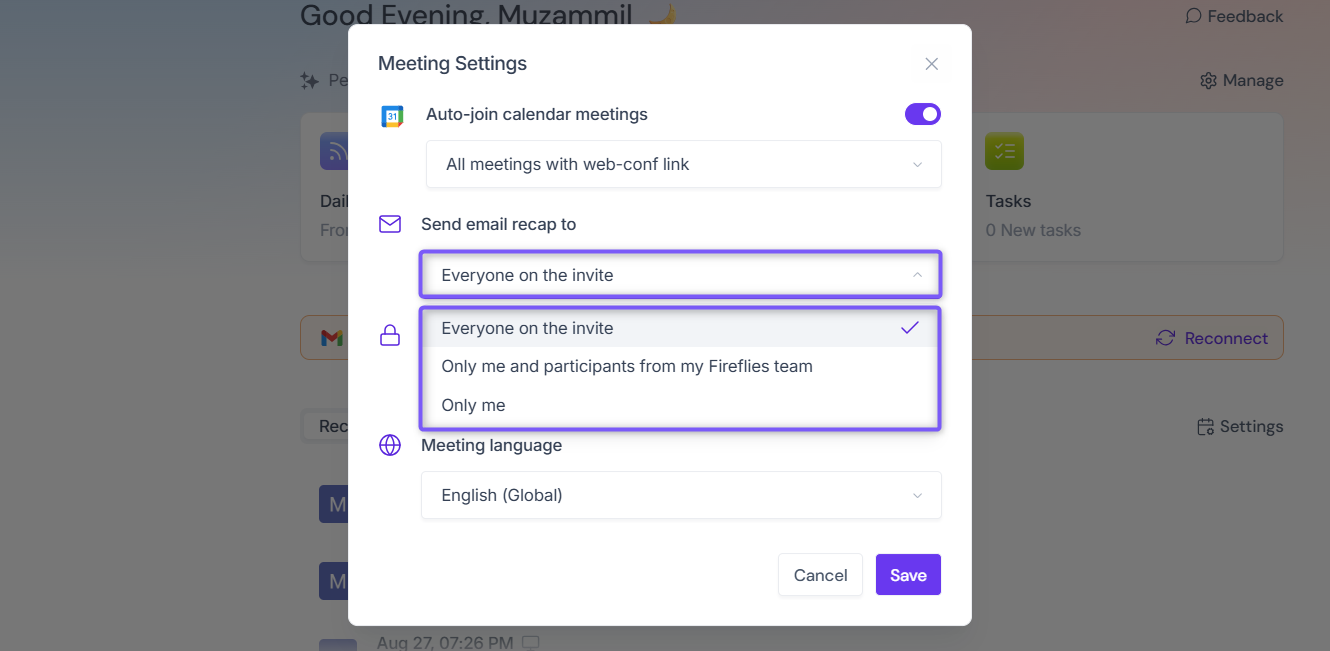
2. In the Meeting Settings modal, click the dropdown under Send email recap to. By default, this is set to Everyone on the invite.
Everyone on the invite — Sends the recap to all calendar invitees (internal + external)
Only me and participants from my Fireflies team — Recap goes only to people on the invite who are part of your Fireflies workspace
Only me — No one else receives the recap by email
Select your preferred option and click Save.
Option 2: From Settings
1. Open your Fireflies web app and click on Settings in the main navigation menu.
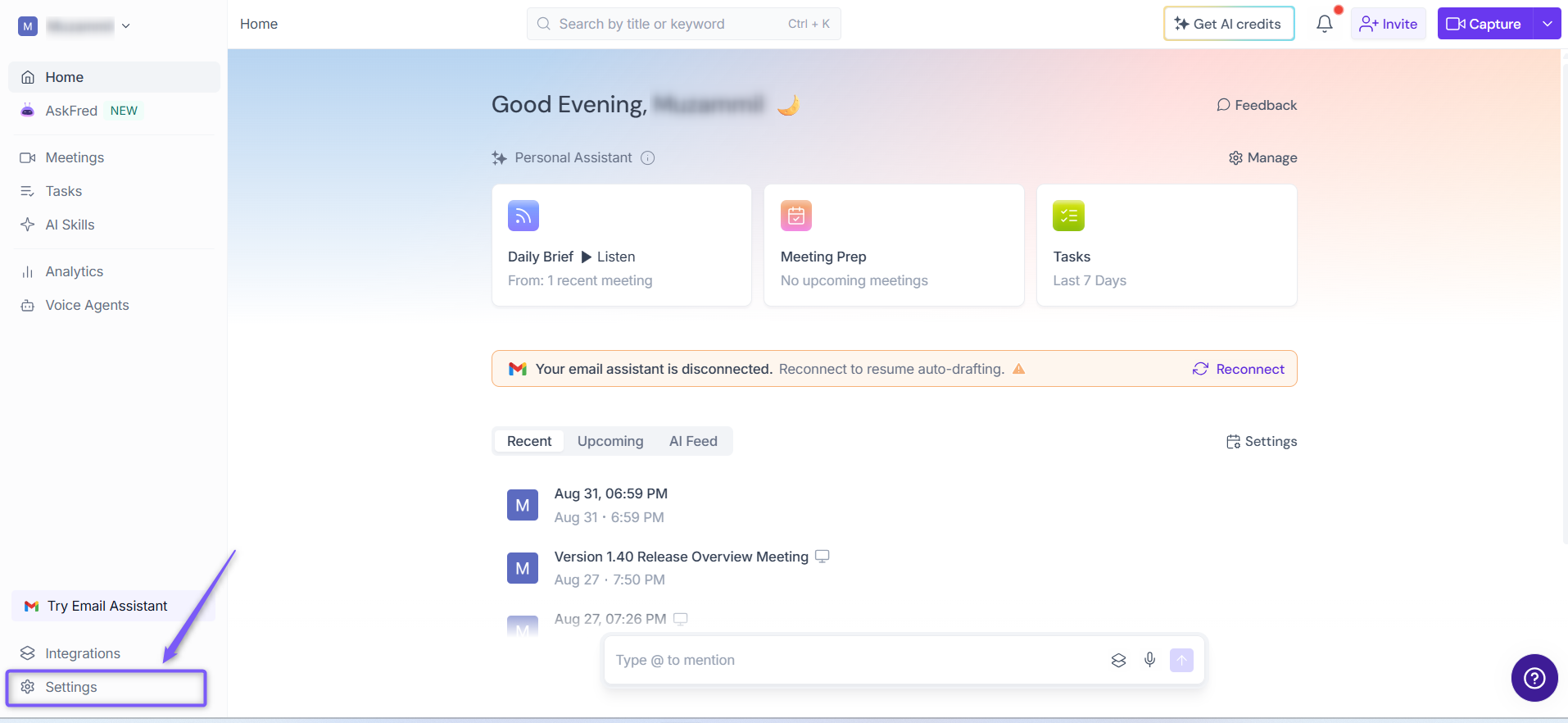
3. From the left panel, click Recording & Privacy (Personal tab). Scroll down to find Email Notification section.
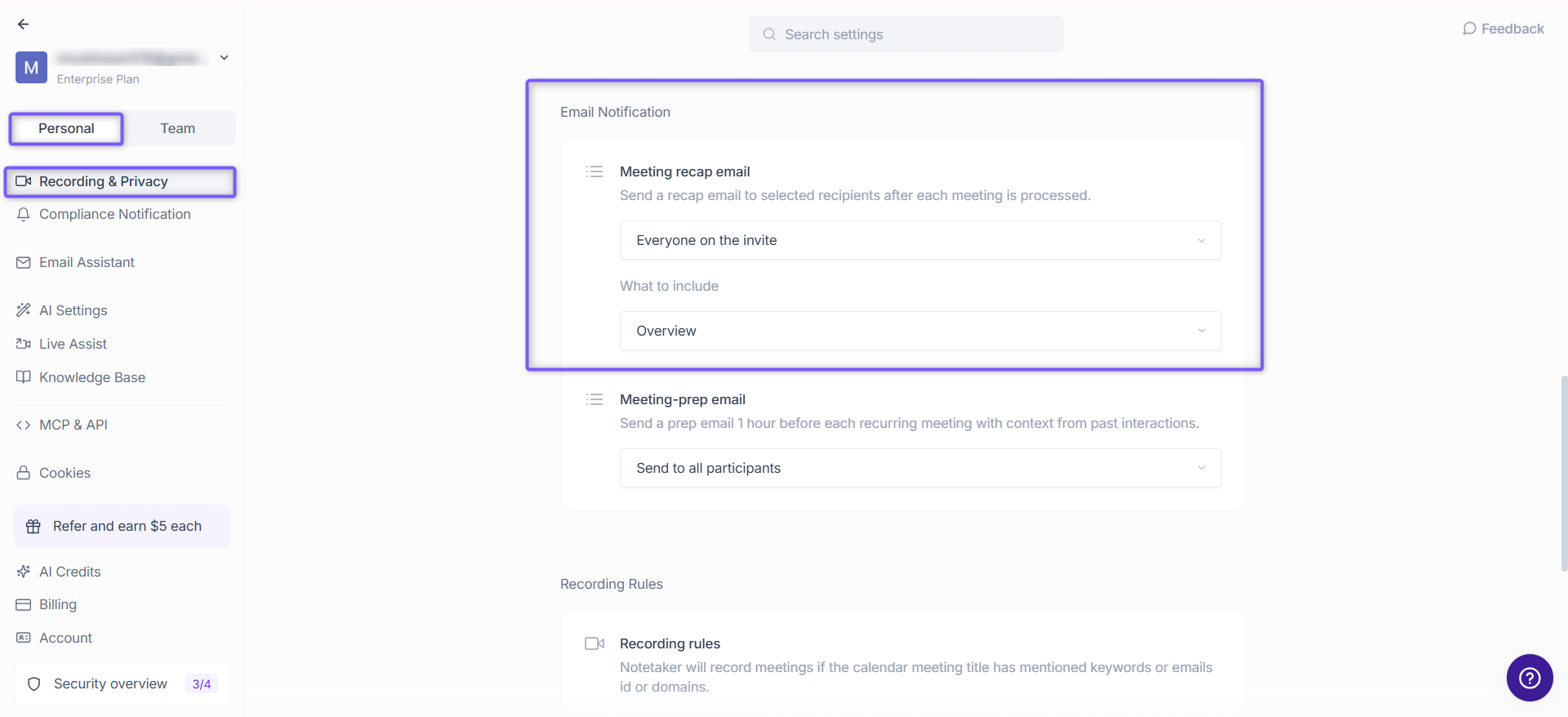
4. Click the dropdown under Meeting recap email to view the available options.
Everyone on the invite — Sends the recap to all calendar invitees (internal + external)
Only me and participants from my Fireflies team — Recap goes only to people on the invite who are part of your Fireflies workspace
Only me — No one else receives the recap by email
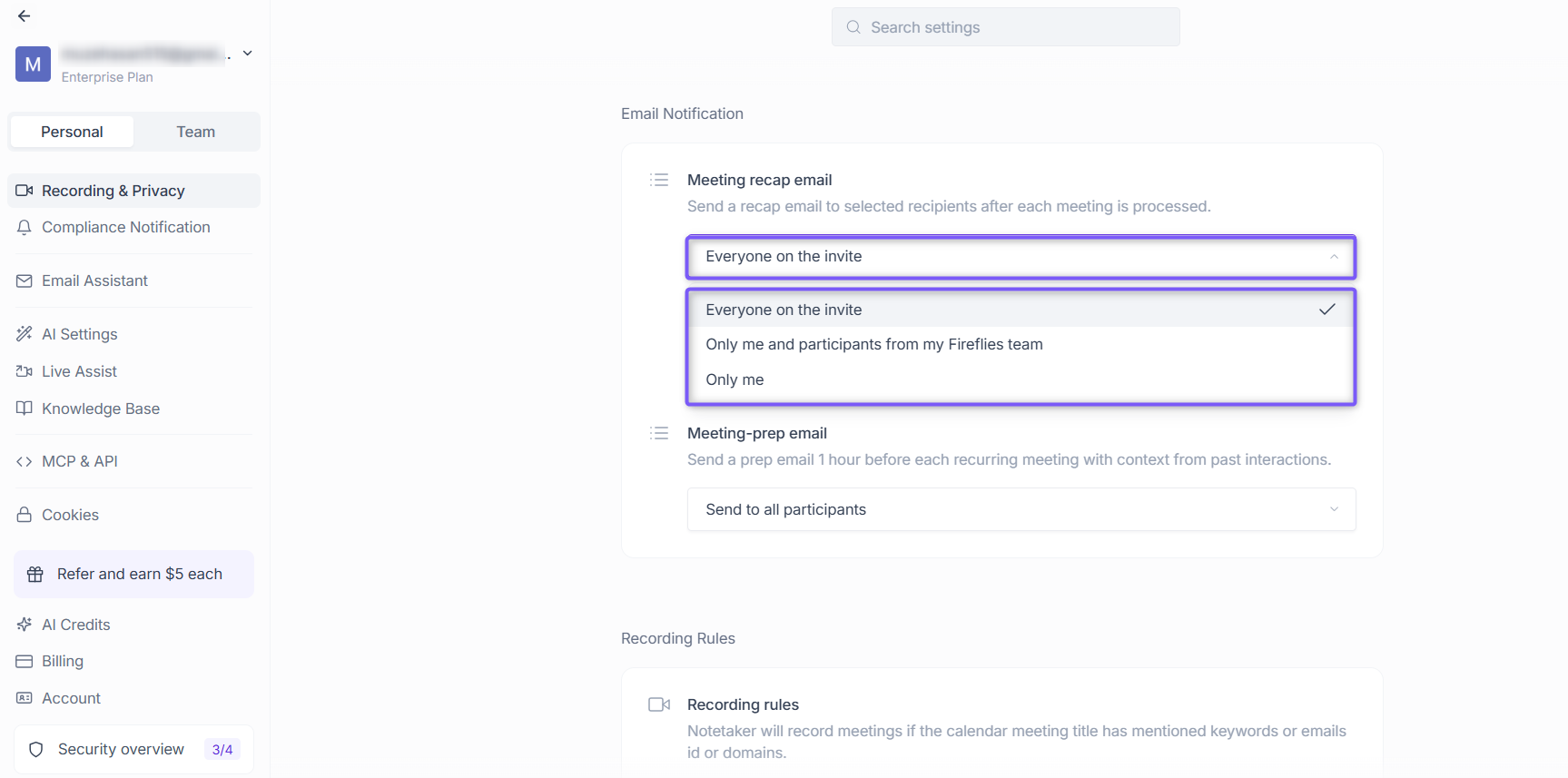
Select the desired option, your changes are saved automatically.
These recap emails include a summary + a link to the full notes. But they do not override the privacy of the actual meeting. That’s handled by privacy settings discussed here
✏ Customize the meeting notes content sent via email
Want to control what shows up inside the recap email? Fireflies lets you decide which parts of the AI-generated summary are included.
To do this:
1. Navigate to Settings → Recording & Privacy (Personal tab).
2. Scroll down to the Email Notification section.
3. Under Meeting recap email, click the What to include dropdown and select your preferred option:
Action items — A list of tasks discussed
Notes — Bullet points summarizing the conversation
Overview — A high-level overview of the discussion
Key highlights — Short pointers capturing important moments
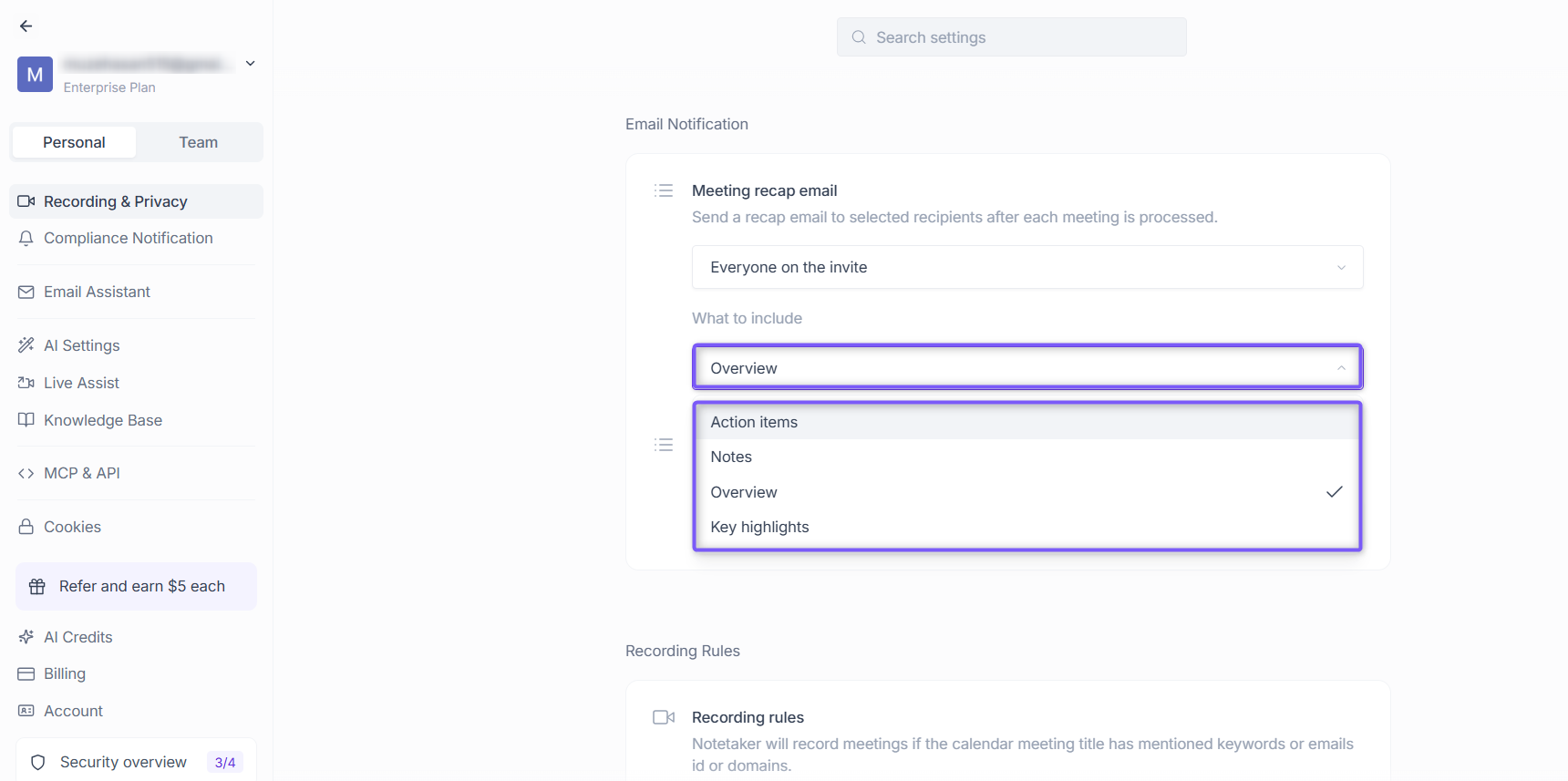
For even more flexibility, check out the Custom Summary App to design your own summary layout.
🔄 Can I change it per meeting?
Yes. You can manually share a meeting recap after the call if you want to share it with specific people.
See How to Share Fireflies Meeting Recaps after the call for more information.
📩 Stop receiving meeting recap emails
If you don't want to receive meeting recap emails, you can manage your email preferences from the recap email.
1. Open a Fireflies meeting recap email and click Unsubscribe or the unsubscribe link.
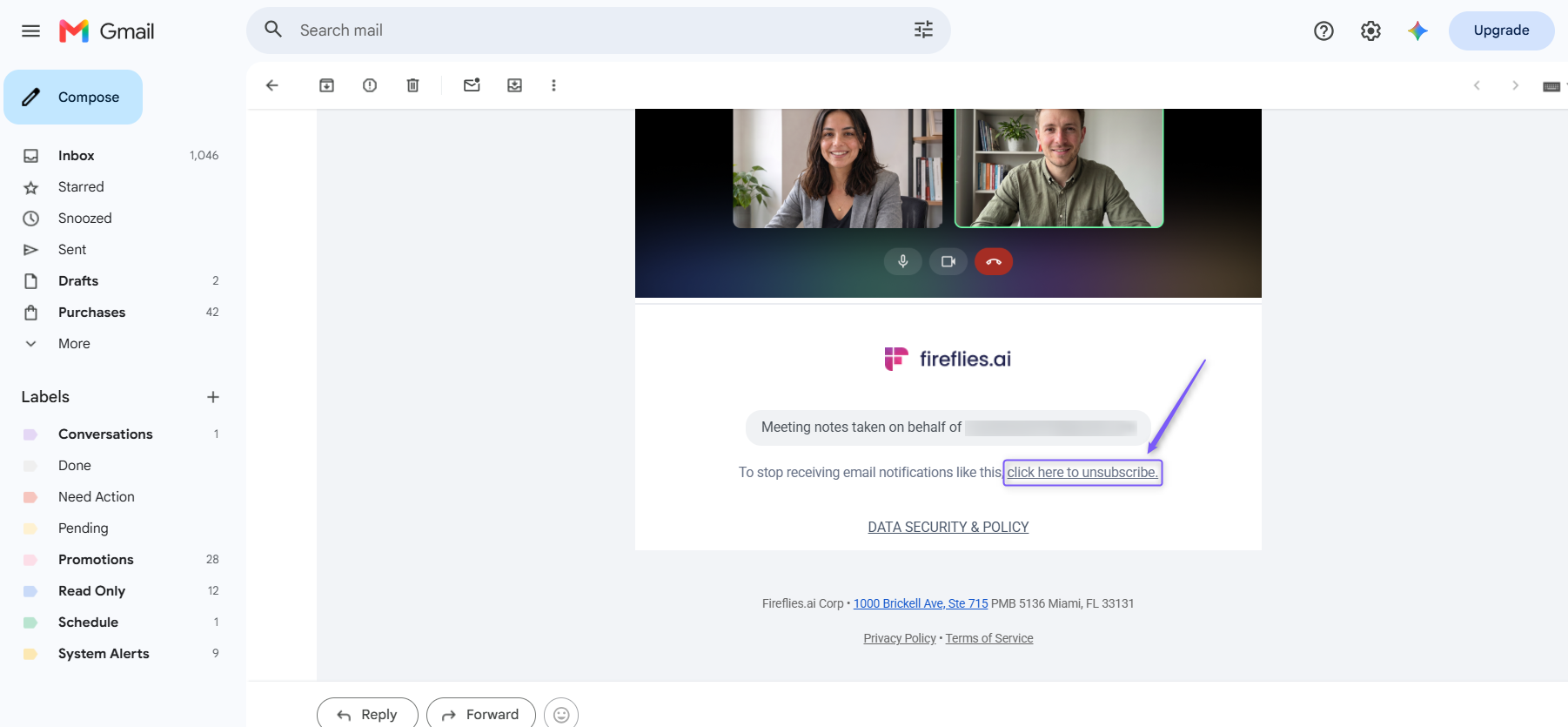
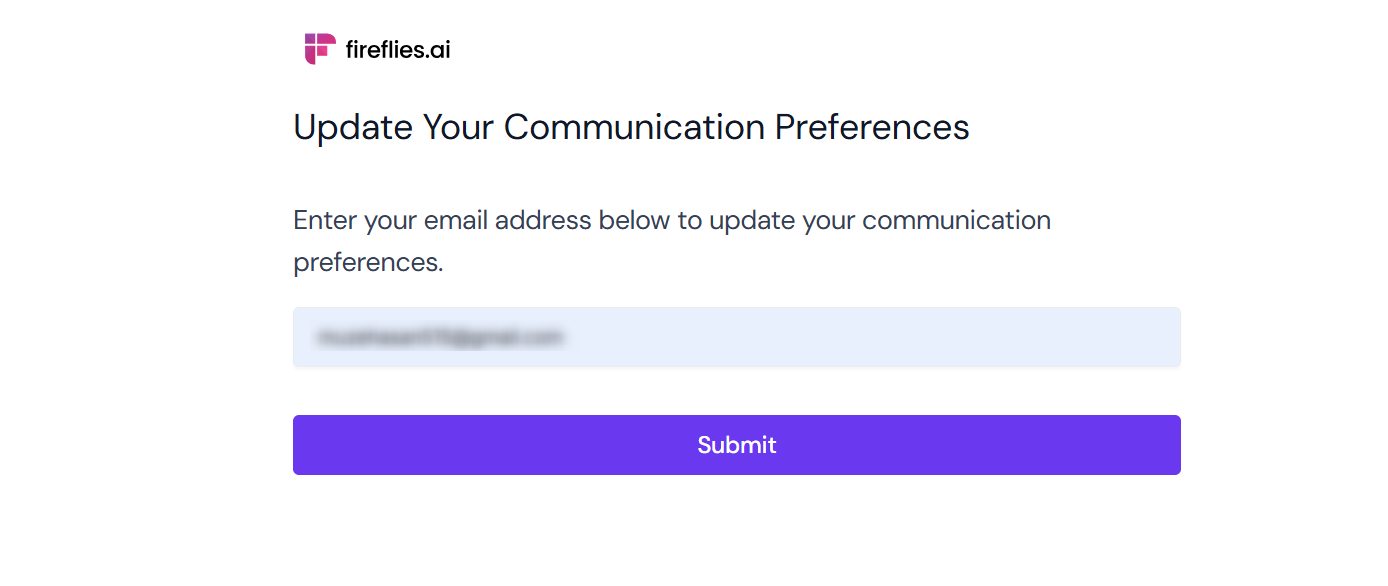
2. Enter your email address. Fireflies will send you an email to manage your communication preferences.
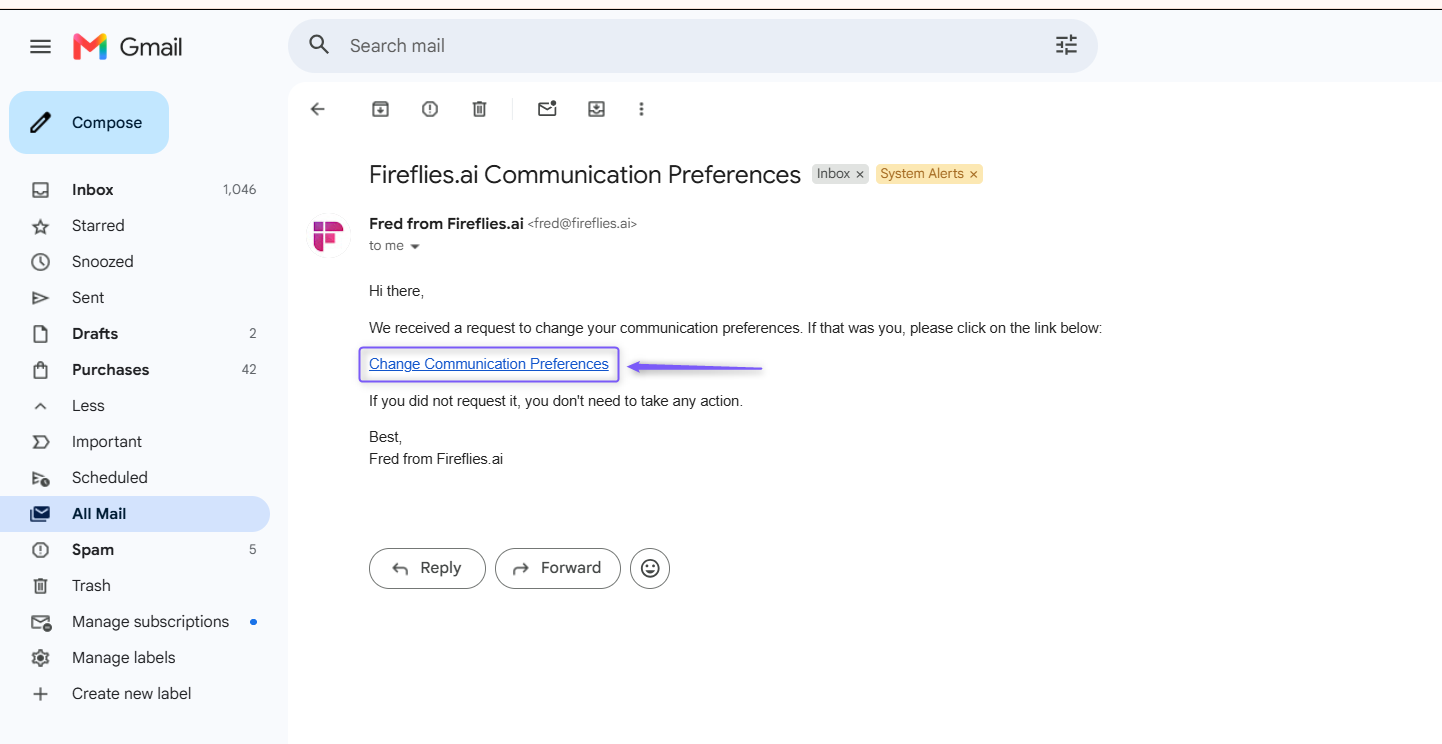
3. Open the URL provided in the email.
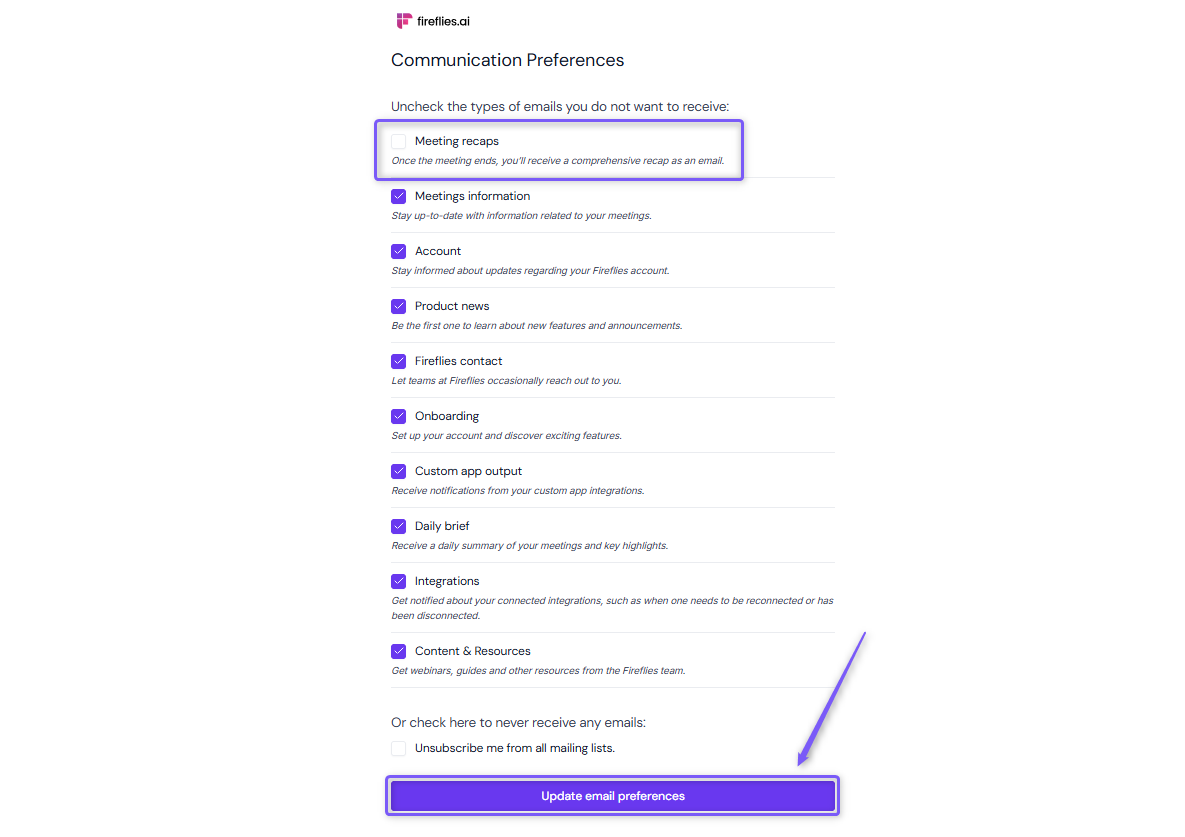
4. Now, uncheck Meeting recaps if you don't want to receive meeting recap emails.
💡 You can also uncheck any other email types you don't want to receive
Click Update email preferences.
🏢 Admin controls for workspace-wide defaults
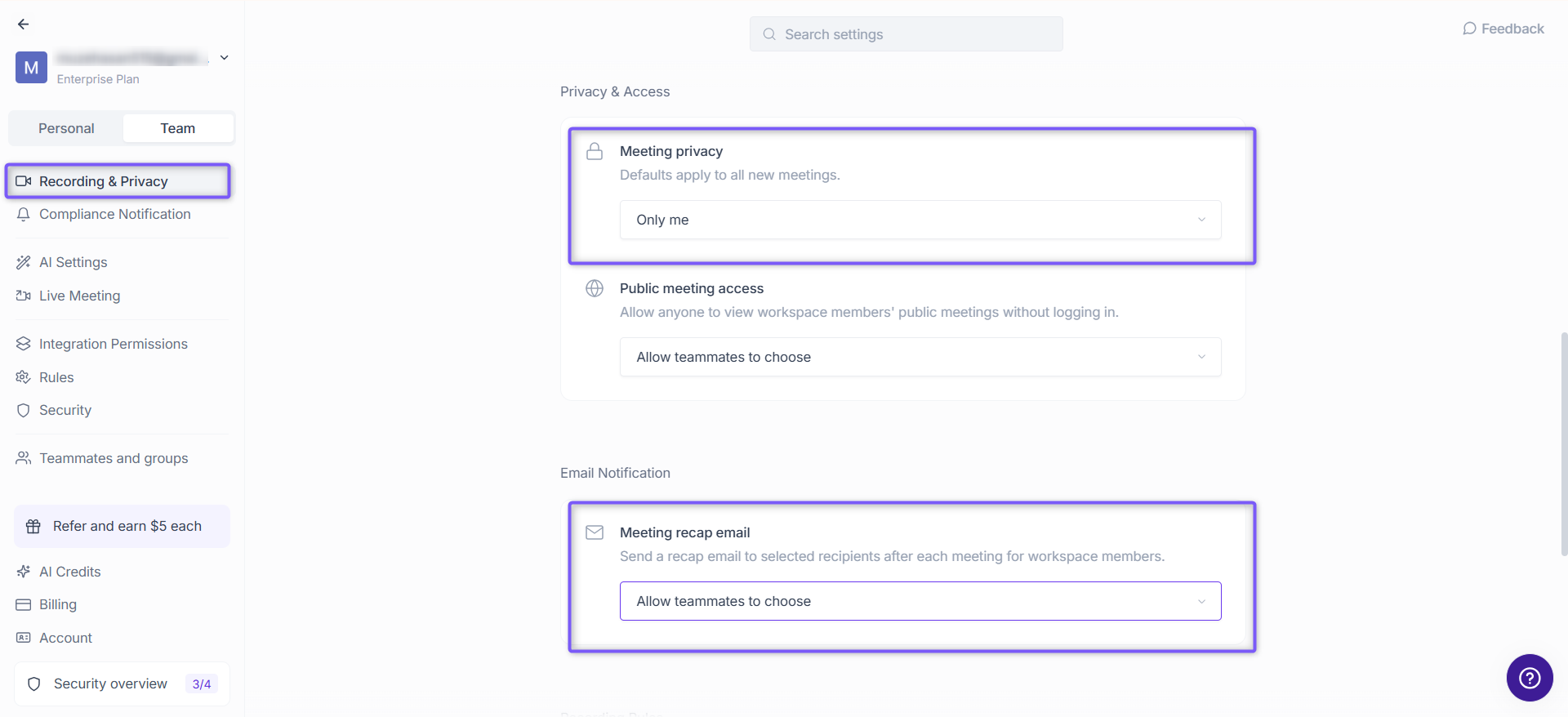
If you're an admin, you can set team-wide defaults:
1. Navigate to Settings and switch to the Team tab.
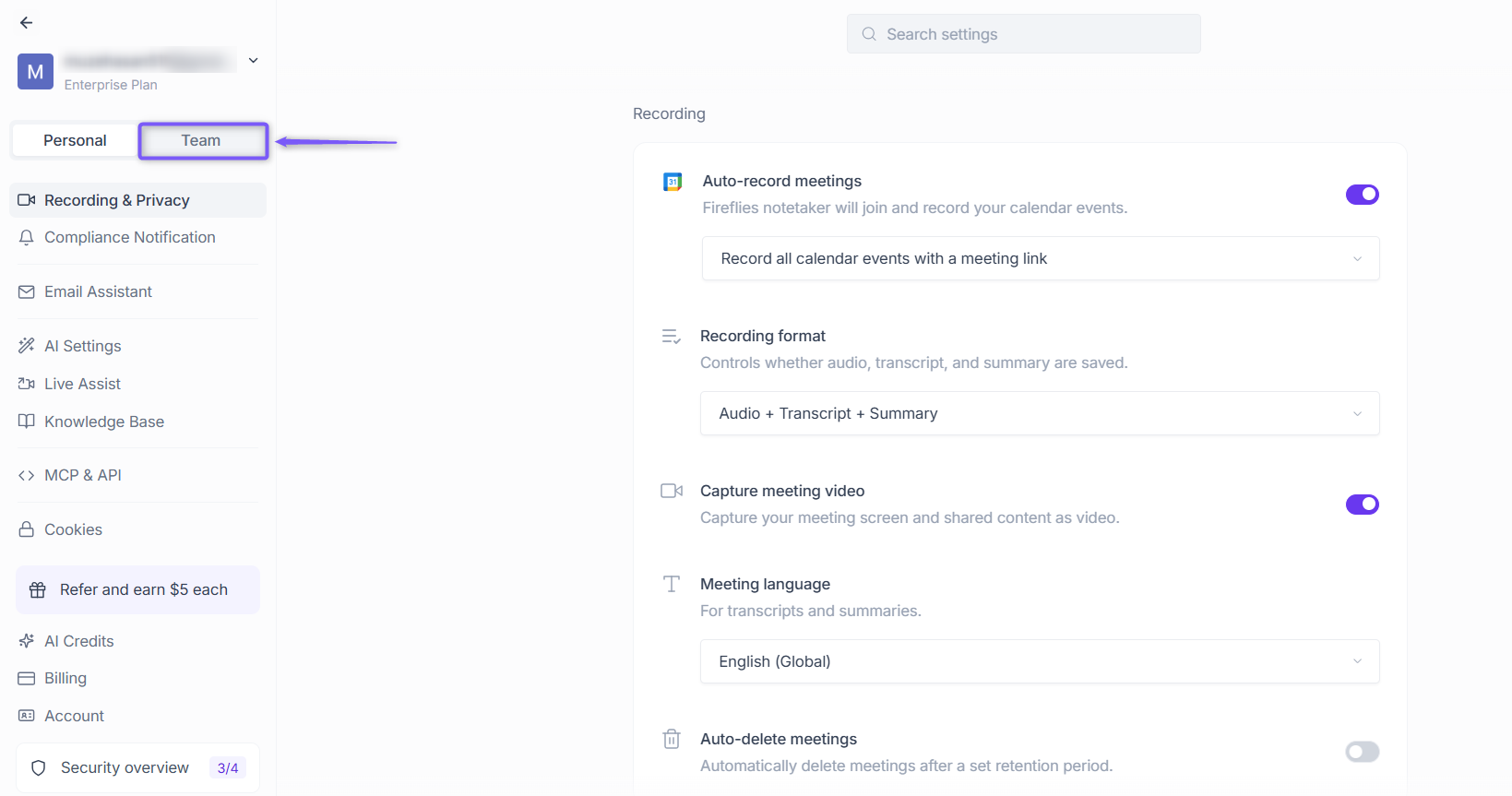
2. Click the Recording & Privacy and Scroll down to adjust both Email Delivery and Privacy Settings for everyone
This helps prevent accidental oversharing or under-sharing at scale.
❓ Troubleshooting
I didn't receive a meeting recap email
If you expected a recap email but didn't receive one, check your meeting recap email settings and confirm that your email address is included in the selected recipients.
See the meeting recap email troubleshooting guide for more help.
✅ TL;DR Summary
What You Can Control | How It Works | Why It Matters |
|---|---|---|
Who gets recap emails | Choose who automatically receives meeting recap emails. | Avoid spamming or leaking sensitive info. |
What content is included | Choose which meeting details are included in the email. | Keep things crisp, relevant, and actionable. |
Stop receiving recap emails | Uncheck Meeting recaps in your email preferences. You can also uncheck other email types you don't want to receive. | Stay in control of the emails you receive. |
Default vs. per-meeting control | Use default settings or share a recap manually after a meeting. | Stay flexible, no matter the audience. |