Manage User Roles via SCIM with Microsoft Entra ID
Last updated: September 29, 2026
Manage Fireflies user roles directly from Microsoft Entra ID using SCIM provisioning. Once configured, you can assign supported Fireflies roles, such as Admin and User, to users in Microsoft Entra ID and synchronize those roles with your Fireflies workspace.
In this guide, you'll learn how to:
Configure Admin and User app roles in Microsoft Entra ID.
Map Microsoft Entra app roles to the Fireflies SCIM role attribute.
Assign a Fireflies role to a user.
Provision the user and role to Fireflies.
Verify the synchronized role in Fireflies.
🔑 Prerequisites
Before you begin, make sure you have:
Completed How to Set Up SCIM User Provisioning with Microsoft Entra ID. This guide assumes SCIM provisioning is already configured.
Administrator access to Microsoft Entra ID and your Fireflies workspace.
⚙ Configure Fireflies App Roles
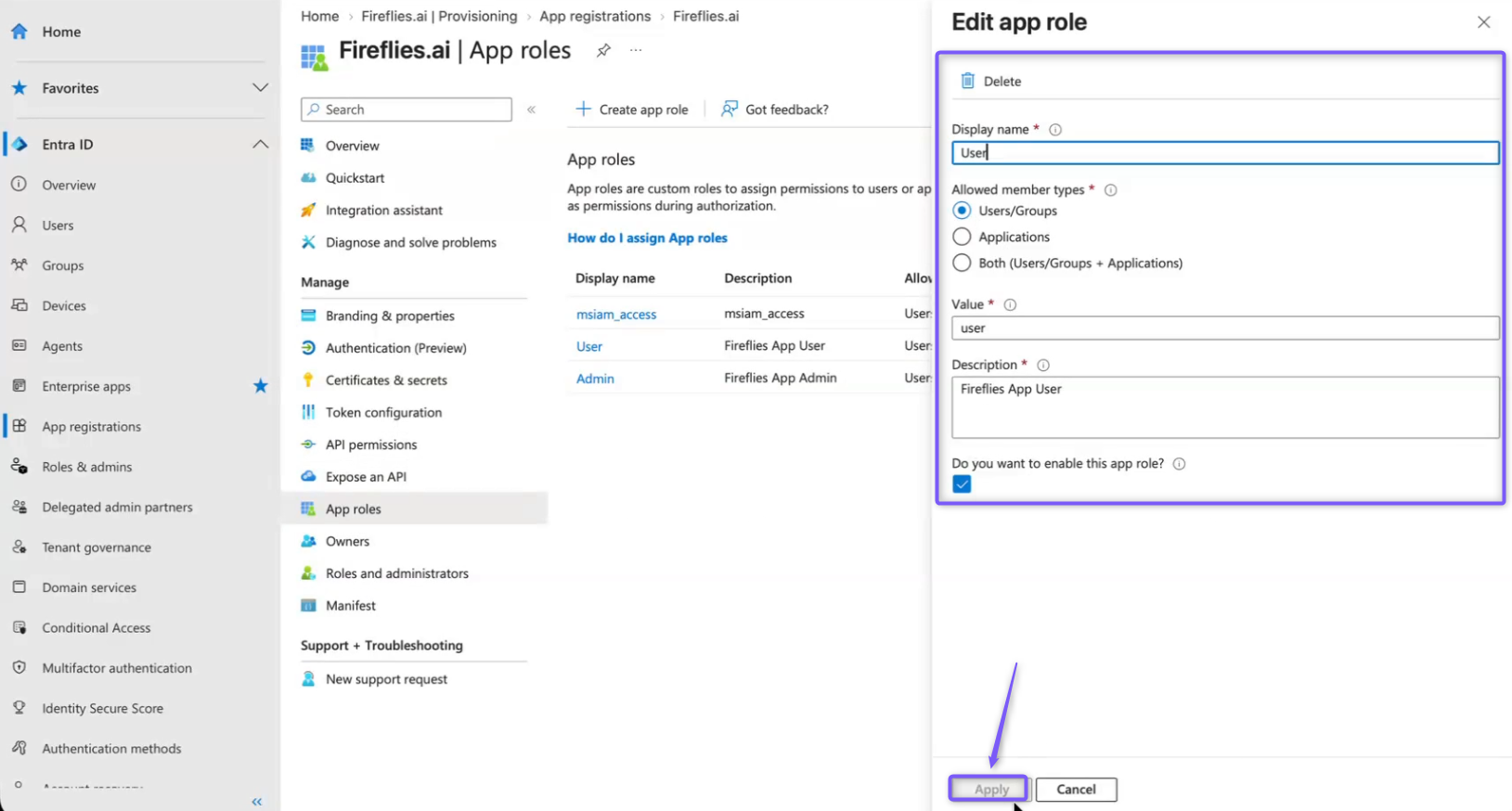
First, configure the Admin and User app roles in the Fireflies app registration. These roles are used to determine which Fireflies role is assigned to each user.
Step 1: In the Microsoft Entra admin center, go to App registrations and open the Fireflies.ai application.
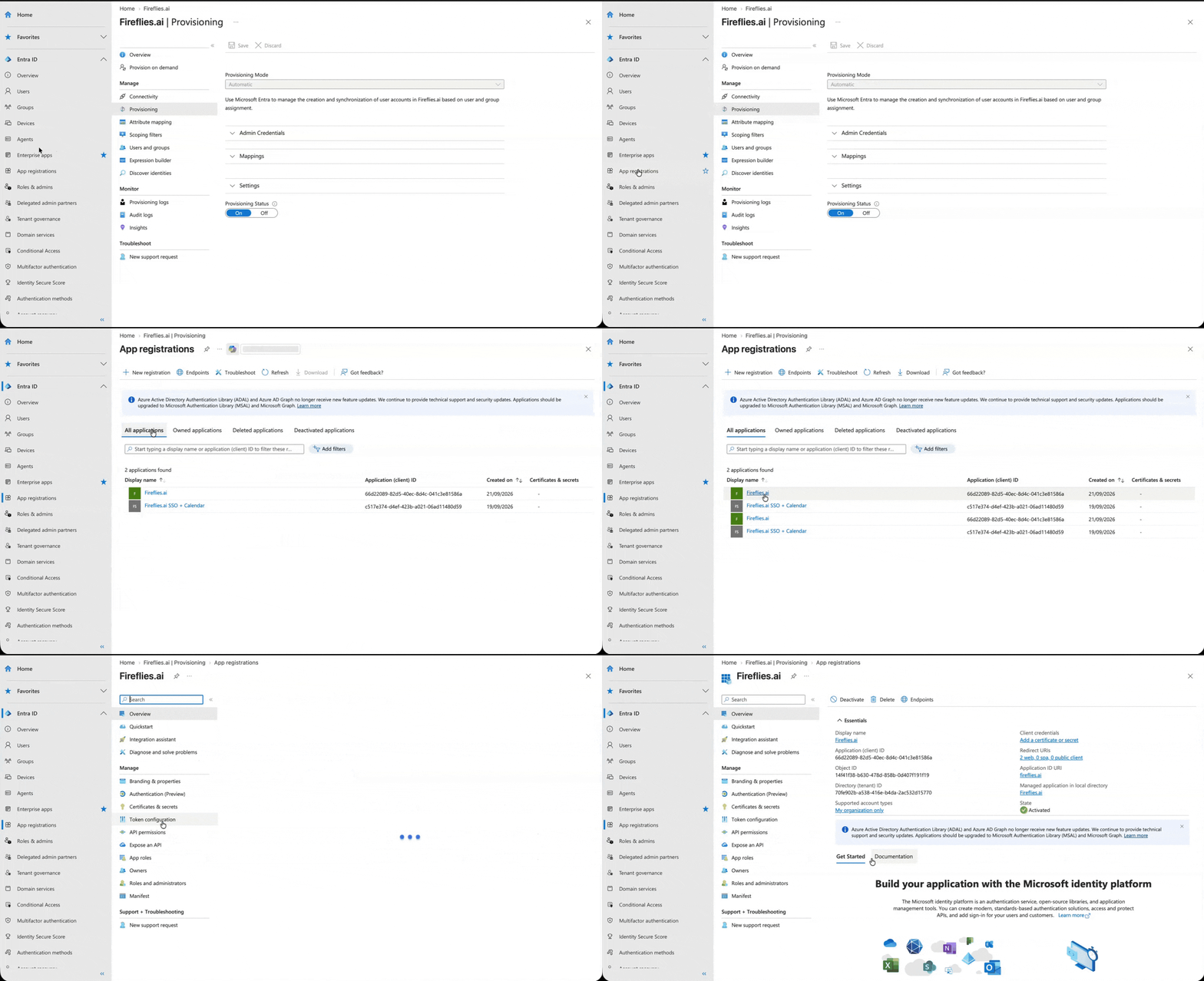
Step 2: From the left menu, select App roles.
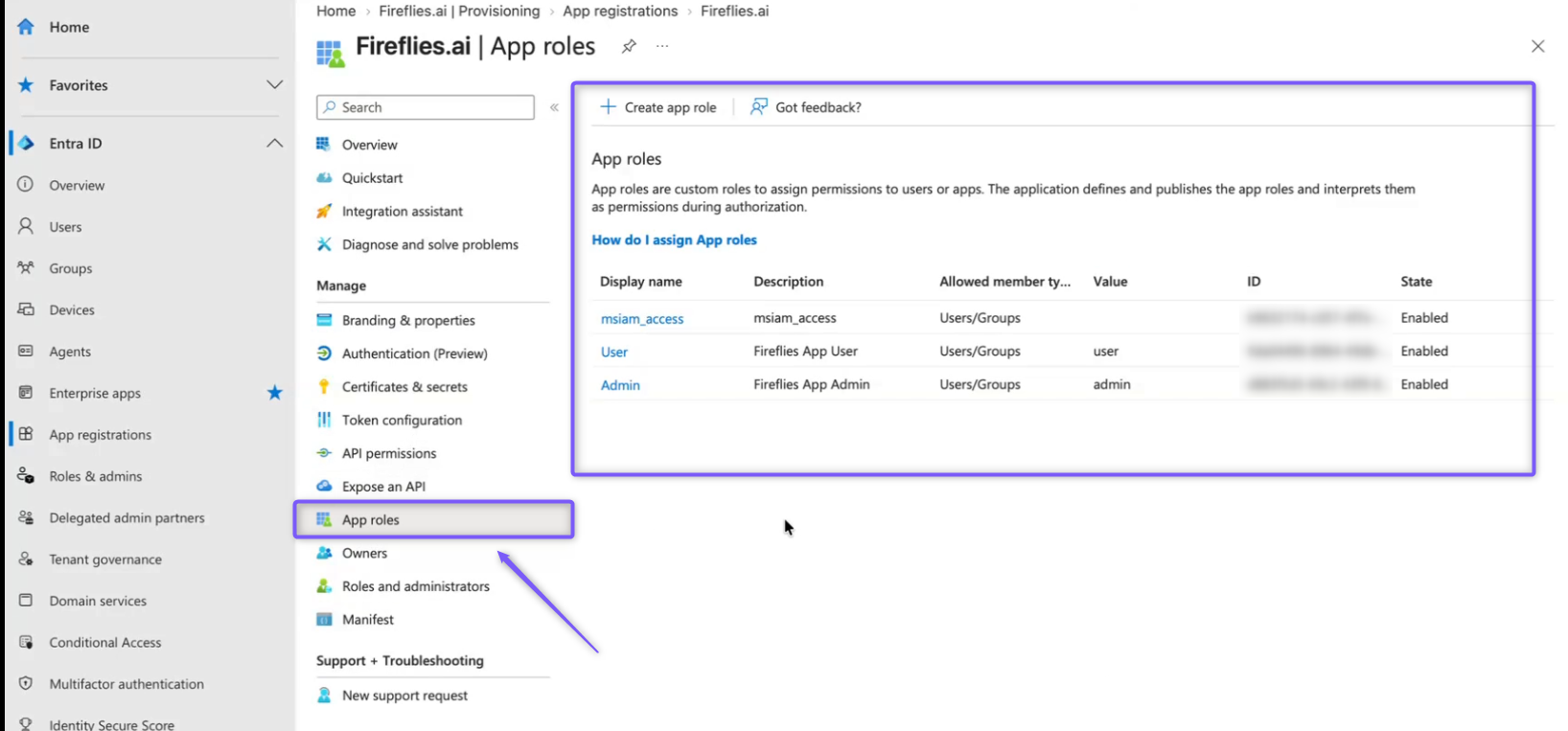
Step 3: Check whether the Admin and User roles are already listed.
Note: If the Admin and User roles are already available, you can edit the existing roles as needed or click Create app role to create a new role. Use the values below to configure the roles for Fireflies.
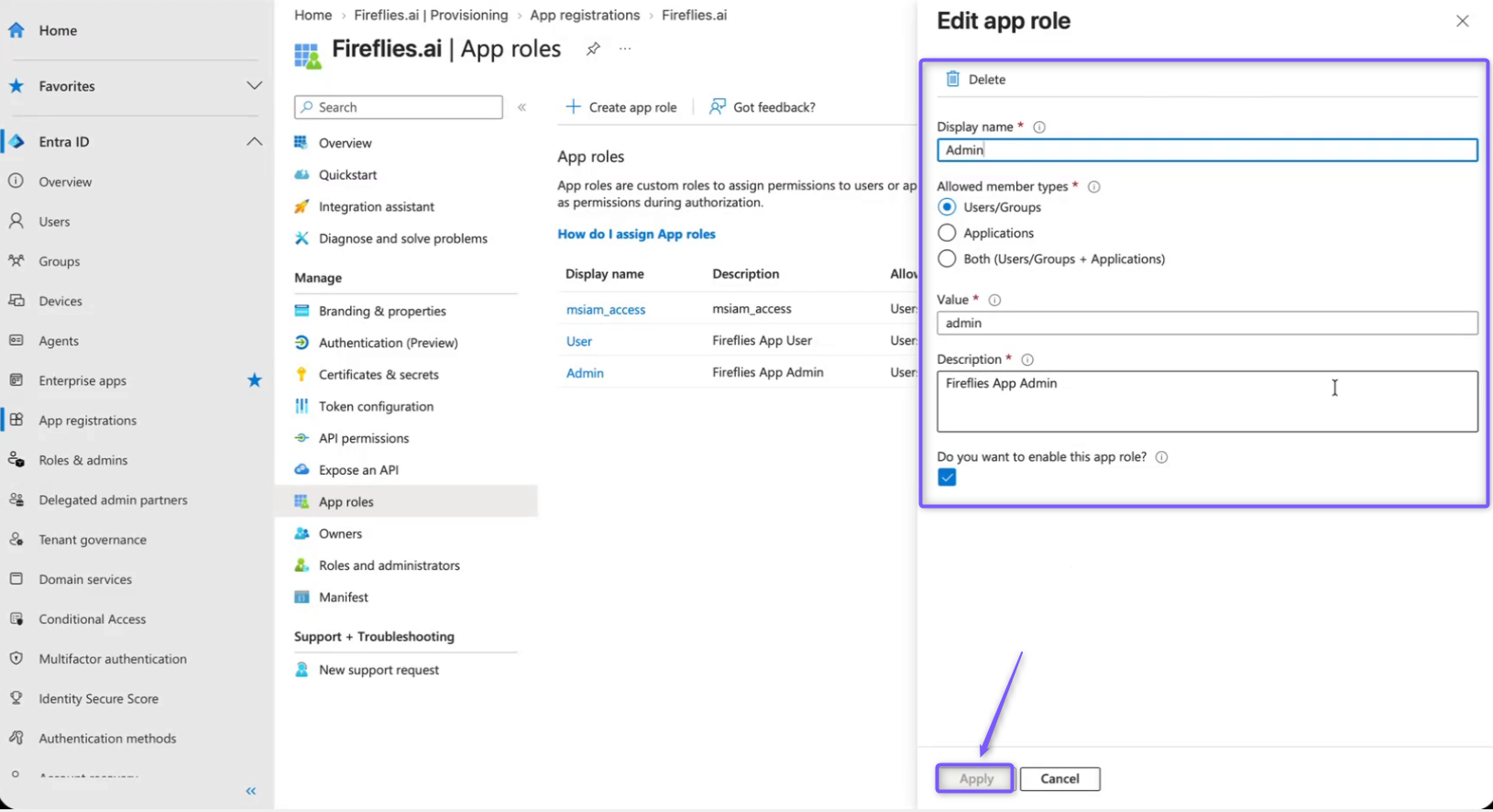
Create the Admin Role
If the Admin role isn't already listed, click Create app role and configure the following fields:
Field | Description | Value |
|---|---|---|
Display name | The name of the role shown in Microsoft Entra ID. | Admin |
Allowed member types | Specifies who can be assigned the role. | Users/Groups |
Value | The value used to identify the role. |
|
Description | Describes the role. |
|
Do you want to enable this app role? | Determines whether the role is available for assignment. | Enabled |
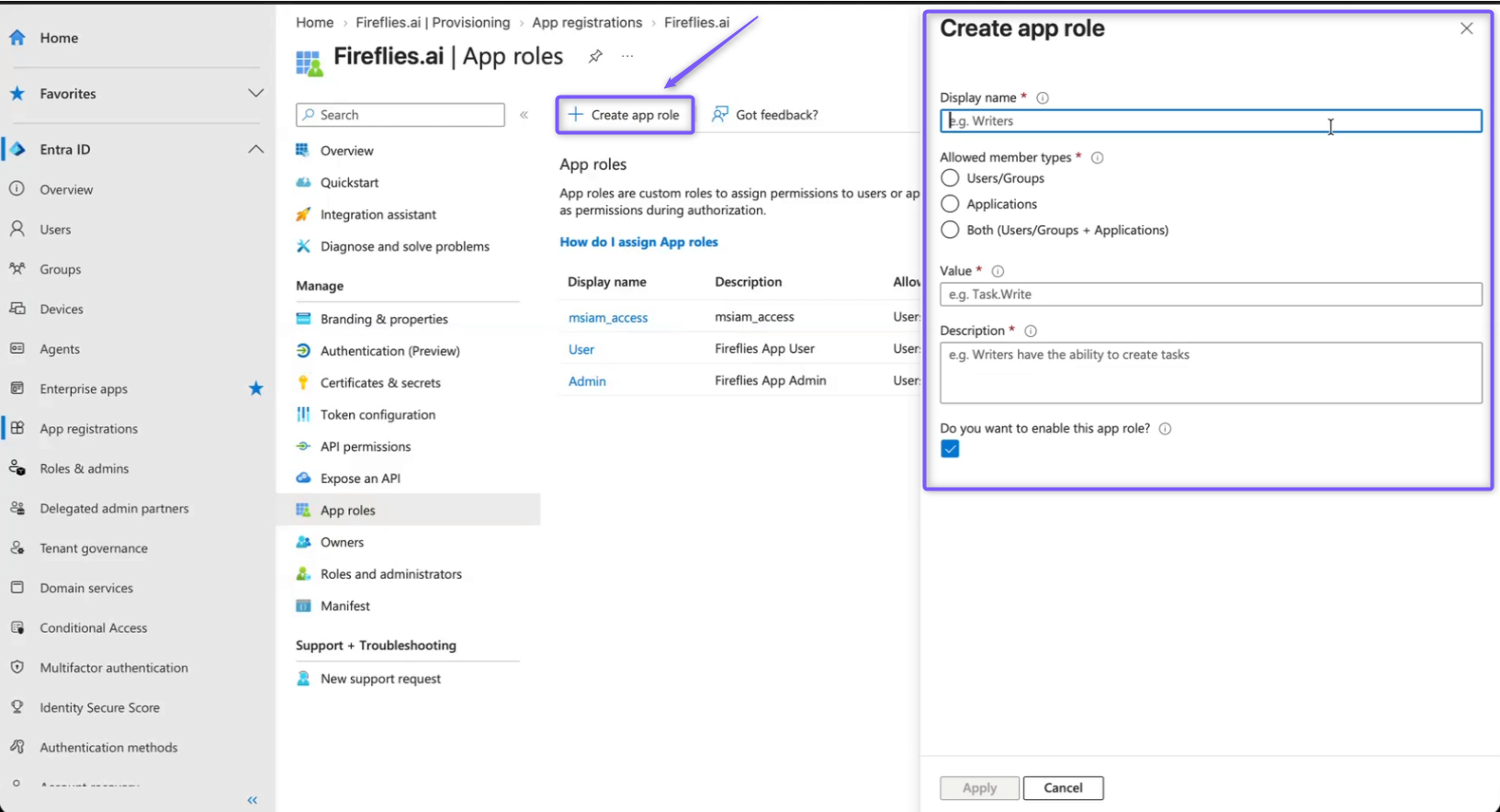
Step 4: Click Apply to create the Admin role.
Create the User Role
If the User role isn't already listed, click Create app role again and configure the following fields:
Field | Description | Value |
|---|---|---|
Display name | The name of the role shown in Microsoft Entra ID. | User |
Allowed member types | Specifies who can be assigned the role. | Users/Groups |
Value | The value used to identify the role. |
|
Description | Describes the role. |
|
Do you want to enable this app role? | Determines whether the role is available for assignment. | Enabled |
Step 5: Click Apply to create the User role.
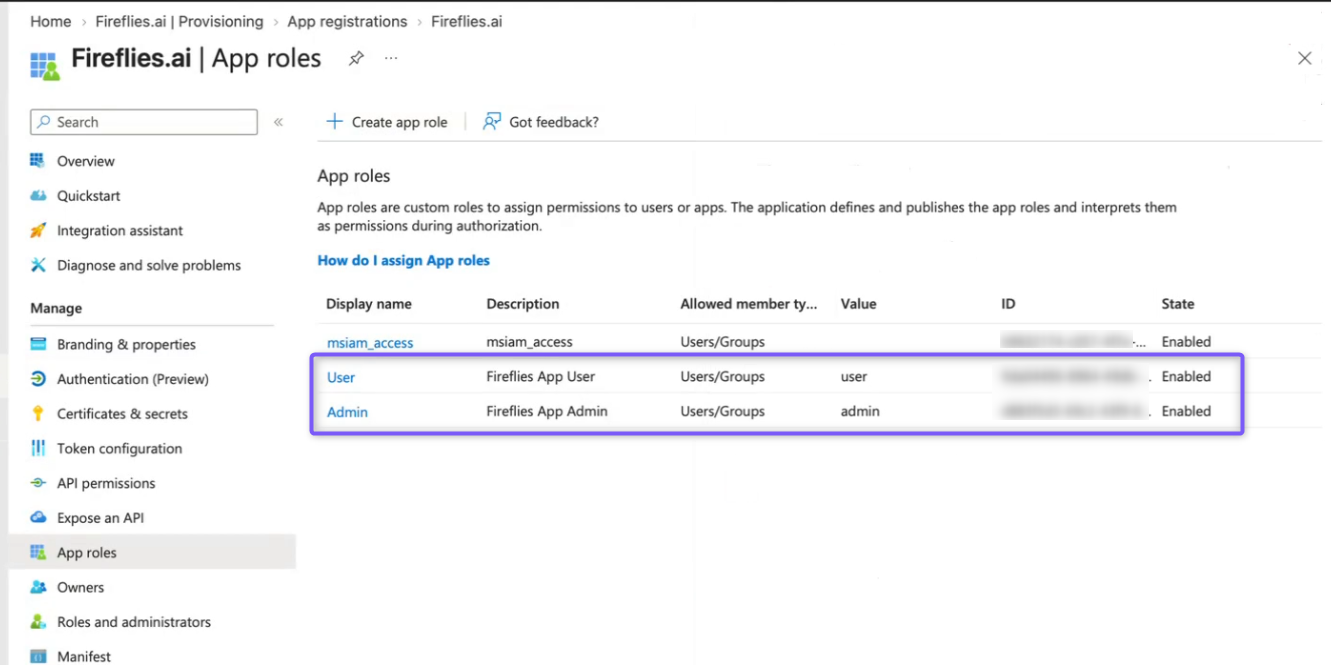
After creating the roles, both Admin and User should appear under App roles and show as Enabled.
🔗 Add the Fireflies Role Attribute
Next, add the Fireflies role attribute to the SCIM attribute list so Microsoft Entra can map the selected app role to Fireflies.
Step 4: In the Fireflies.ai enterprise application, open Provisioning.
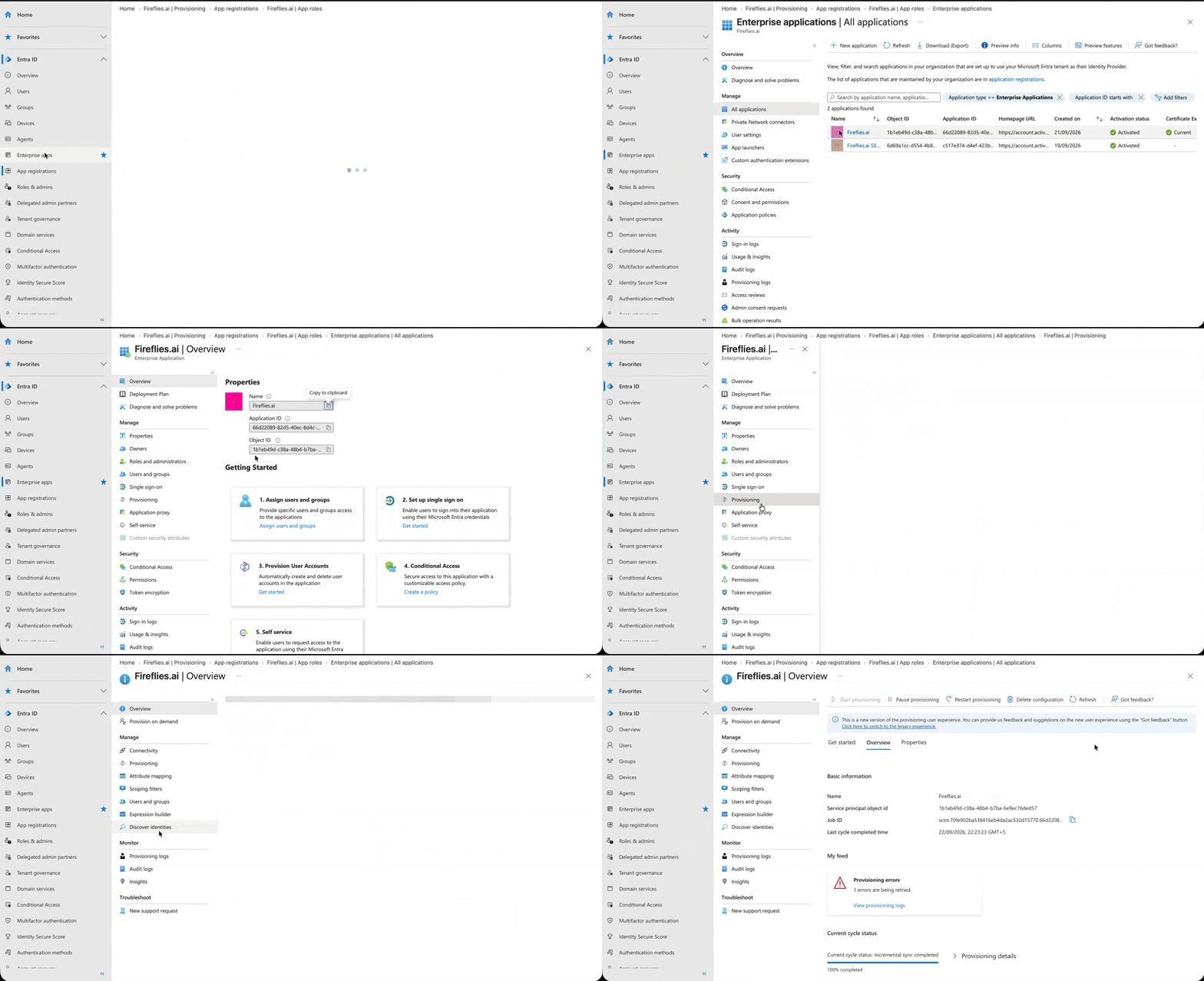
Step 5: Select Attribute mapping.
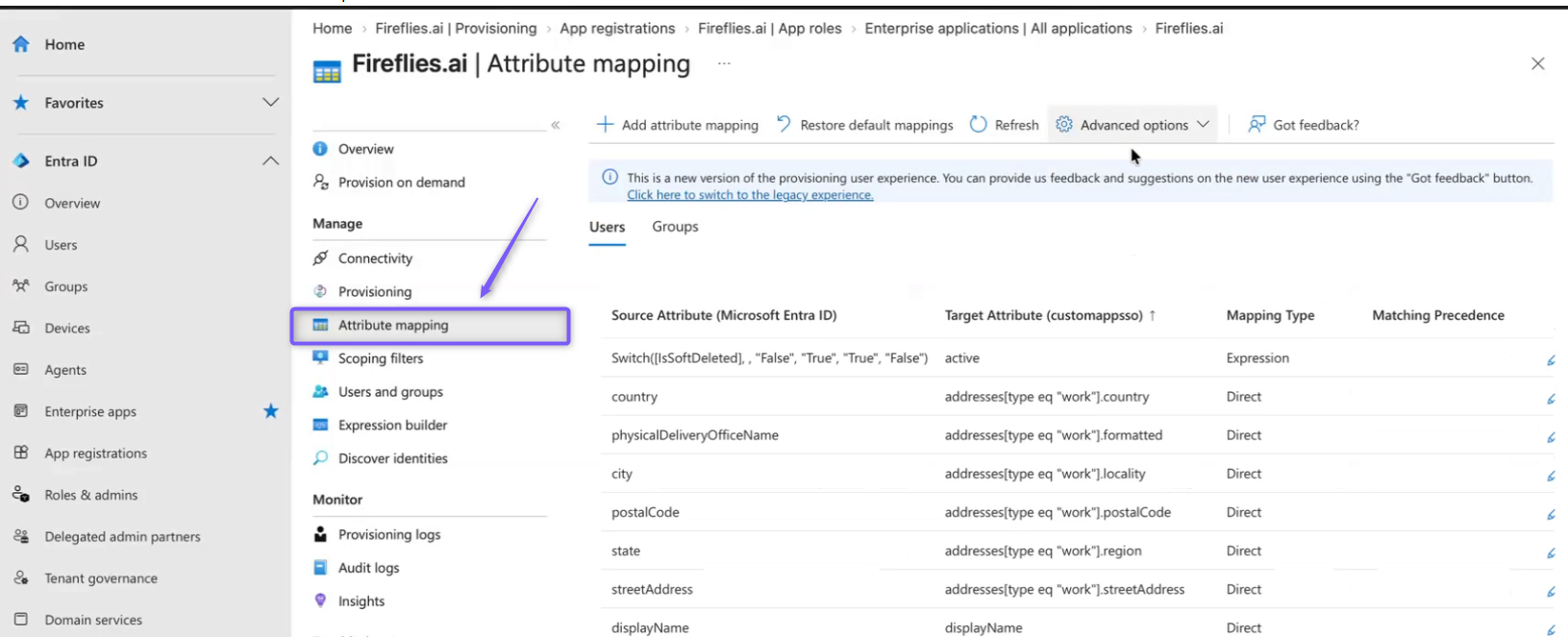
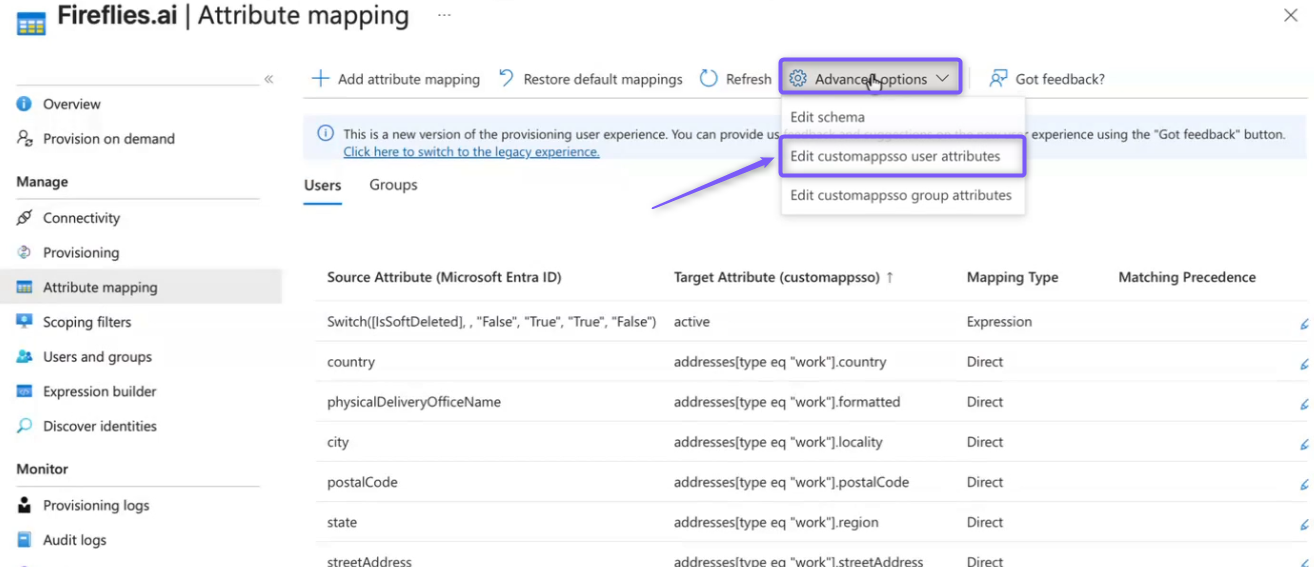
Step 6: Click Advanced options, then select Edit customappsso user attributes.
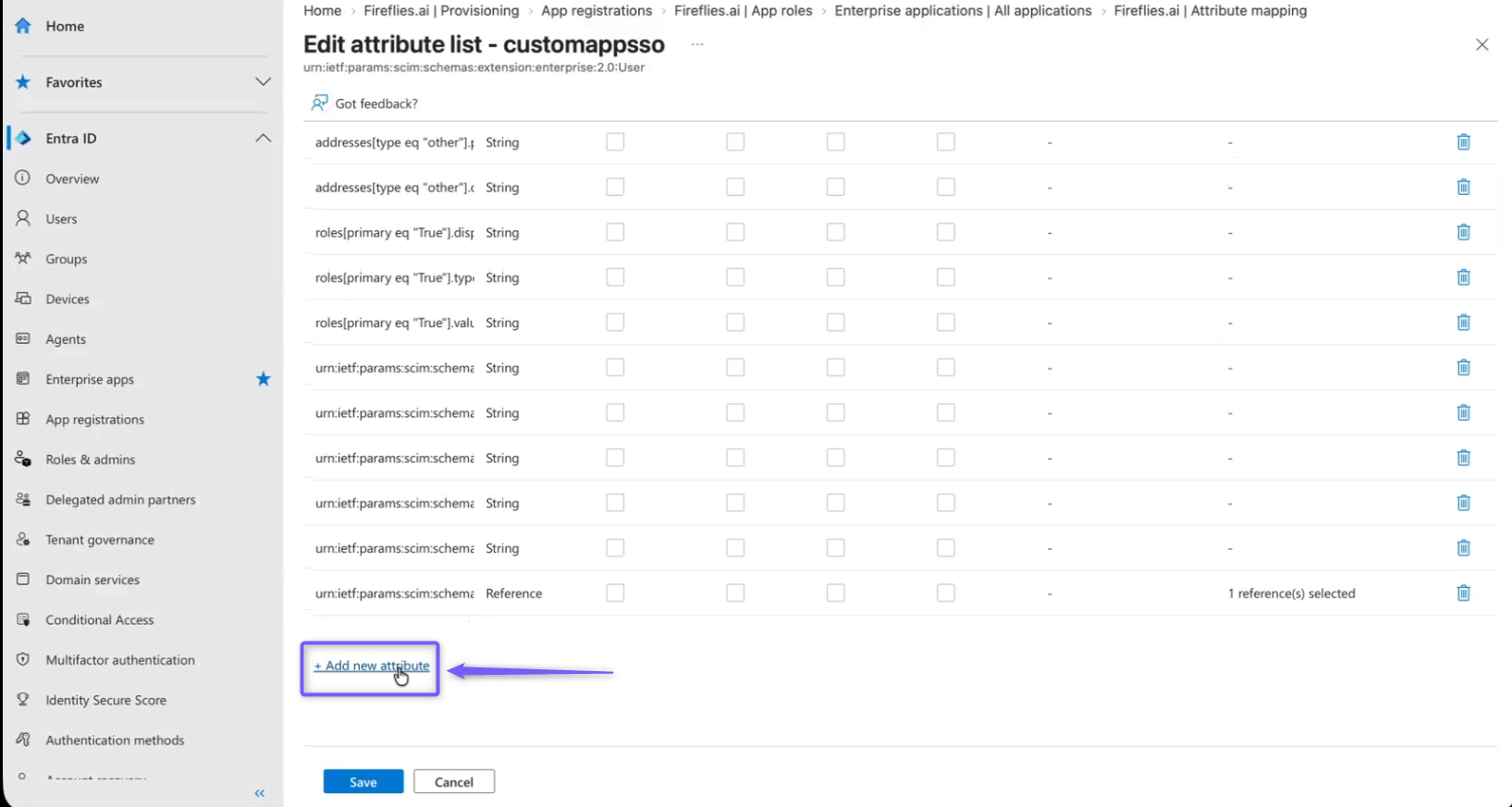
Step 7: Scroll to the bottom of the attribute list and click Add new attribute.
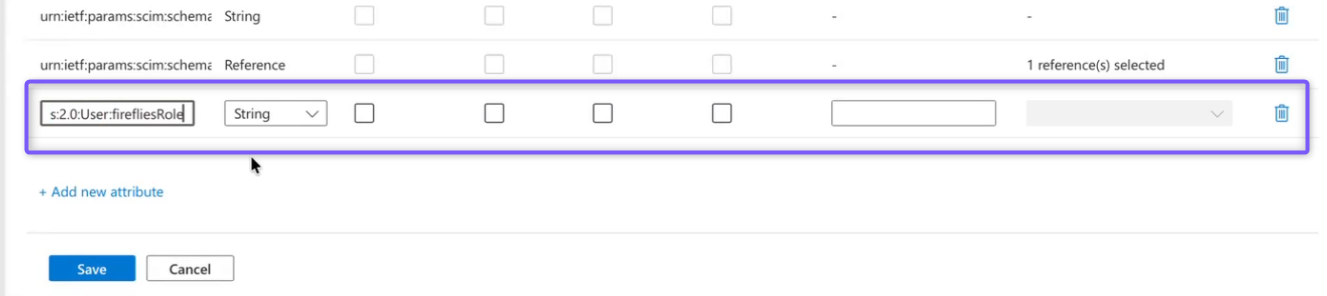
Step 8: Add the following attribute:
Field | Description | Value |
|---|---|---|
Name | The SCIM attribute used to store the Fireflies role. |
|
Type | Defines the attribute data type. | String |
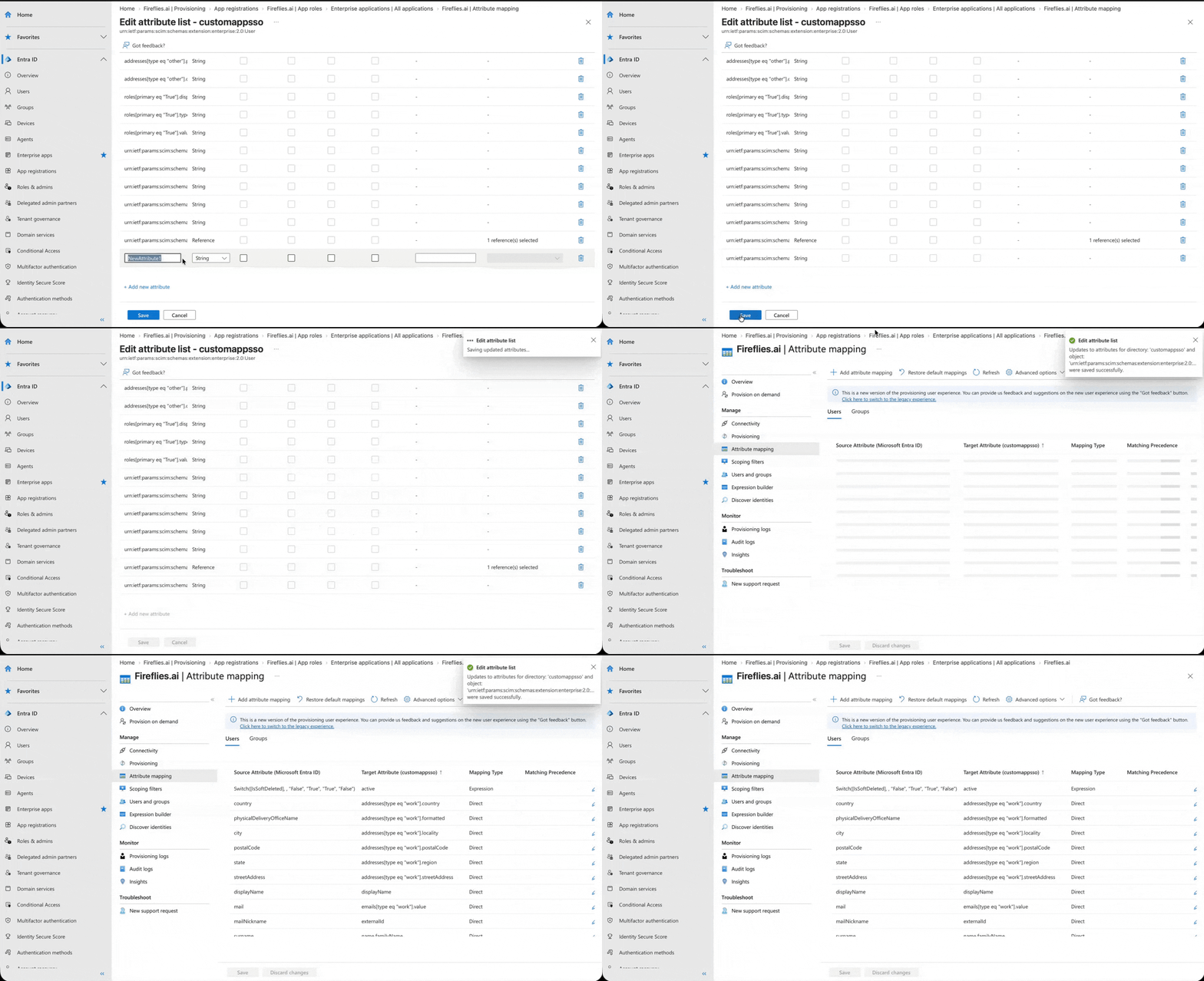
Step 9: Click Save. A confirmation message appears asking whether you want to proceed with updating the attribute list.
Step 10: Click Yes to confirm the change.
🔄 Map App Roles to the Fireflies Role Attribute
Now map the Microsoft Entra app role assignment to the Fireflies firefliesRole attribute.
Step 11: On the Attribute mapping page, click Add attribute mapping.
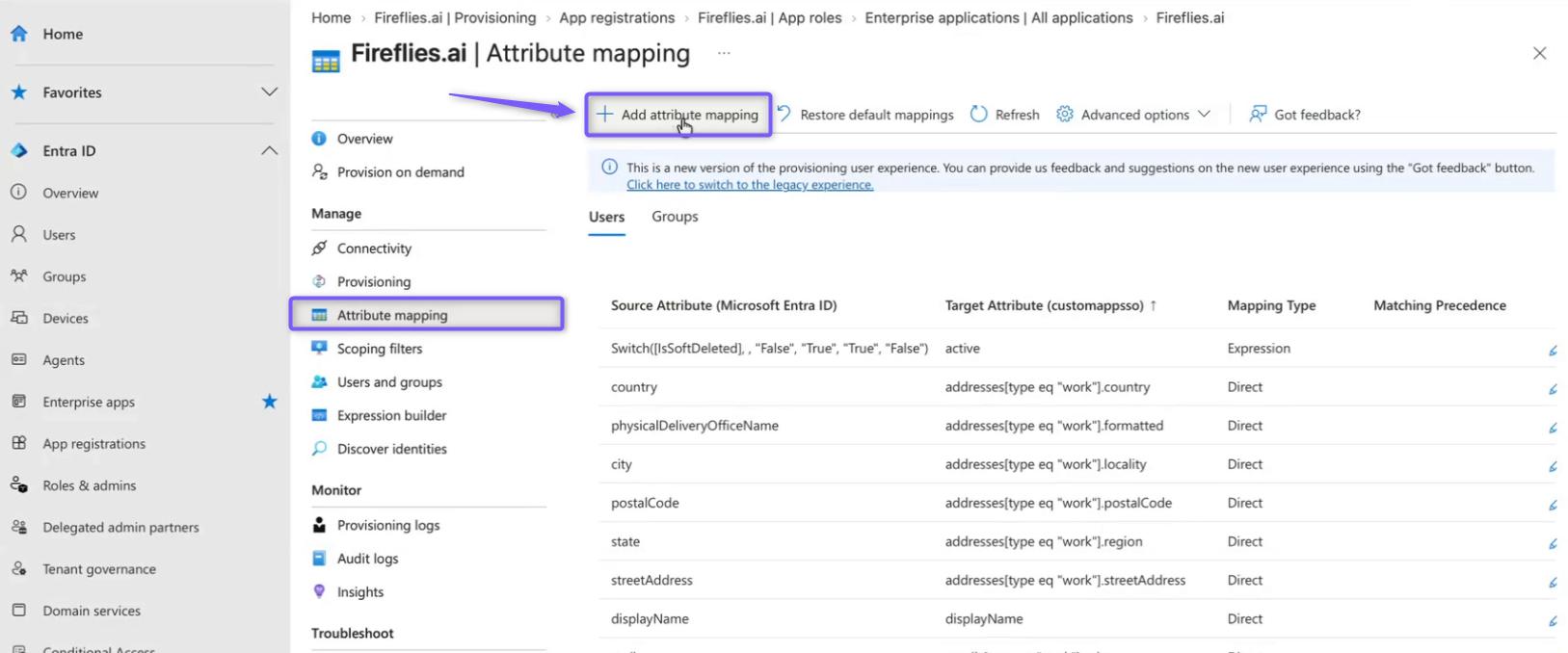
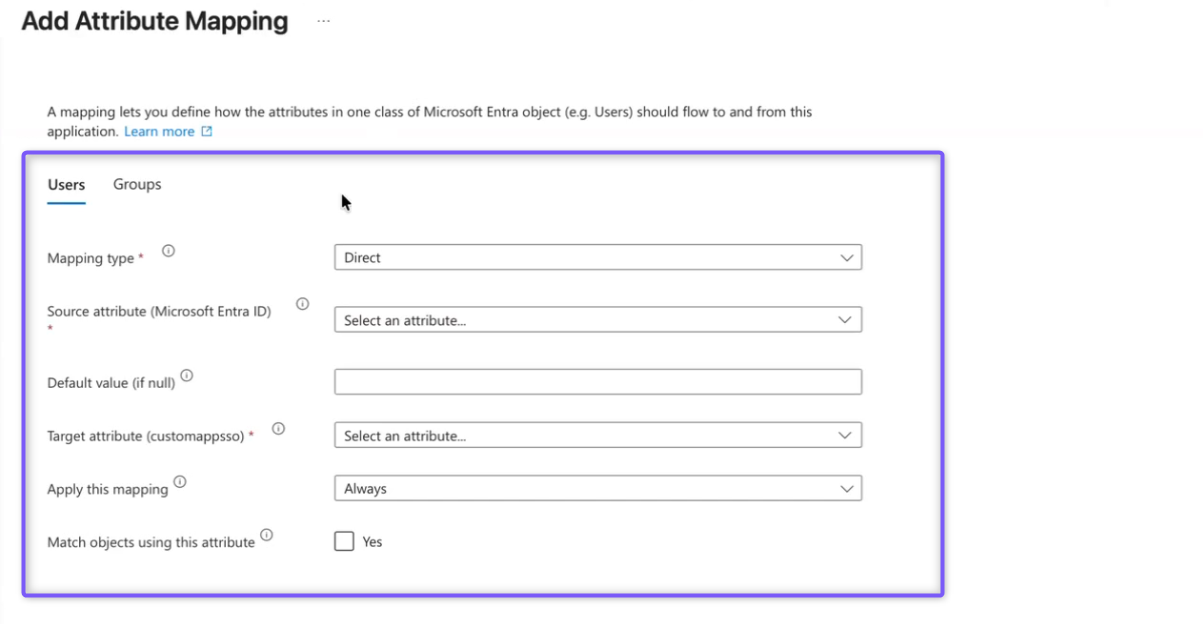
Step 12: Configure the mapping using the following values:
Field | Description | Value |
|---|---|---|
Mapping type | Defines how the source value is generated. | Expression |
Expression | Converts the Microsoft Entra app role assignment into the value sent to Fireflies. |
|
Default value (if null) | Defines a fallback value when no role is assigned. | Leave blank |
Target attribute (customappsso) | Specifies where the role value is sent. |
|
Apply this mapping | Determines when the mapping is applied. | Always |
Match objects using this attribute | Determines whether this attribute is used to match objects. | Leave unchecked |
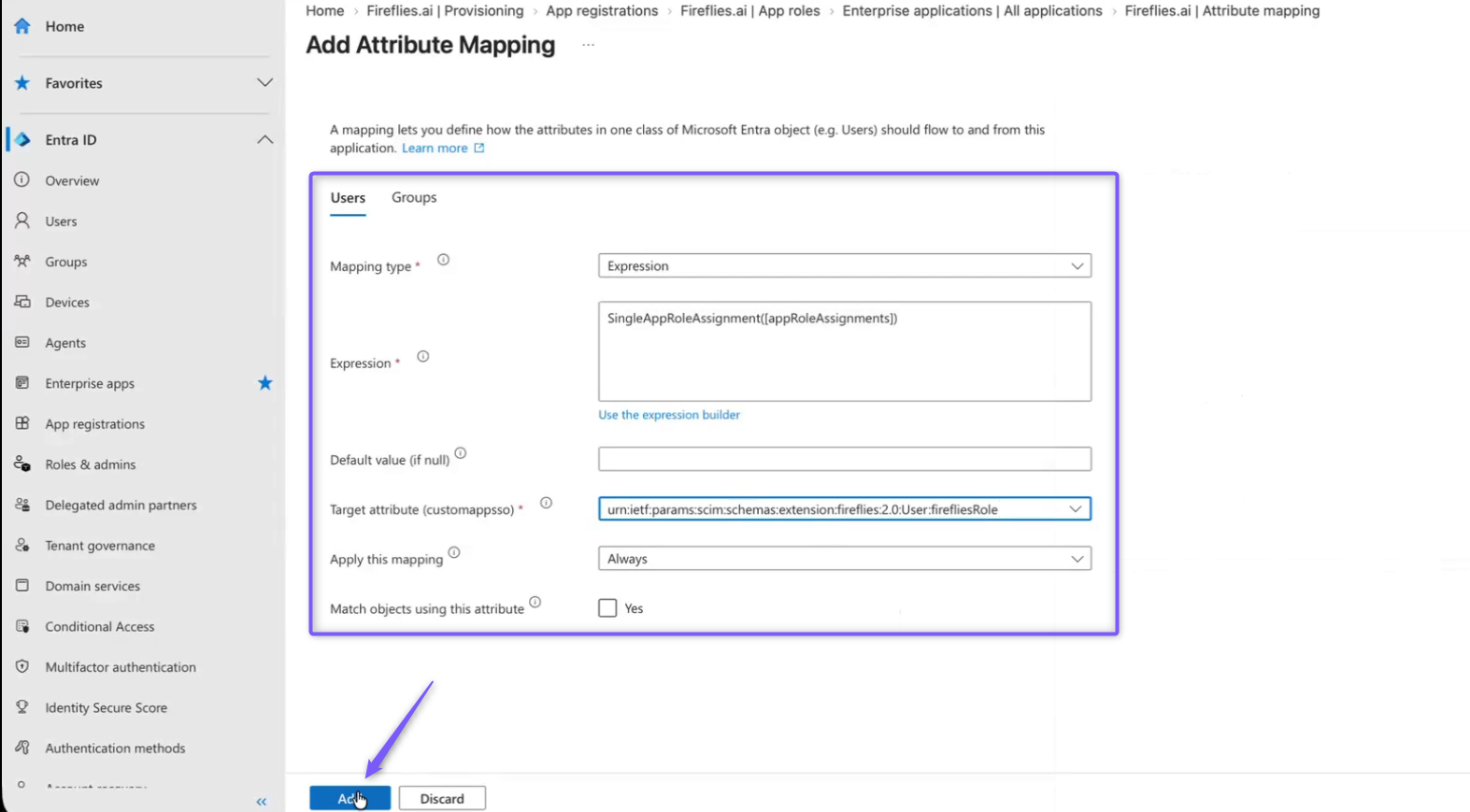
Step 13: Click Add. The new role mapping appears under Attribute mapping.
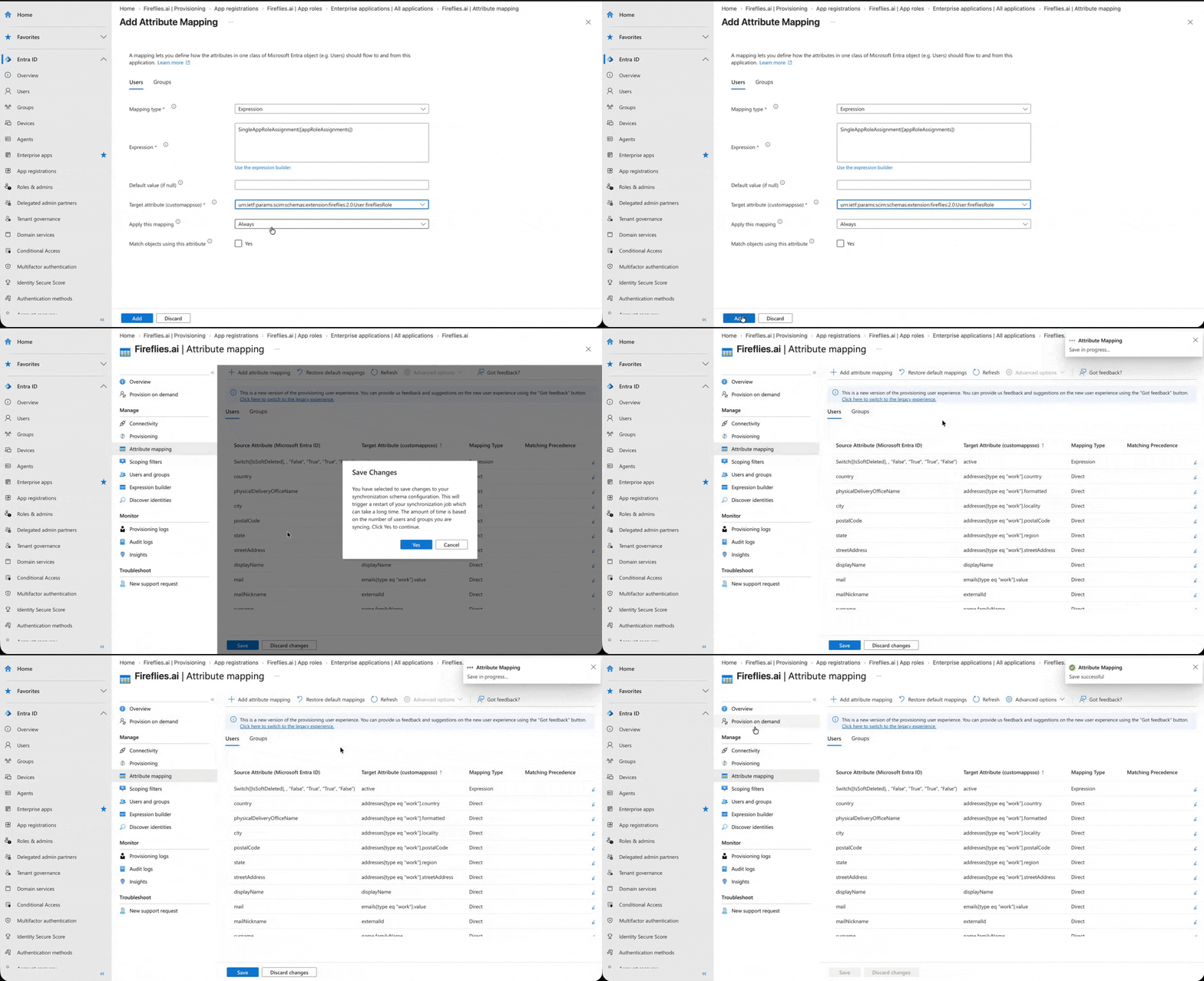
Step 14: Click Save to save the attribute mapping.
👤 Assign a Fireflies Role to a User
After configuring the role mapping, assign an app role to a user through the Fireflies enterprise application.
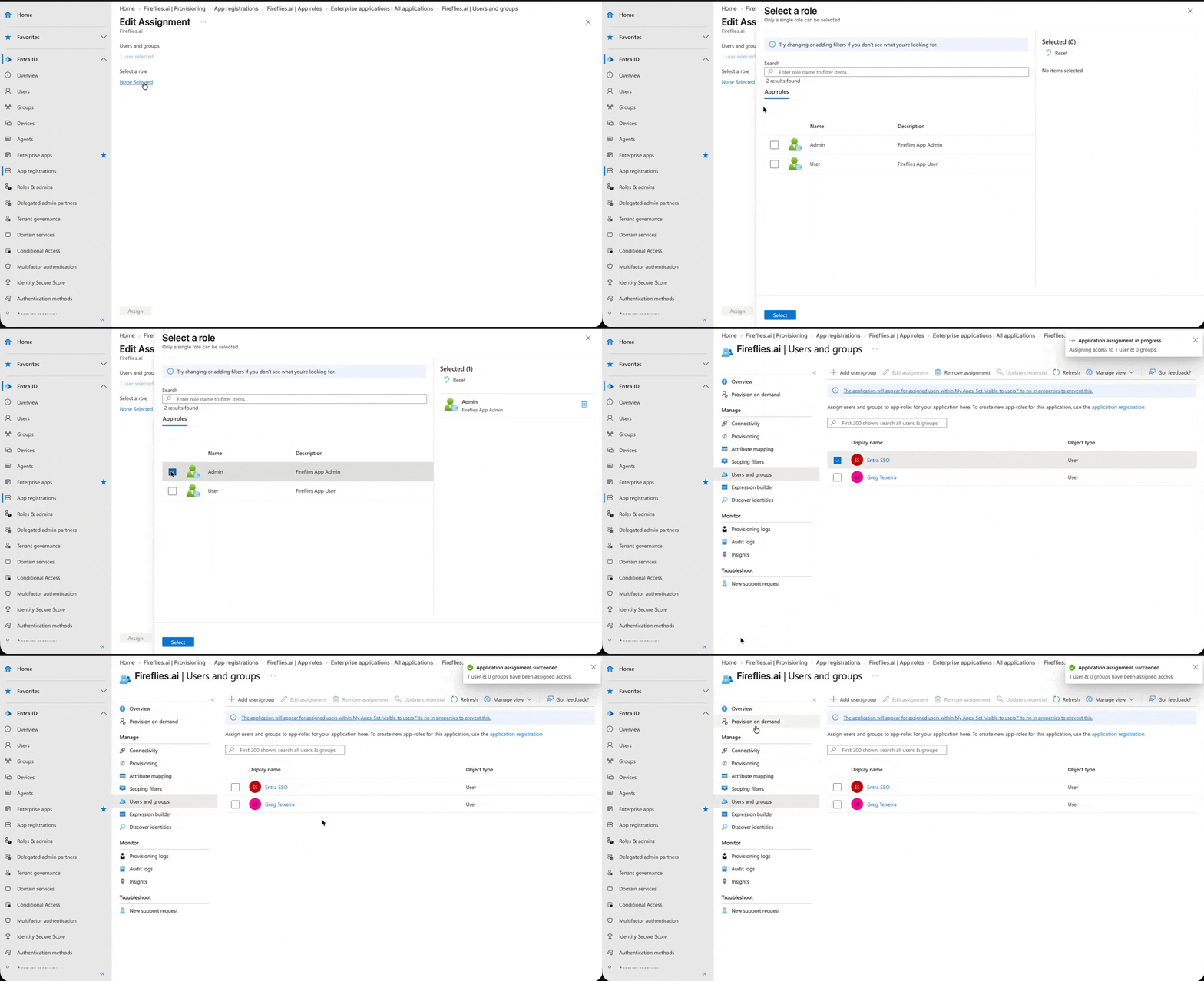
Step 15: In the Fireflies.ai enterprise application, select Users and groups.
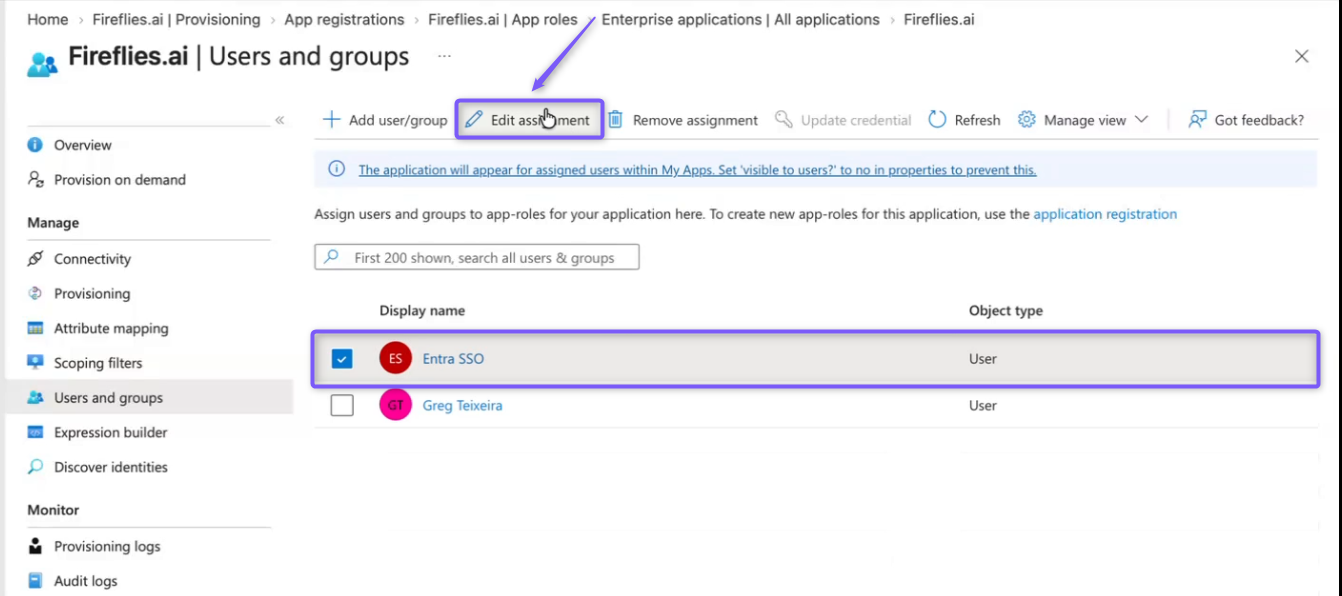
Step 16: Select the user you want to assign a Fireflies role to.
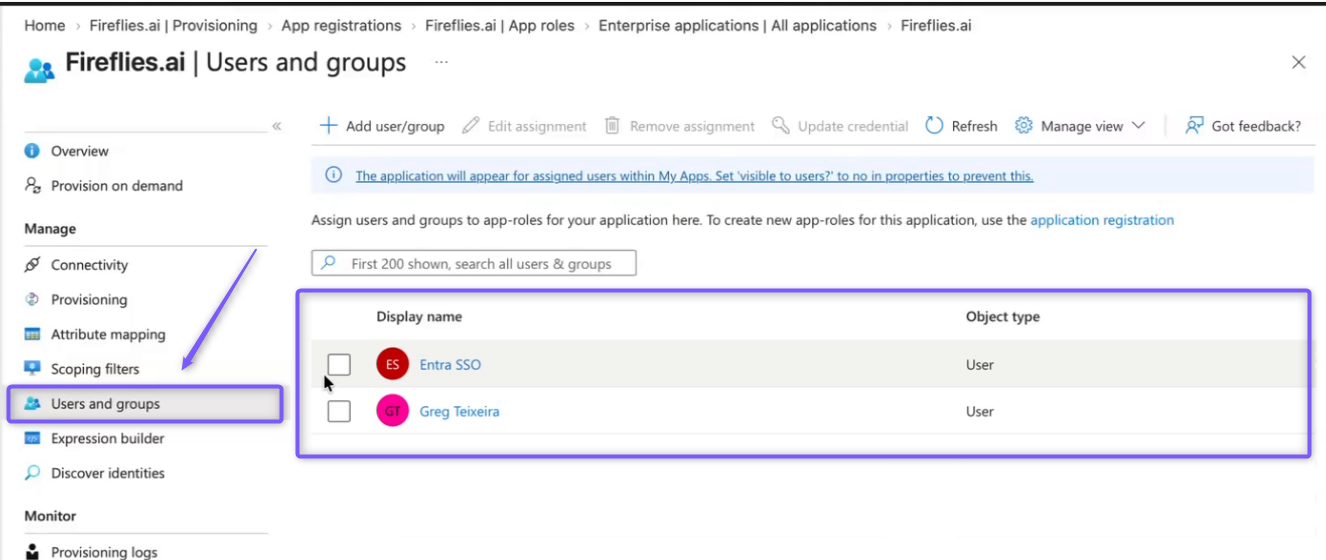
Step 17: Click Edit assignment.
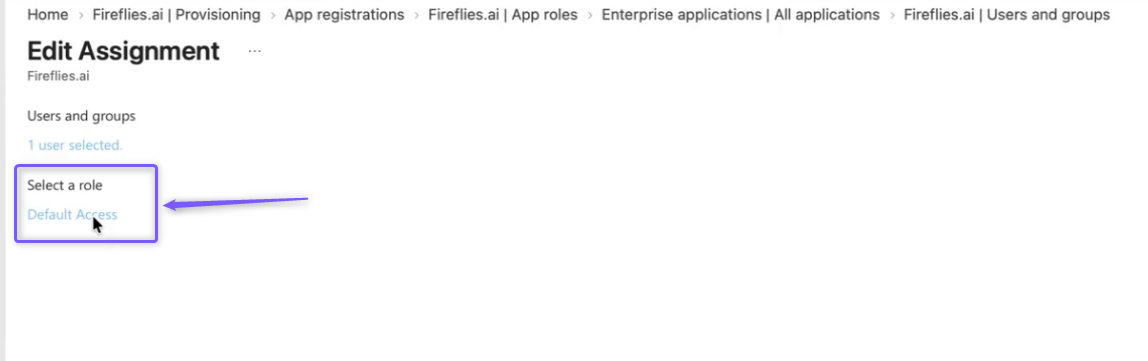
Step 18: Under Select a role, click None Selected.
Step 19: Select the Fireflies role you want to assign, such as Admin or User.
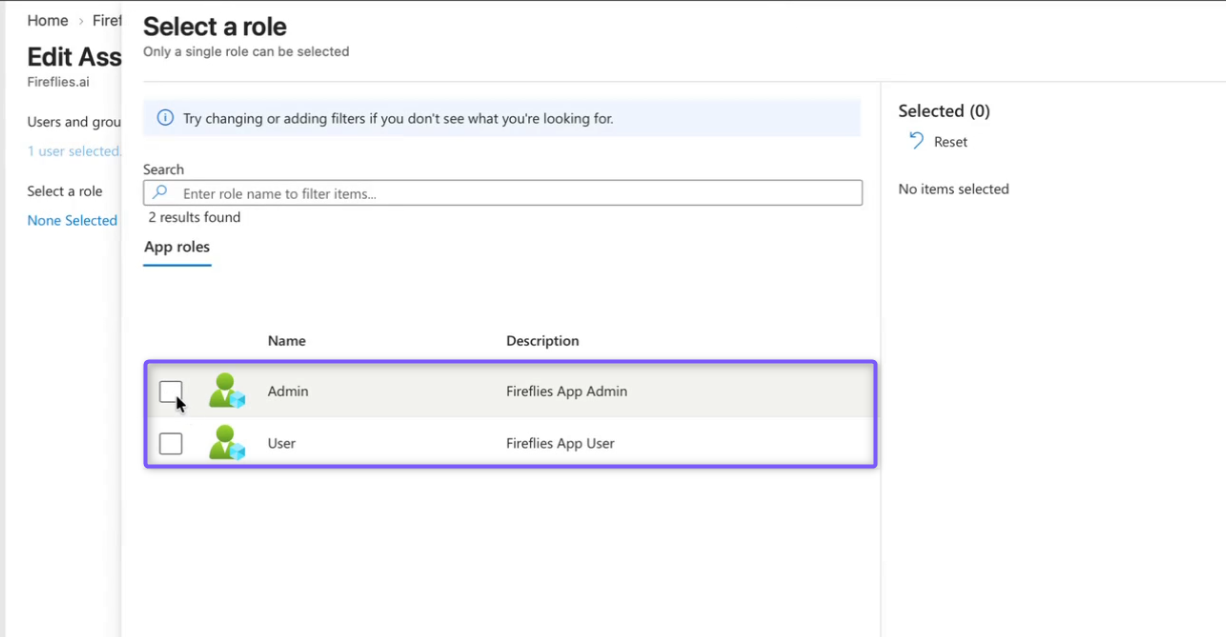
Step 20: Click Select. The selected role appears under the user's assignment.
Step 21: Click Assign to save the application assignment.
A confirmation message appears when the application assignment succeeds.
🚀 Provision the User and Role to Fireflies
Use Provision on demand to immediately synchronize the assigned user and role with Fireflies.
Step 22: In the Fireflies.ai enterprise application, select Provision on demand.
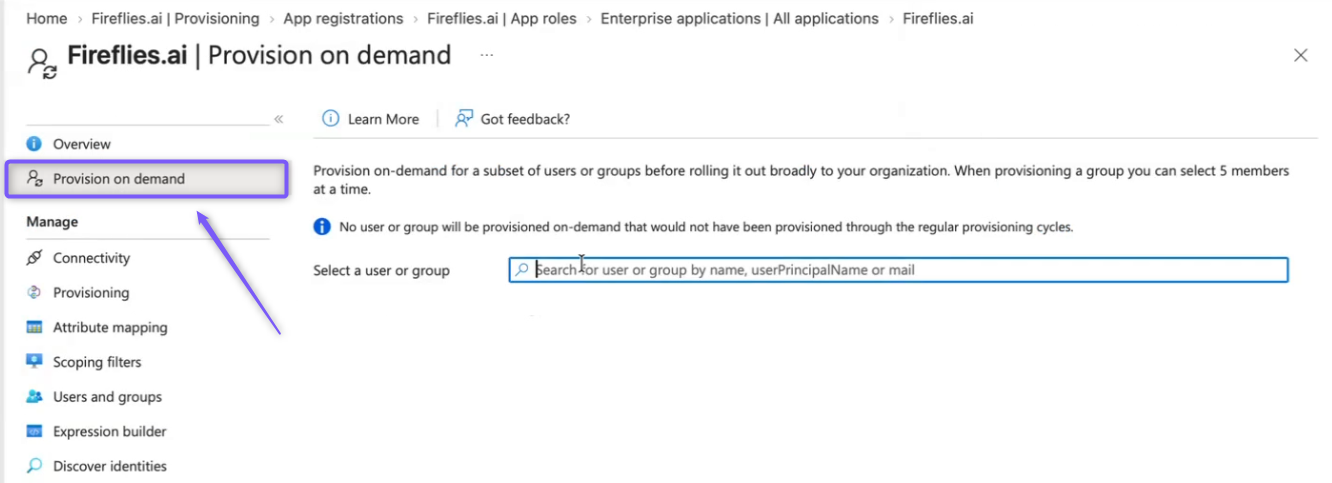
Step 23: Under Select a user or group, search for the user you assigned to the Fireflies application.
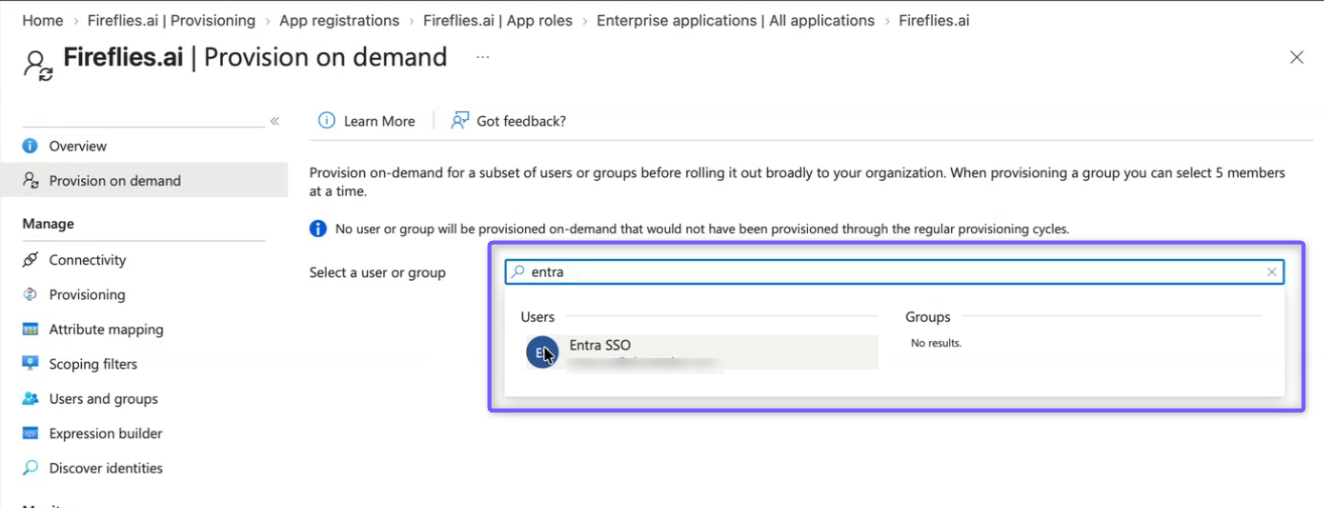
Step 24: Select the user.
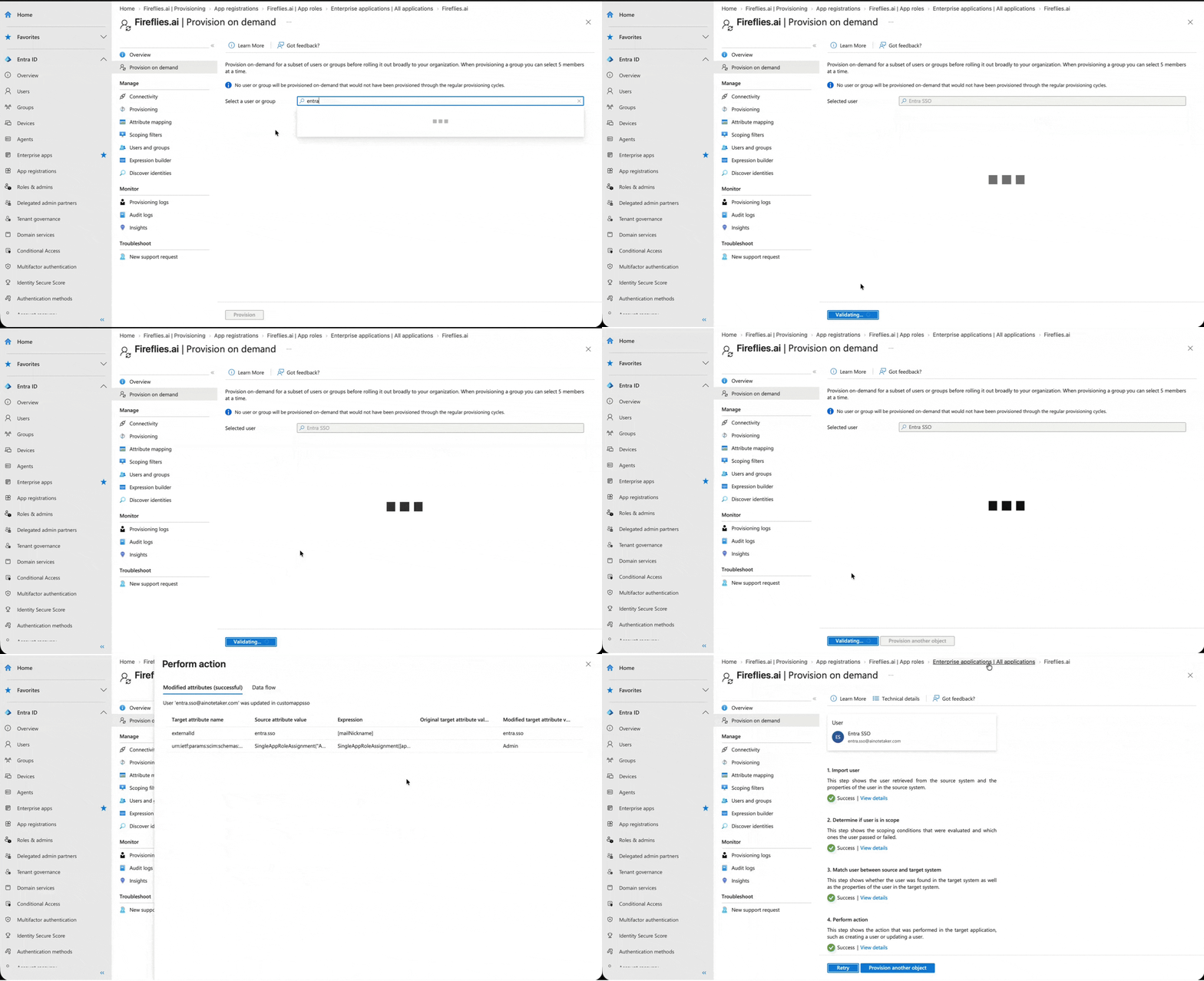
Step 25: Click Provision.
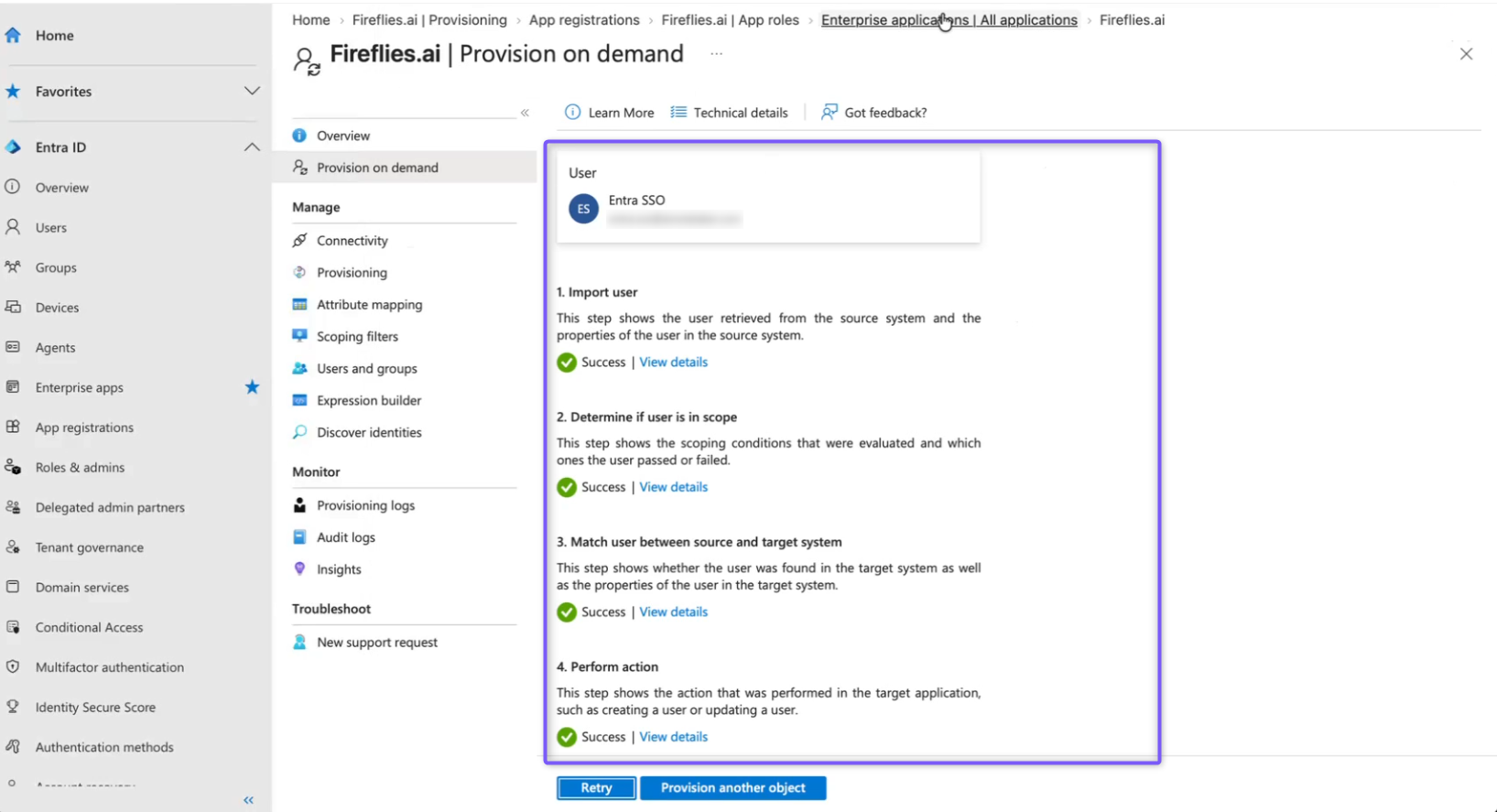
Microsoft Entra begins the provisioning process and displays the provisioning steps.
✅ Verify the Provisioning Result
Microsoft Entra displays the result of each provisioning step.
Step 26: Verify that the following steps show Success:
Import user
Determine if user is in scope
Match user between source and target system
Perform action
When all four steps show Success, the user has been successfully provisioned to Fireflies.
🔍 Verify the Role in Fireflies
After provisioning completes, verify the user's role in your Fireflies workspace.
Step 27: Open your Fireflies workspace, then click Settings.
Step 28: Switch to the Team tab, then select Teammates and groups.
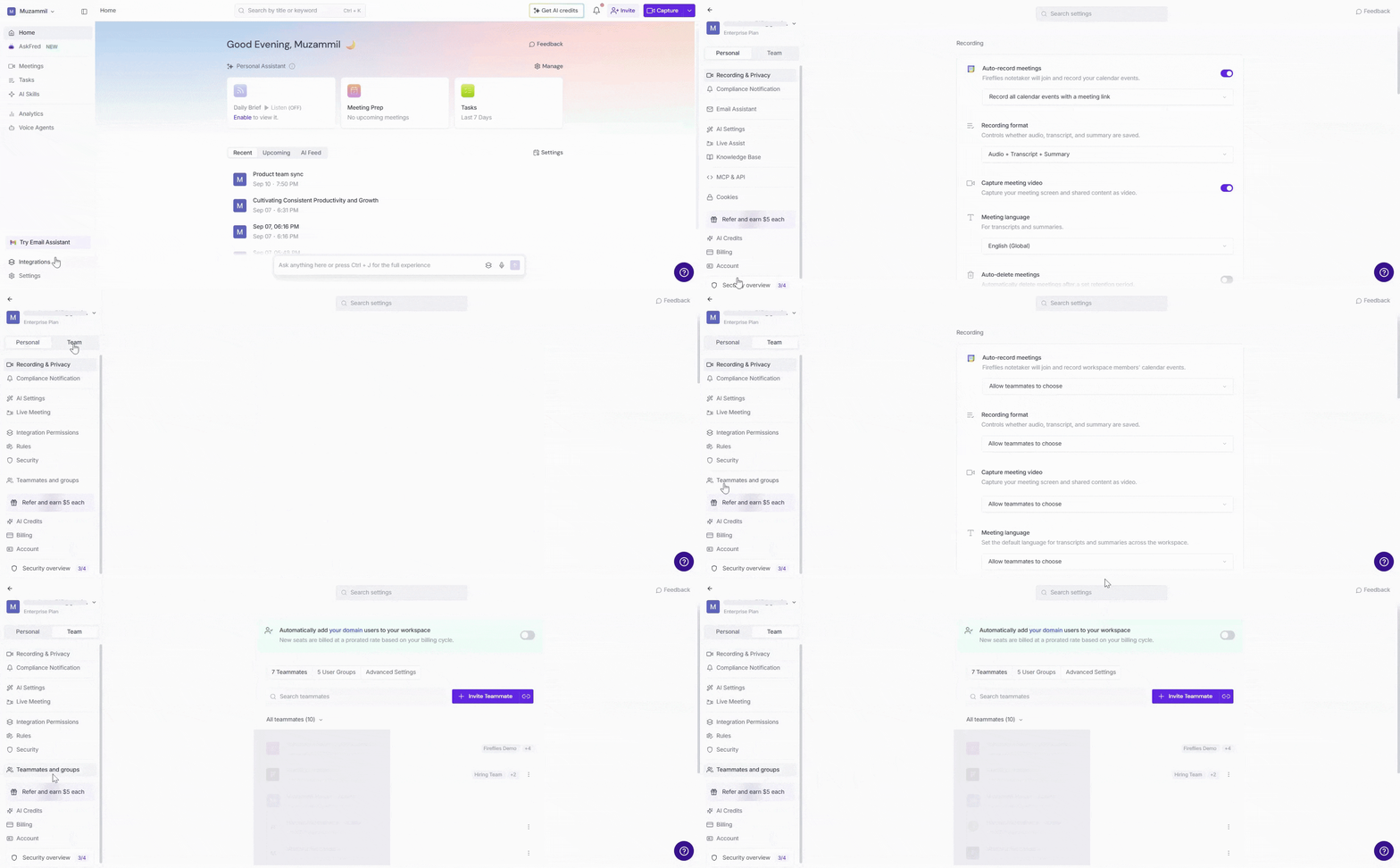
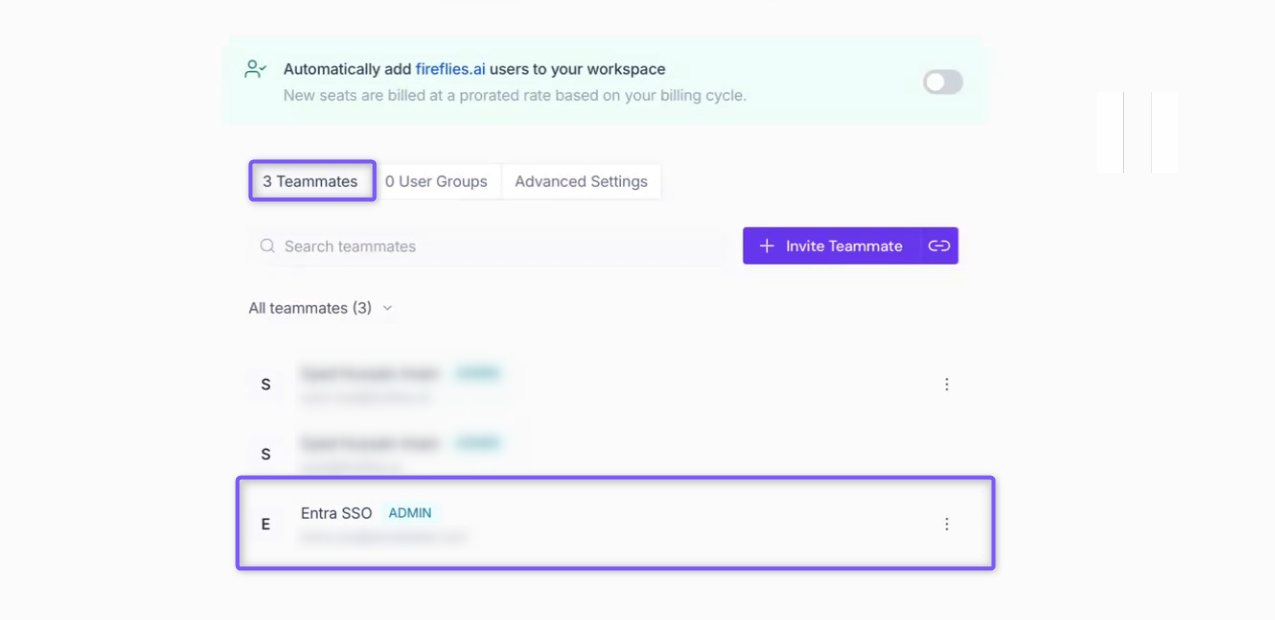
Step 29: Under All teammates, verify that the provisioned user appears in the list.
The user's Fireflies role should reflect the app role assigned in Microsoft Entra ID.
🎉 You're All Set!
You've successfully configured SCIM-based role management with Microsoft Entra ID. You can now assign supported Fireflies roles through Microsoft Entra ID and synchronize those role assignments with your Fireflies workspace.