How to Edit Meeting Transcripts on the Fireflies Notepad
Last updated: June 17, 2026
Sometimes a transcript may contain a typo, incorrect wording, or a phrase that needs clarification. When that happens, you can edit the transcript directly in the Fireflies Notepad to ensure your meeting record is accurate and easy to share.
You can only edit transcripts for meetings that you own or hosted. If a meeting was shared with you by another user, the transcript cannot be edited.
Let's get started 🚀
Step 1: Log in to your Fireflies account and click the Meetings tab in the left sidebar.
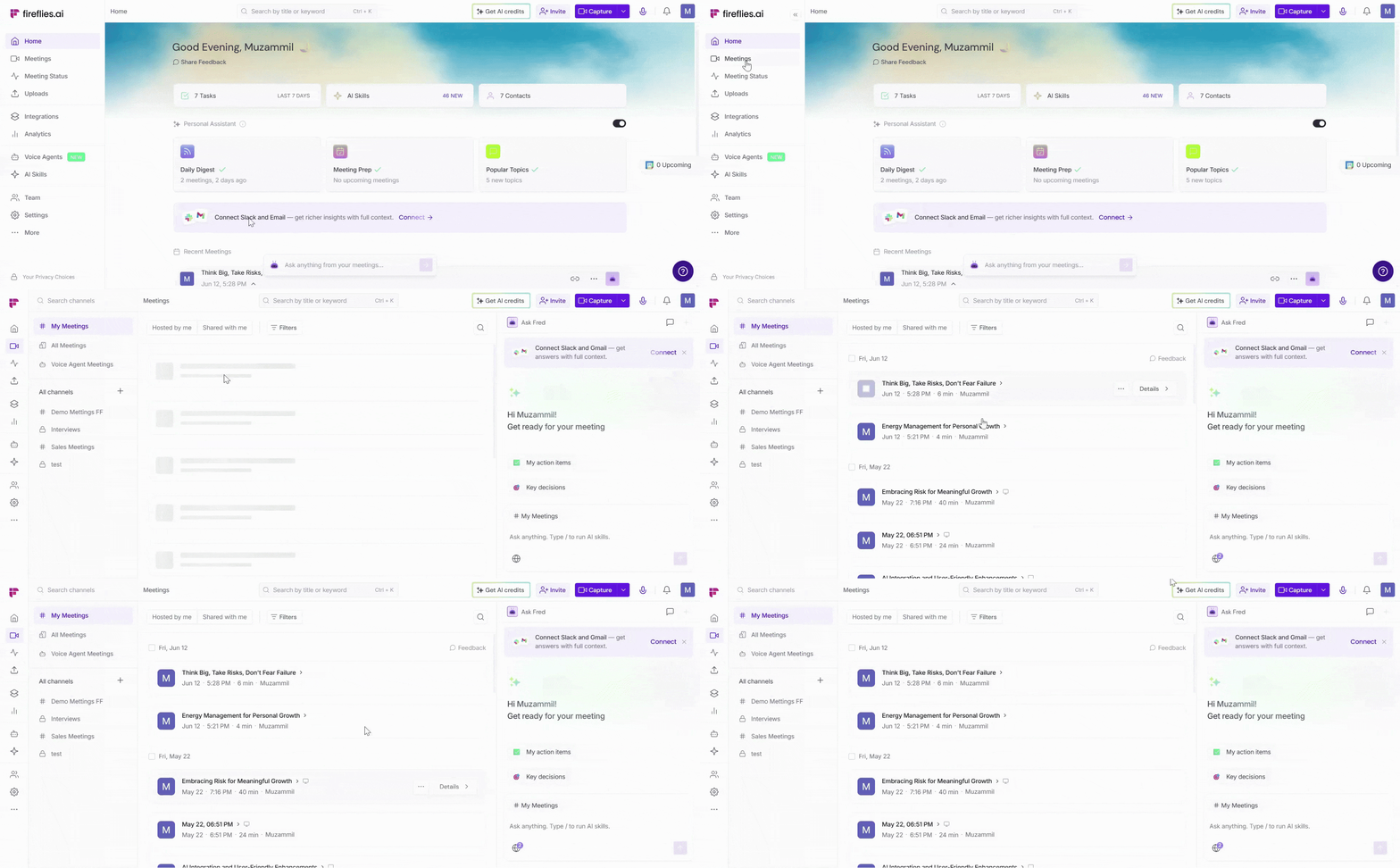
Step 2: This opens the My Meetings channel by default, which displays all the meetings you own.
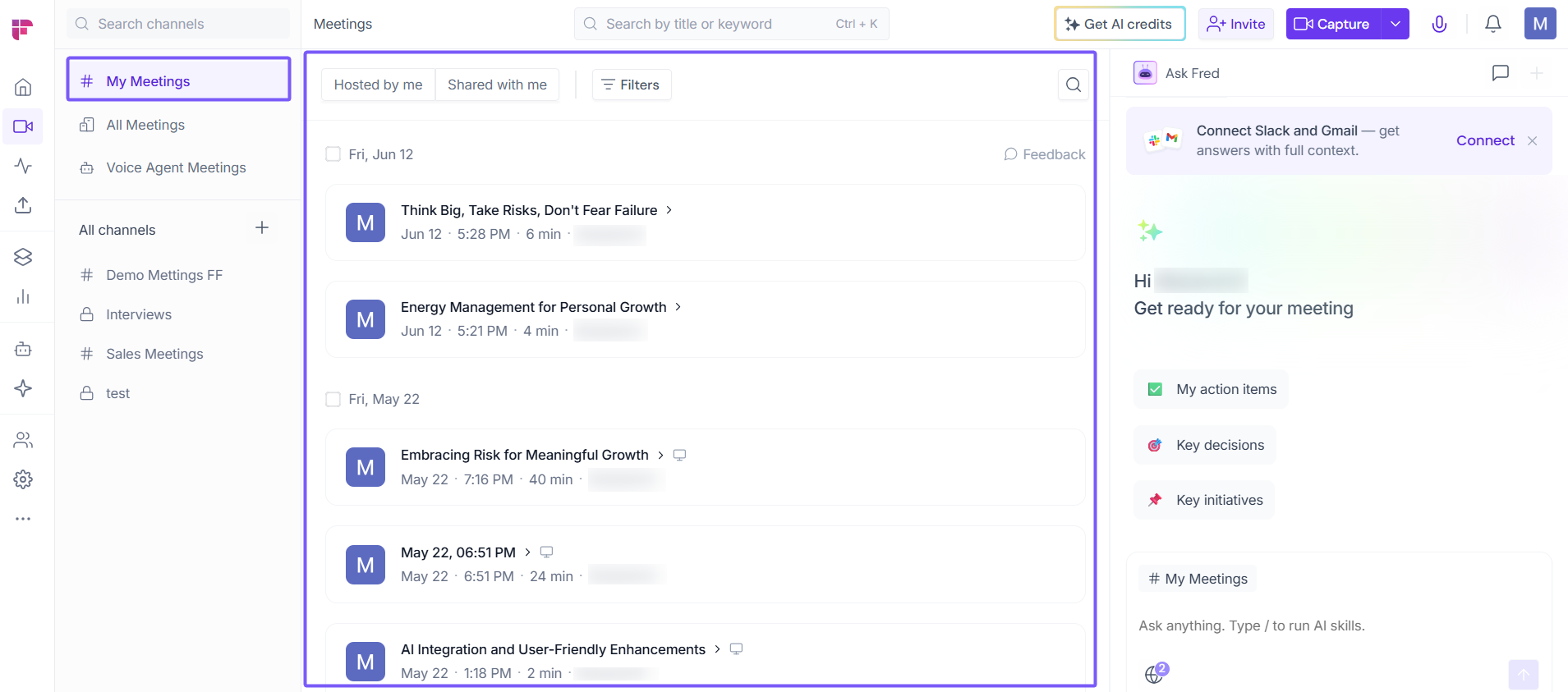
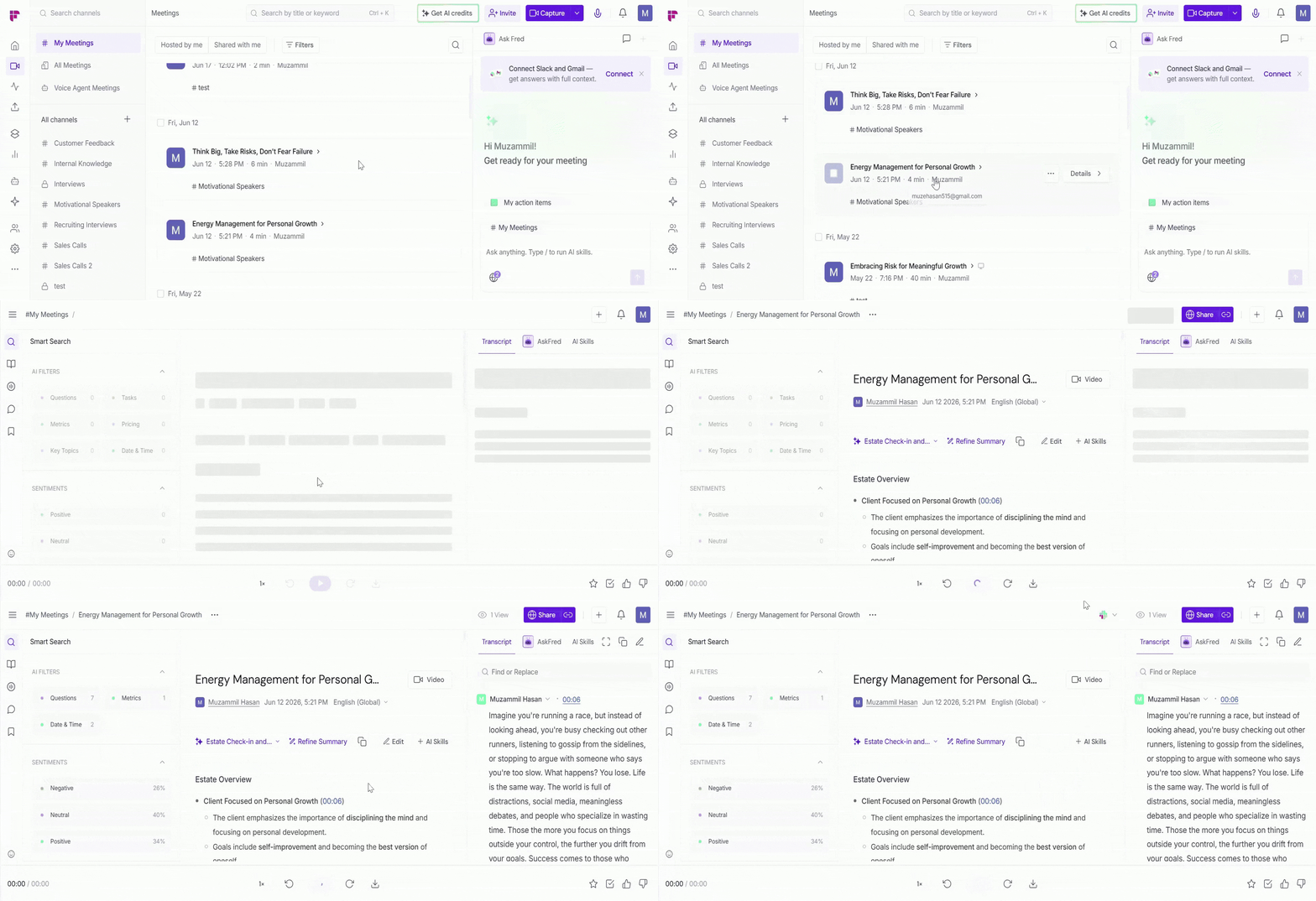
Step 3: Open the meeting whose transcript you want to edit.
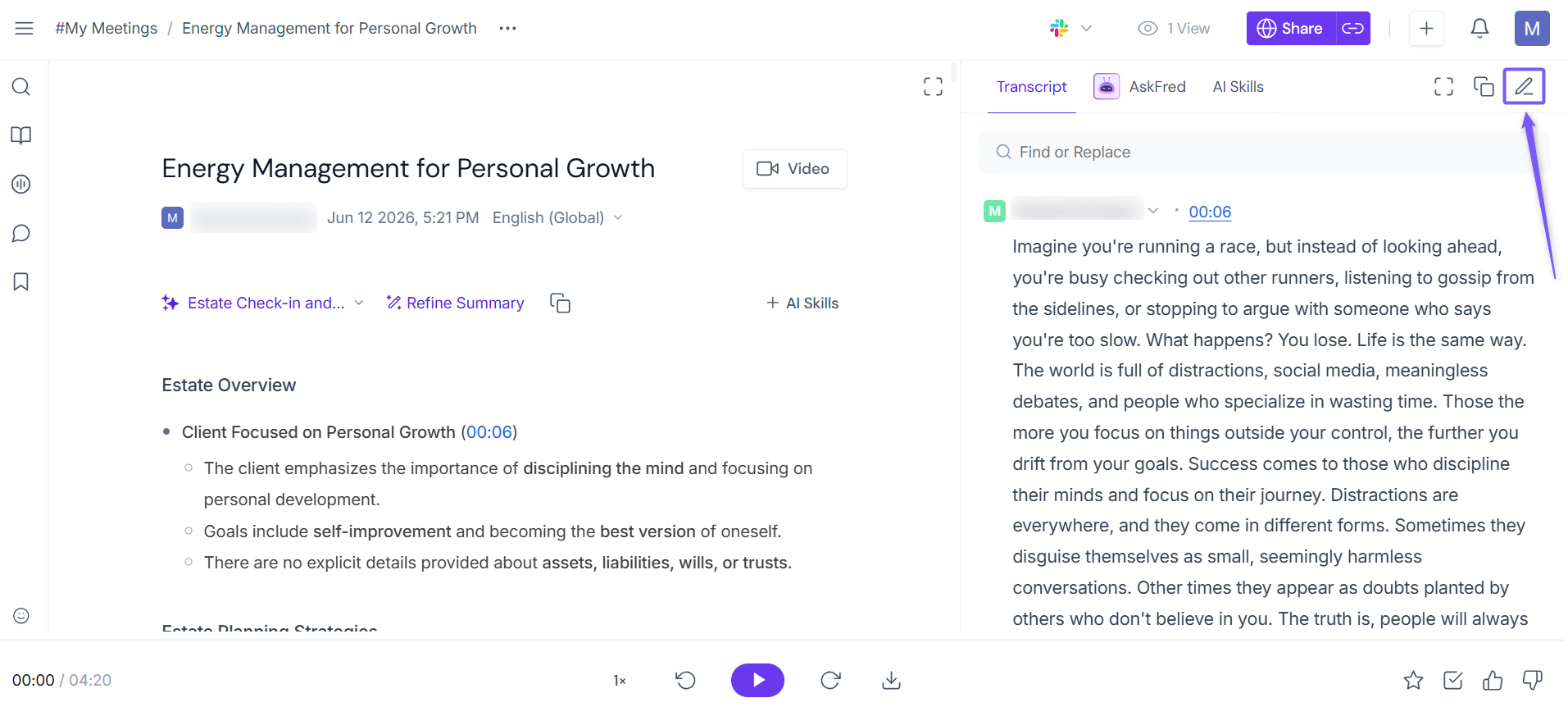
Step 4: In the Transcript tab, click the Edit (pencil) icon in the top-right corner.
Step 5: The transcript enters edit mode and the background color changes, indicating that the transcript is now fully editable. Make the necessary changes to the transcript.
💡 Tip: Use the Undo and Redo buttons to quickly revert or reapply recent changes while editing.
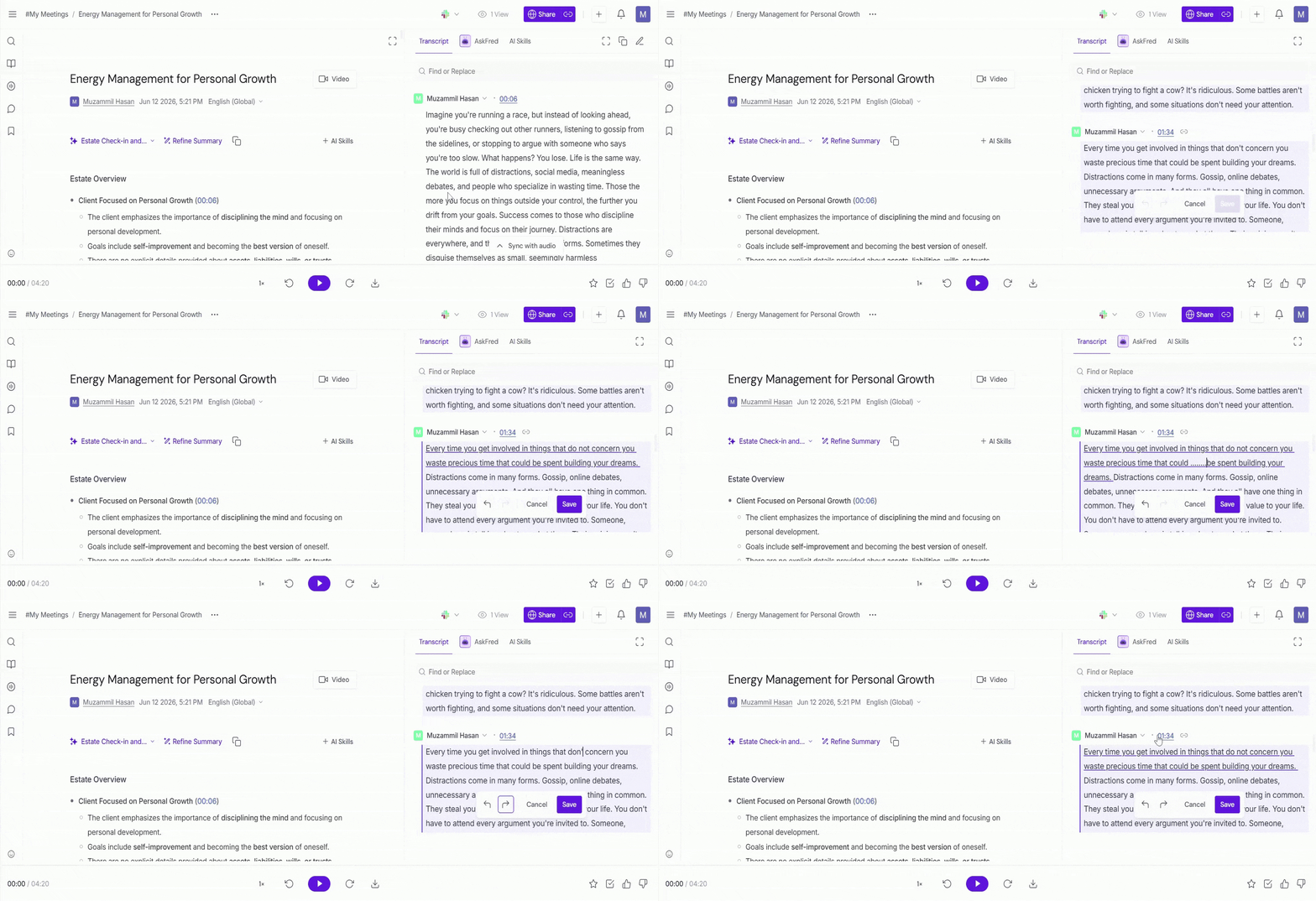
Step 6: Click Save to apply your changes, or Cancel to discard them.
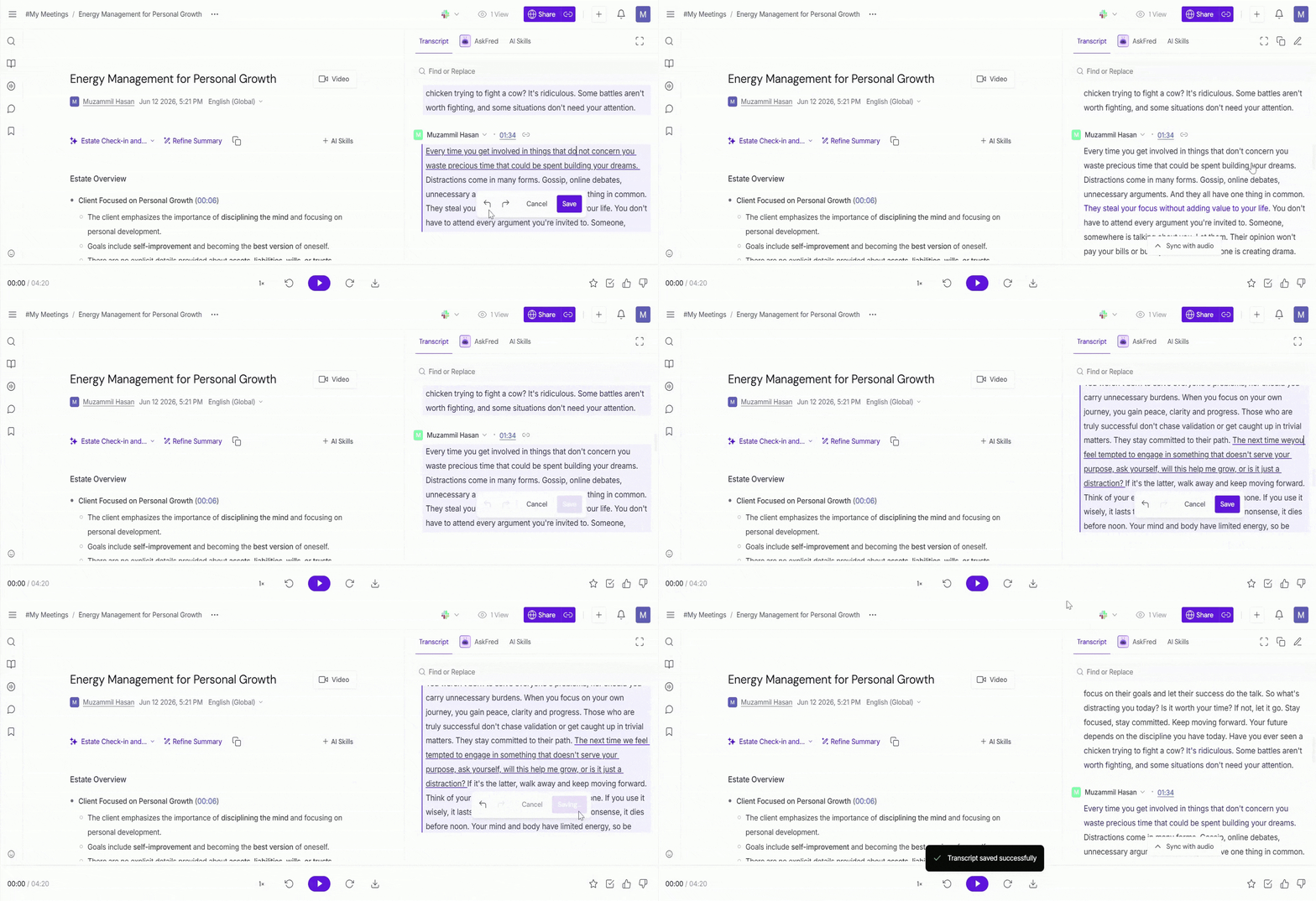
Your transcript changes are saved and reflected in the meeting record.
📌 Related
If you need to make additional changes to your meeting record, these guides can help: