Learn about the Comments feature in your Notepad
Last updated: January 8, 2026
Important thoughts, questions, or feedback often come up during meetings and can be easy to forget. Adding comments directly to a meeting helps you capture those moments in real time.
Each comment is linked to a specific timestamp, so you can quickly return to the exact moment for context. Replies stay organized in threads, keeping related discussions clear and easy to follow.
Let's get started 🚀
🚀 Navigation
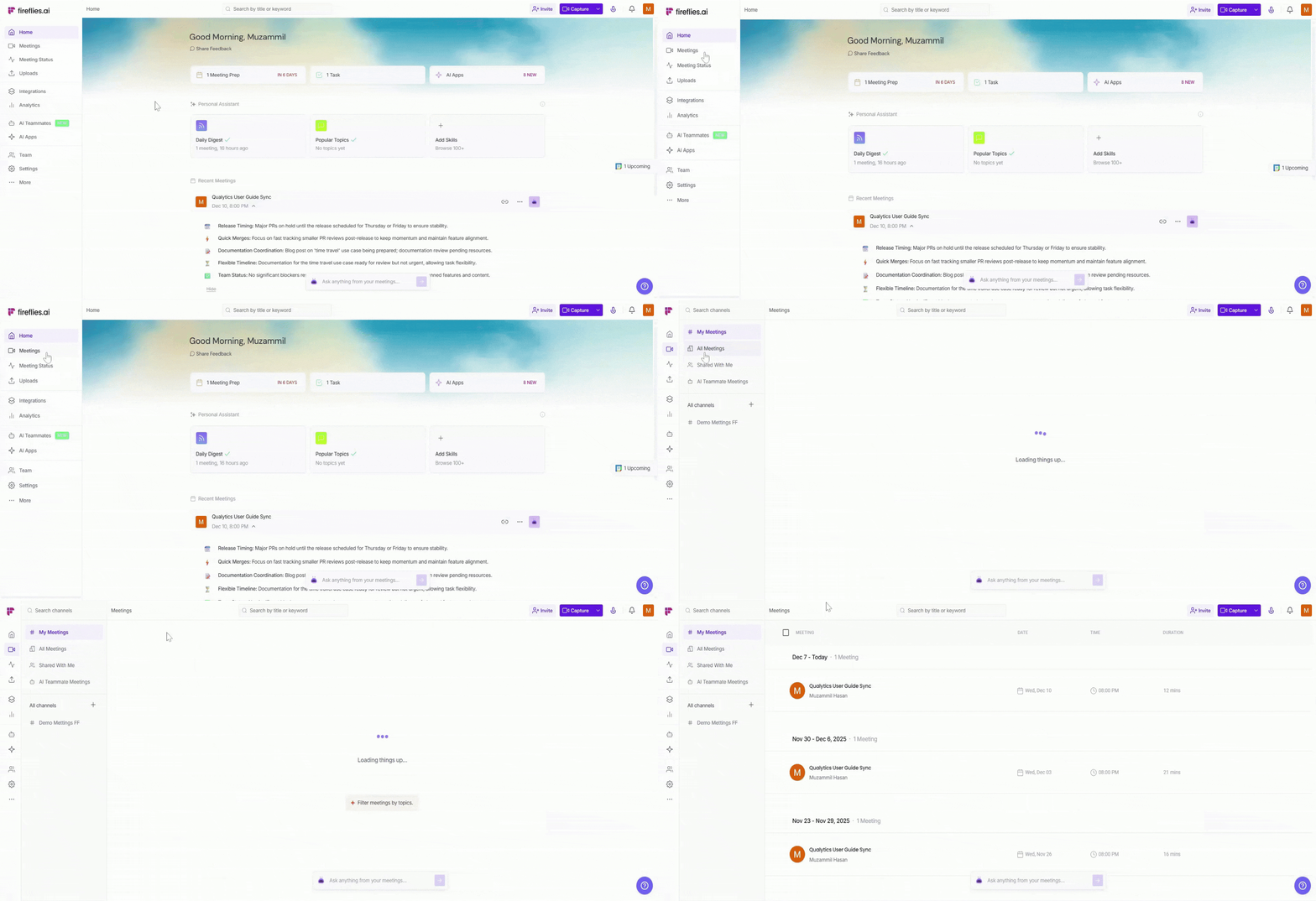
Step 1: Log in to your Fireflies account and click on the Meetings tab from the left-hand menu to open your meeting notebook.
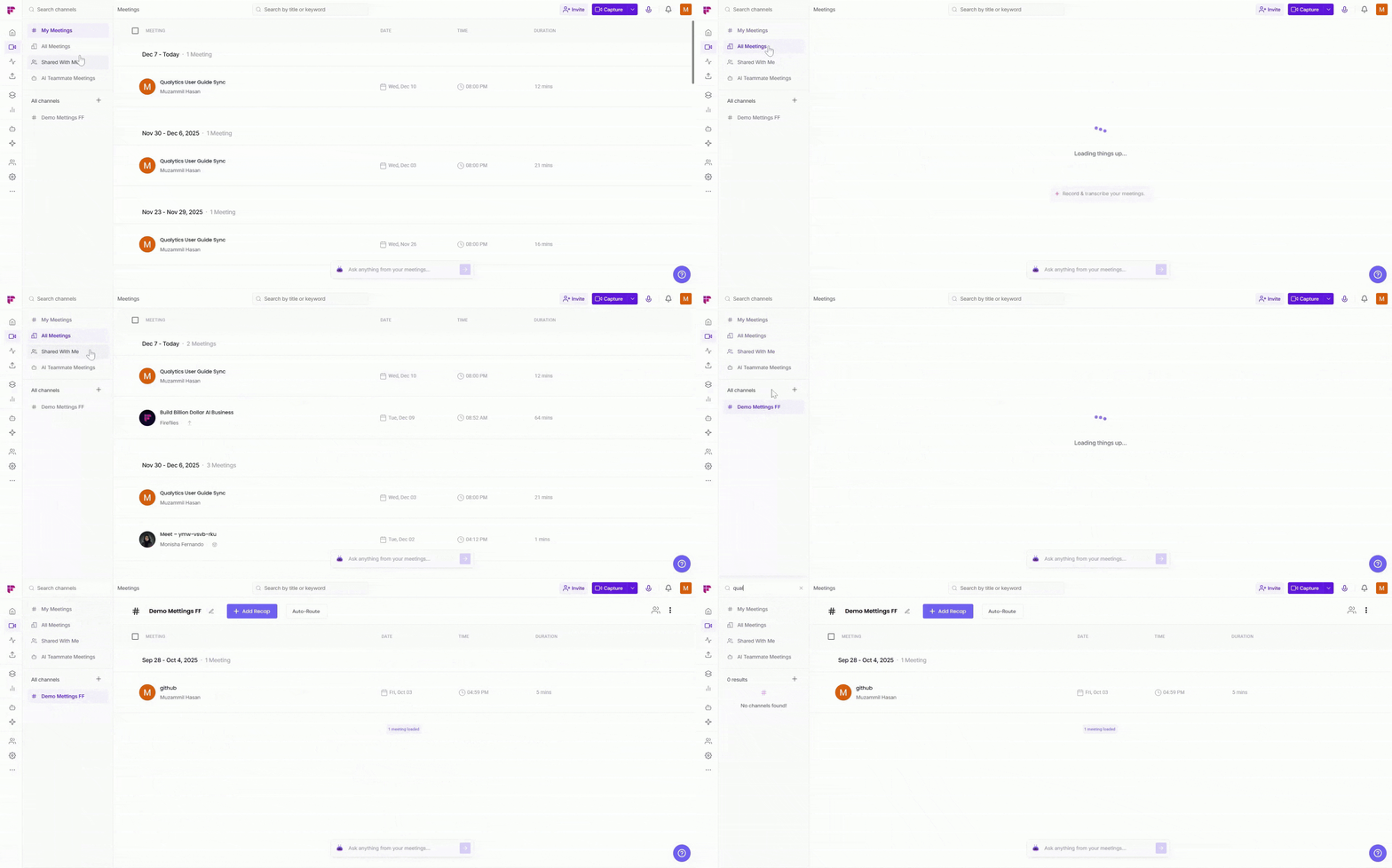
Step 2: Now, search for the meeting you want to use by typing keywords in the search bar or using the category filter (e.g., My Meetings, All Meetings, Channels) to find the relevant meeting.
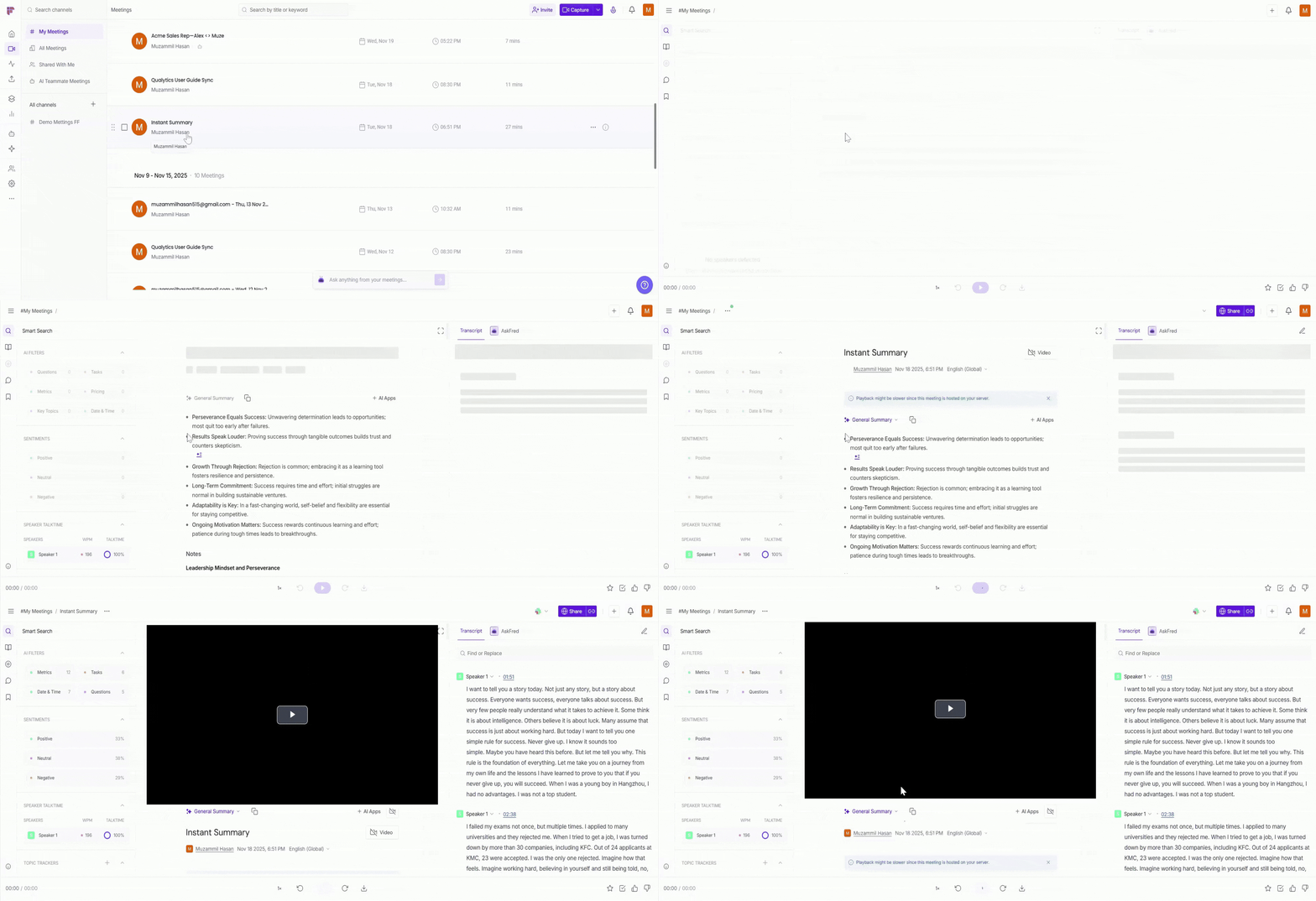
Step 3: Open the meeting where you want to add or view comments by clicking on it to access the meeting transcript.
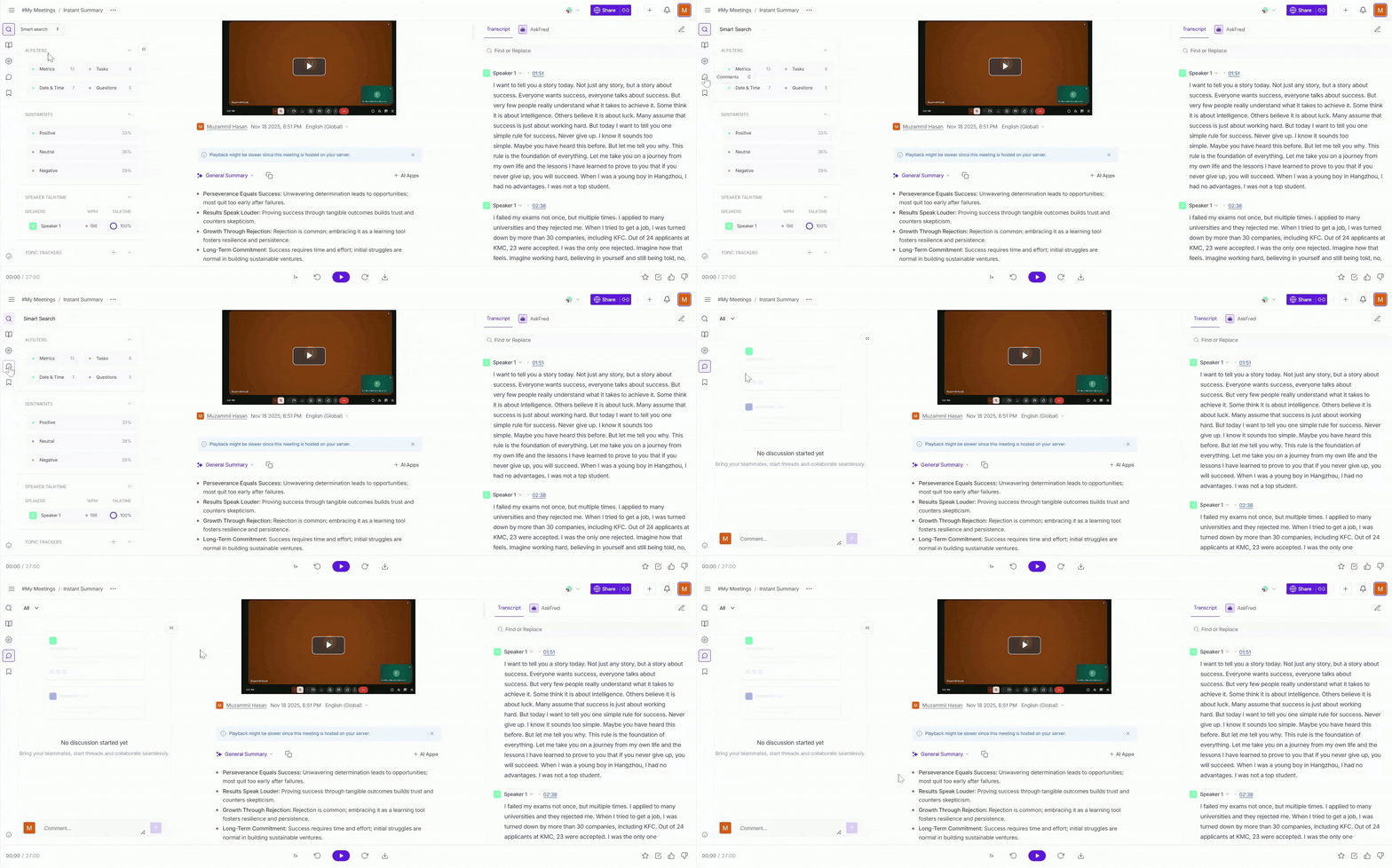
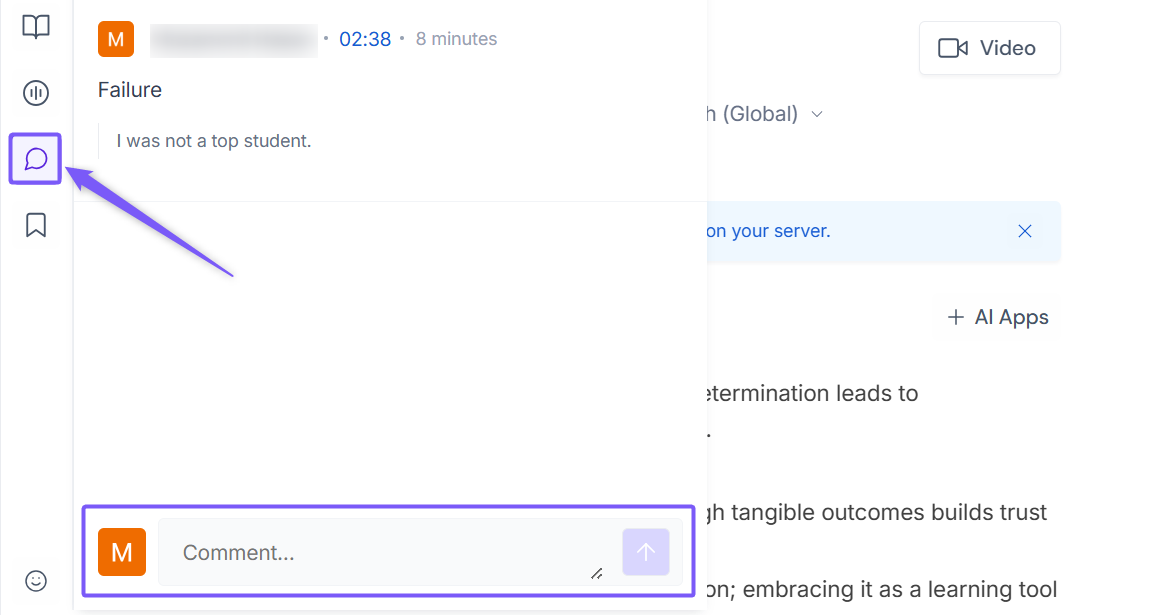
Step 4: Click on the Comments tab from the left menu to view and add comments for the meeting.
✍ Add Comments to a Meeting
Comments can be added directly to specific moments in a meeting, making it easy to leave notes, ask questions, or share feedback with clear context.
Method 1: Add a Comment directly on the Transcript
Use this method when you want to comment on a specific sentence or part of the conversation.
Here’s how you can do it:
Select the words or line you want to comment on by highlighting the specific part of the transcript.
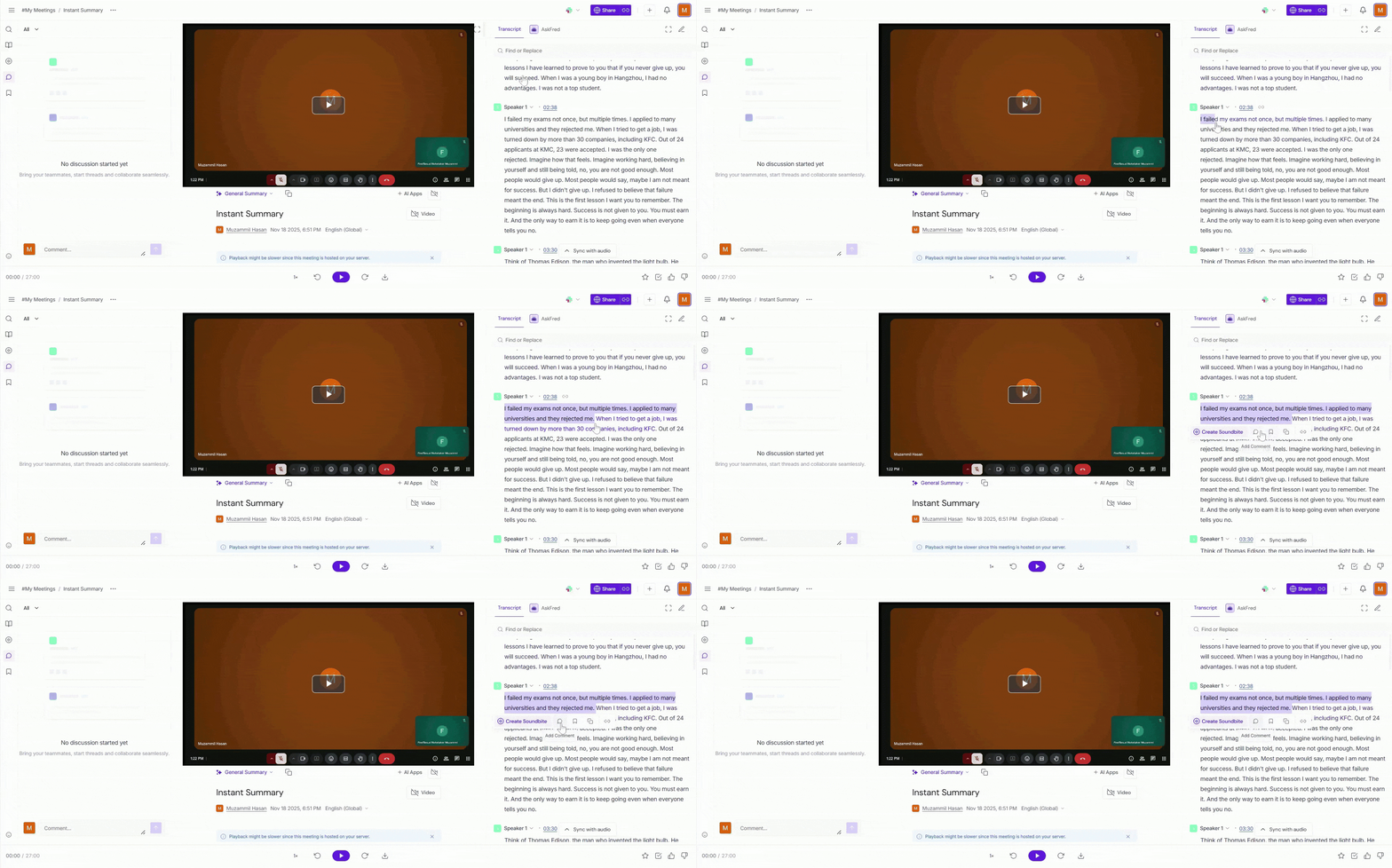
Click on the Comment icon and type the comment you want to add.
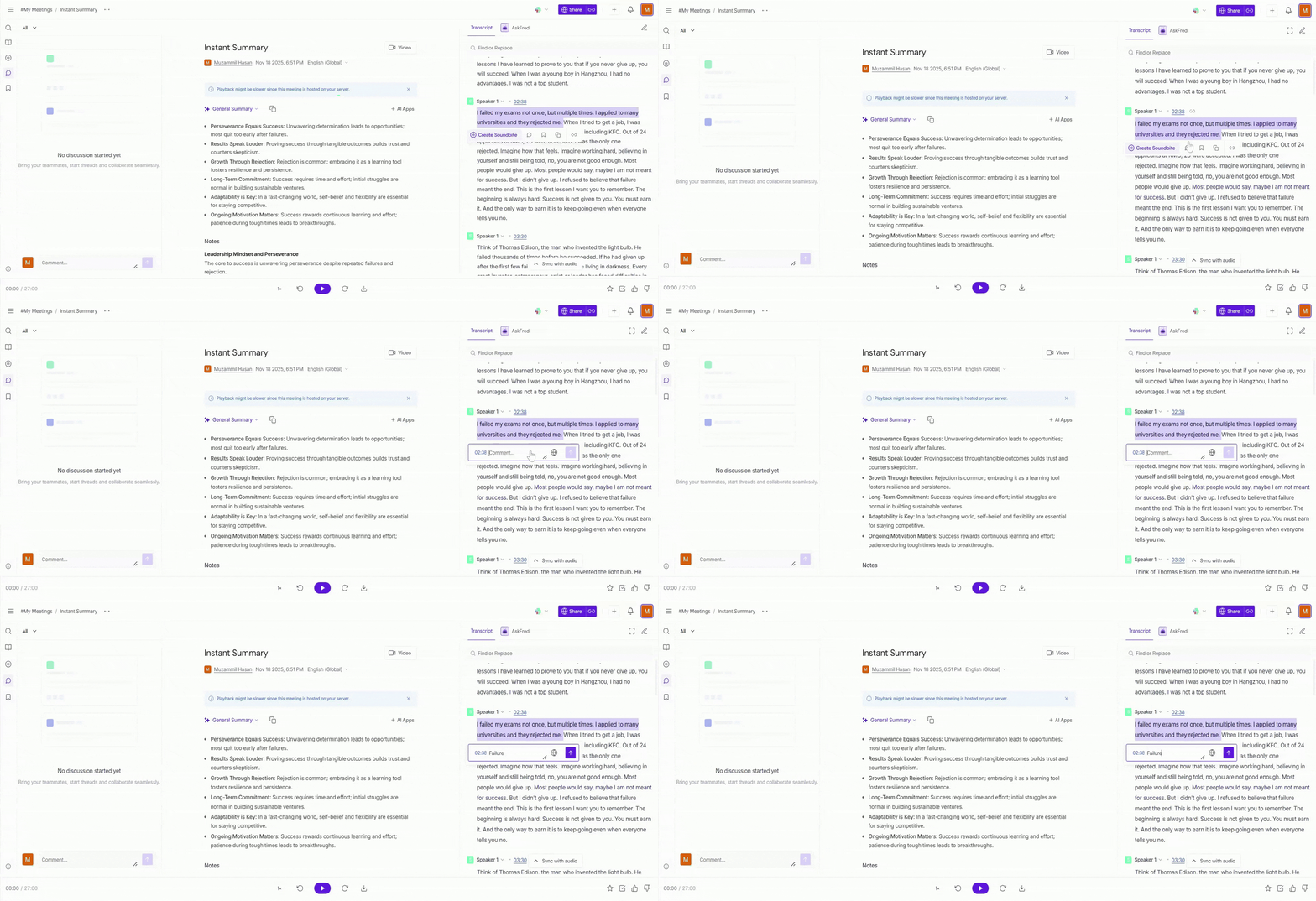
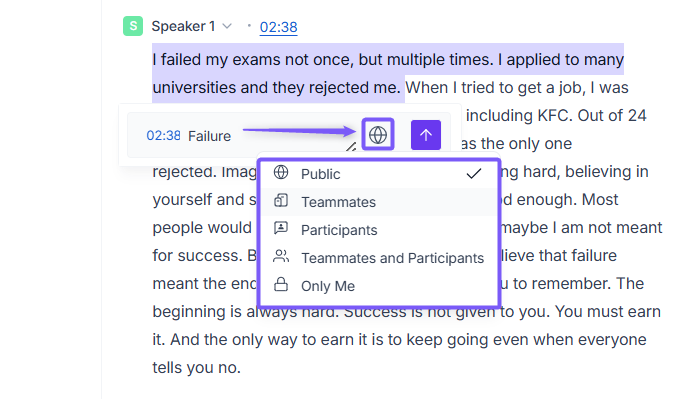
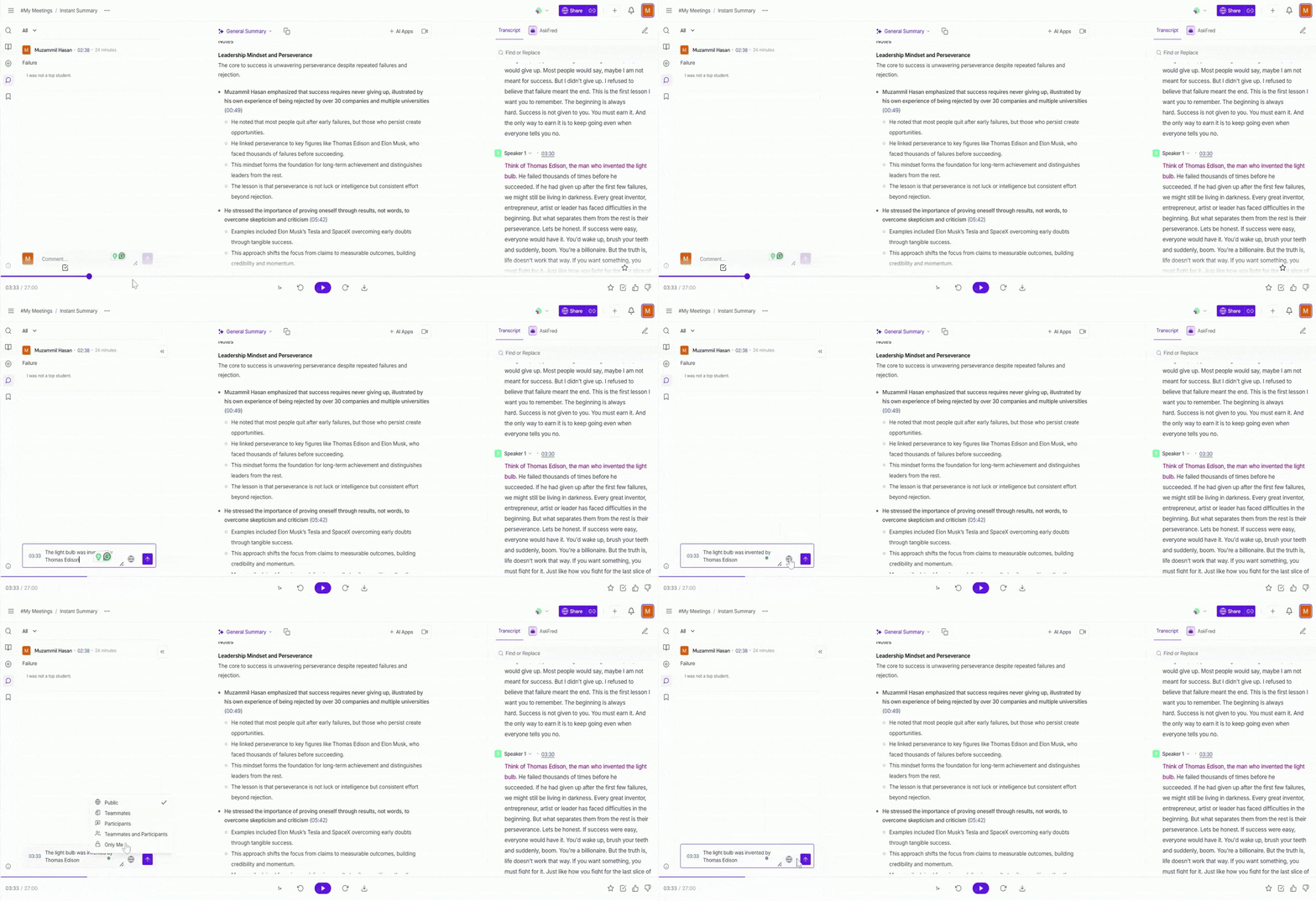
Use the globe icon to control comment visibility. You can choose who can see the comment, ensuring it’s shared only with the right people.
Privacy option | Who can see the comment |
Public | Anyone with access to the recording can view your comment. |
Teammates | Only teammates with access to the recording can view your comment. |
Participants | Only participants who attended the meeting and have access to the recording can view your comment. |
Teammates & Participants | Only meeting participants or members in your workspace can view the comment. |
Only Me | Only you can view the comment. |
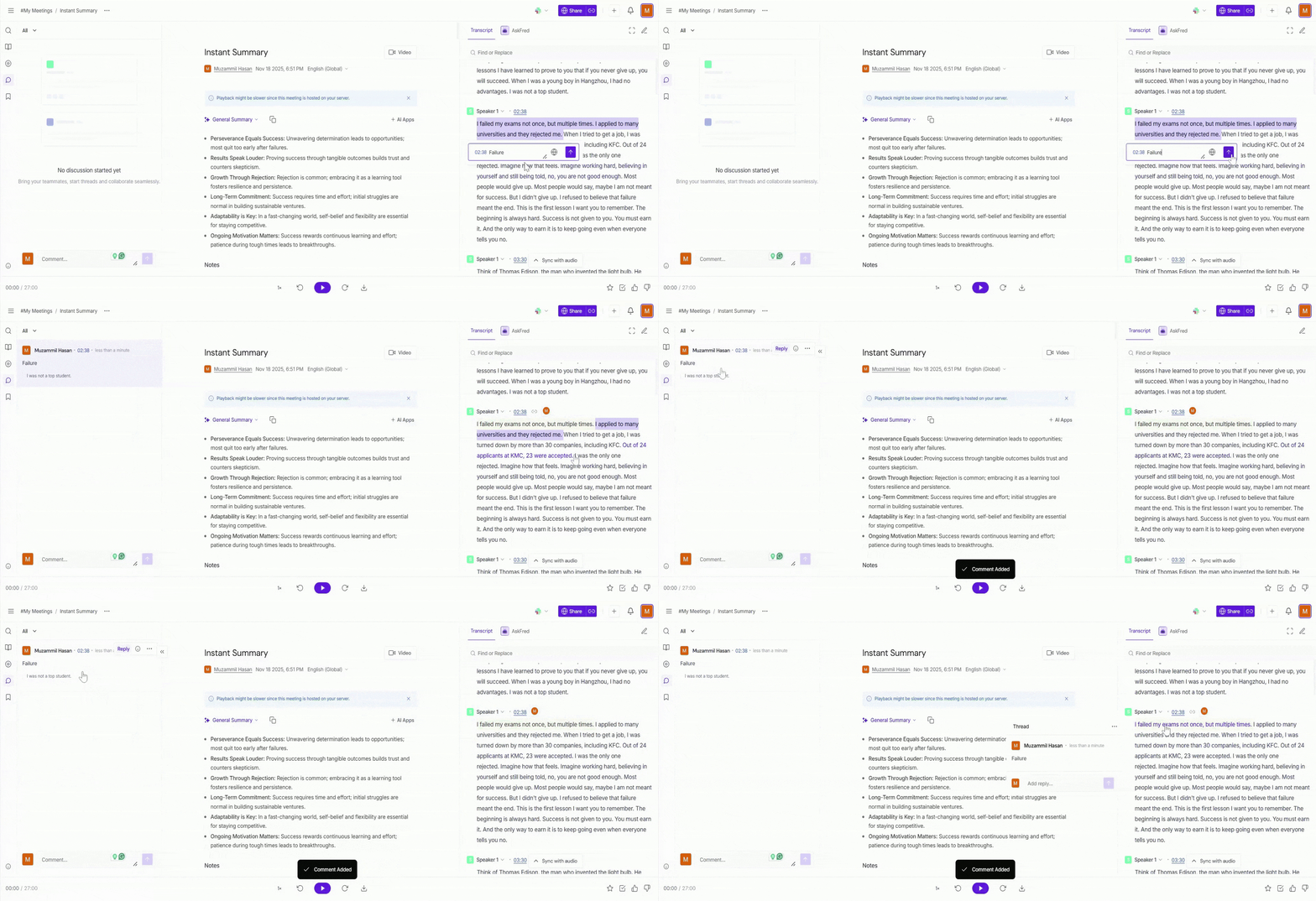
Press the Enter key on your keyboard or click the arrow icon to add the comment.
Method 2: Add a Comment from the Comments Panel
Use this method when you want to add a comment while listening to the recording or reviewing notes, without selecting text from the transcript.
Here’s how you can do it:
Open the Comments tab for the meeting. At the bottom of the panel, you’ll find the comment box where you can enter your comment.
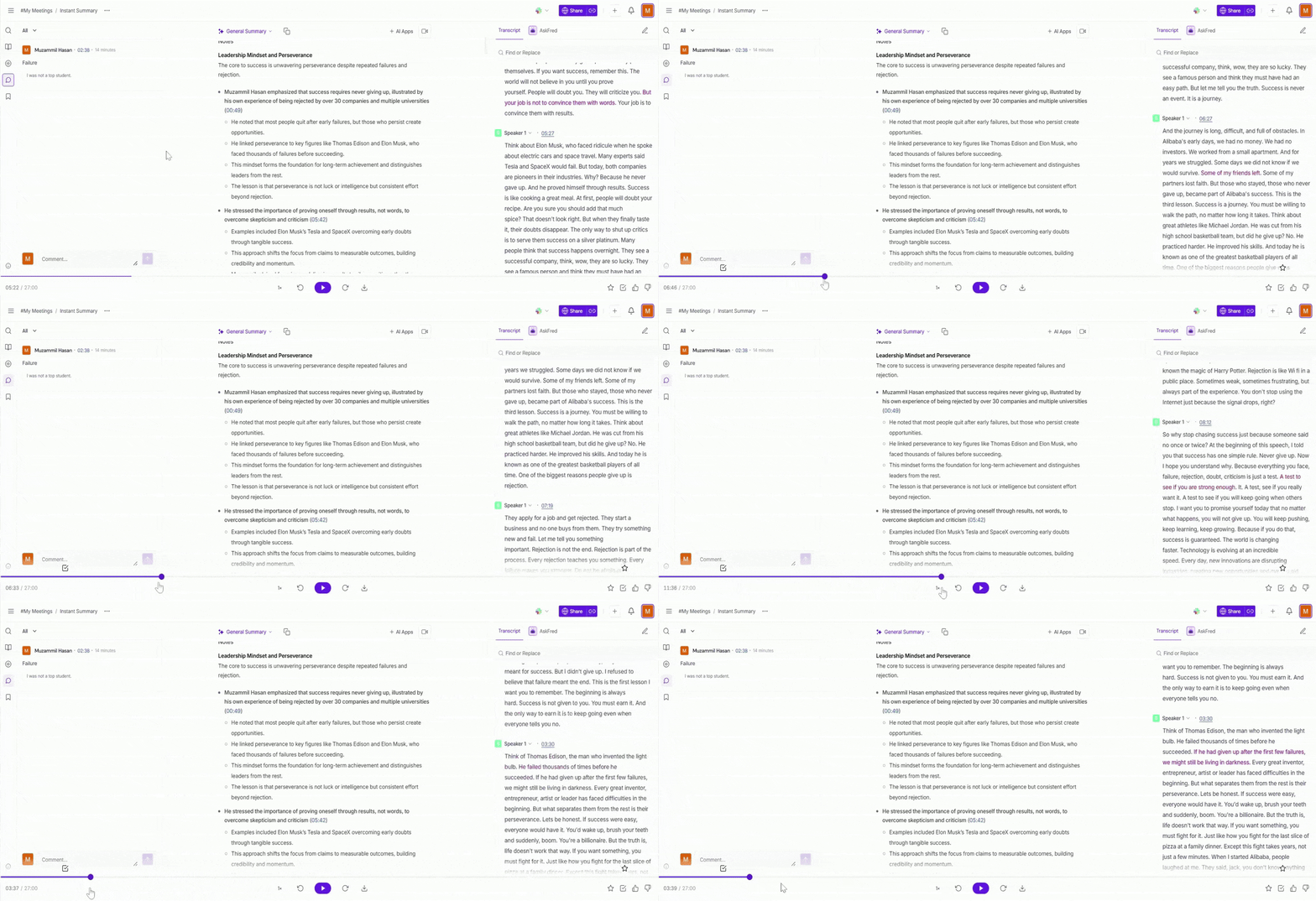
Use the progress bar to move left or right and get to the exact moment you want to comment on.
Click inside the comment text box, type your comment, and set the privacy using the globe icon.
Press the Enter key on your keyboard or click the arrow icon to add the comment.
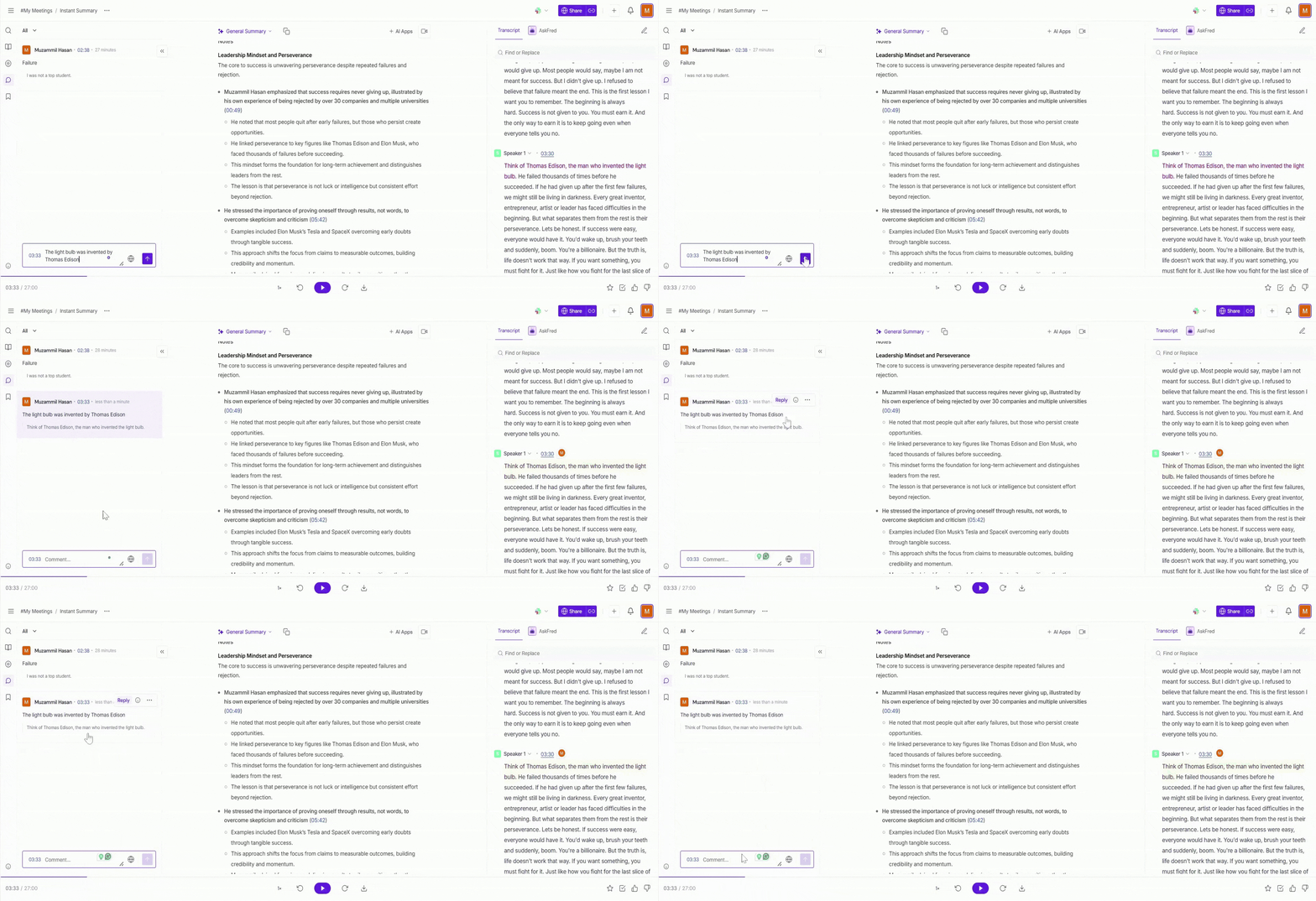
Every comment is linked to a timestamp, so anyone viewing the thread can jump straight to the exact moment in the meeting.
💬 Reply to Comments and Add Reactions
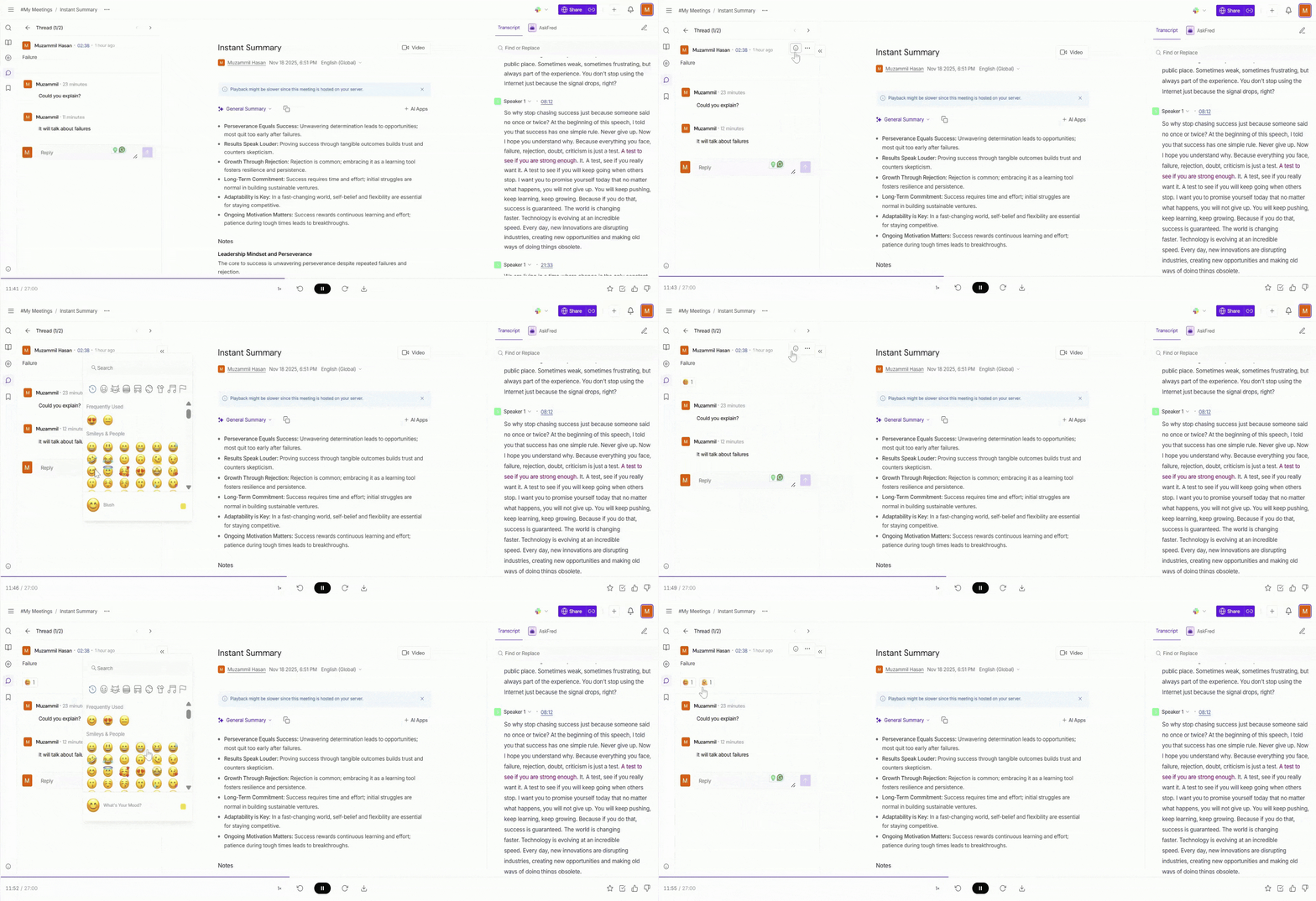
Comments in Fireflies support threaded replies, making it easy to have focused discussions around a specific moment in the meeting. You can also react to comments using emojis to acknowledge or respond quickly.
Each comment has its own thread where replies can be added and reviewed later.
Reply to a Comment (Threaded Replies)
Replies help keep discussions organized by grouping related messages together in a single thread.
Choose the comment you want to respond to, then click on the comment itself or select the Reply option on that comment.
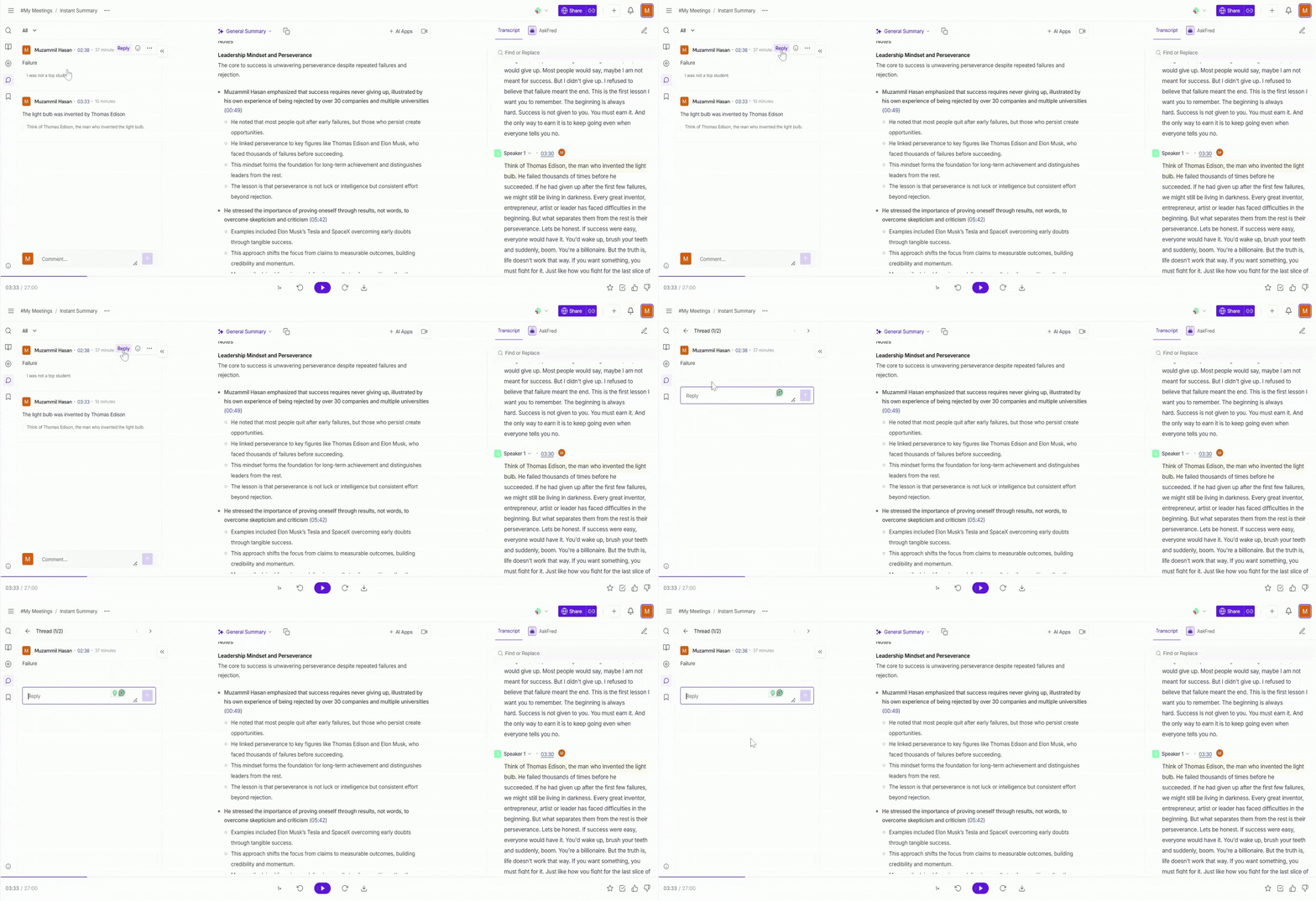
A thread opens on the side. Type your reply in the Reply box, then press Enter or click the send arrow to post it.
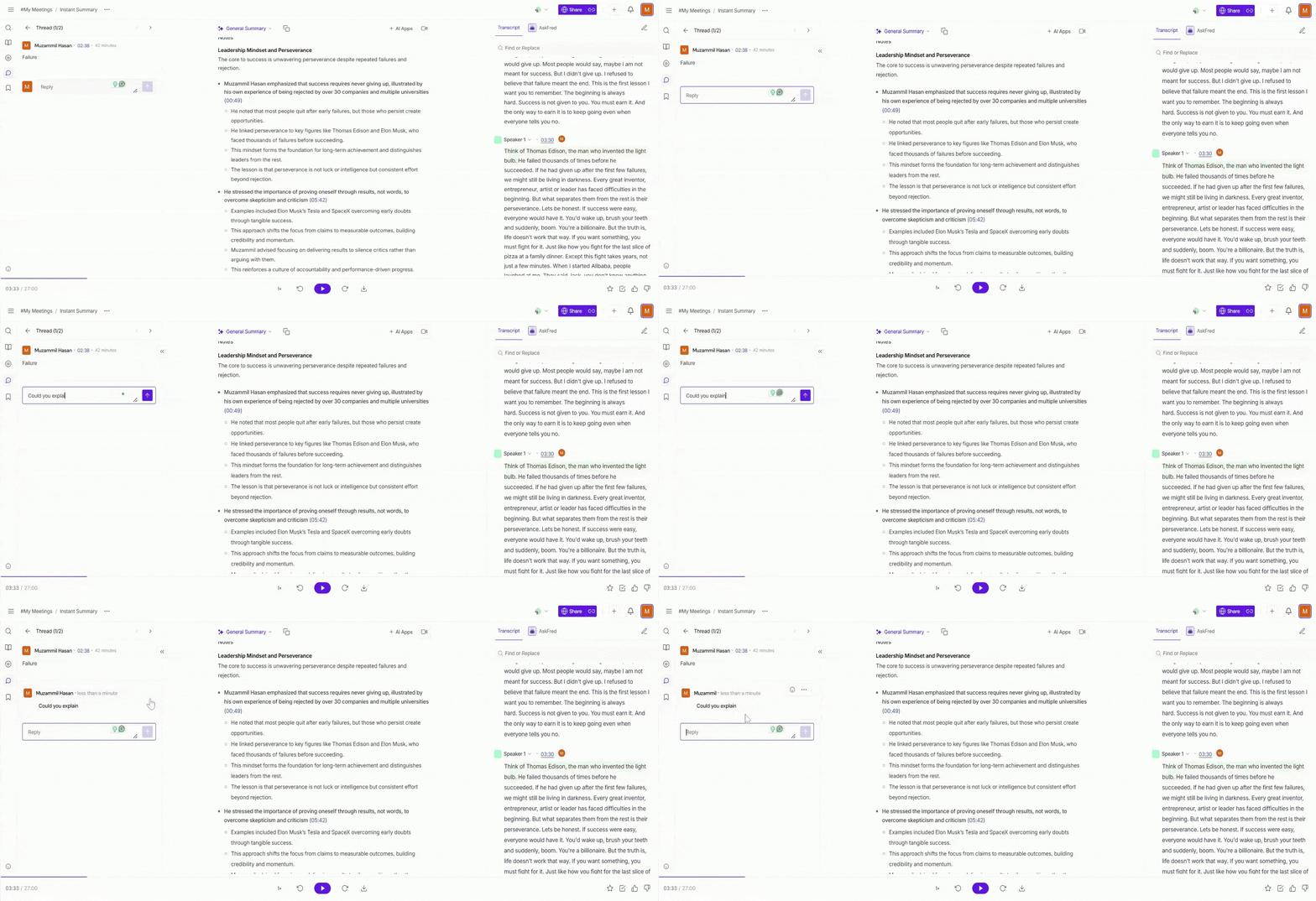
Your reply is added to the thread and stays linked to the original comment and timestamp.
💡 Alternate method: (Directly from the highlighted transcript)
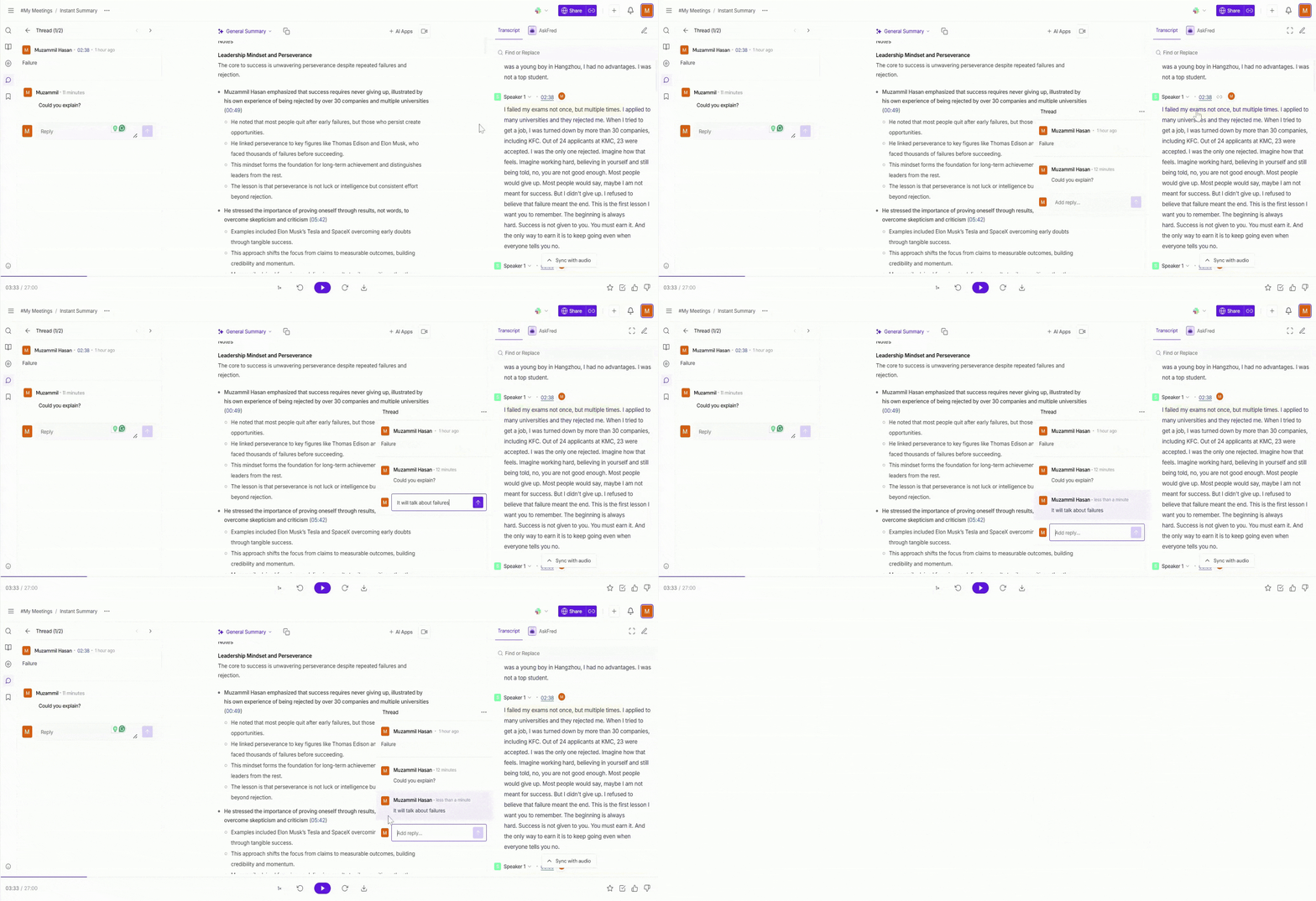
You can also reply to comments directly from the transcript. Hover over the highlighted section of the transcript where the comment is attached, type your response, and post it.
👍 Add Reactions to a Comment
Reactions are a quick way to acknowledge or respond to a comment without adding a full reply.
Hover over the comment/reply you want to react to and click the emoji icon.
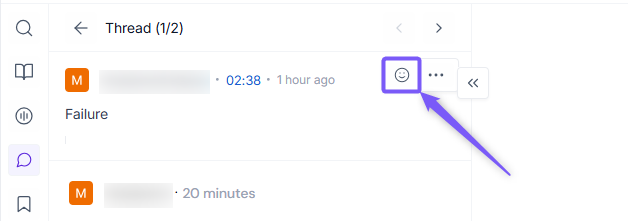
Select the emoji you want to react with (such as 👍 or 😊) and click it to add your reaction, which appears directly on the comment.
⚙ Manage Comments and Replies
Once you start adding comments and replies during a meeting, you may want to update them, control who can see them, or remove them later. Comments and replies are managed individually, so you always stay in control of your discussions.
Manage a main comment
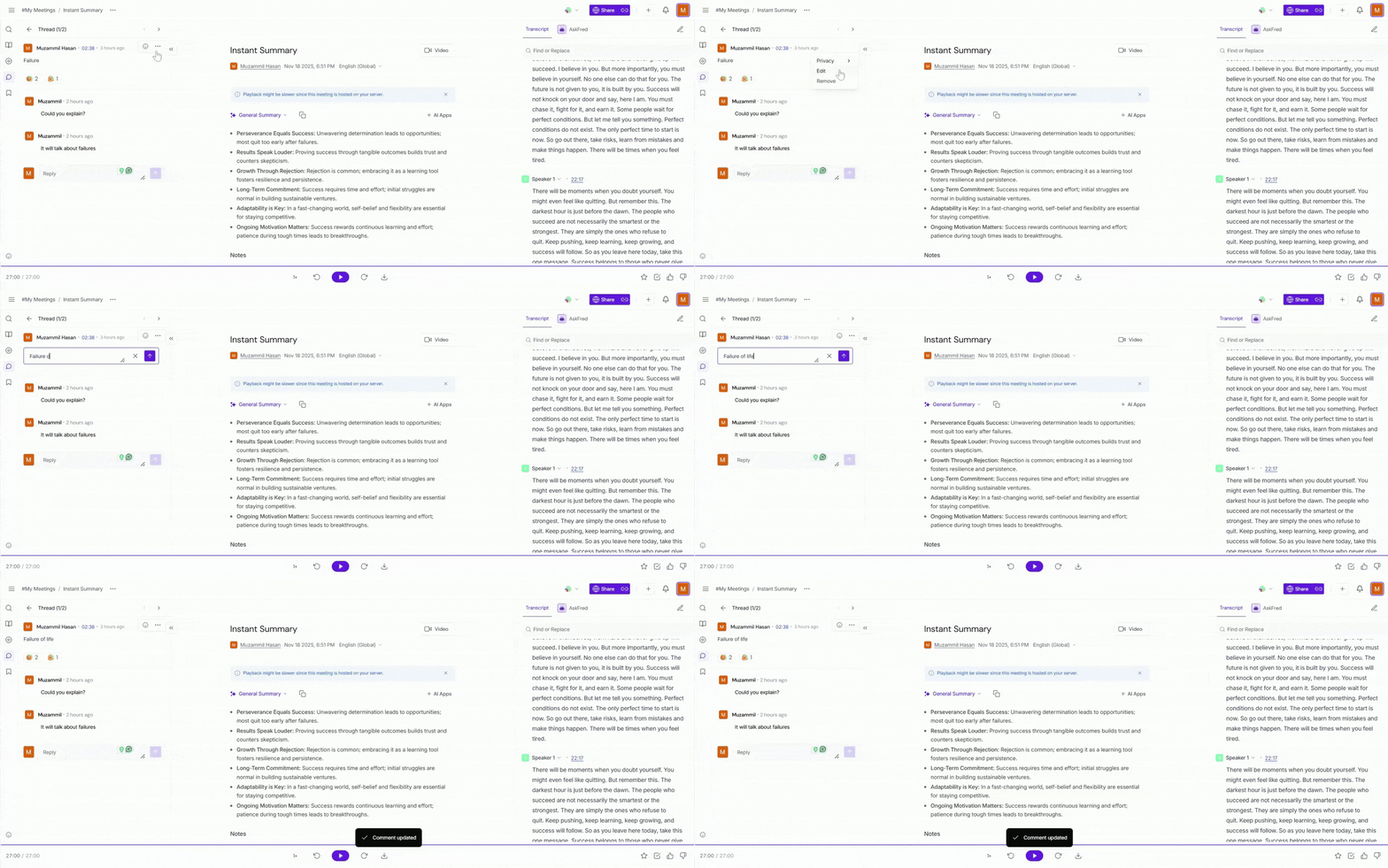
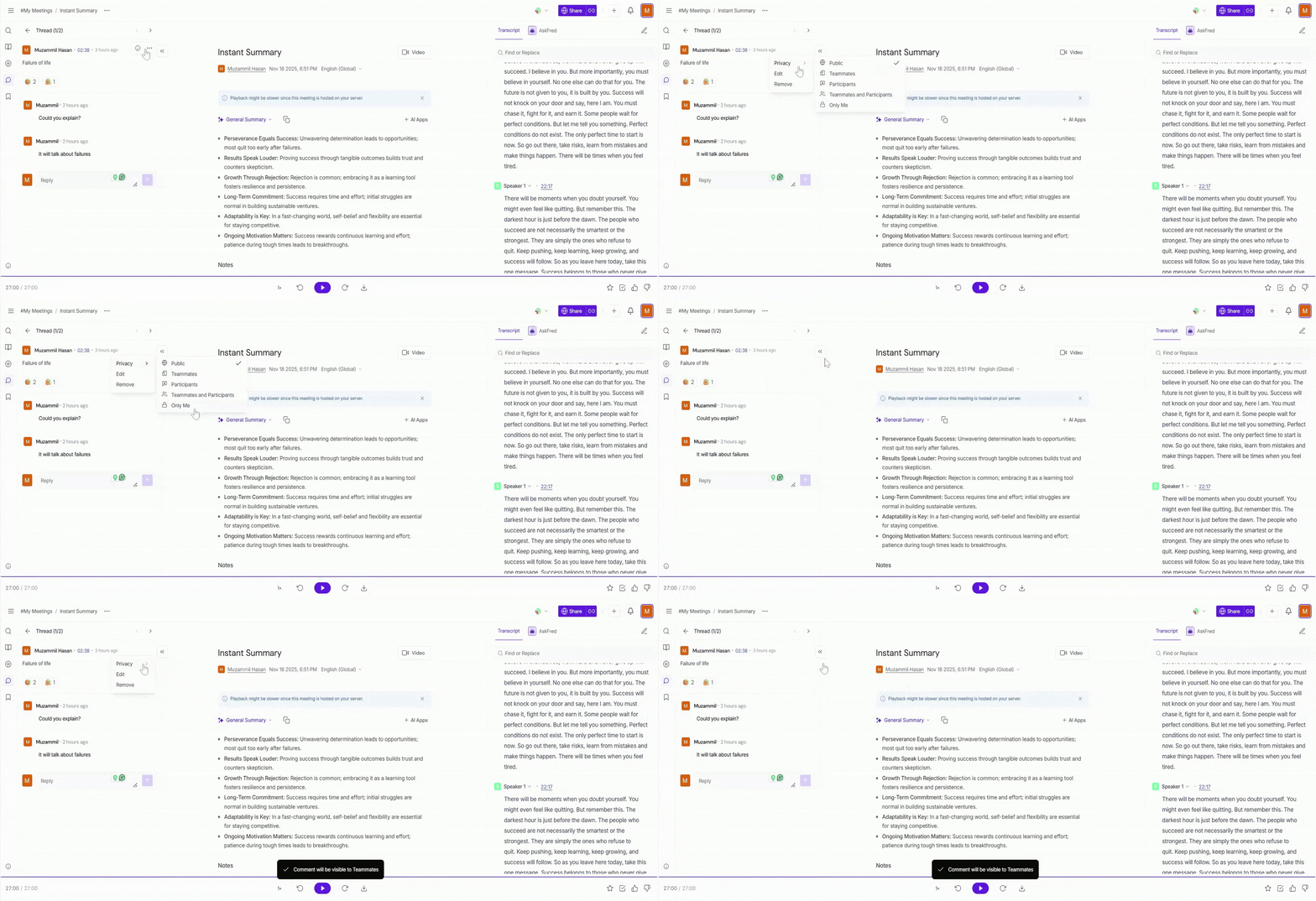
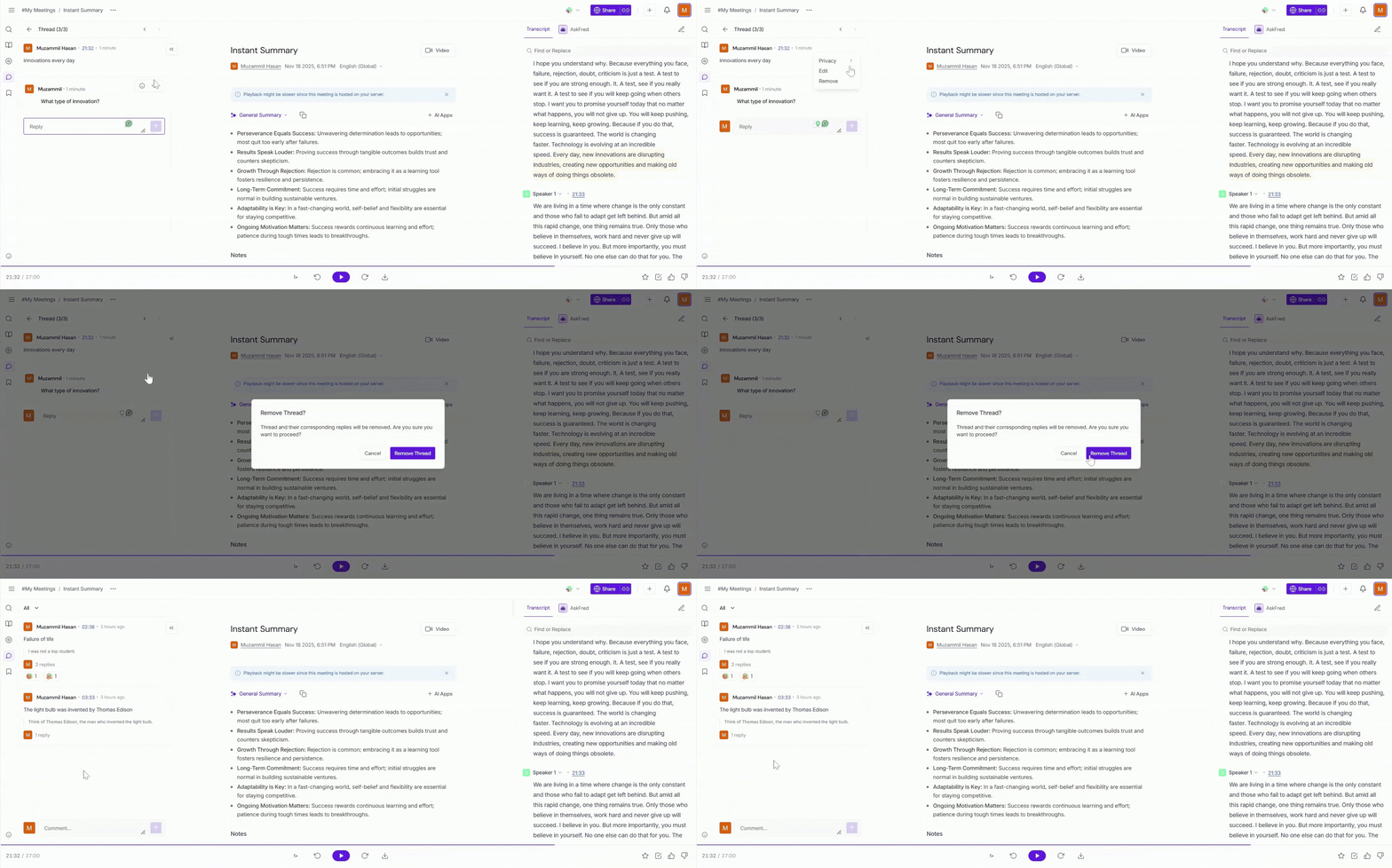
The main comment is the first comment added at a specific moment in the meeting. It starts a discussion thread, and any replies are added under it. Hover over the main comment or open the thread, then click the ellipsis (⋯) to:
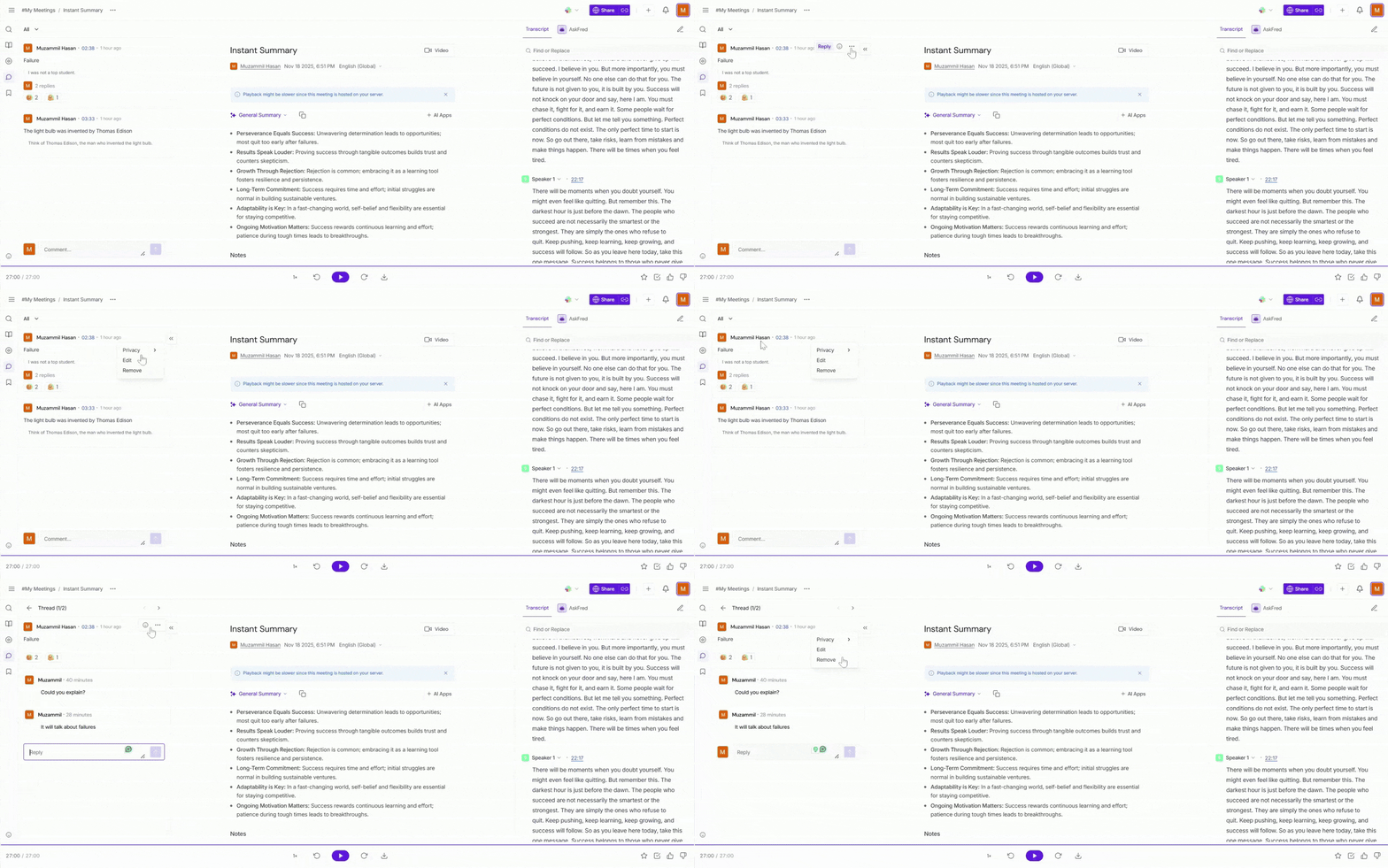
✏ Edit Comment → Update the comment text if you need to clarify or correct something.
🔒 Change Privacy → Choose who can see the comment (for example, everyone, teammates, or only you).
🗑 Remove Comment → Delete the comment if it’s no longer relevant or was added by mistake.
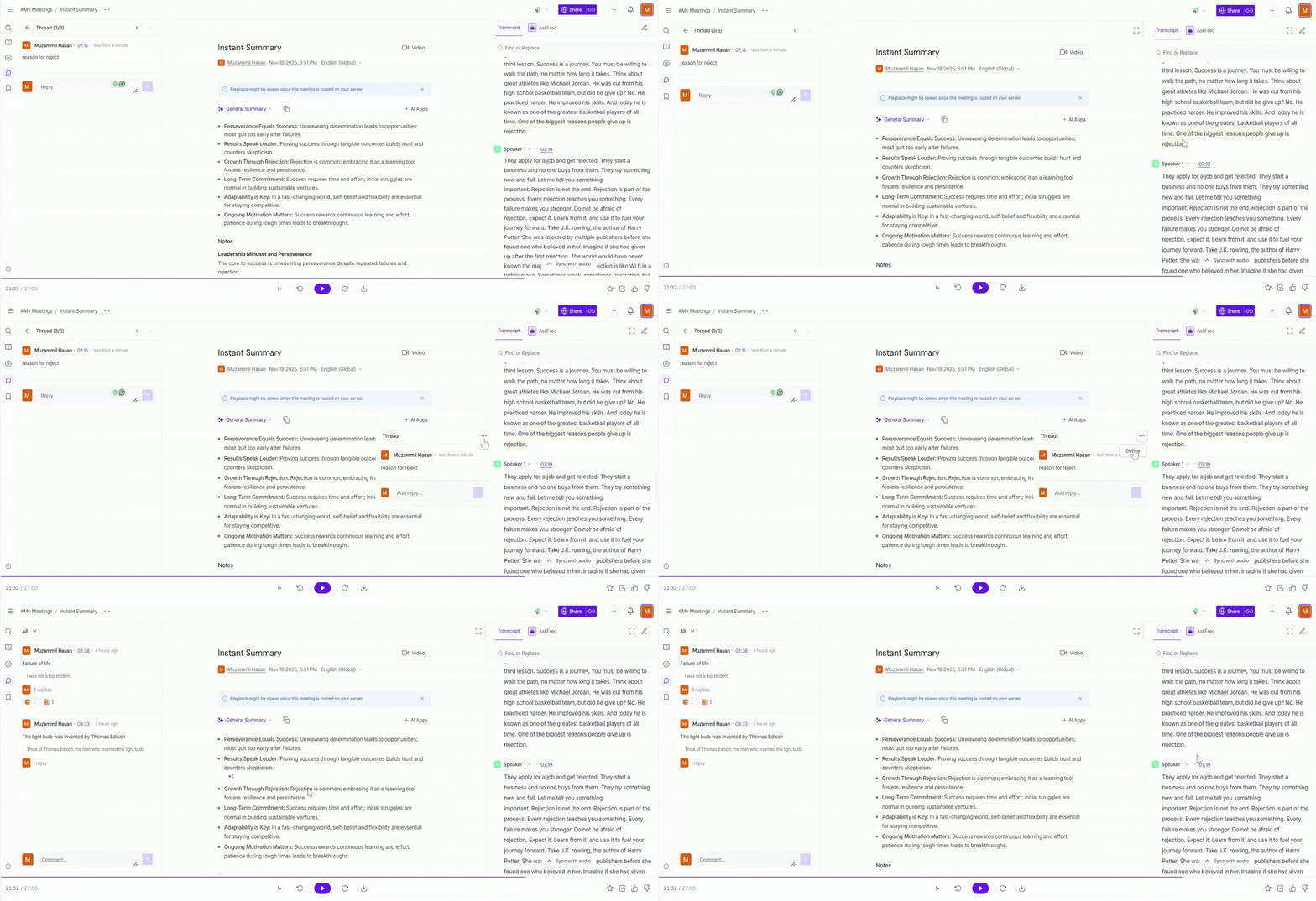
Alternate Way (Delete a Comment from the Transcript)
You can also delete a comment directly from the transcript by hovering over the highlighted comment, clicking the ellipsis (⋯), and selecting Delete, which removes it from the transcript view.
When a main comment is deleted, the entire thread—including all replies—is permanently removed.
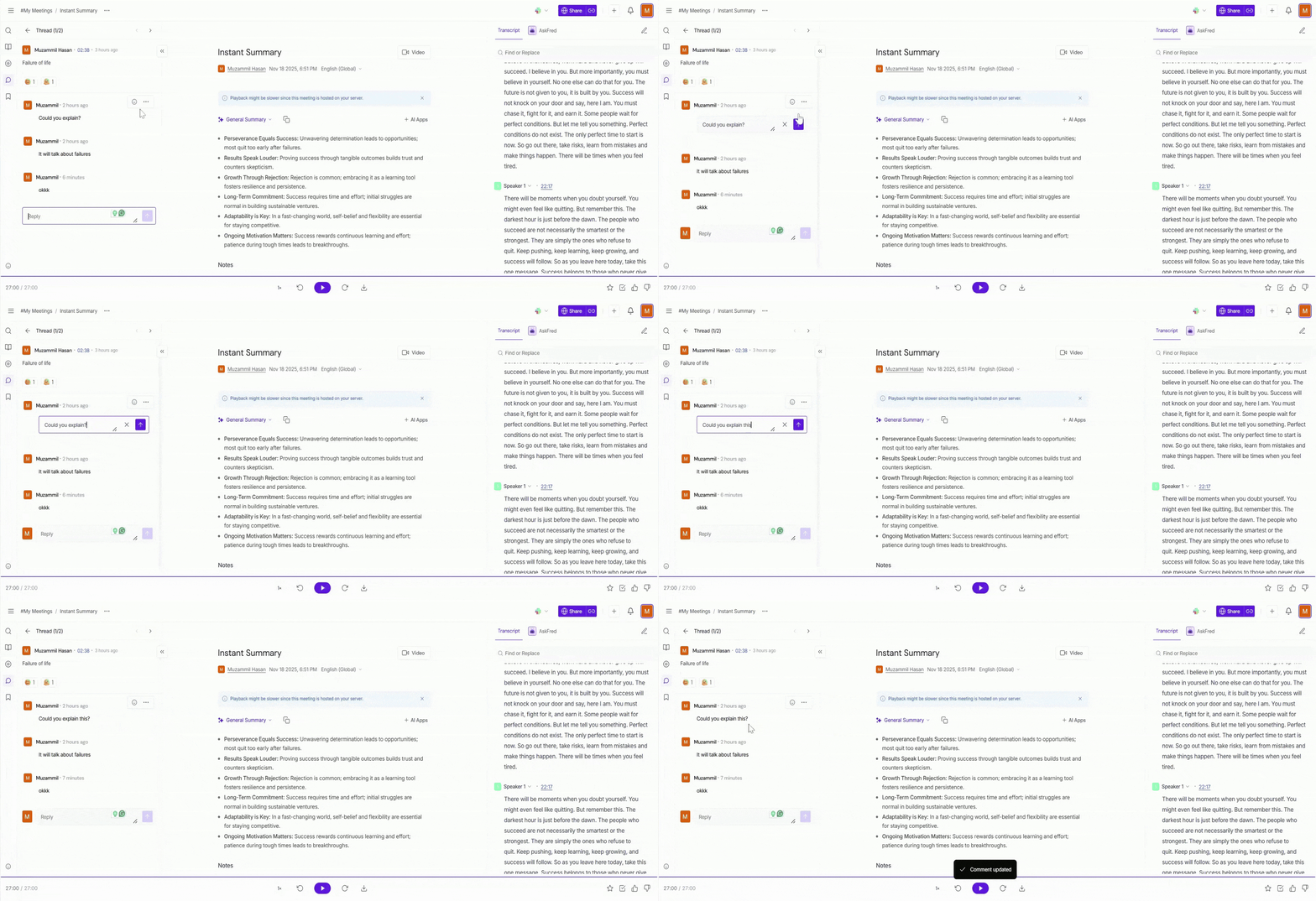
Manage a reply
Replies are part of a comment thread and can be managed one at a time, without affecting the rest of the discussion.
✏ Edit Reply → Update the reply when you want to clarify your message, fix a mistake, or add more context.
🗑 Remove Reply → Delete only that specific reply if it’s no longer relevant or was added by mistake.
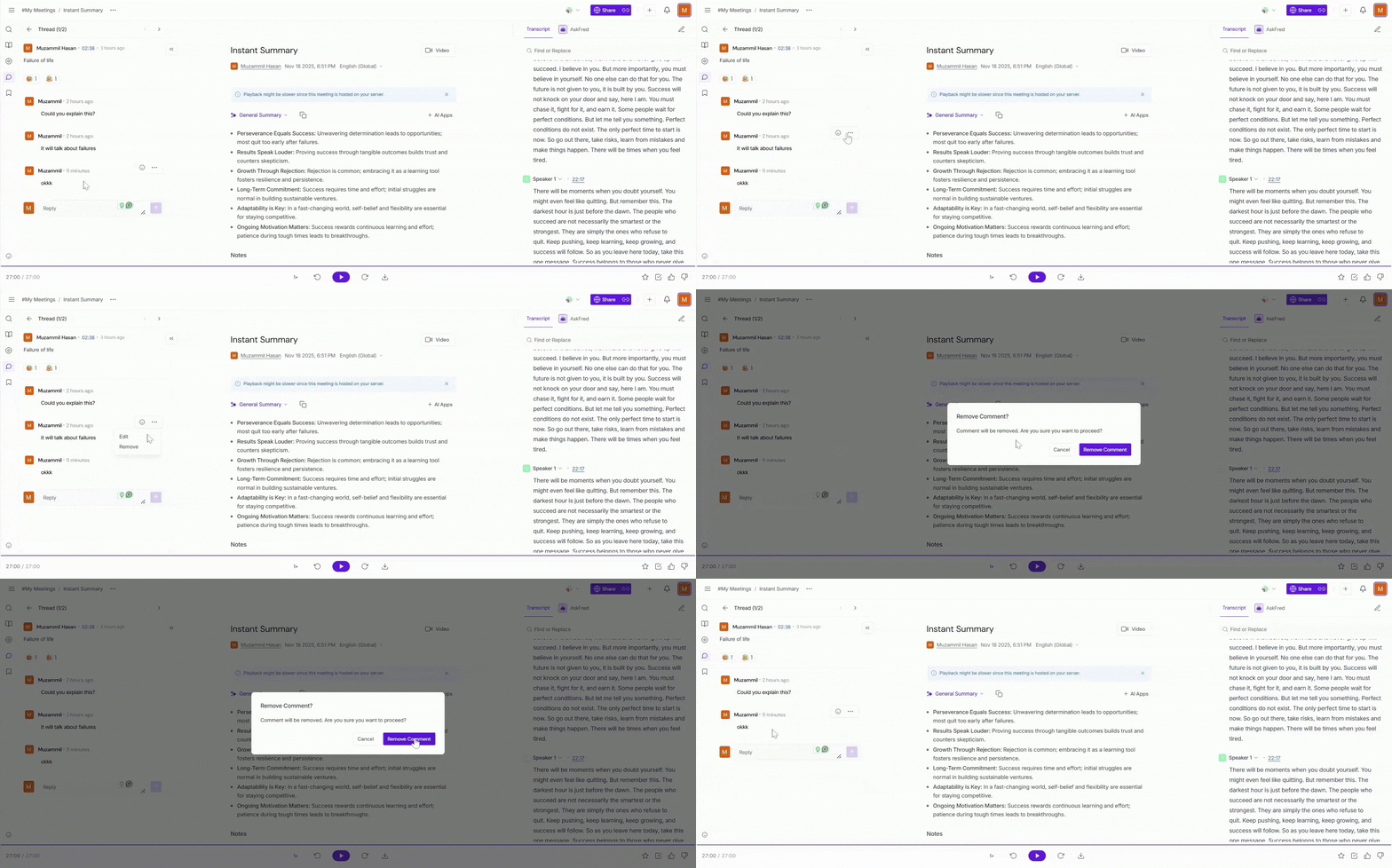
Removing a reply deletes only that reply. The main comment and other replies remain unchanged.
🔍 Troubleshooting & FAQs
1. I don’t see the Comments tab in my meeting.
Make sure you’ve opened an individual meeting recording or transcript. The Comments tab appears only inside a meeting view.
2. My comment didn’t appear after posting.
Try refreshing the page and checking the Comments tab again. Ensure you pressed Enter or clicked the send arrow after typing.
3. Why can’t someone else see my comment?
Check the comment’s privacy setting. The comment may be visible only to you, teammates, or participants, depending on what was selected.
4. Can replies be edited or deleted without affecting the main comment?
Yes. Editing or deleting a reply affects only that reply. The main comment and other replies remain unchanged.
5. What happens if a main comment is deleted?
Deleting a main comment removes the comment along with all its replies.
6. Are comments synced with the meeting timeline?
Yes. All comments and replies are linked to timestamps, so clicking them jumps to the exact moment in the meeting.
🔄 Quick Recap
Notes, questions, and feedback can be added directly to specific moments in a meeting.
Each entry is linked to a timestamp, making it easy to return to the right part of the conversation.
Replies can be added to keep discussions organized in a clear thread.
Reactions like emojis can be used to acknowledge or respond without adding a reply.
Entries and replies can be edited, have their visibility updated, or be removed when no longer needed.
📌 Related Guides
If you’d like to explore more ways to organize and work with your meeting insights, check out these guides:
Fireflies Notebook Overview – Understand how to organize and manage your meetings.
Learn about the Fireflies Notepad – Understand how to organize your meeting notes and easily access key moments.
Fireflies AI Meeting Summaries: View, Customize, Expand, Regenerate – Learn how to view, customize, and regenerate AI meeting summaries to highlight key points.
How to Download Transcripts, Summaries, and Meeting Recordings - Download meeting content for offline access or sharing.