Learn about Fireflies Notebook
Last updated: April 27, 2026
Ever needed to go back to a past meeting but couldn’t remember where to find it? Fireflies Notebook keeps all your meeting recordings, transcripts, and notes in one place, so you can easily search past conversations, organize your meetings, and review important details whenever you need to.
In this guide, you’ll learn how to navigate Notebook and make the most of its features.
👀 Understand the Notebook layout
To open your Notebook, log in to your Fireflies account and click Meetings from the left sidebar.
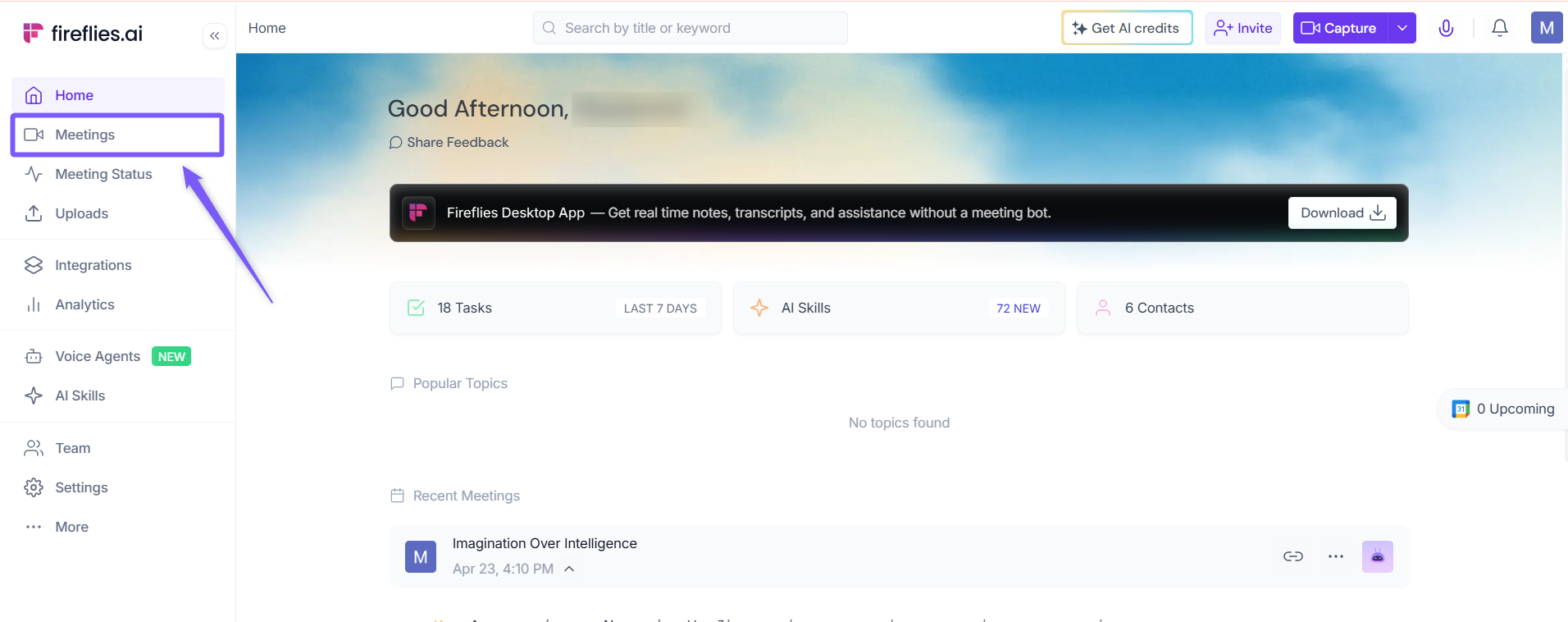
This is where you can view and manage all your meeting recordings, transcripts, and notes.
🗂 Channels
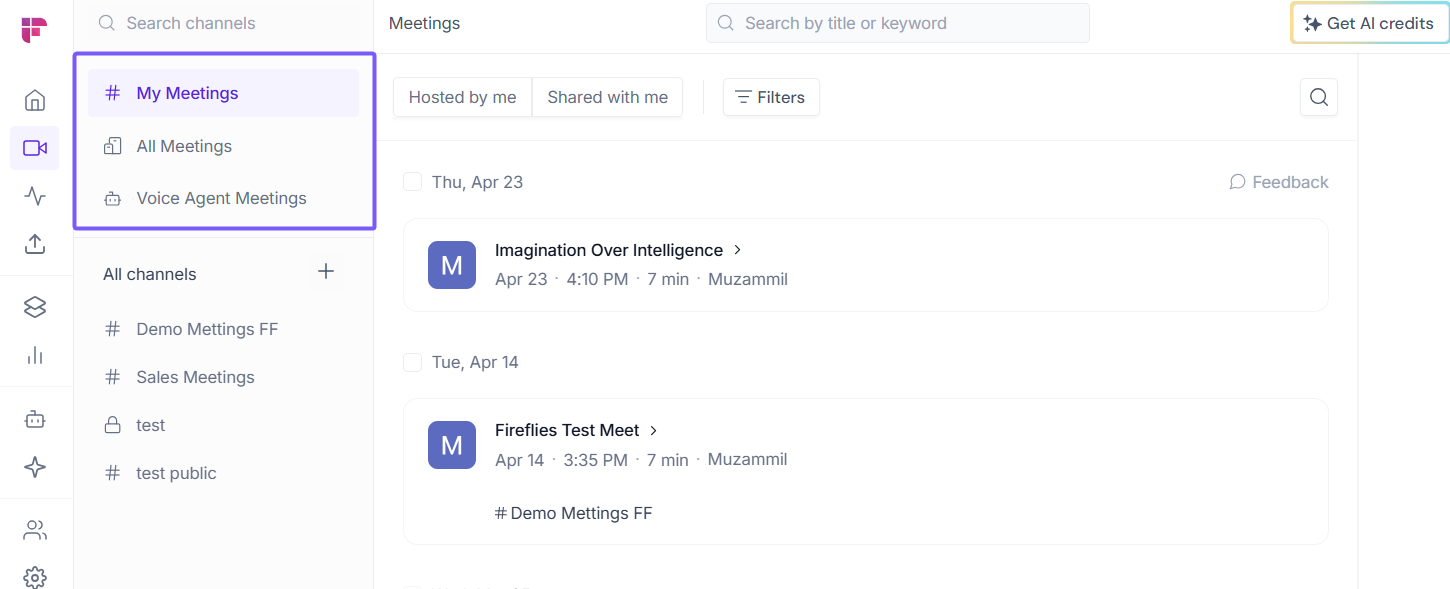
Channels help you keep your meetings organized and make it easier to find the conversations you need. By default, Fireflies automatically sorts your meetings into built-in channels based on who hosted the meeting or how it was captured.
Default channels
My Meetings — meetings you hosted or created
All Meetings — all meetings across your workspace
Voice Agent Meetings — meetings recorded by your voice agents
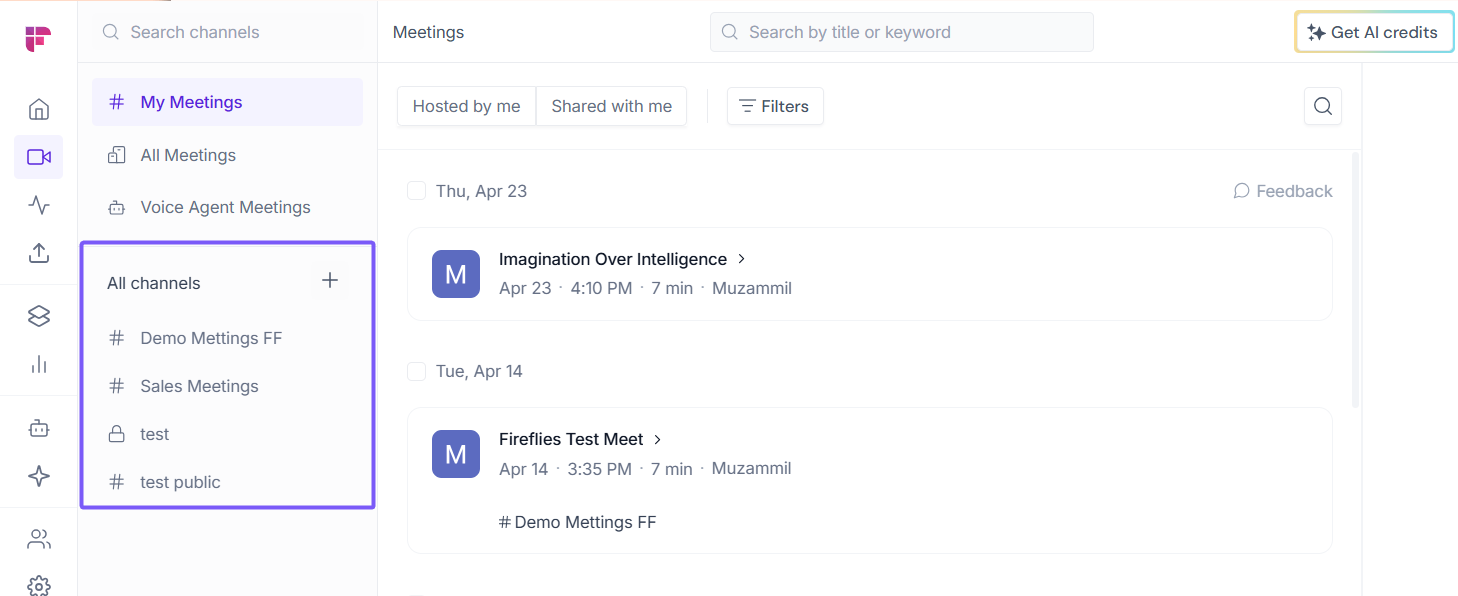
All channels (Custom channels)
Below the default channels, you'll find your custom channels. These can be public or private, depending on who you want to share them with. You can use custom channels to organize meetings by team, project, client, or any workflow that works for you.
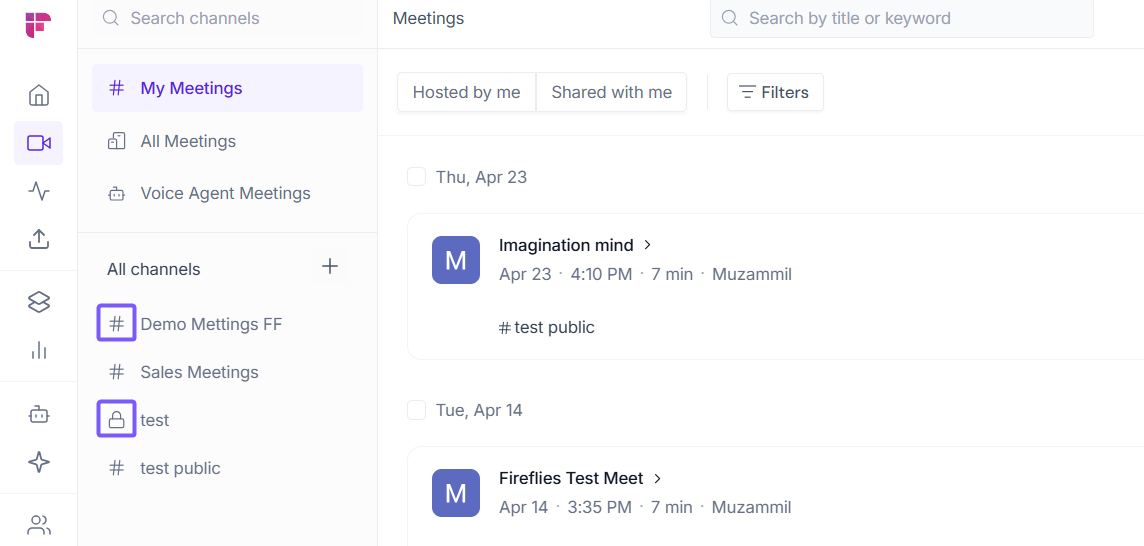
Private channels are marked with a 🔒 lock icon, while public channels are marked with a # icon.
🔎 Search and filter meetings
Need to quickly find a past meeting? Fireflies gives you two ways to search — Local Search for quick filtering within your current channel, and Global Search for more specific searches across your workspace.
1. Local search
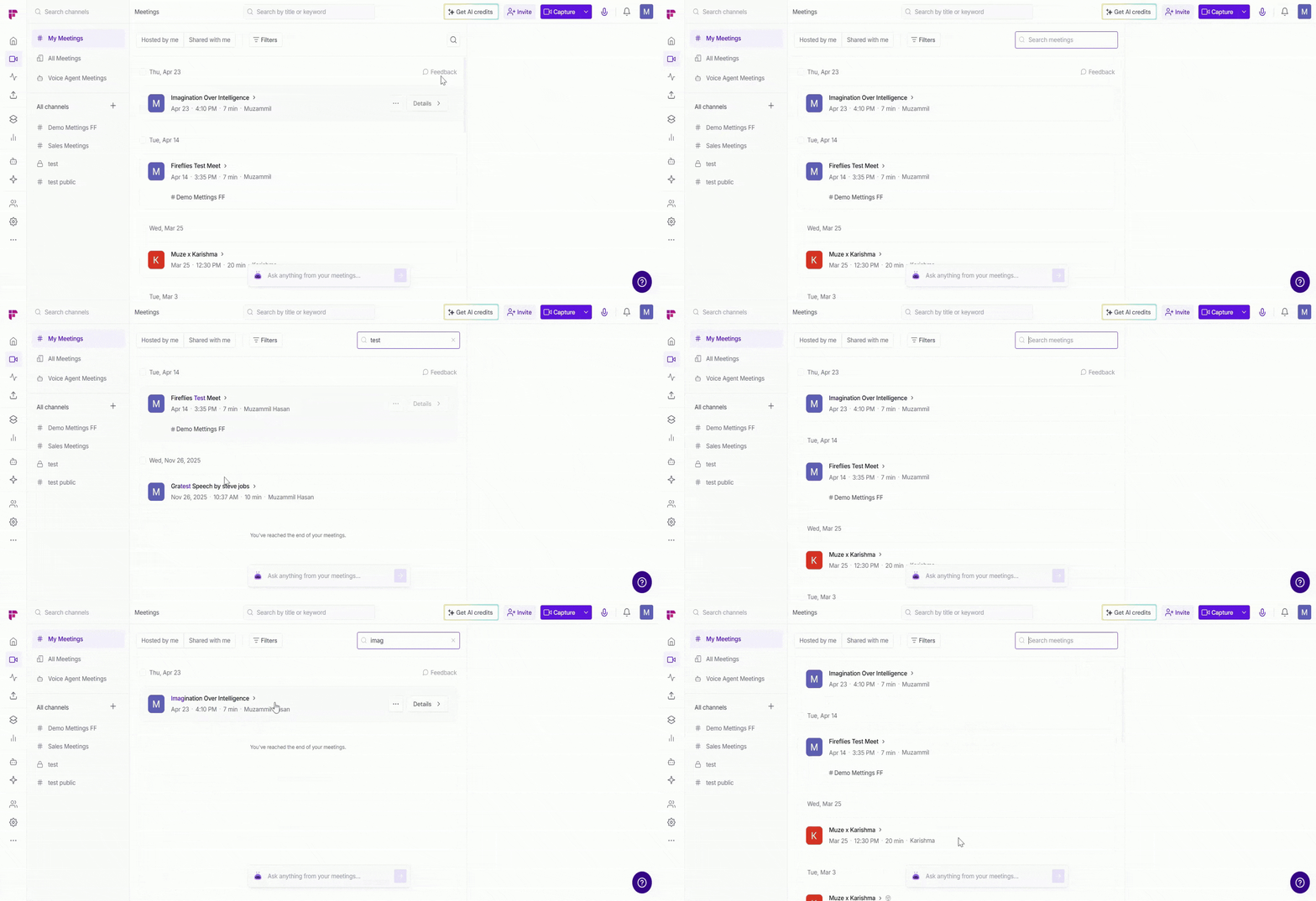
Use Local Search to find meetings within the channel you're currently viewing.
💡 Search results depend on the channel you're currently viewing. In My Meetings, results show only your meetings. In All Meetings, results show meetings across your entire workspace.
1. Click the search icon at the top-right of the page.
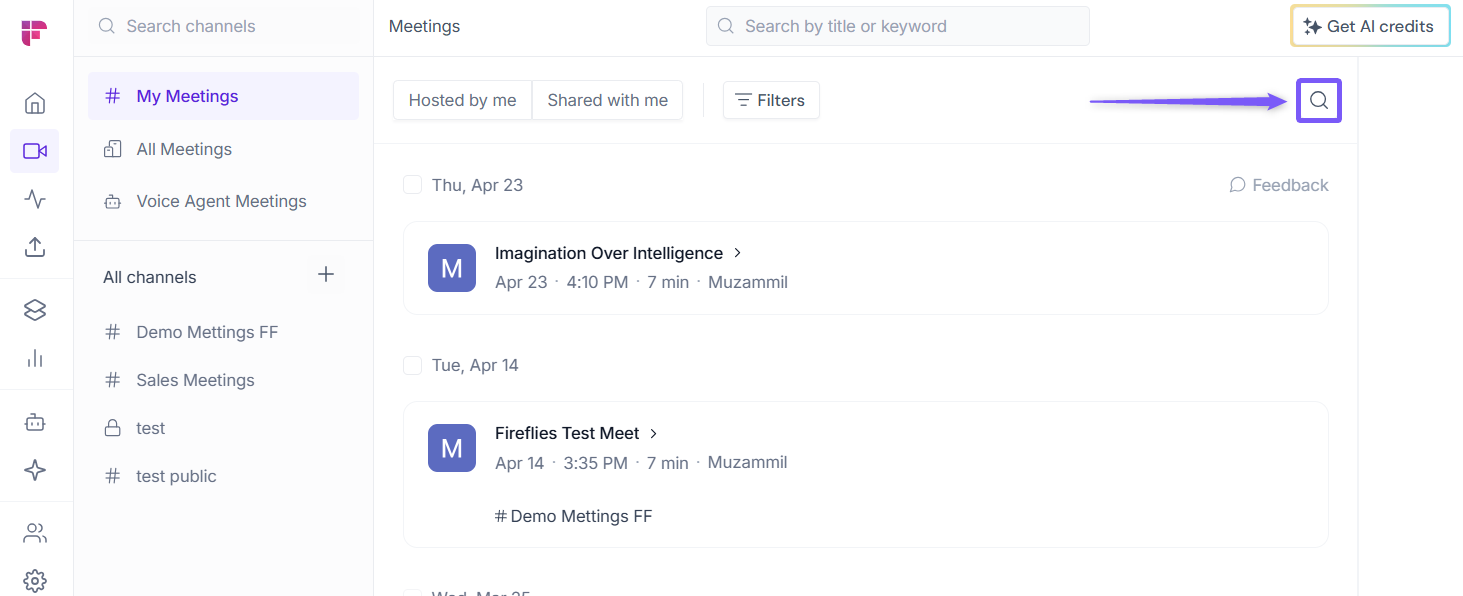
2. Start typing a meeting title — Fireflies will instantly fetch and display matching meetings as you type. You don't need to type the full name or press Enter.
2. Global search
Use Global Search to find meetings in more specific ways across your workspace.
1. Click inside the search bar at the top of the page to open it.
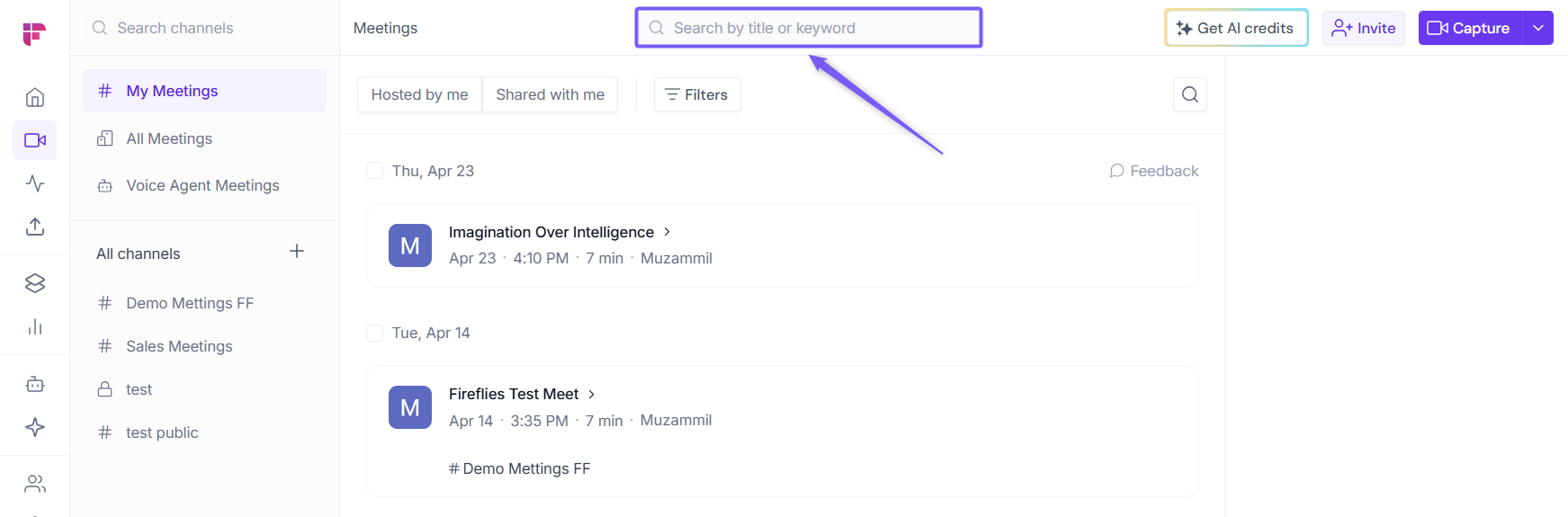
2. Choose how you want to search:
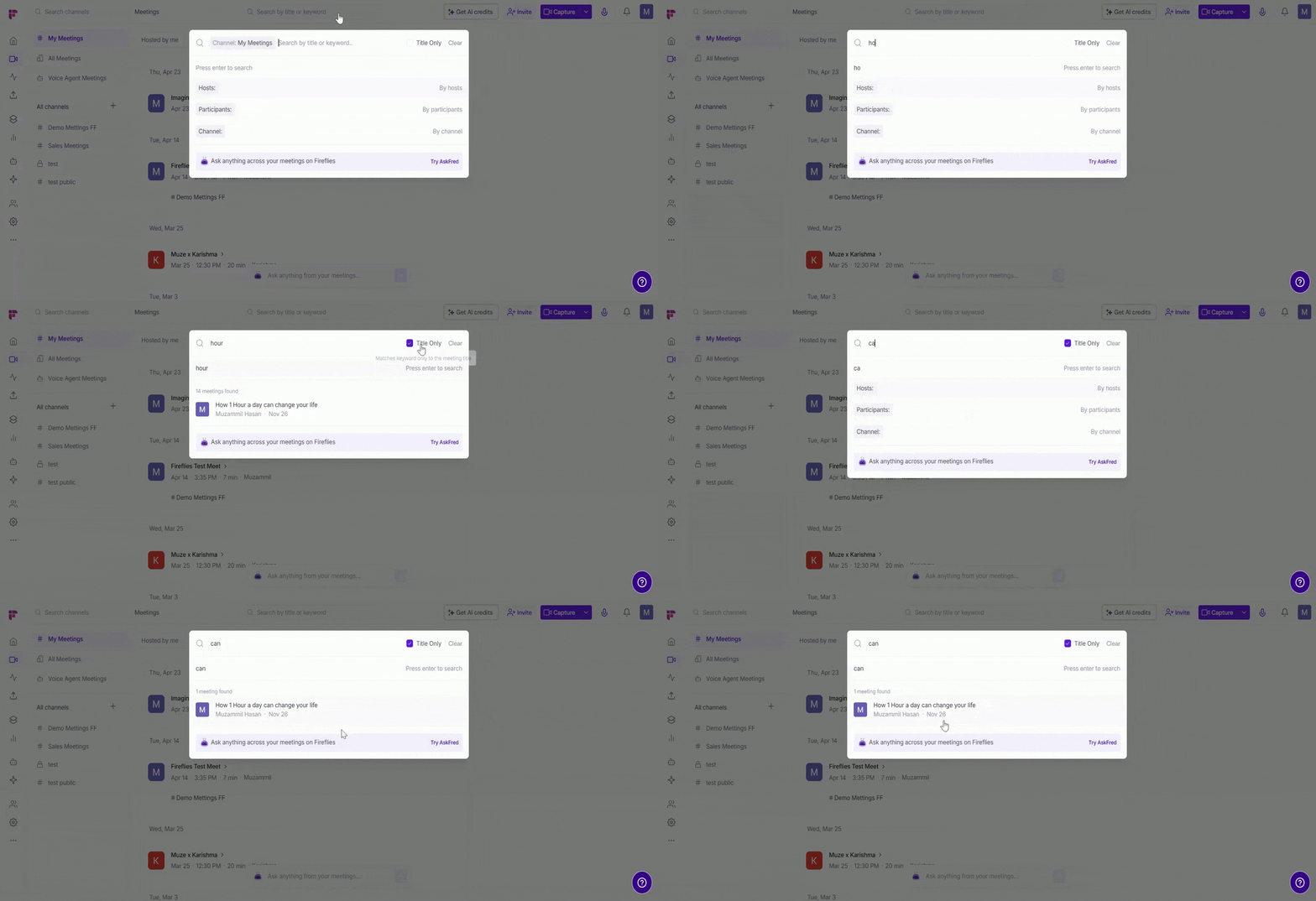
Search by transcript or keyword: Type any word or phrase you remember from the meeting. Fireflies will search across all meeting transcripts and return matching results.
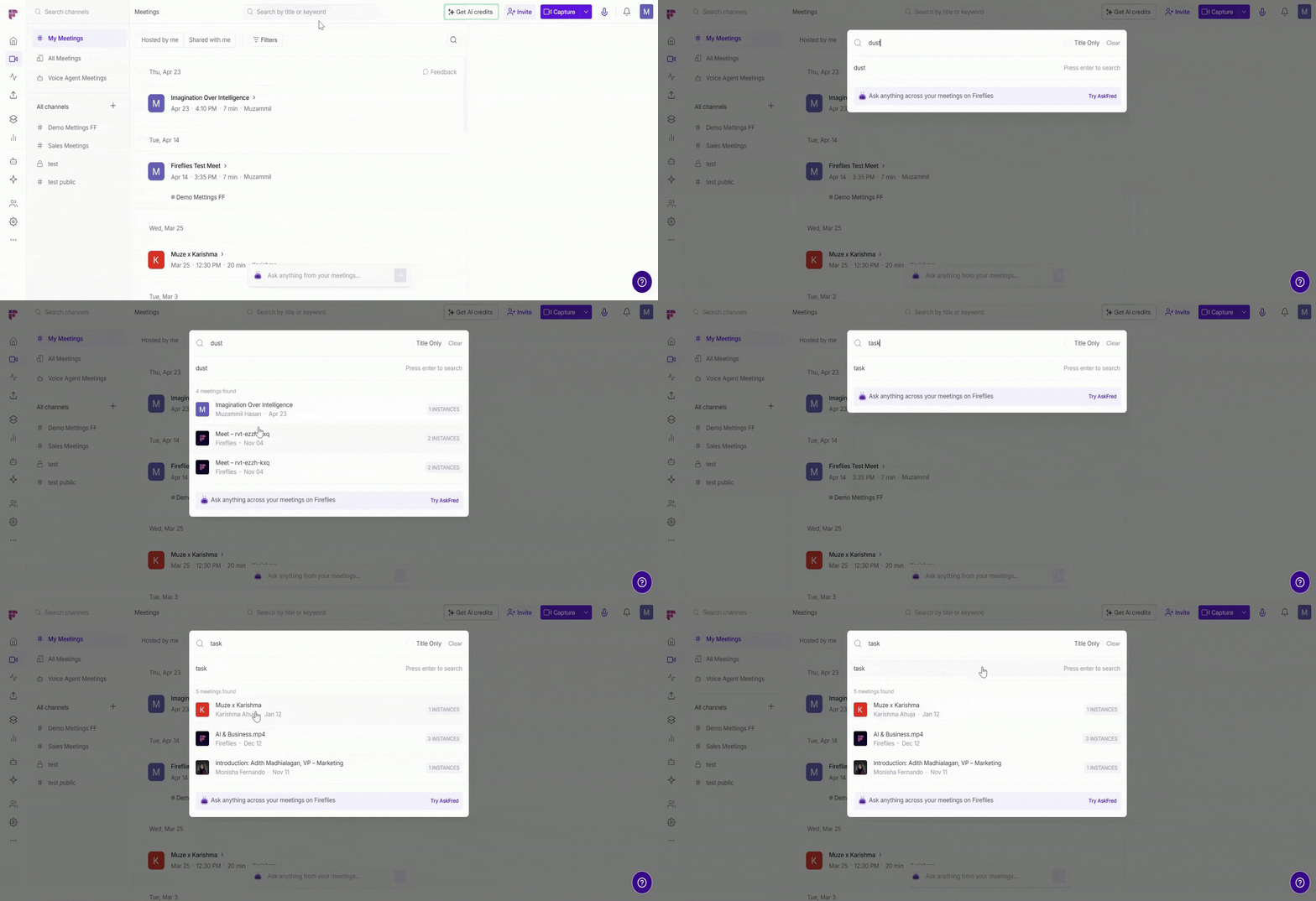
Search by title Looking for a specific meeting by name? Type the title in the search bar and check Title Only to limit results to title matches only.
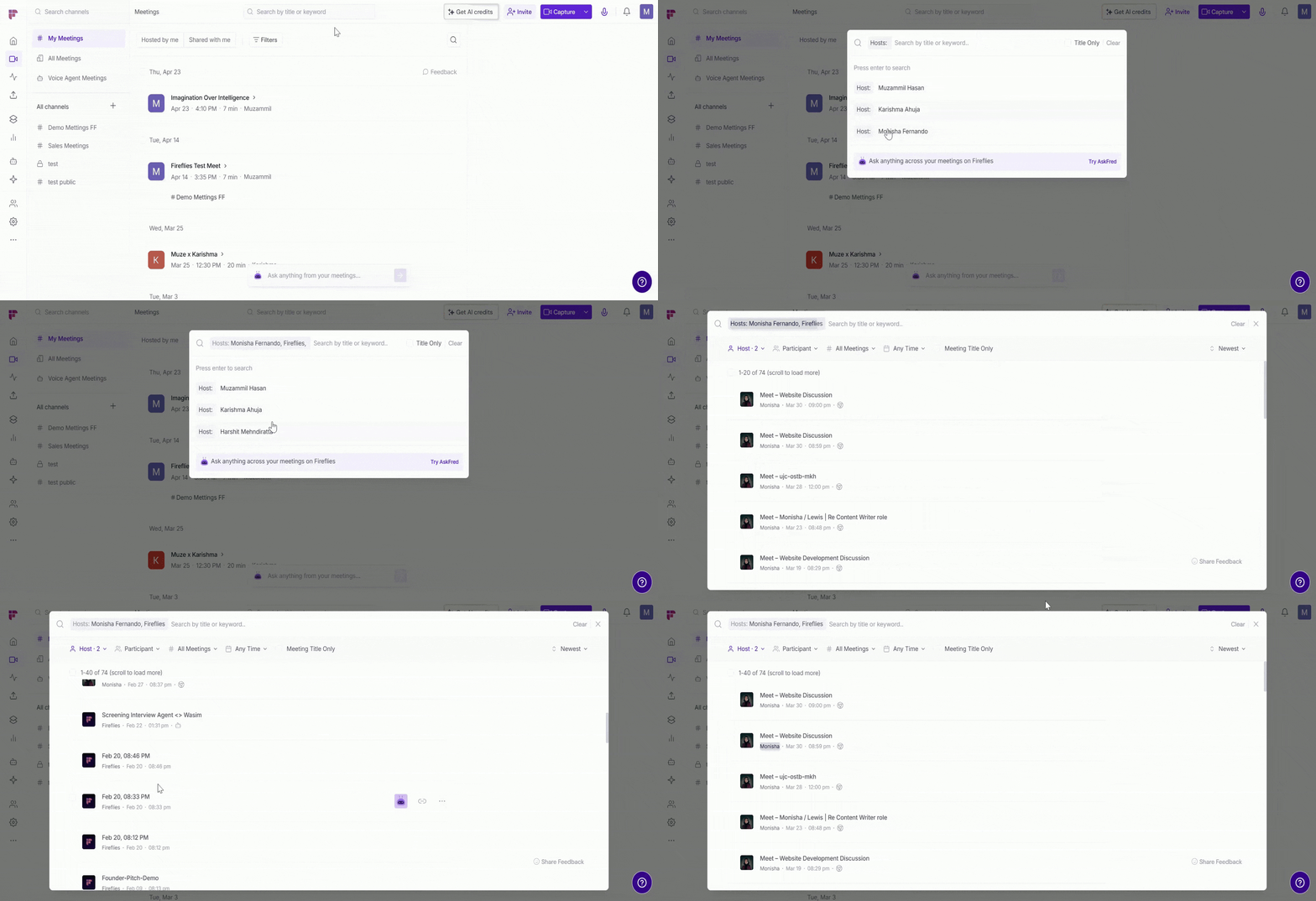
Search by host: Click Hosts, then select one or more hosts from the list or enter a name and press Enter to find meetings hosted by that person.
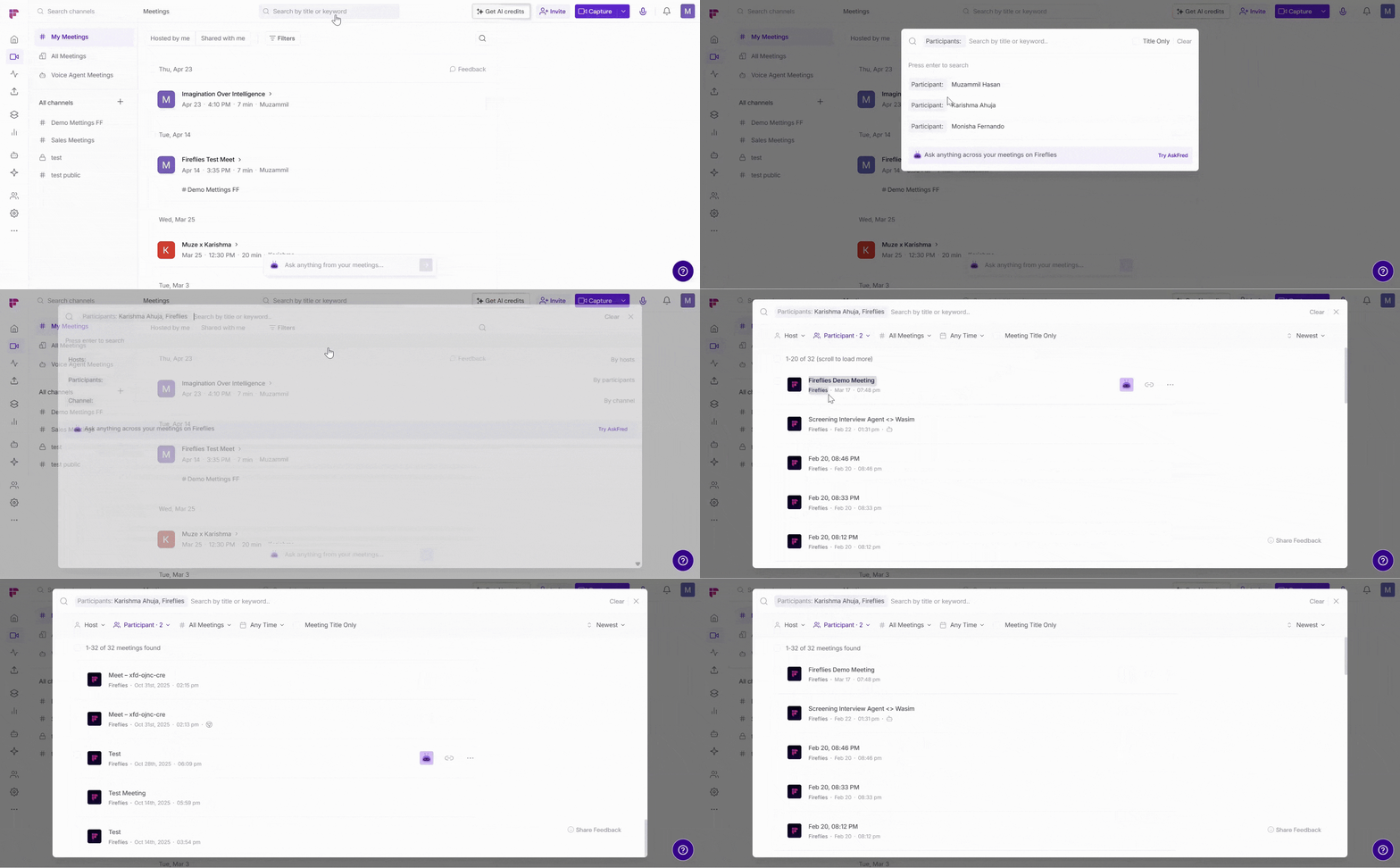
Search by participant: Click Participants, then select one or more participants from the list or enter a name, email, or domain and press Enter to find relevant meetings.
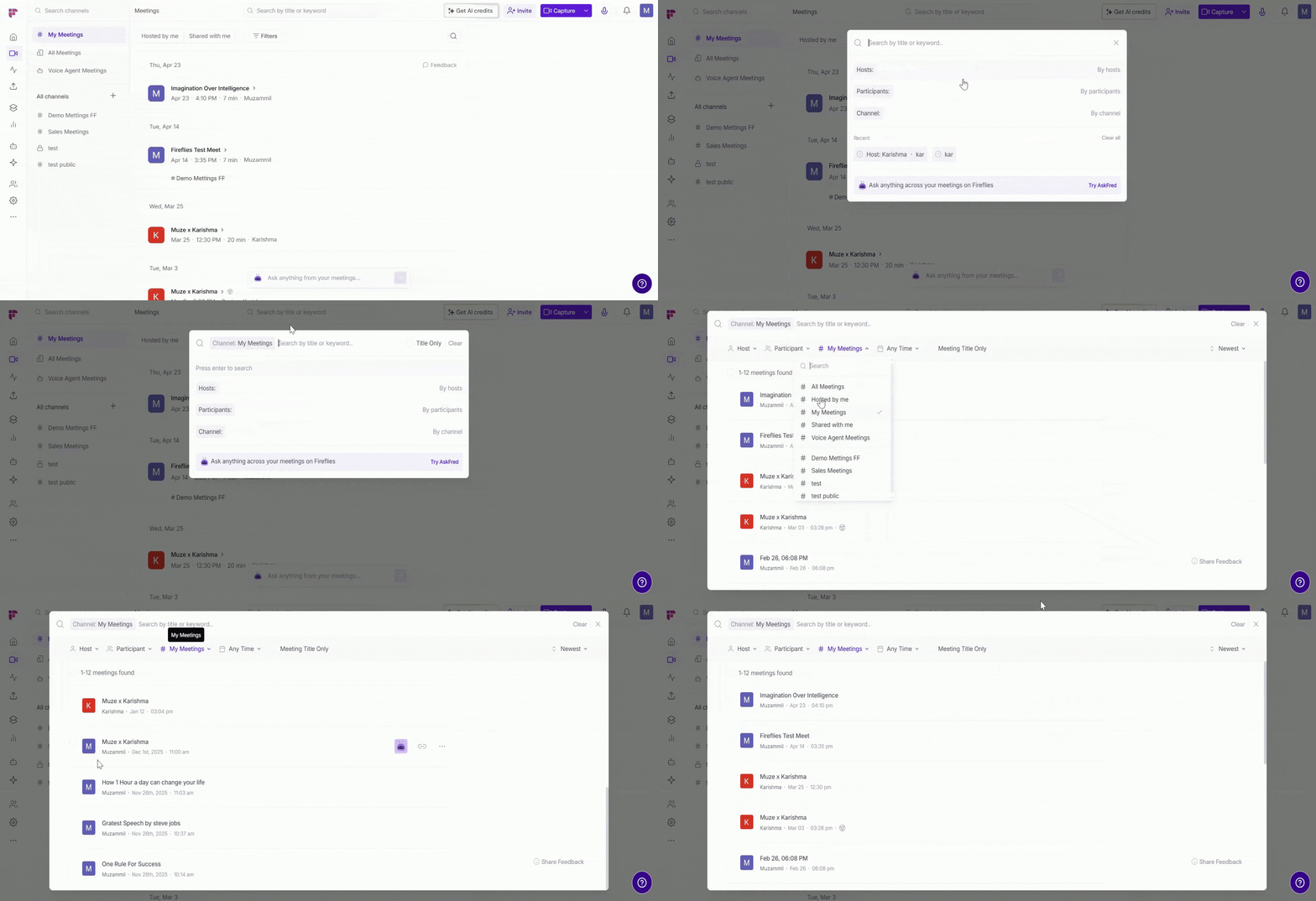
Search by channel: Click Channel and select from your available channels to find relevant meetings.
Search using AskFred: Want to ask a question about your meetings instead of searching manually? Click Try AskFred inside the search bar to ask questions in natural language — AskFred will find answers from across your meetings instantly. You can continue the conversation and ask more follow-up questions.
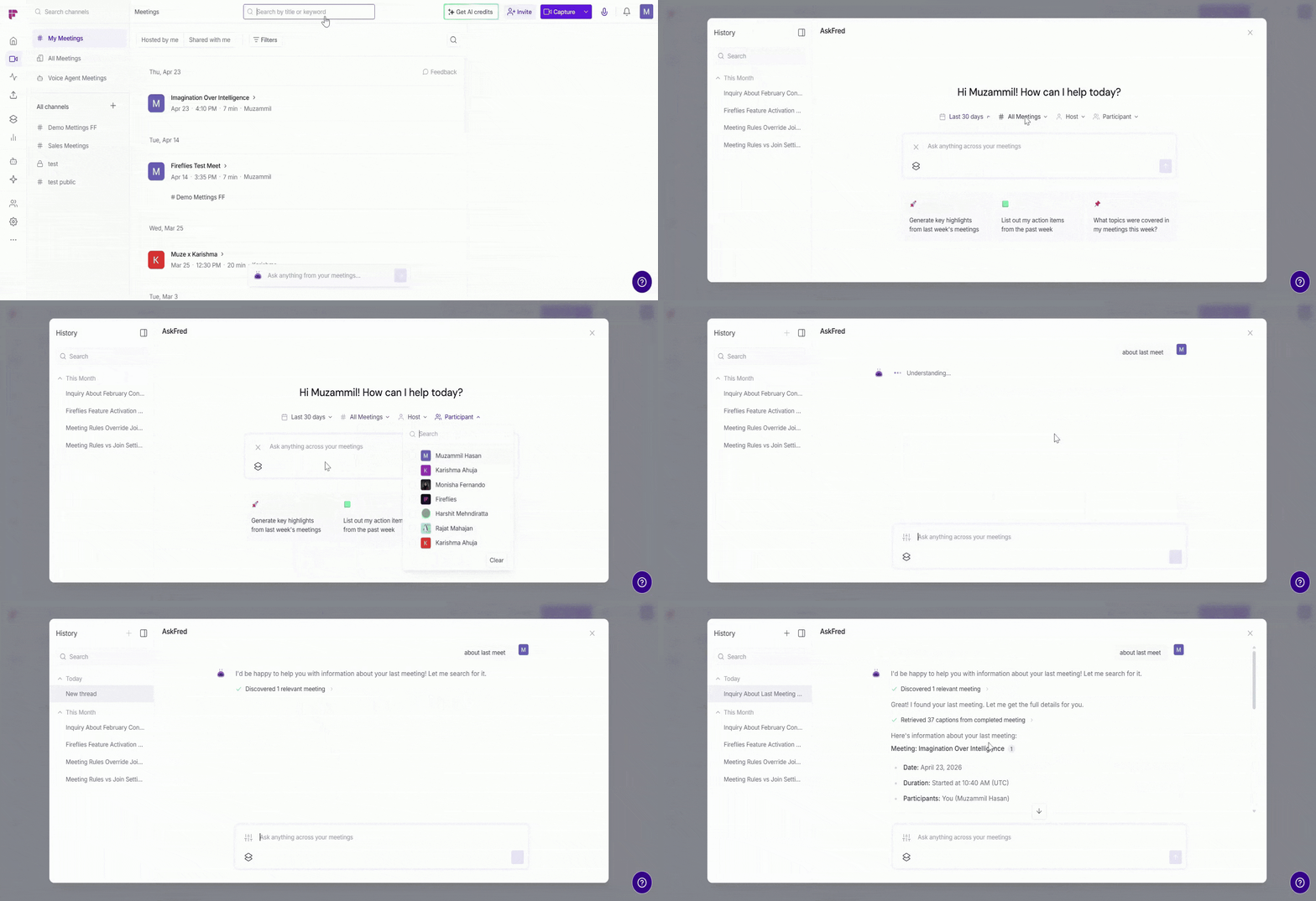
Want to go beyond search? Ask questions in natural language and let AskFred find answers from across all your meetings. Learn about Global AskFred
3. Filters
Want to narrow down your meetings? Use the quick filters at the top of the page or click Filters for more advanced options.
A. Quick filters:
Hosted by me — show only meetings you hosted
Shared with me — show only meetings shared with you
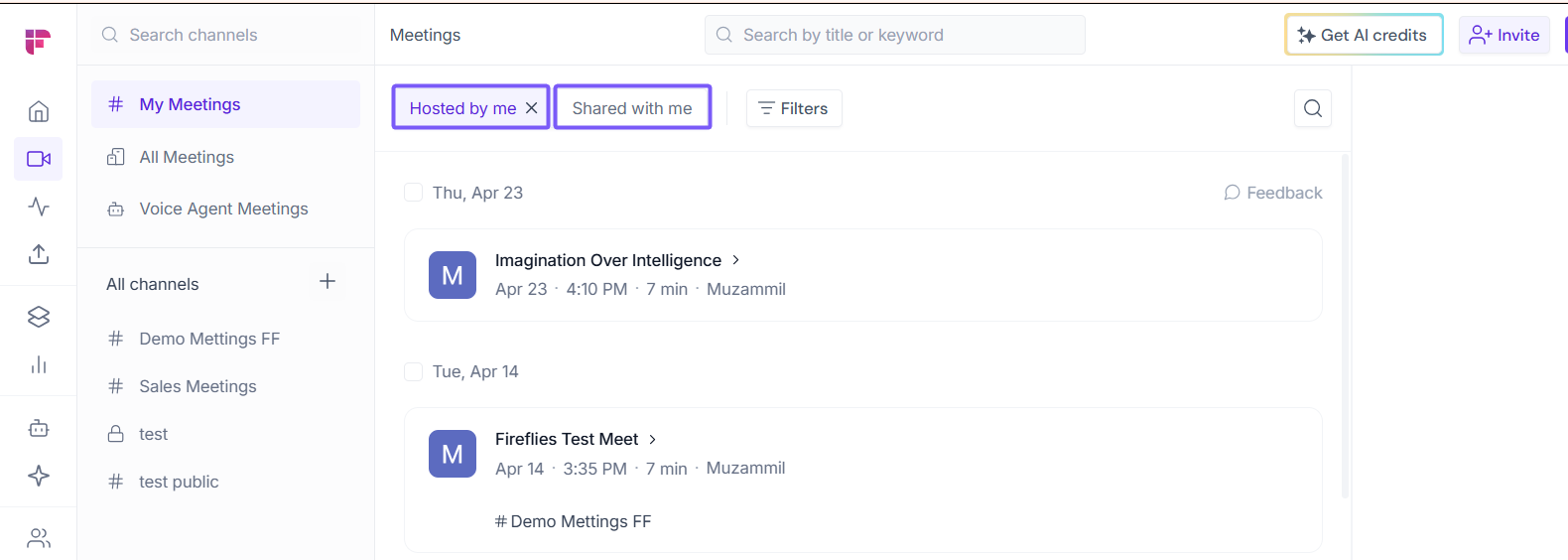
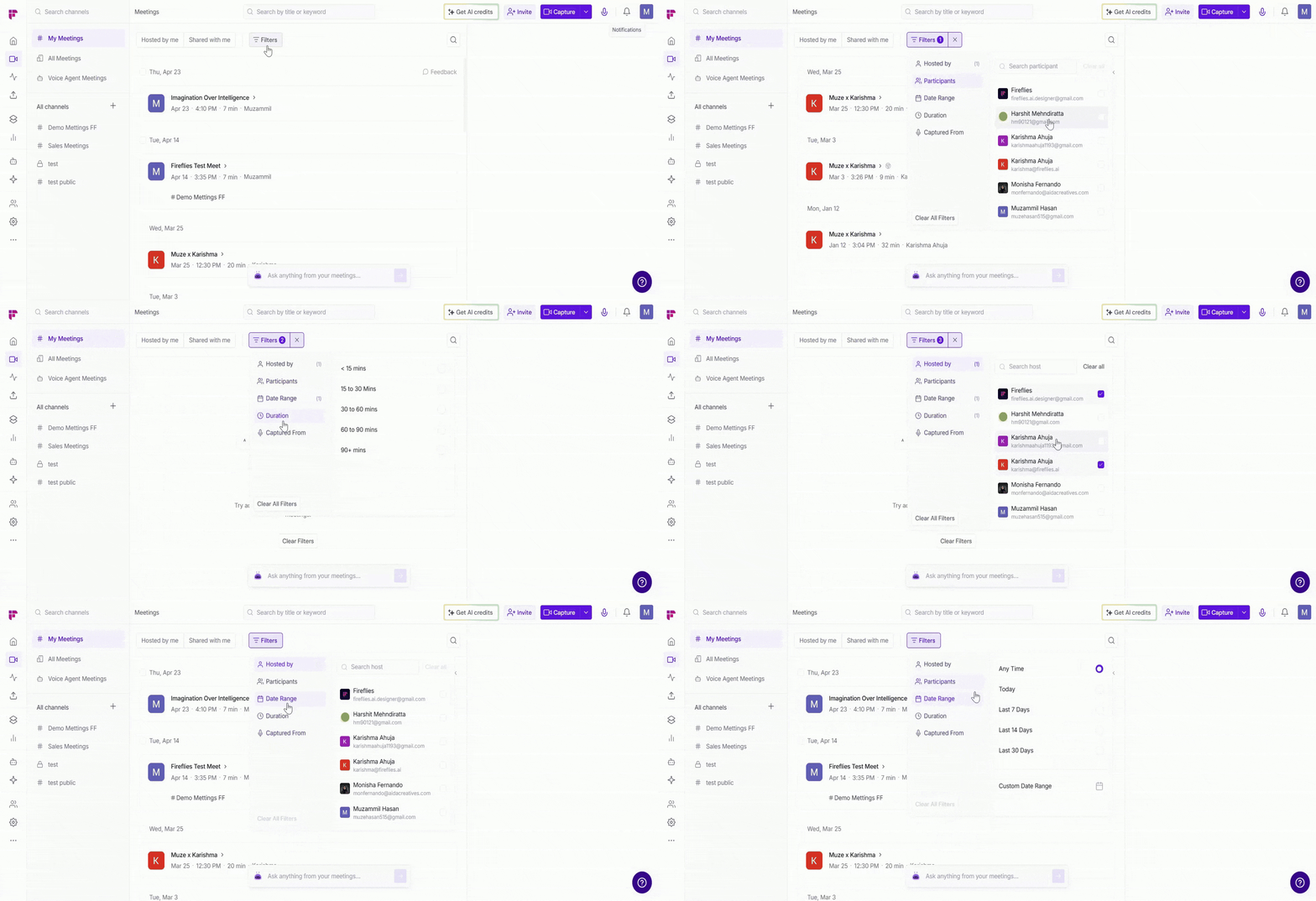
B. Advanced filters: Click Filters to access more specific options:

Hosted by — search and select a specific host from your workspace to filter their meetings
Participants — filter meetings by a specific participant's name or email
Date Range — filter by a preset range or pick a custom date:
Any Time, Today, Last 7 Days, Last 14 Days, Last 30 Days, or Custom Date Range
Duration — filter meetings by how long they ran:
Less than 15 mins, 15–30 mins, 30–60 mins, 60–90 mins, or 90+ mins
Captured From — filter by how the meeting was captured:
💡 To quickly reset your filters, click Clear All Filters or the × icon next to an applied filter.
⚙ Manage Meetings
Need to make changes to a meeting or access more options? You can view meeting details and take quick actions on any meeting—all without leaving the page.
1. View meeting details
Hover over any meeting and click Details to open a summary panel for that meeting.
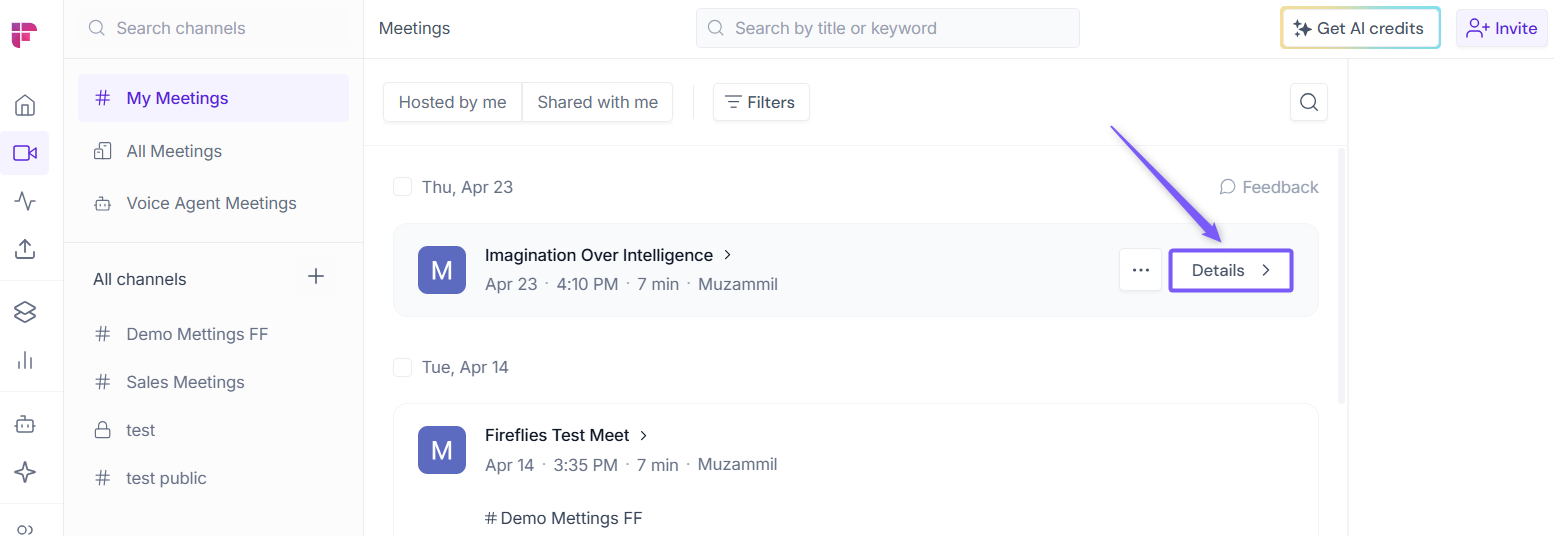
Here you can see:
Meeting title, host, date, time, and language — shown at the top
Meeting summary — a brief AI-generated overview of the meeting
Privacy — view or change who can access the meeting
Channels — see which channels the meeting belongs to, or click Move to channel to move it
Invited — see who was invited to the meeting and their role (e.g. Host)
Attended — see who actually joined the meeting and their attendance time

2. Meeting actions
Hover over any meeting and click the ellipsis menu (…) to access quick actions for that meeting:
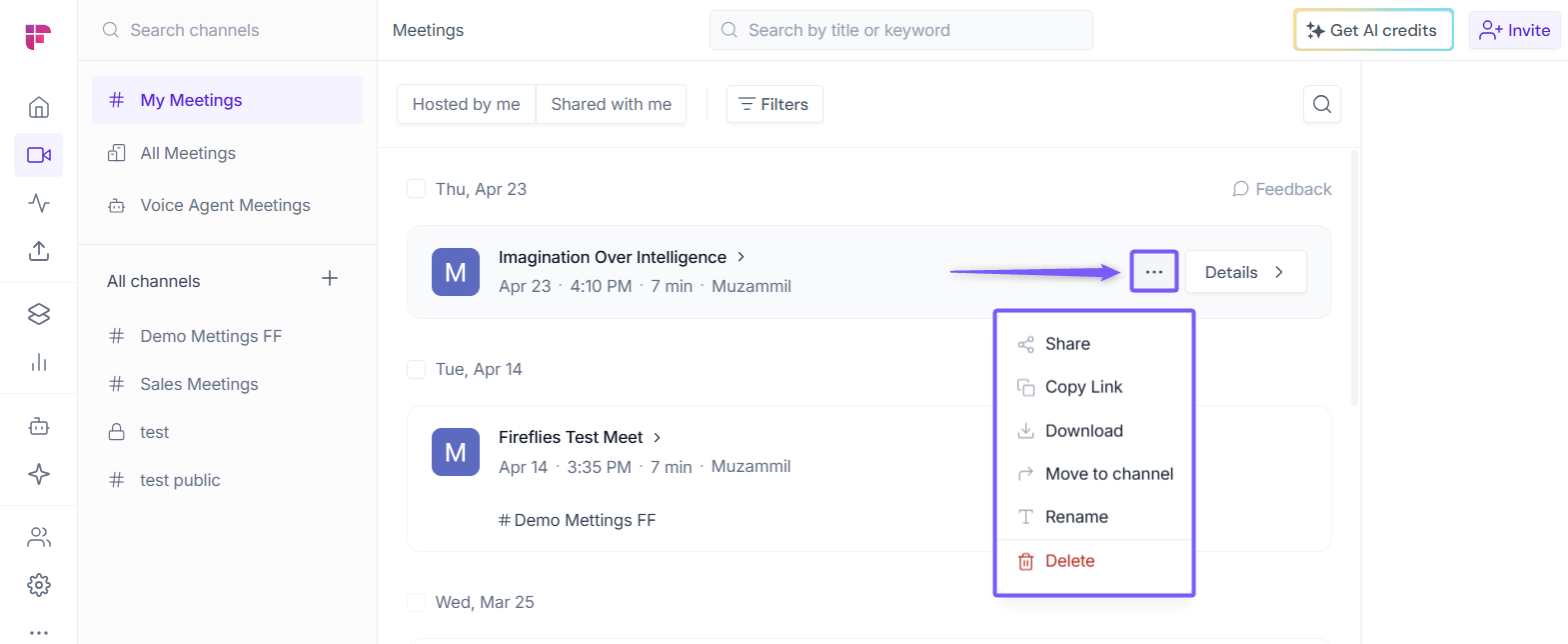
Share — Share the meeting with teammates so they can view the recording, transcript, notes, and summary, or copy a shareable link to send it anywhere.

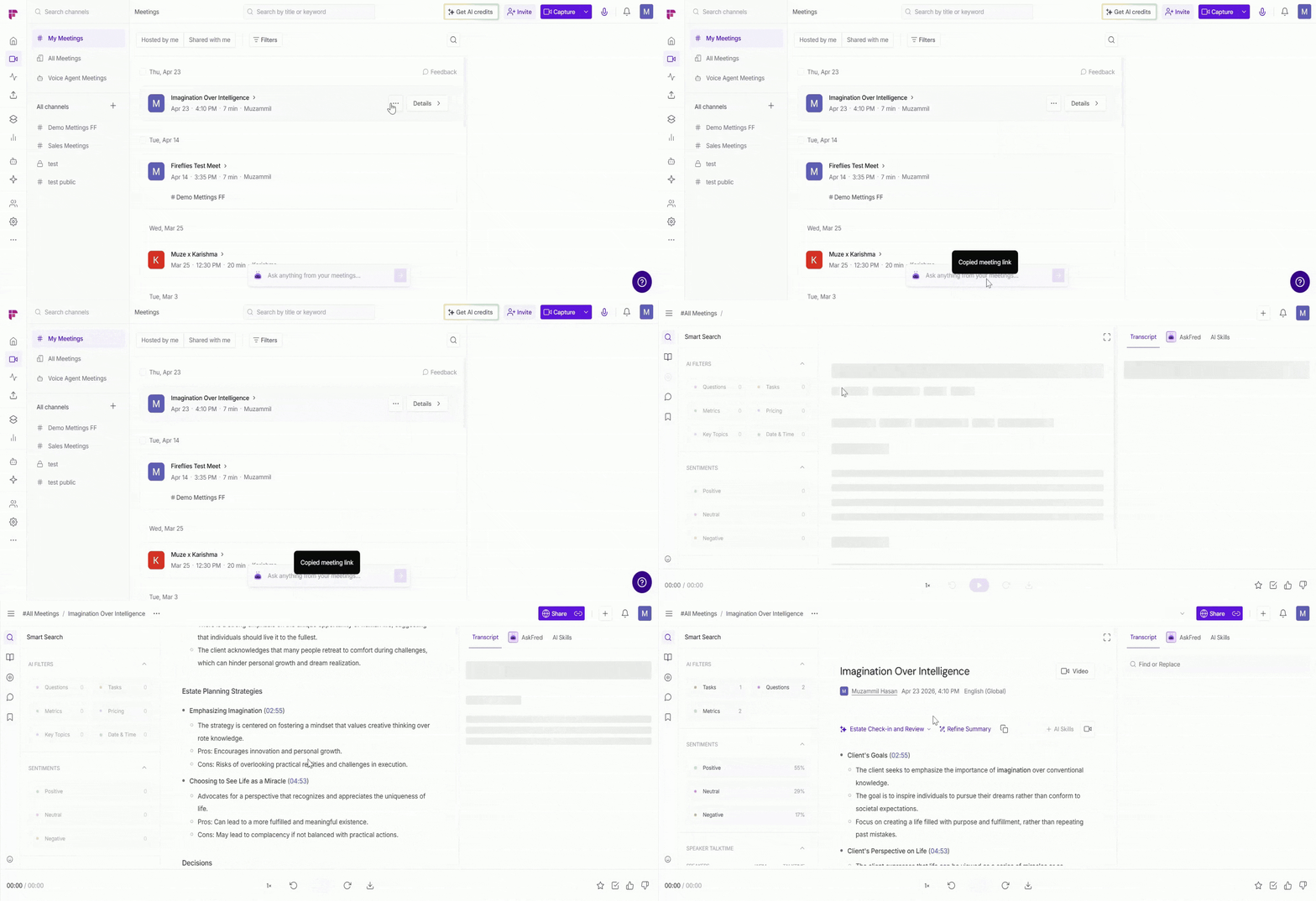
Copy Link — Copy the direct meeting link to your clipboard so you can quickly paste and share it in email, chat, or documents.
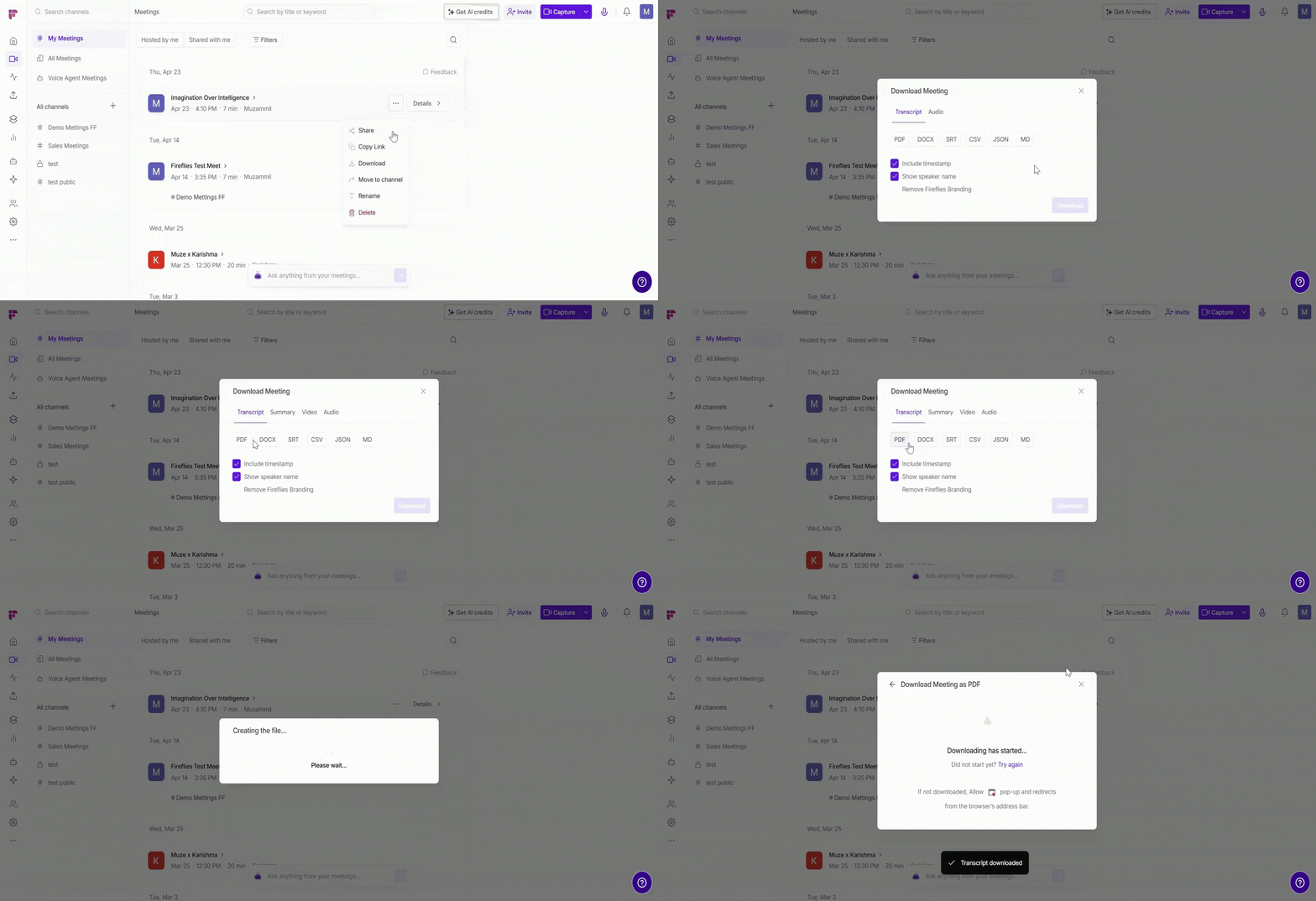
Download — Download the meeting transcript, AI summary, or recording to keep a copy for offline access or external sharing.
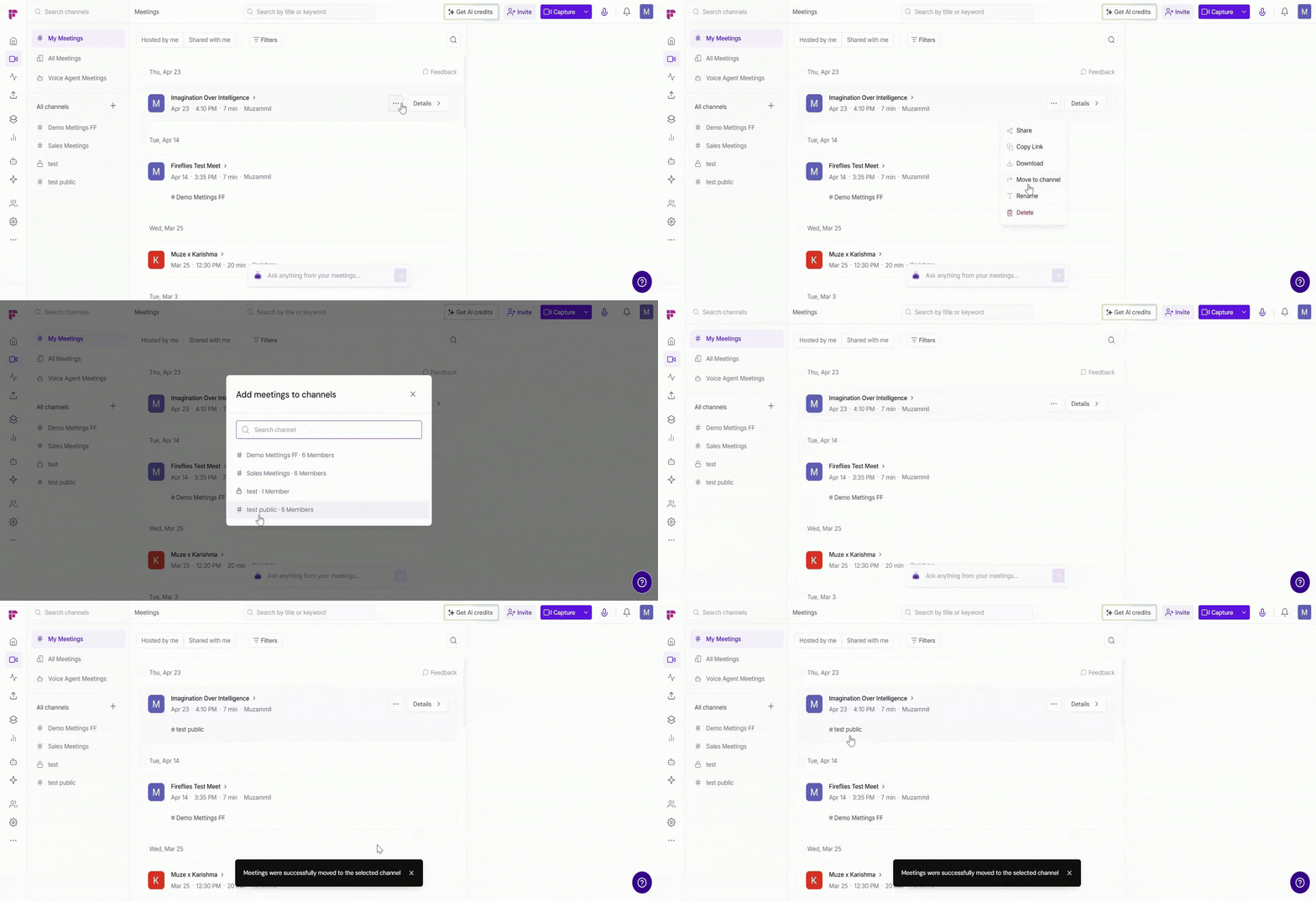
Move to Channel — Move the meeting to another public or private channel to organize it by team, project, or topic.
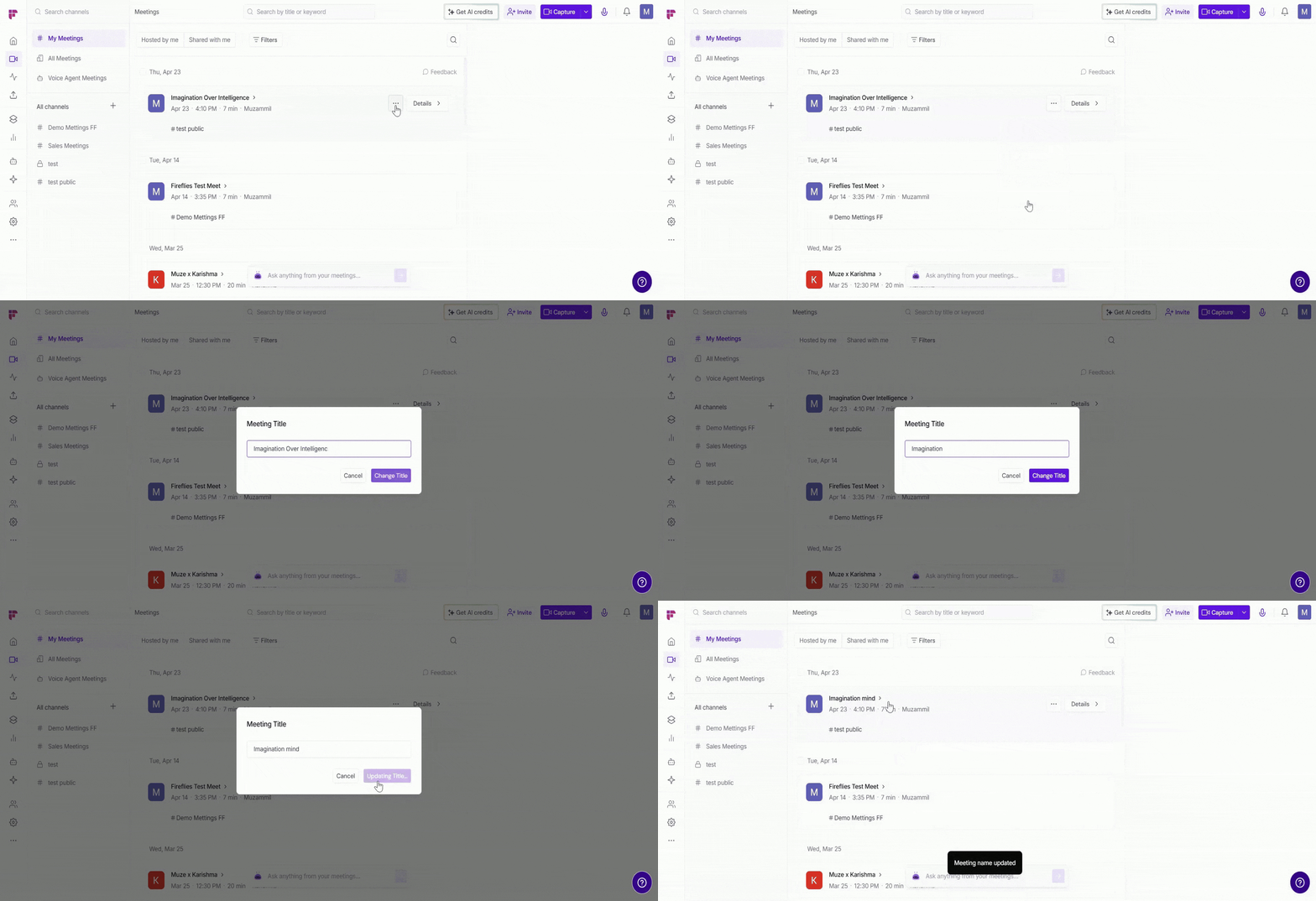
Rename — Change the meeting title to make it easier to identify later.
Delete — Permanently remove the meeting from your Notebook if you no longer need it.
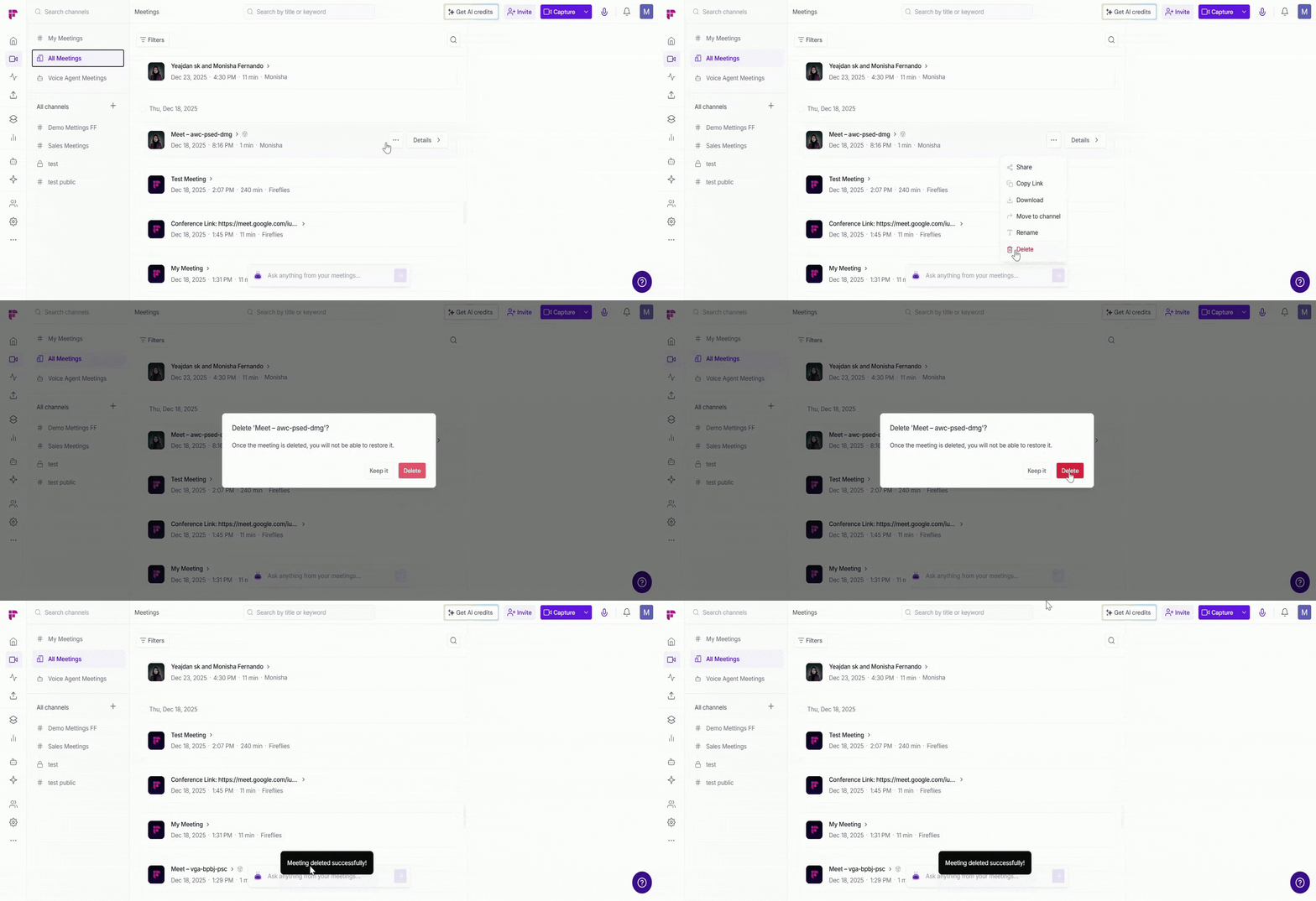
Deleting a meeting permanently removes it from your Notebook and cannot be undone. Learn more about what happens when you delete a meeting
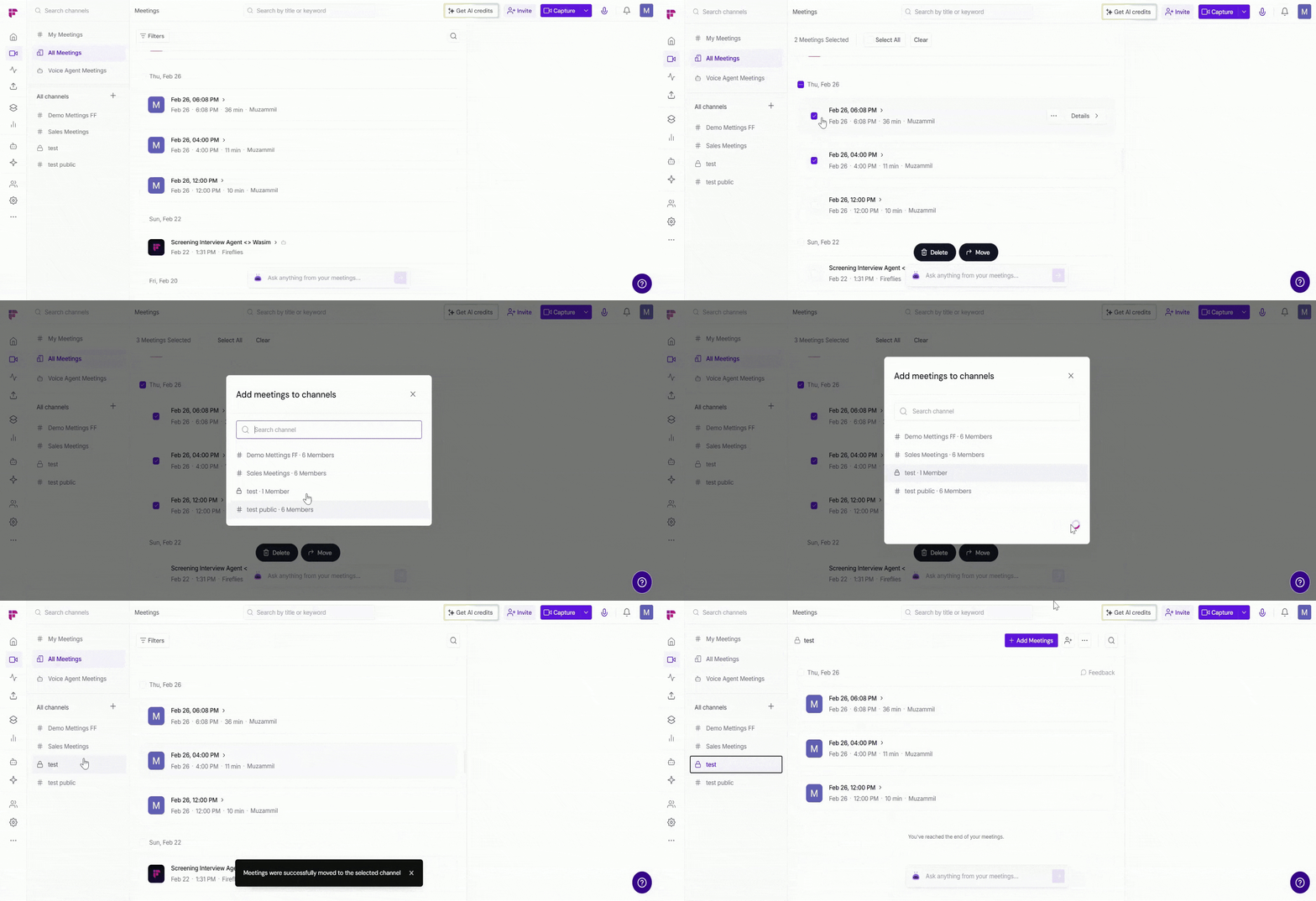
3. Bulk actions
Need to move or delete multiple meetings at once? You can select more than one meeting and take action on all of them together.
1. Hover over any meeting and click the checkbox that appears to select it.
2. Repeat for any other meetings you want to include — or click the date checkbox to select all meetings from that day.
3. To select all meetings, click Select All at the top-left, or click Clear to deselect them.
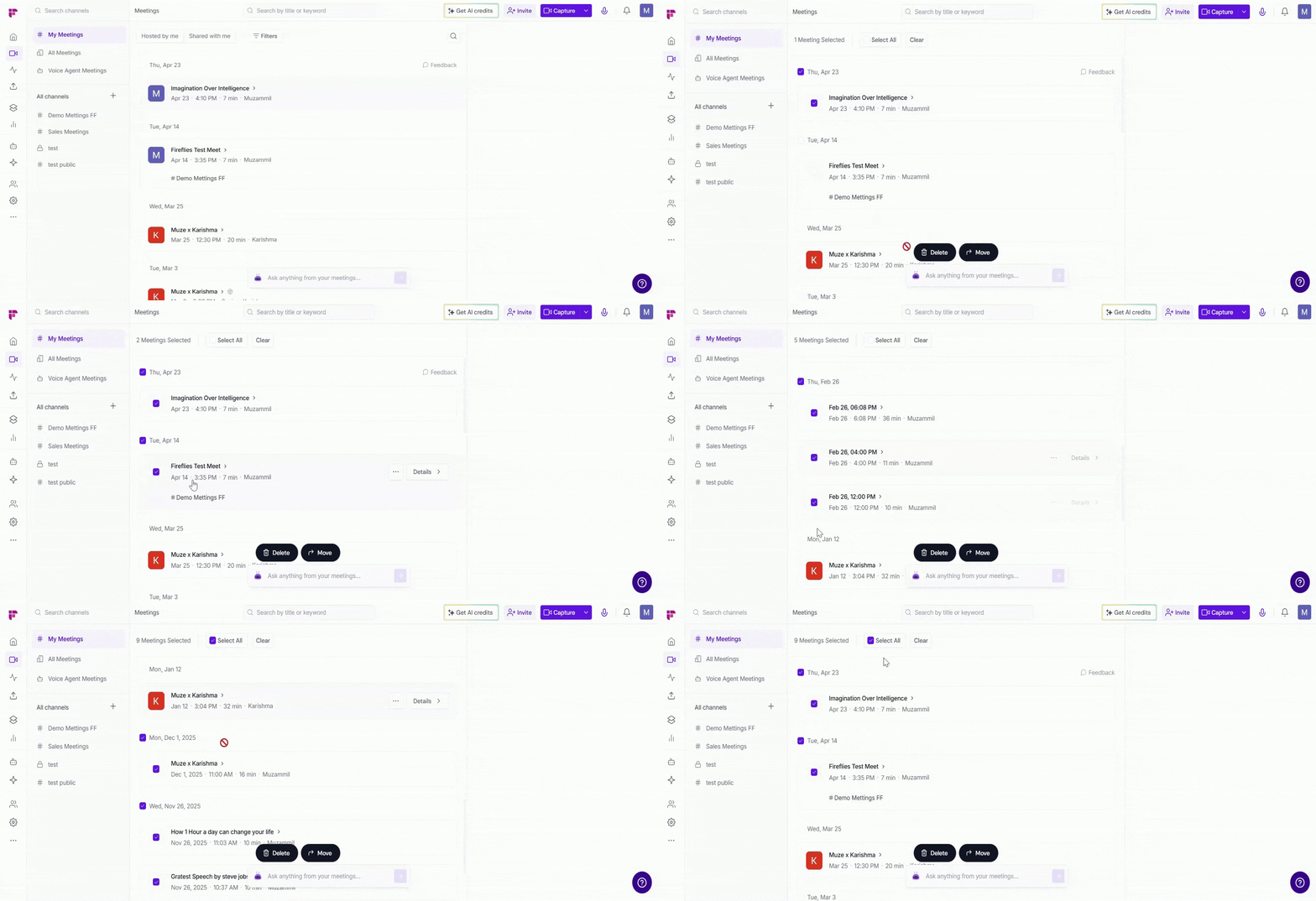
Two action buttons will appear at the bottom of the page:
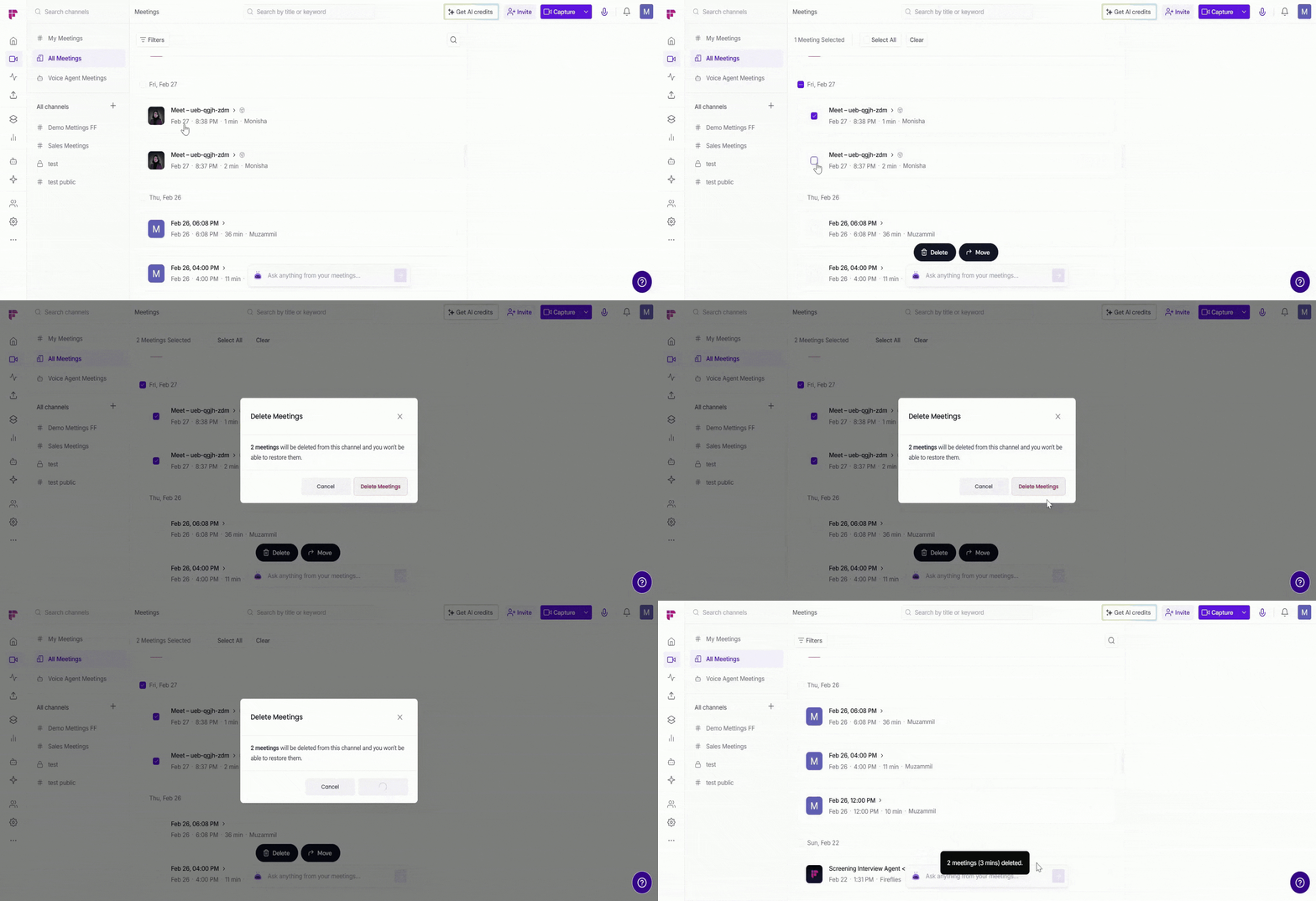
Delete: Permanently remove all selected meetings. A confirmation popup will appear, click Delete to confirm.
Move: Move all selected meetings to a channel of your choice. A popup will appear showing your available channels. Search or select the channel you want, then click Move to confirm.
✅ Quick recap
Fireflies Notebook is your central place to find, organize, and manage all your meetings. Here's what you can do:
Channels — organize meetings by team, project, or workflow
Search — find meetings by title, transcript, host, participant, or channel
Filters — narrow down meetings by date, duration, host, or how they were captured
Meeting details — view summary, privacy, channels, and attendance for any meeting
Meeting actions — share, download, rename, move, or delete individual meetings
Bulk actions — move or delete multiple meetings at once
📌 Related guides
How to invite Fireflies to meetings — learn how to get Fireflies into your meetings so they're automatically recorded and transcribed
Learn about the Fireflies Notepad — once you open a meeting, explore the full transcript, summary, and notes in the Notepad