View and manage meeting details from the Meeting Info modal
Last updated: June 4, 2025
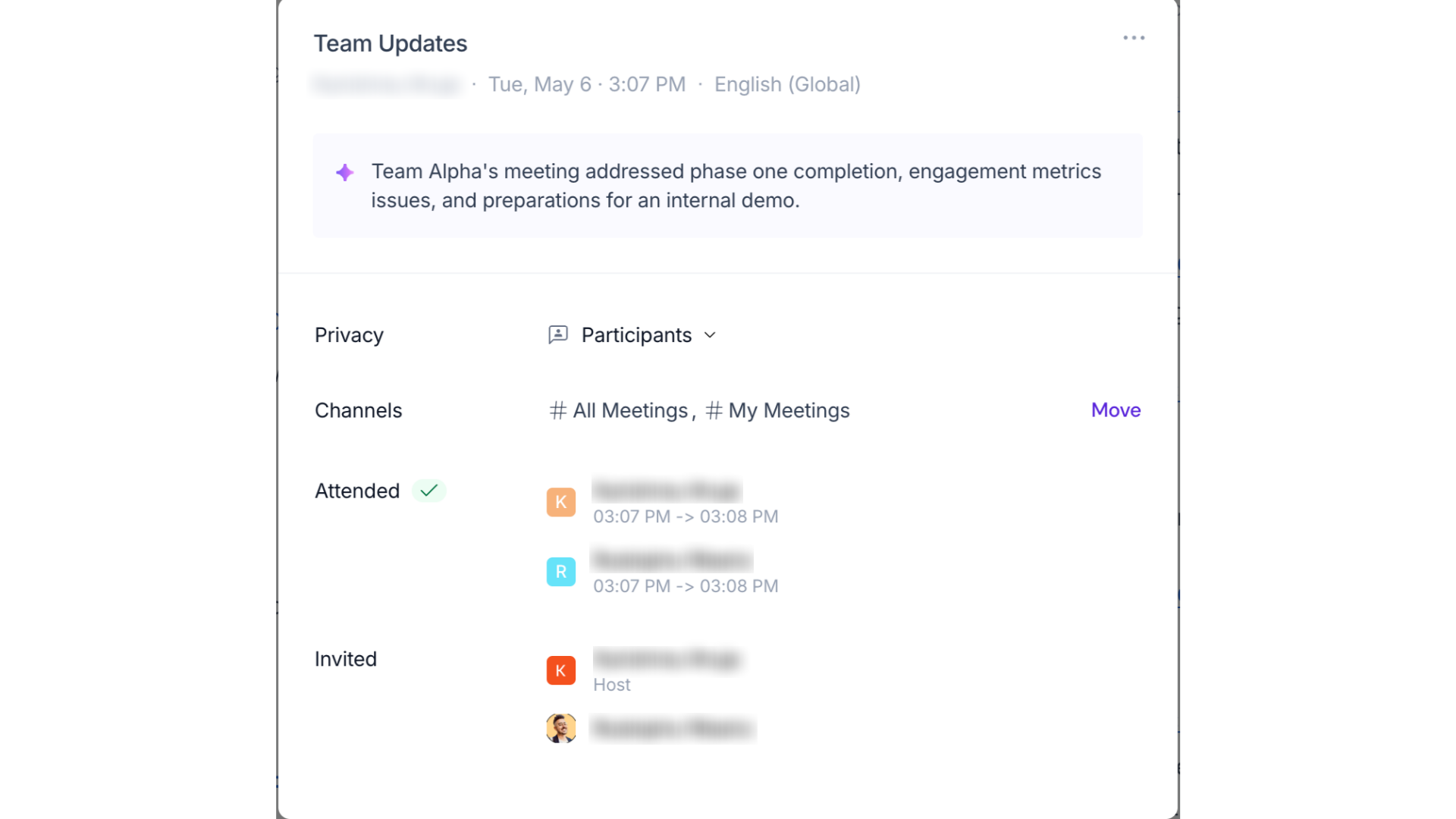
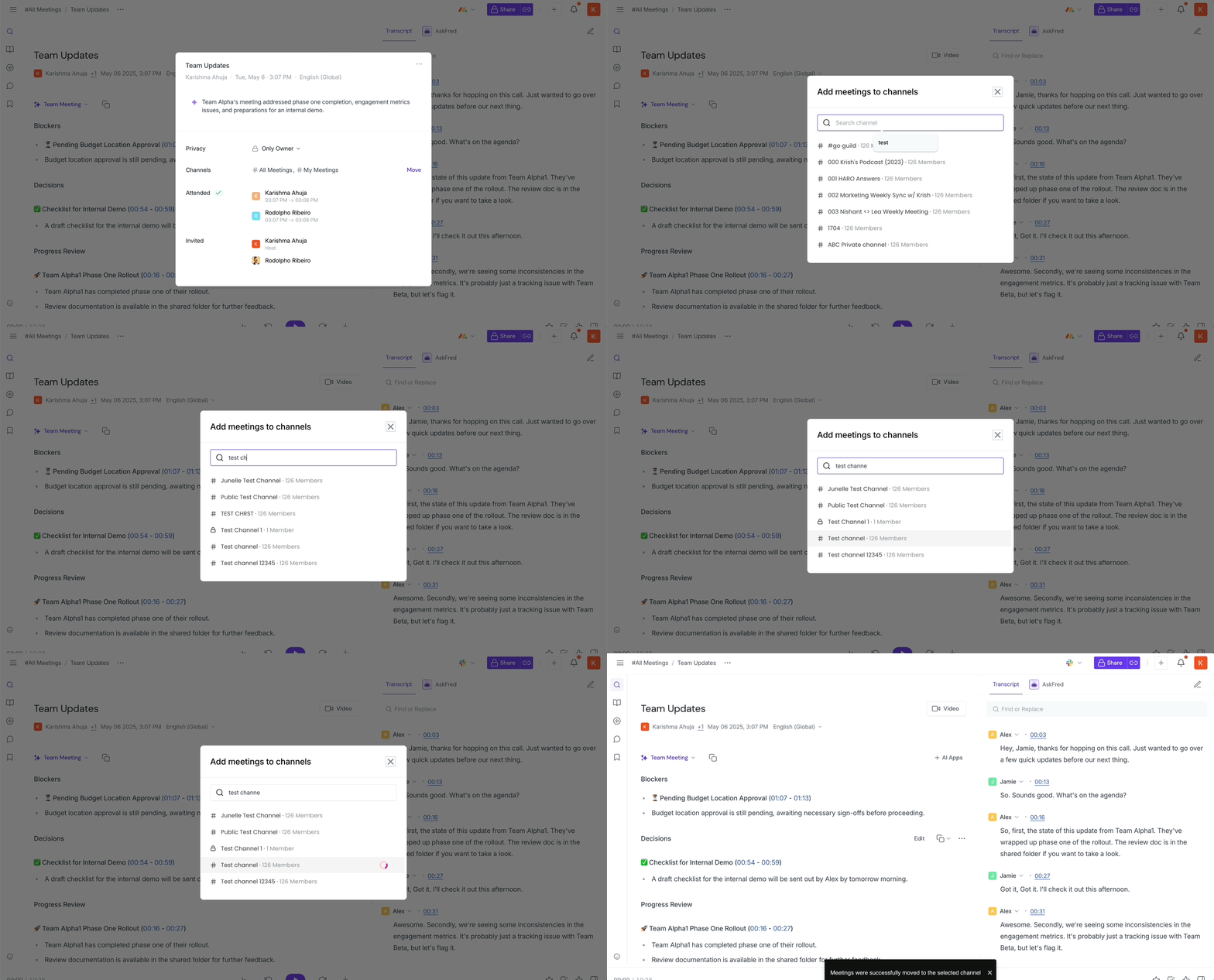
The Meeting Info modal gives you a quick overview of key meeting details — including who attended, when they joined and left, where the meeting is saved, and more.
This guide shows you how to open the modal from both the Notebook and Notepad, and how to view or move meetings across channels.
🔎 What you can see in the Meeting Info modal
You’ll find:
Meeting name, date, time, and language
List of attendees, with their join and leave times
List of people invited but didn’t attend
Meeting summary preview
Channels where the meeting is saved
Privacy setting for the meeting recap
🧭 How to open Meeting Info
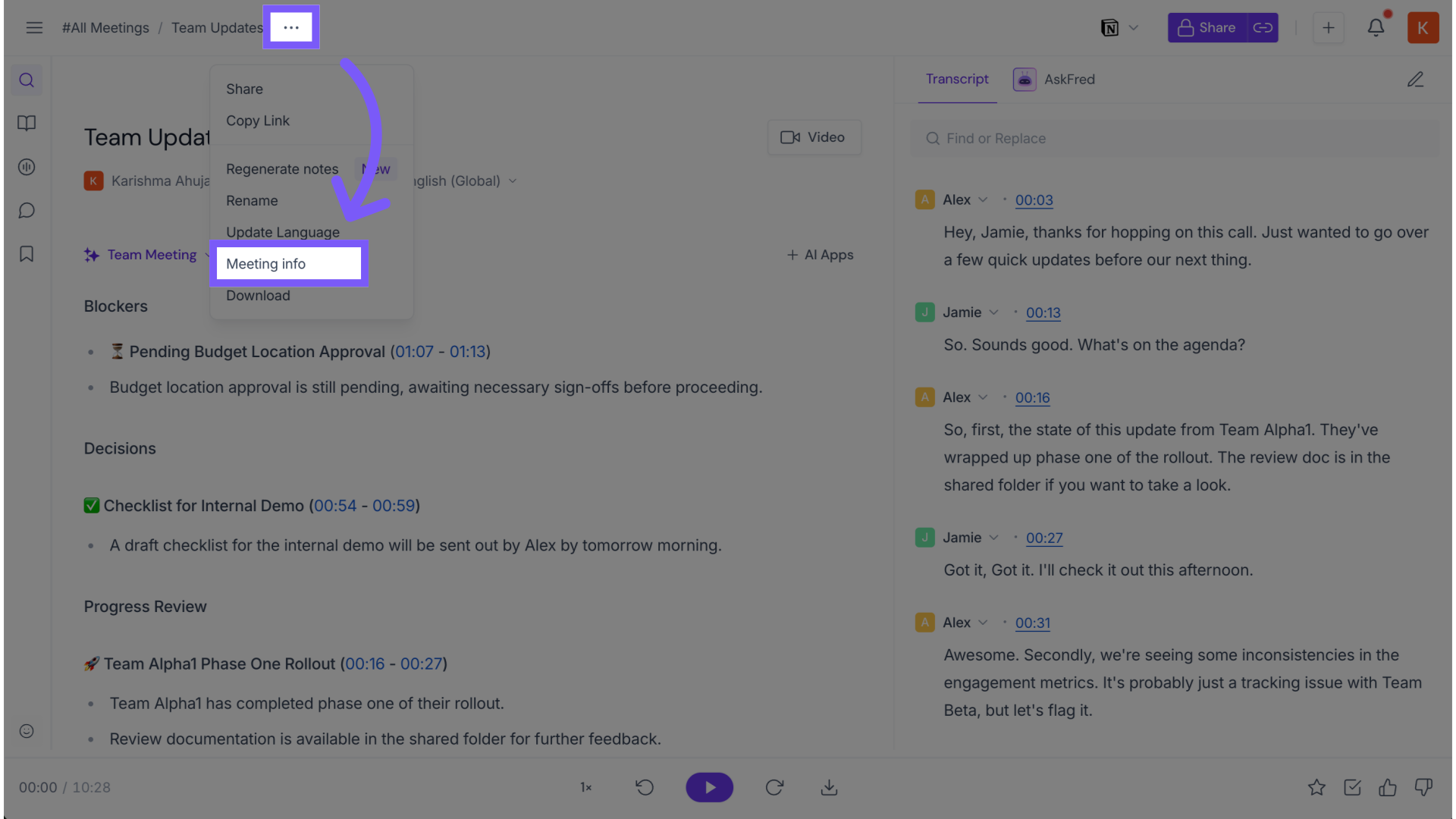
A. From the Notepad (open meeting view)
Open a meeting from your Fireflies Dashboard or Your Meetings Tab
Click the three-dot menu next to the meeting title and select Select Meeting info.
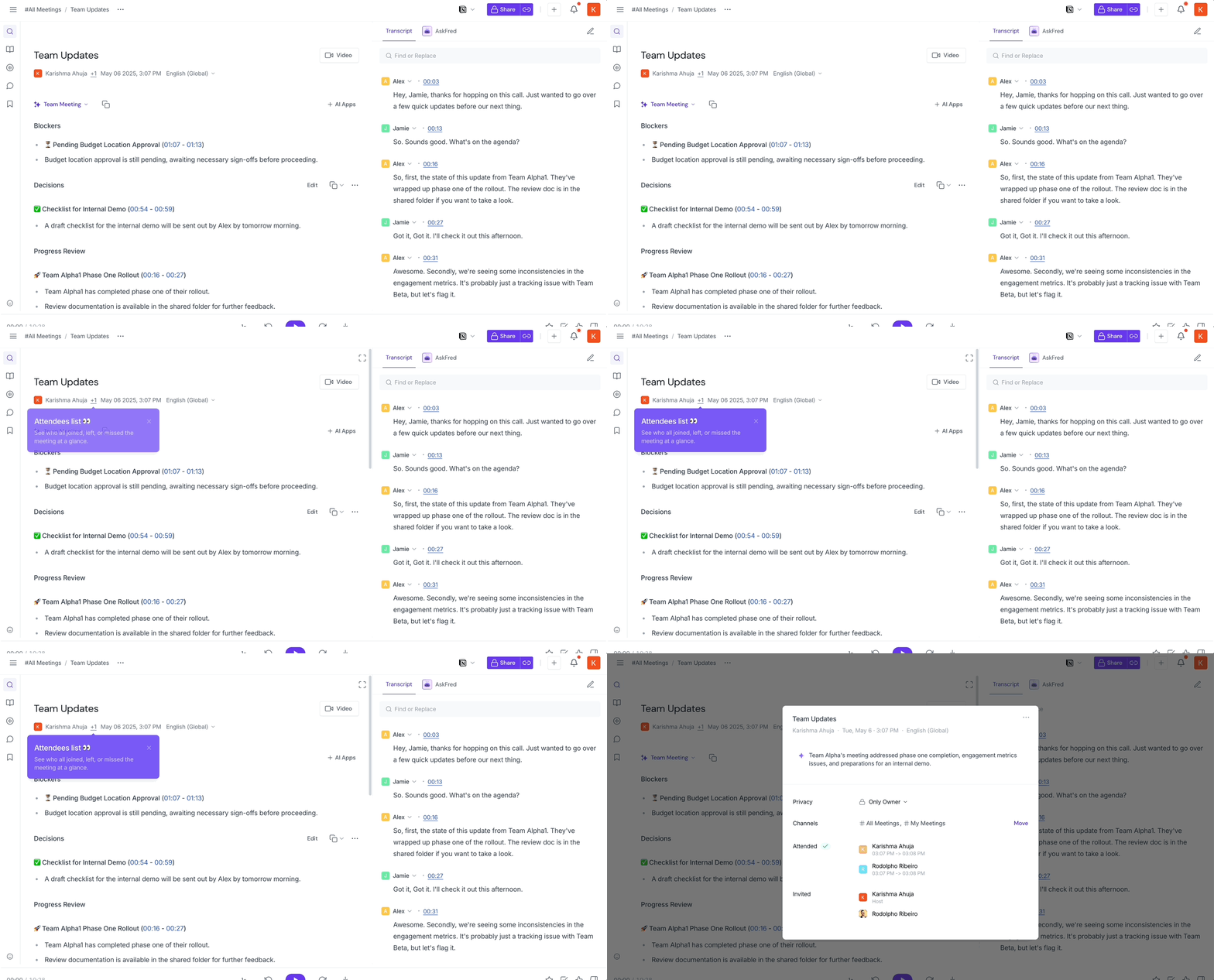
B. From the Notebook (meeting list view)
Hover over the host name below the Meeting Title and click on (+ #number of attendees) in this case +1 since there was 1 additional attendee
A modal will pop up showing attendees, summary, and channels.
👥 Understand who attended
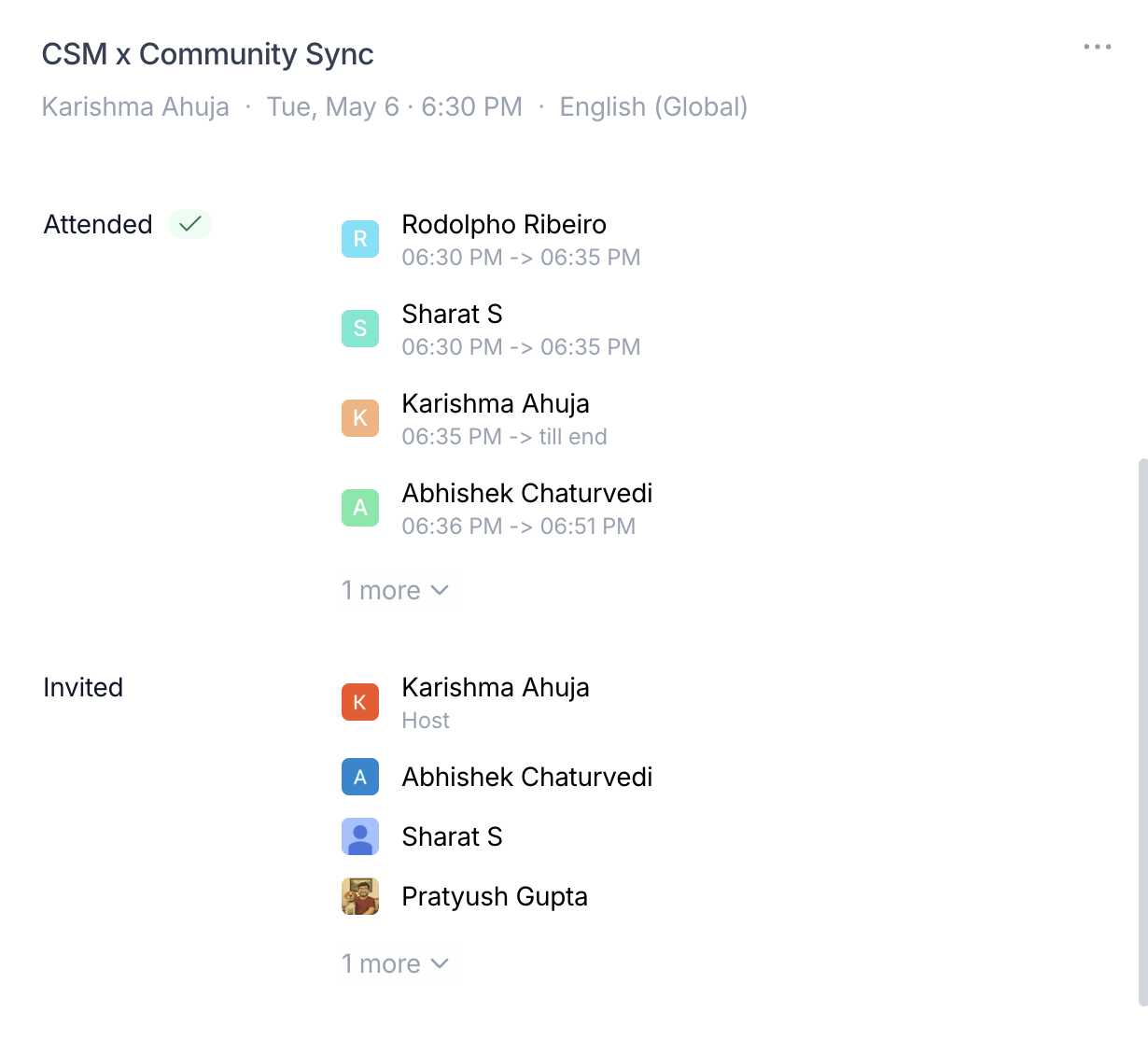
In the modal, the Attended section shows:
The full name of each participant
The time they joined
The time they left
Below that, the Invited section lists all invitees (even if they didn’t attend).
This is especially useful for tracking puppet meetings or verifying participation.
📁 Move a meeting to a different channel
You can move a meeting from one channel to another directly from the Meeting Info modal.
Open the Meeting Info from either the Notepad or Notebook.
Click the Move button (depending on your screen layout).
Select the new channel. That’s it — your meeting will now show under the updated channel(s).
🔵 Learn about Fireflies Channels
🧩 Other Guides to help you navigate some settings we spoke about above