Public Acess: What non-Fireflies users see when you share a meeting recap
Last updated: April 15, 2026
If you're sharing a meeting recap with someone who doesn’t have a Fireflies account, this guide explains what they can view—depending on your plan and sharing settings. This guide is for non-Fireflies users, referred to as guests for clarity.
Heads-up: “External” ≠ “Guest”
An external person (like a client) may already have a Fireflies account.
💸 Don’t worry—sharing your recaps with guests or external viewers won’t use up extra seats or credits on your plan.
👉 Need help figuring out how to share recaps in the first place? See 📄 How to share meeting recaps or notes, summaries and transcripts with teammates, attendees, specific user groups, external people or non-fireflies users
Here’s what non-Fireflies users (guests) will experience when they open a public link to your meeting recap:
Scenario 1: Seamless, Instant Access (Business/Enterprise with feature enabled)
If you're on a Business or Enterprise plan and have enabled Seamless Guest Access:
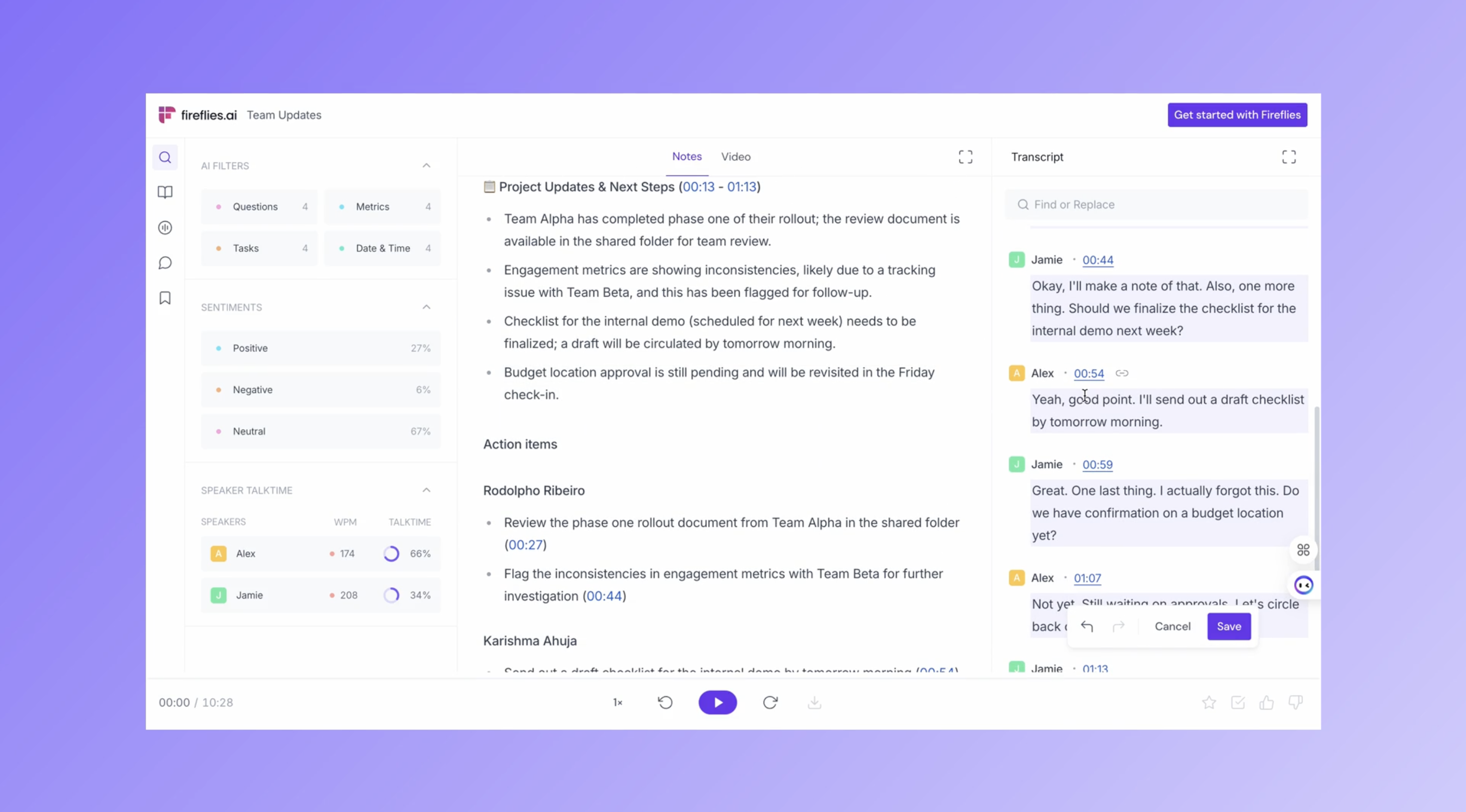
✅ Guests can instantly view (no login/signup required):
Full transcript
AI-generated summary notes
The full video recording (if one was made).
This means no signup prompts for them to access the core content!
🔒 However, guests will need to log in or sign up to:
Use AskFred or AI skills
Create or view Soundbites
Add or see comments on the transcript
Scenario 2: Limited Access without logging into Fireflies
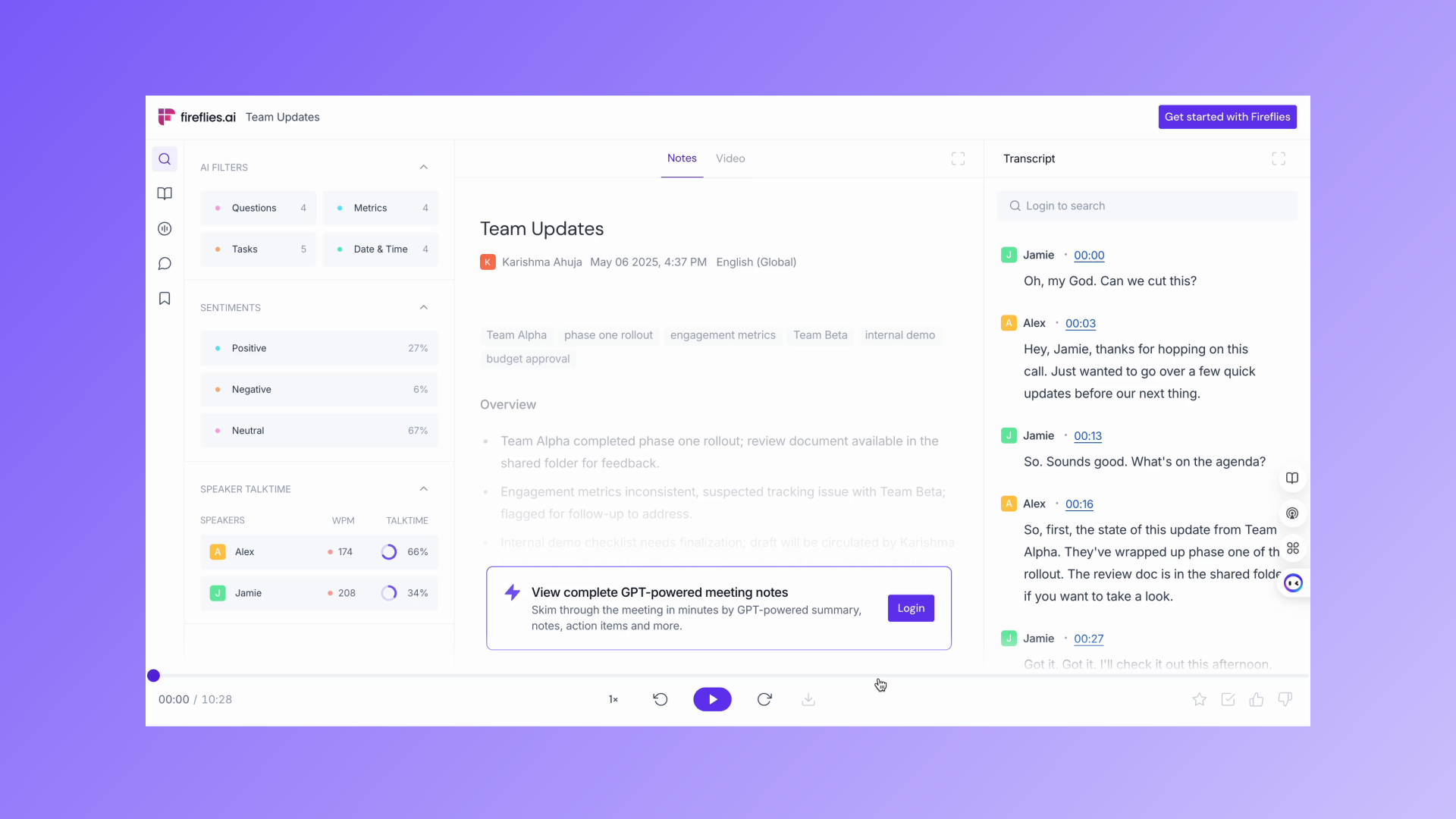
In the following situations, guests will have limited access to meeting notes and will be prompted to sign up or log in to Fireflies to view the full meeting recap content
You are on a Free or Pro plan.
OR you are on a Business or Enterprise plan but have NOT enabled the "Public Meeting Sharing" feature.
✅ Guests can instantly view (no login/signup required):
Full meeting transcript
Audio playback and controls
🔒 However, guests will need to log in or sign up to:
AI-generated summary (action items, notes, and outline)
Video recording (only available on Business/Enterprise)
Soundbites created from the meeting
Transcript search for keywords or phrases
AI filters, sentiment filters, or speaker labels
Once logged in, guests can view the recap based on the visibility setting you applied (e.g. Participants only, Anyone with the link, etc.)
Want to learn how to control this experience?
Follow the steps here to enable seamless public sharing with guests