How to enable the Salesforce integration for the entire workspace?
Last updated: September 18, 2026
Workspace admins can manage the Salesforce integration at the workspace level, making it easier for their team to use shared integration settings through Integration Permissions.
Before you begin
Make sure you are a Fireflies Workspace Admin.
Make sure the Salesforce integration is already set up and active.
Related: How to set up Fireflies with Salesforce integration
Your workspace is on the Business or Enterprise plan.
Note: Free and Pro workspaces can configure integrations individually or apply team configurations across the workspace. The full Integration Permissions experience - including granular access controls, connected user management, and bulk permission management is available on the Business and Enterprise plans.
🚀 Steps to follow
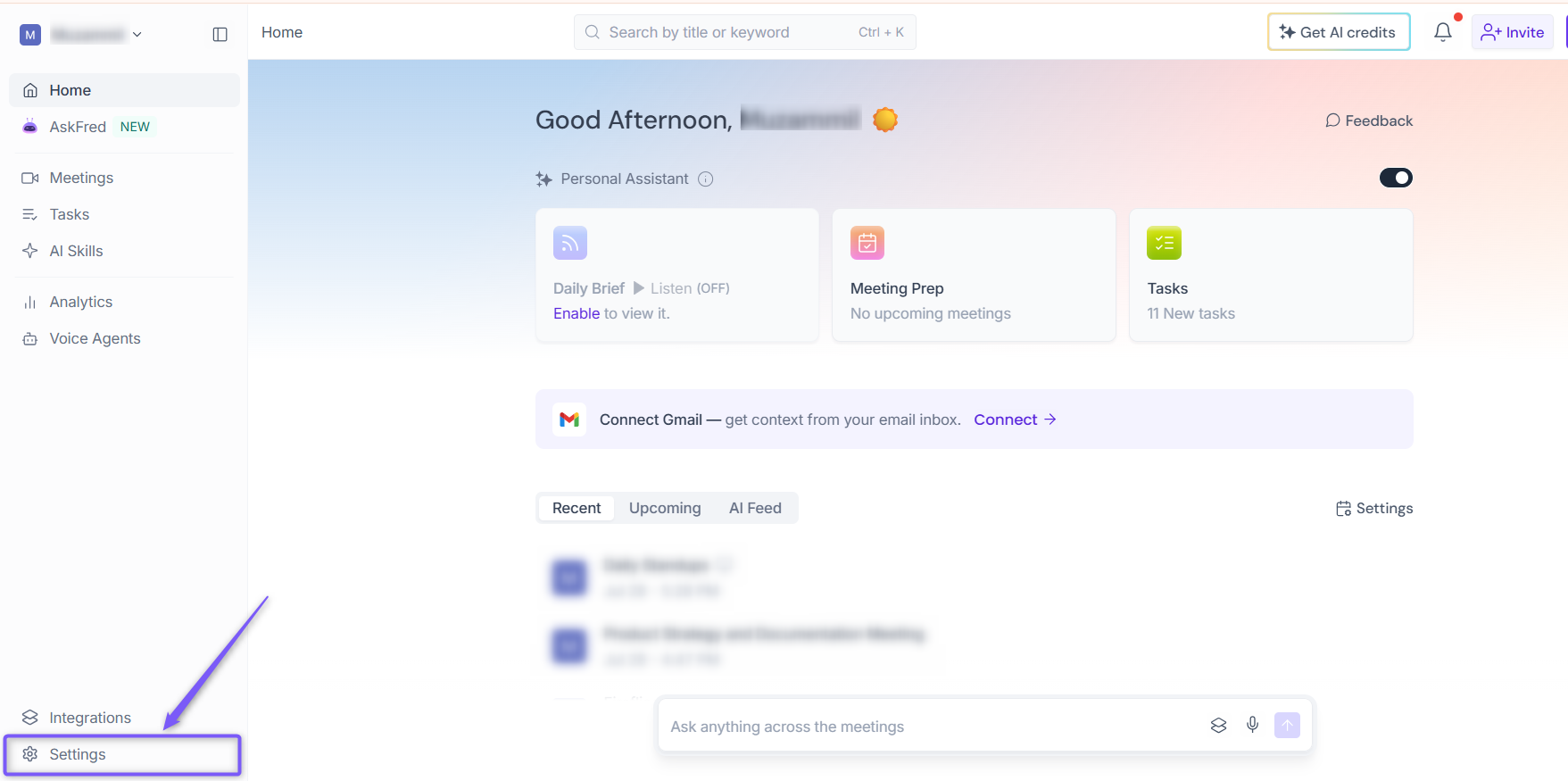
Step 1: Log in to your Fireflies account and click Settings in the left sidebar.
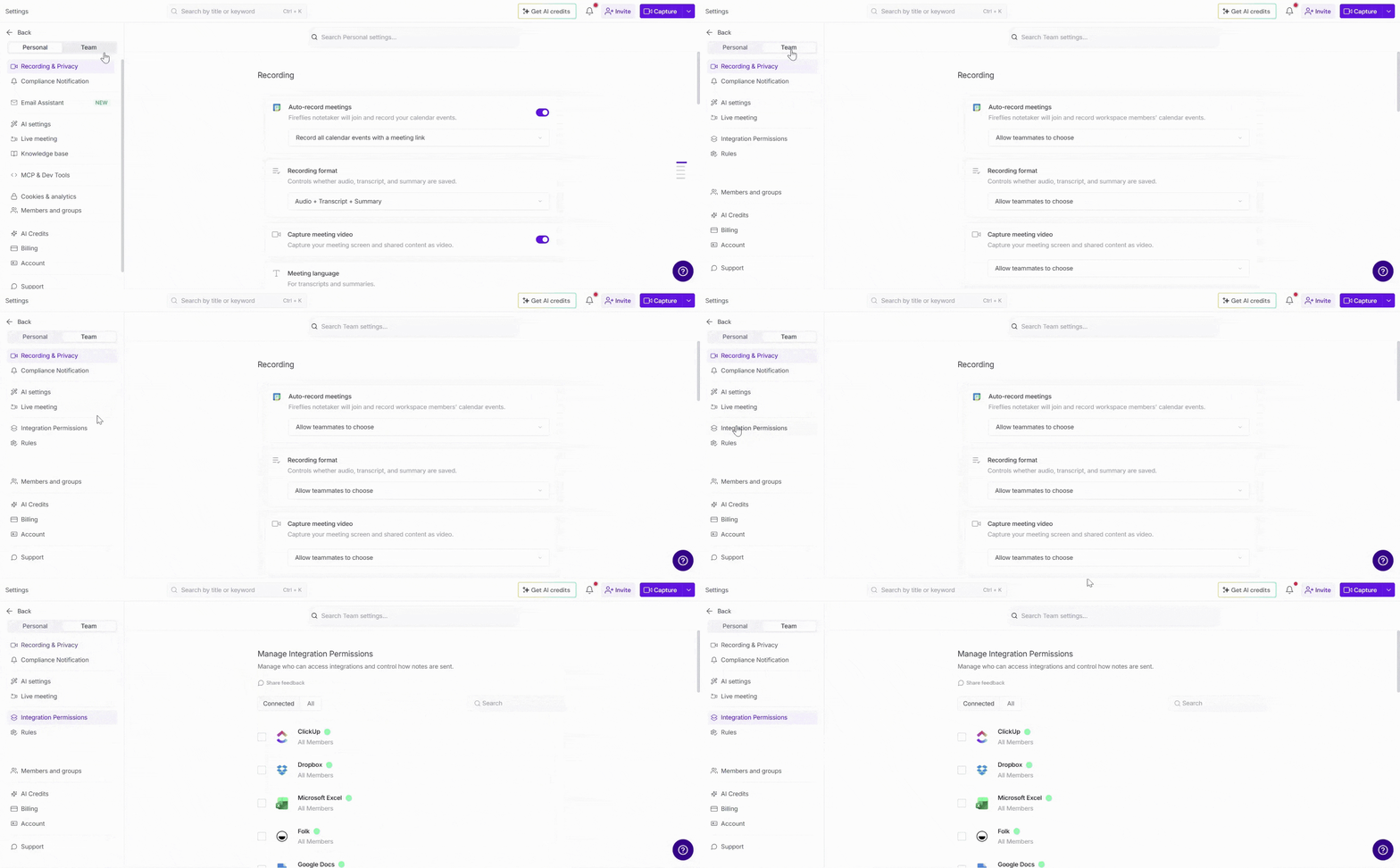
Step 2: Select the Team tab, then click Integration Permissions.
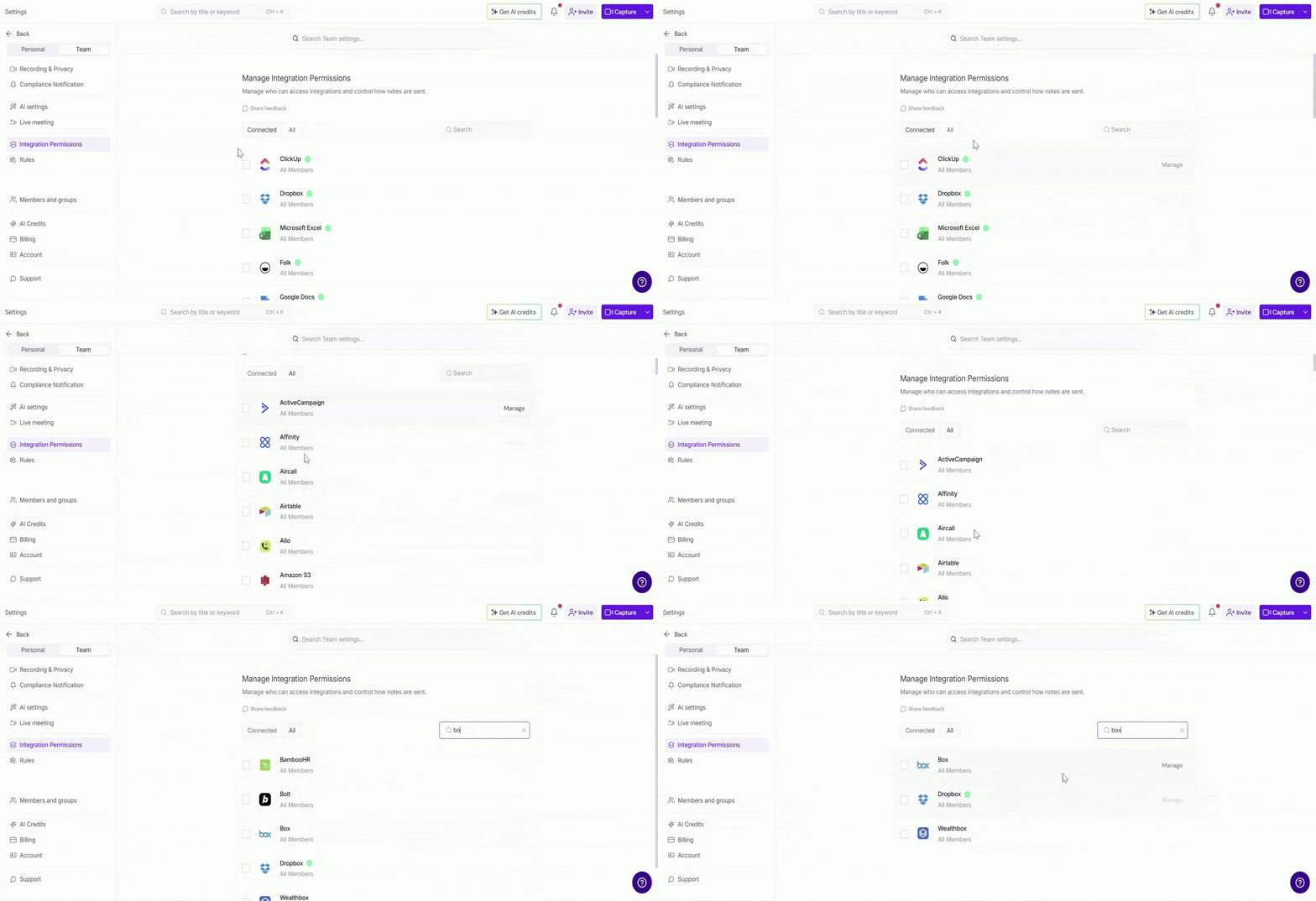
Step 3: The Integration Permissions page displays all supported integrations. Use the following options to find an integration:
Connected – View integrations that are currently connected in your workspace.
A ✅ checkmark next to an integration indicates that it's connected.
All – Browse all supported integrations.
Search – Find a specific integration by name.
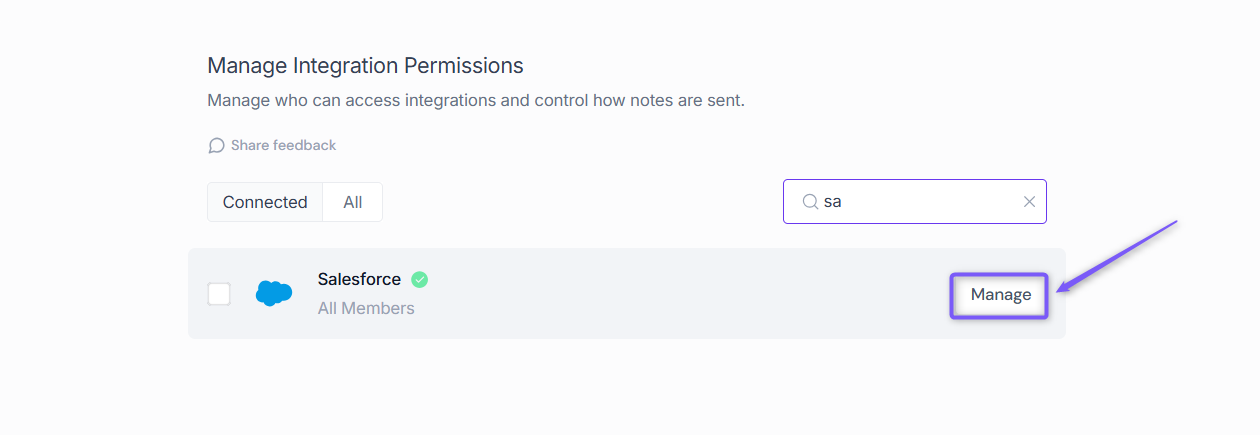
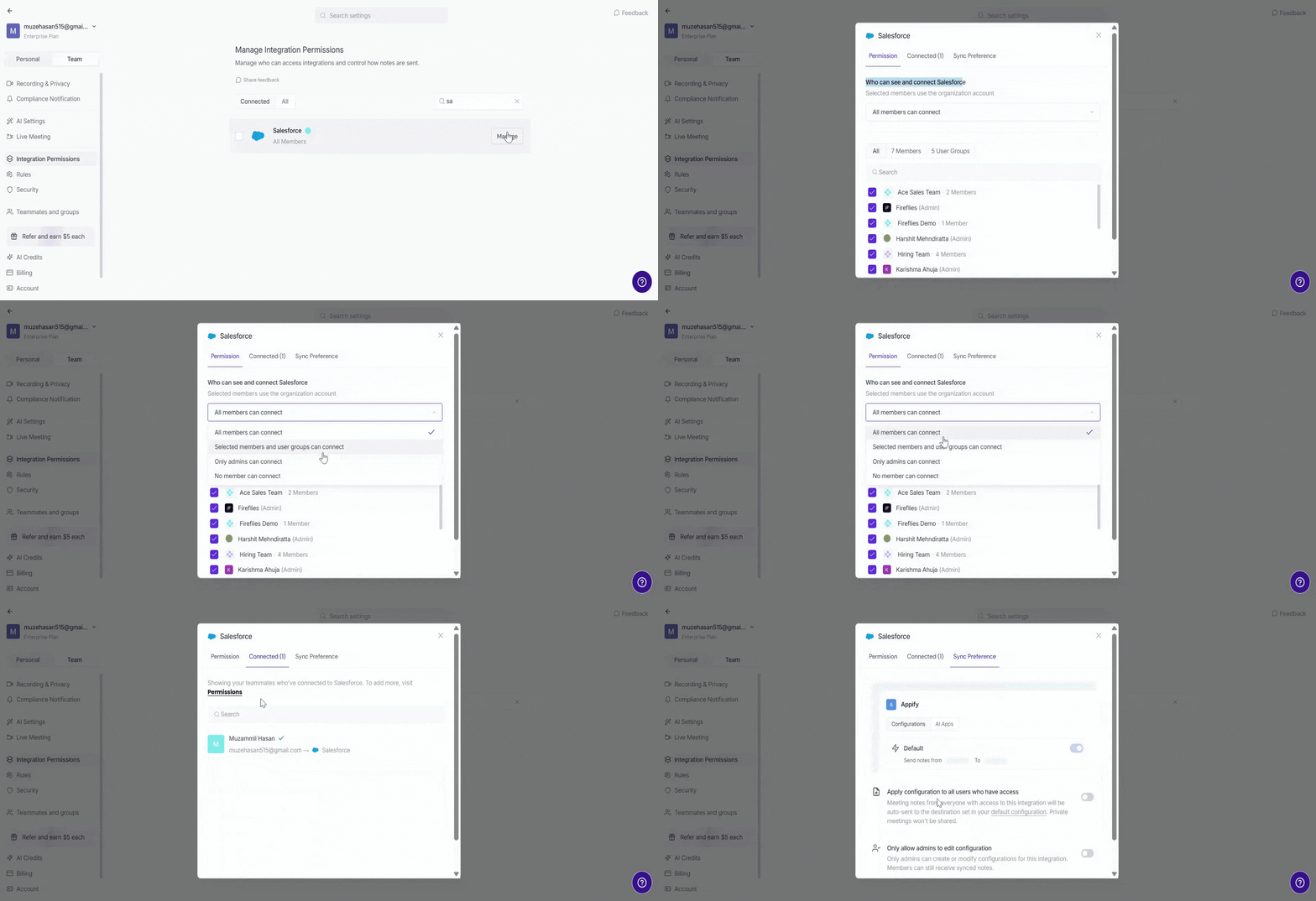
Step 4: Find Salesforce and click Manage.
Step 5: A modal opens with three tabs:
Permission: Control who can access and connect the Salesforce integration.
Connected: View the users who have connected their Salesforce accounts.
Sync Preference: Configure how Salesforce settings are applied to users who have access.
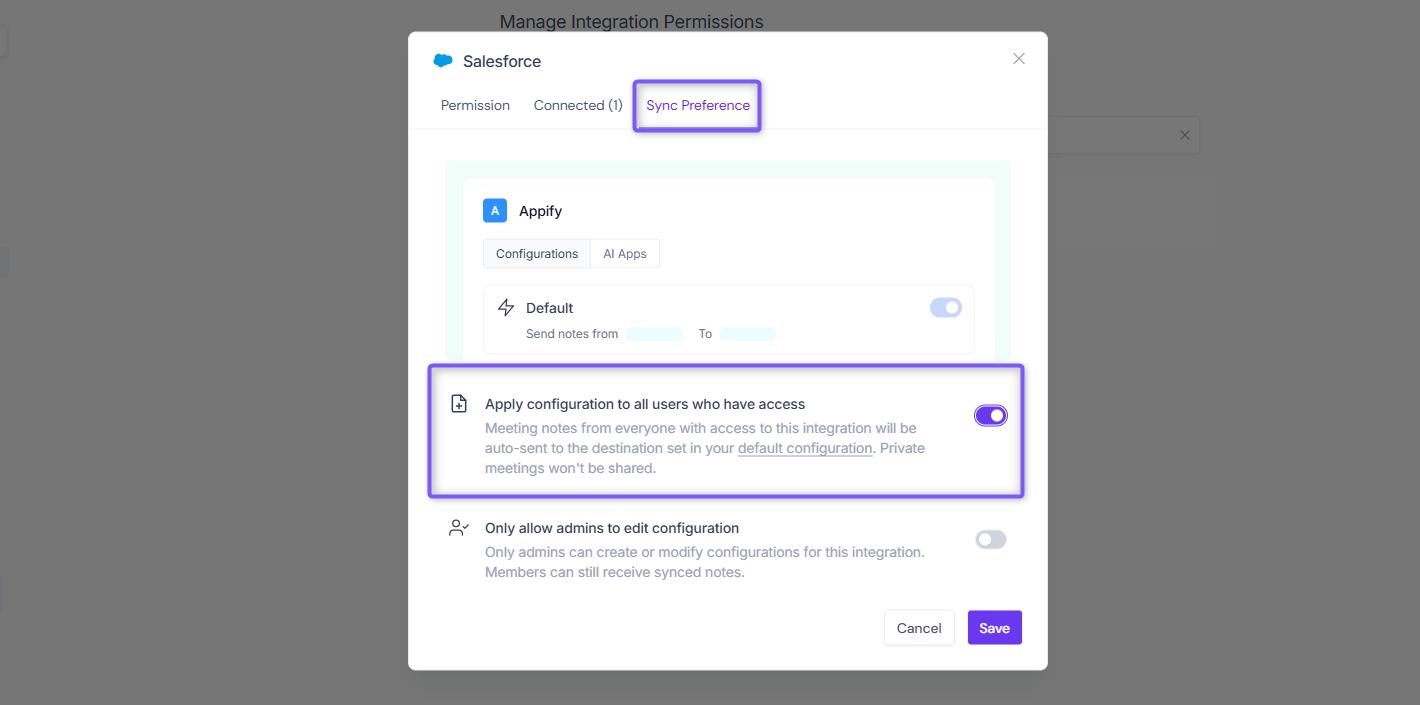
Step 6: Select the Sync Preference tab and enable Apply configuration to all users who have access. This applies the Salesforce configuration to all users who have access to the integration.
Note: If no Salesforce configuration is available yet, create at least one configuration for the integration before enabling this option.
Step 7: Click Save to apply your changes.
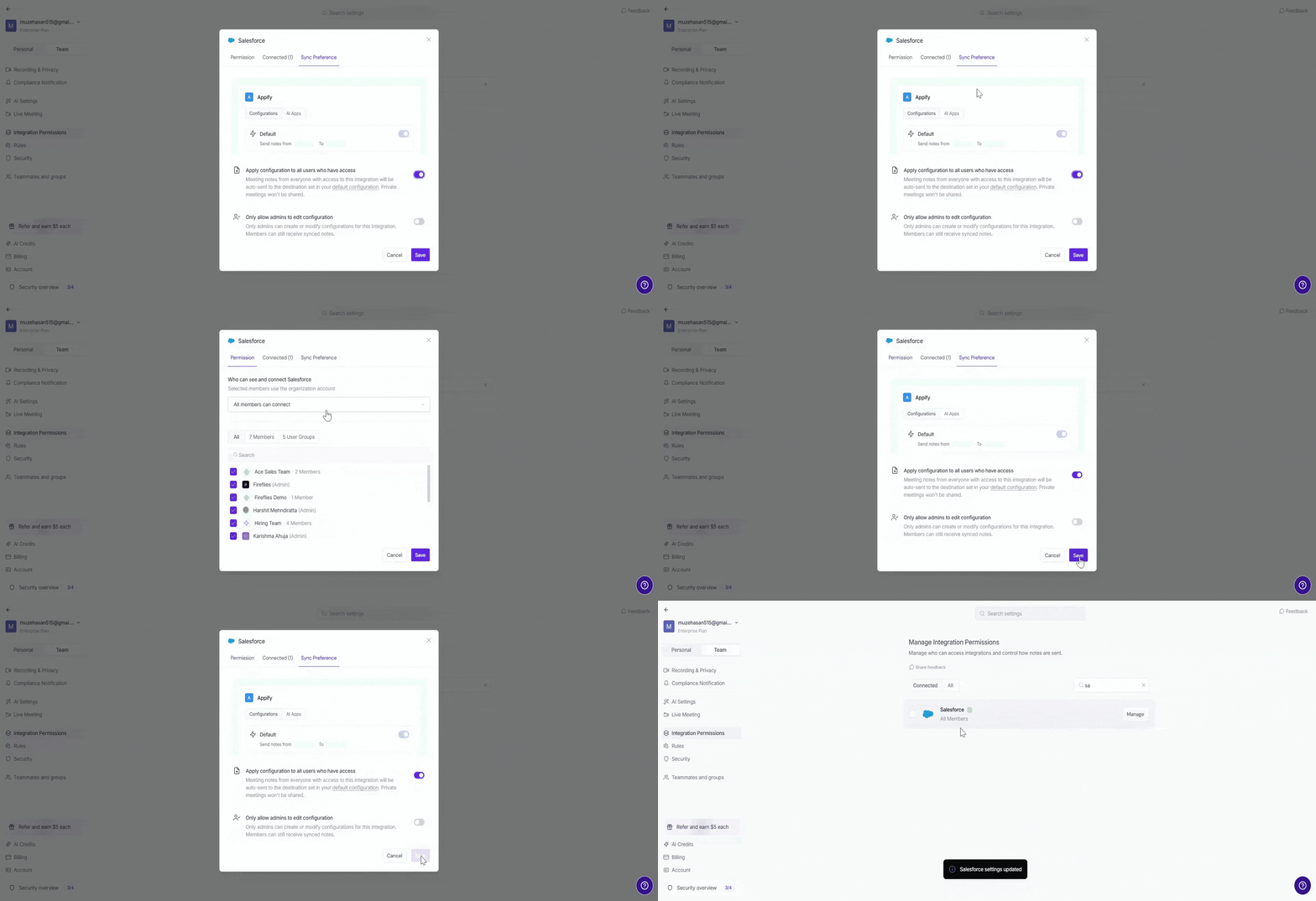
Once enabled, the Salesforce configuration will be applied to all users who have access to the integration.
📌 Note:
Users with access to Salesforce will inherit the configuration you apply.
The Sync Preference setting applies the configuration to users who have access to the integration.
If you make changes to the shared configuration, those changes will apply to the users covered by the setting.
For detailed information about managing integration permissions, see Integration Permissions: Control Who Can Access and Connect Integrations.