Set Your Meeting Transcription Language: Default, Auto-Detect, Multi-Language or Custom
Last updated: June 11, 2026
Fireflies helps you effortlessly manage your meeting transcription language. Whether you prefer setting a default language, auto-detecting the language spoken, enabling multi-language mode, or customizing individual meetings, Fireflies has you covered.
🚀 Navigation
You can set Meeting Language from either Meeting Settings or Upcoming dashboard, whichever is easier for you.
Option 1: Enable from Meeting Settings
Use this option if your meetings often include multiple languages and you want Fireflies to automatically detect and transcribe them by default.
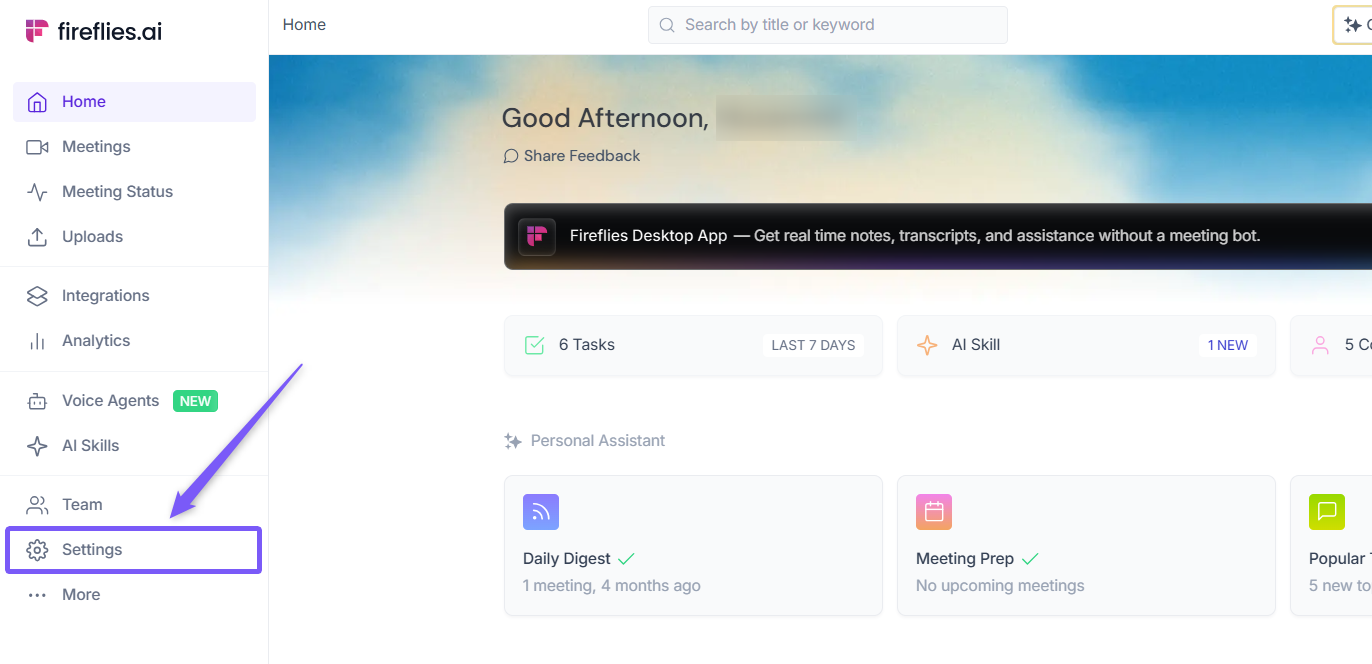
1. Go to the Fireflies web app and click the Settings from left side menu.
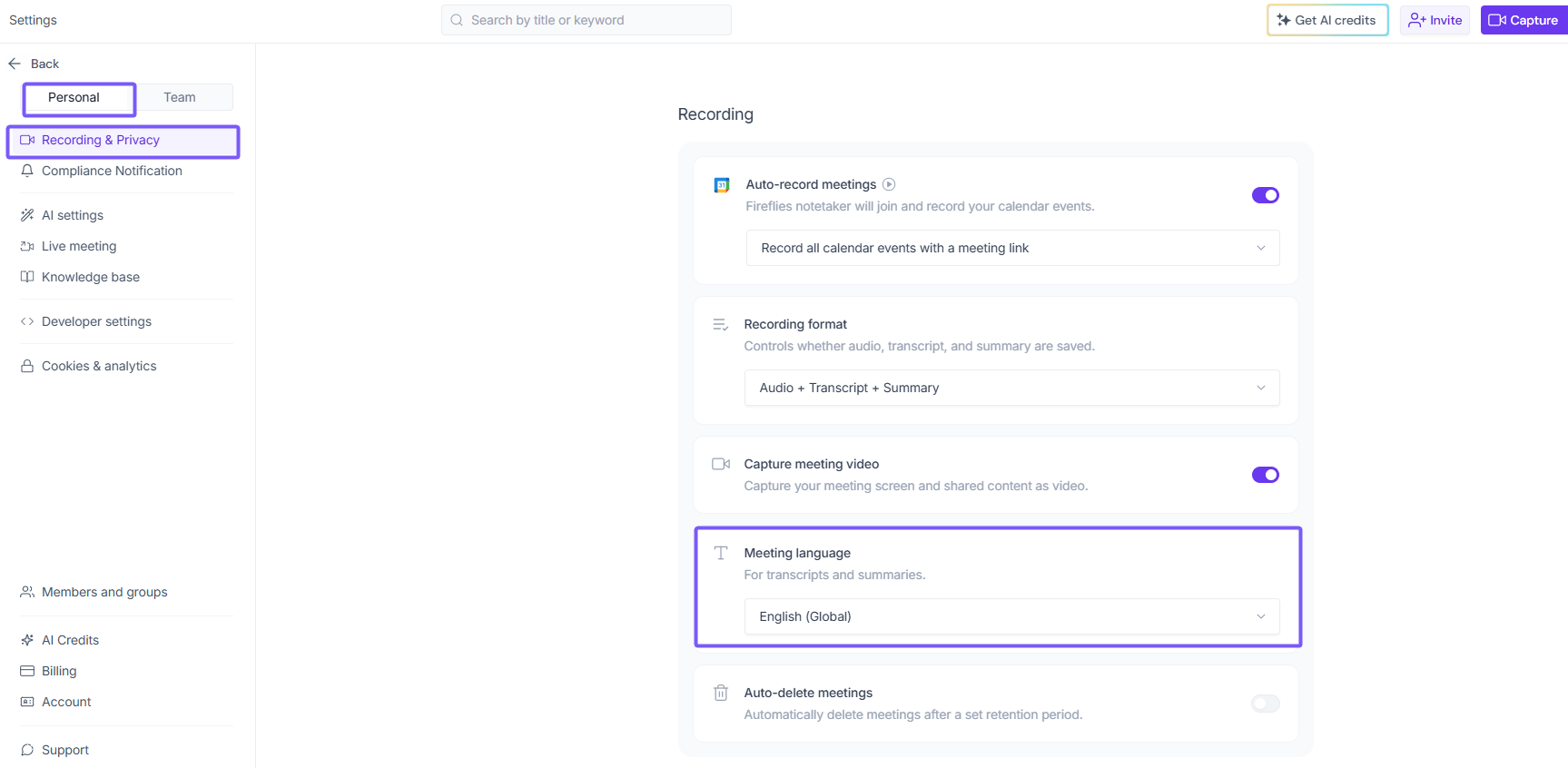
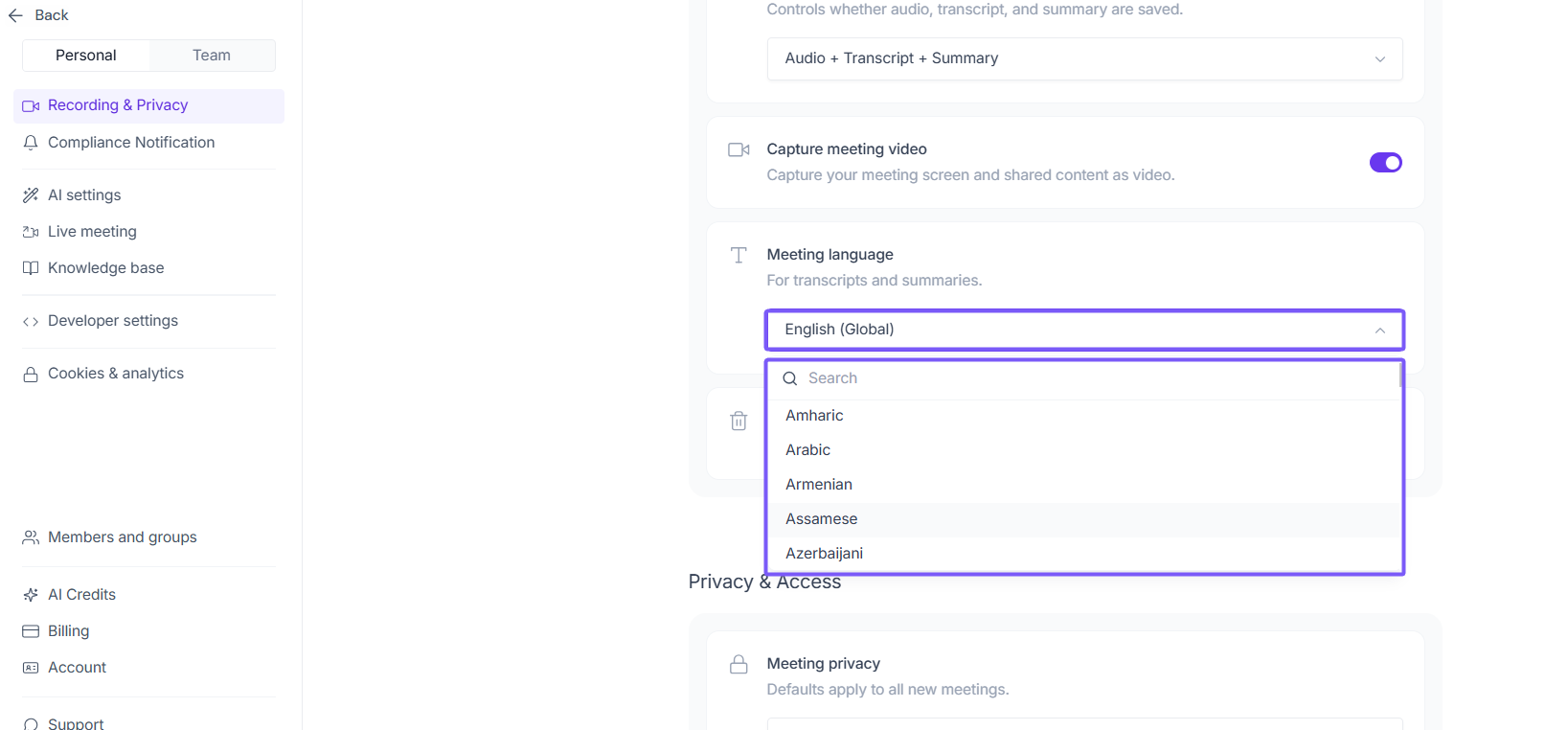
2. Navigate to Recording & Privacy (Personal tab) and scroll down to Meeting language under Recording.
Option 2: Enable from Upcoming Dashboard
Use this option for the quickest way to enable Multi-Language Mode and choose which meetings it applies to.
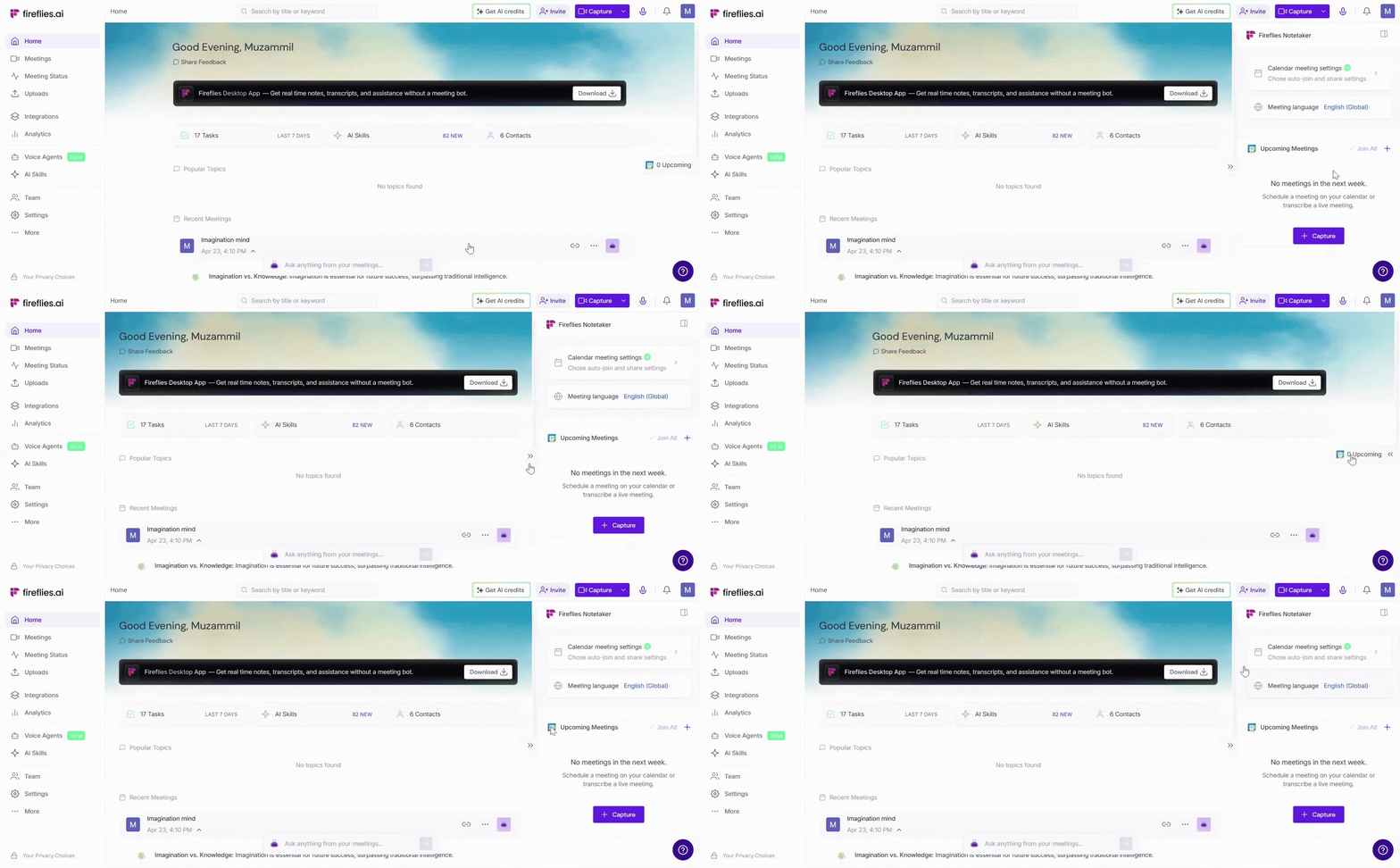
1. From your Fireflies dashboard, click Upcoming in the left menu bar to open the collapsible Upcoming Meetings panel on the right side.
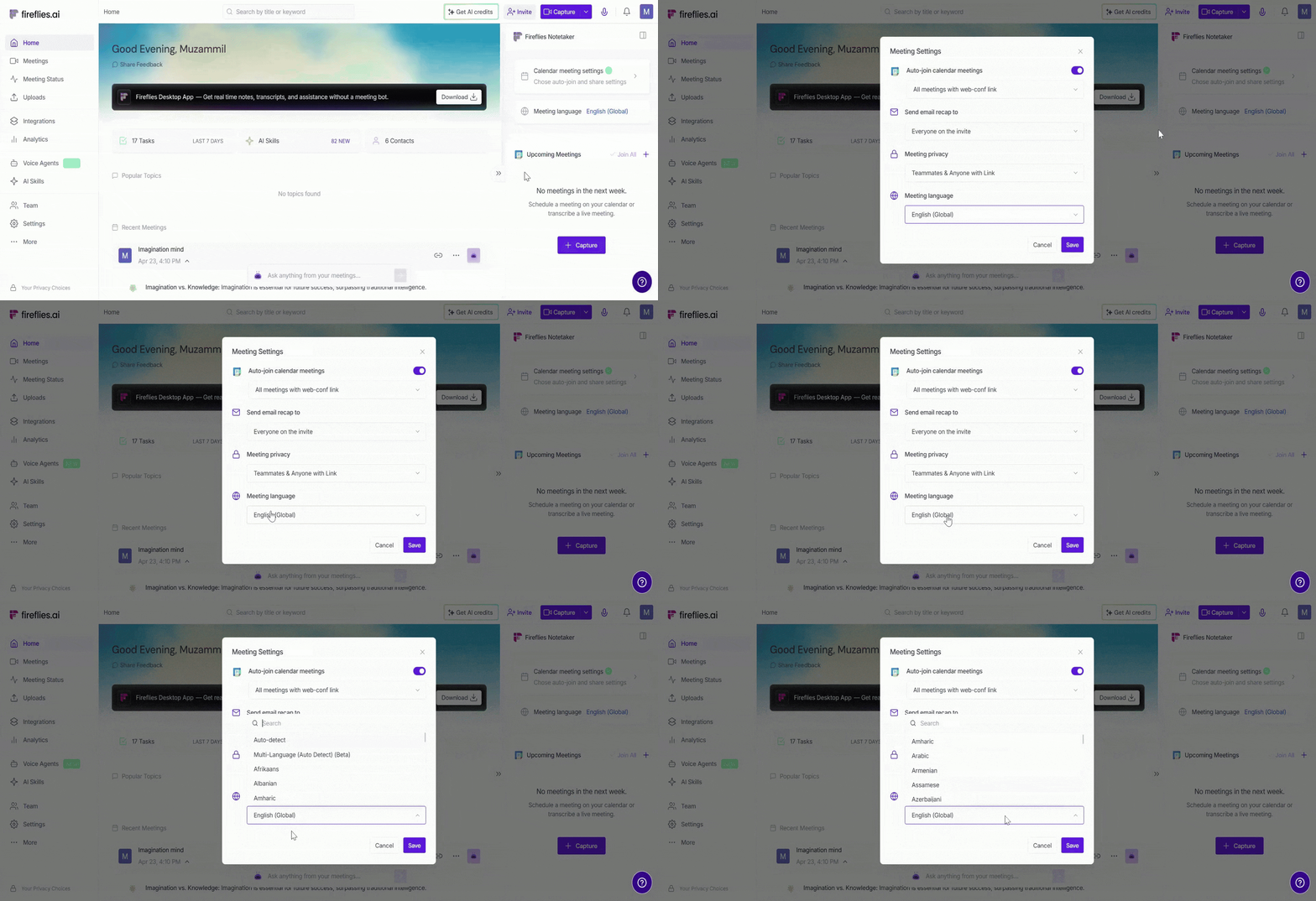
2. Click on the Meeting language. A modal will appear, allowing you to change the calendar meeting language.
🌐 Set your default meeting language
1. Default language
Set a default language to keep your transcriptions consistent across all meetings. Click the dropdown and select your preferred language.
🗣 Curious which languages are supported? Check out Fireflies supported languages
Now, all future meetings will be transcribed in this default language.
2. Auto-detect meeting language
If you host meetings in different languages, Auto-detect automatically transcribes based on the primary language spoken. Click the dropdown and select Auto-detect.
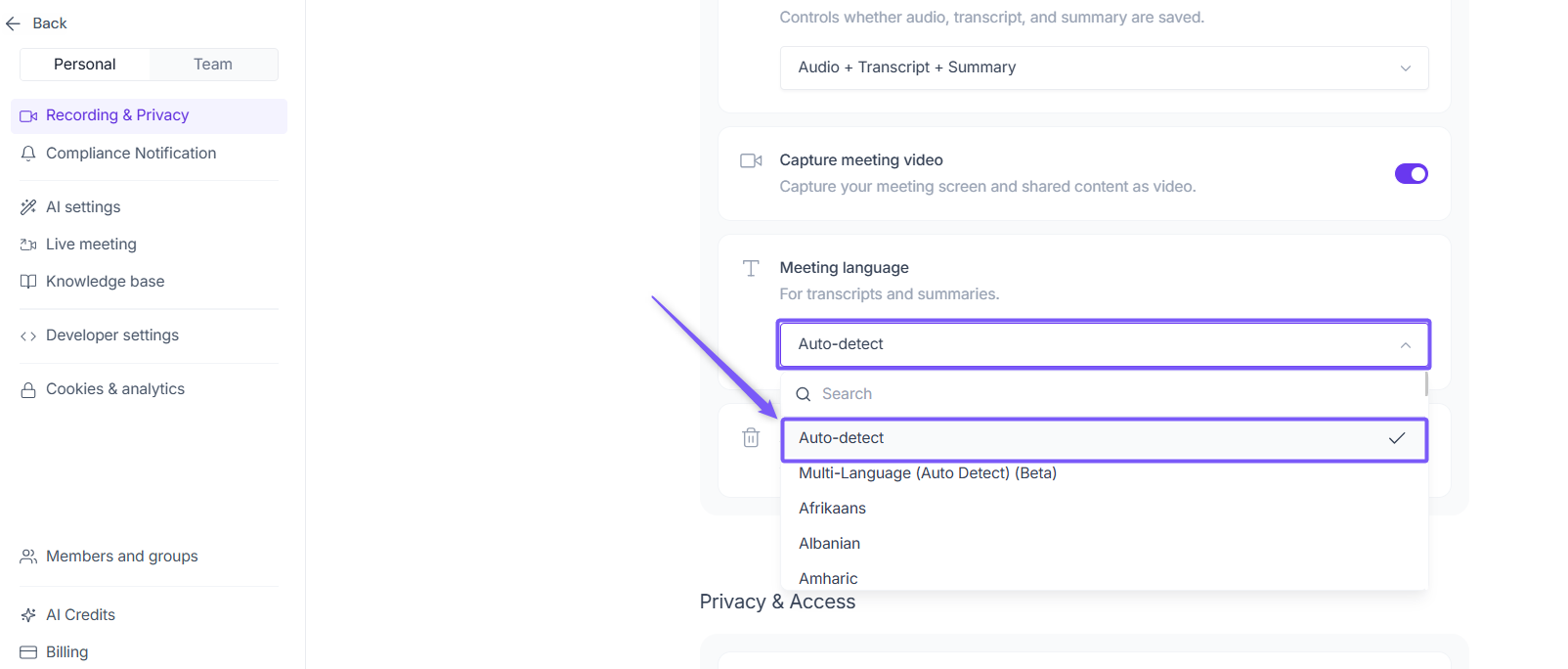
Auto-detect can identify only one primary language per meeting. For multilingual meetings, use Multi-Language Mode instead.
3. Multi-Language Mode (Beta)
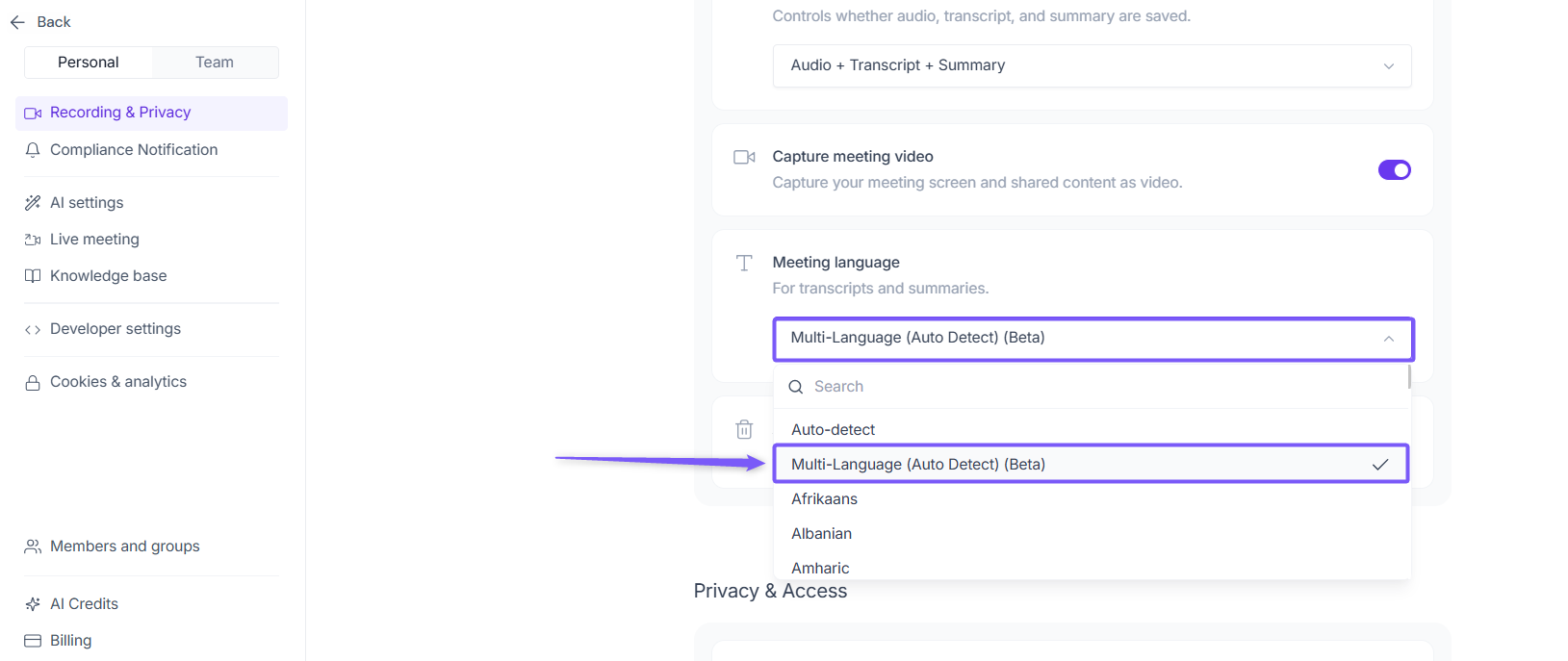
If your meetings involve participants speaking multiple languages simultaneously, Multi-Language Mode transcribes all languages spoken in a single meeting. Click the dropdown and select Multi-Language (Auto Detect) (Beta).
💡 Want to learn more about how it works? Multi-Language Mode Guide.
Change the Transcription Language for a Specific Meeting
Need a different language for a particular meeting? You can adjust the language just for that meeting without changing your global defaults.
1. On the Fireflies homepage, click the Upcoming button on the right side to open the collapsible side panel.
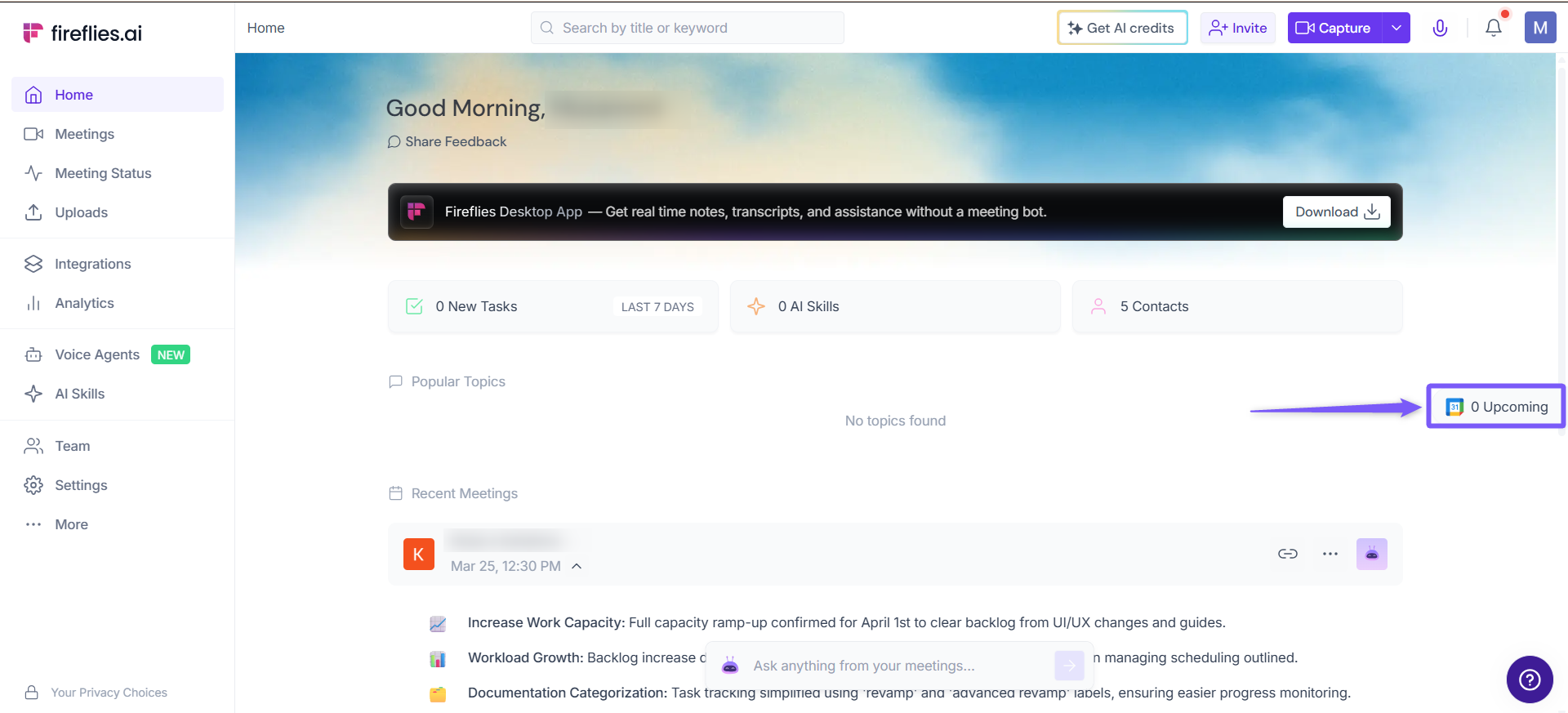
2. Under Upcoming Meetings, find the meeting you want to update and click the language icon.
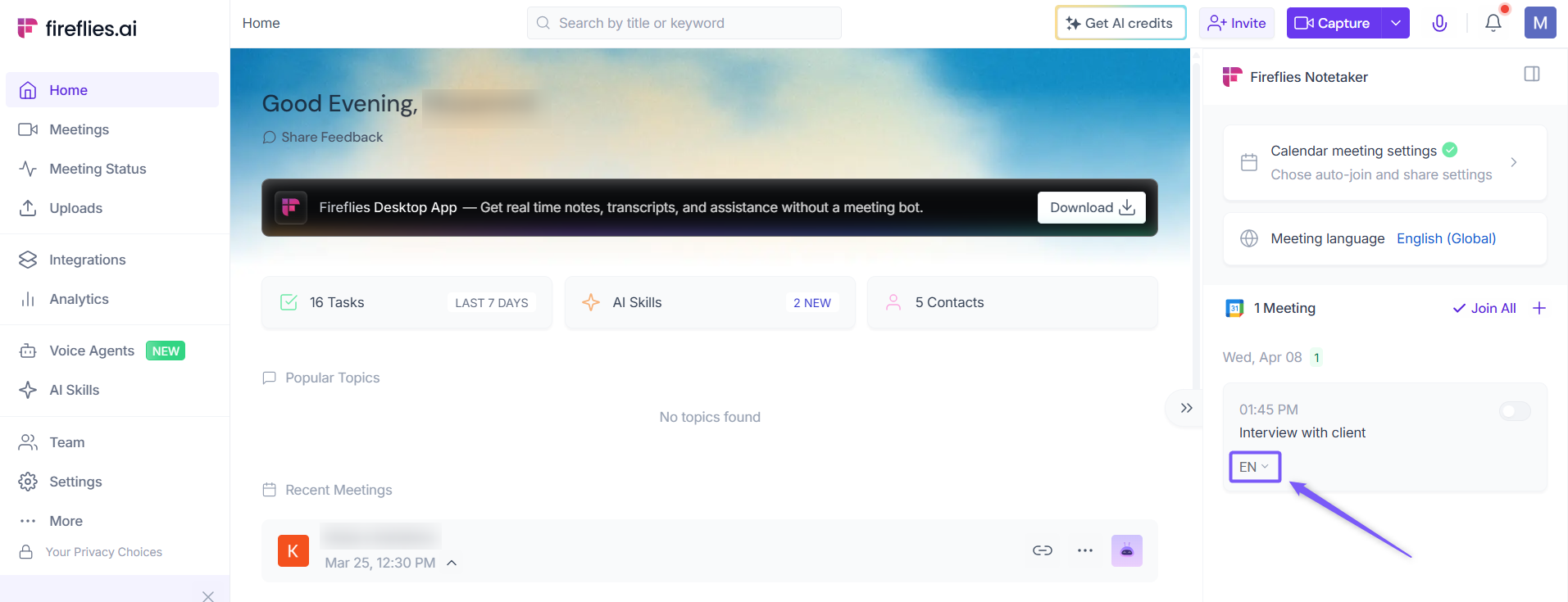
3. From the dropdown, select your preferred language.
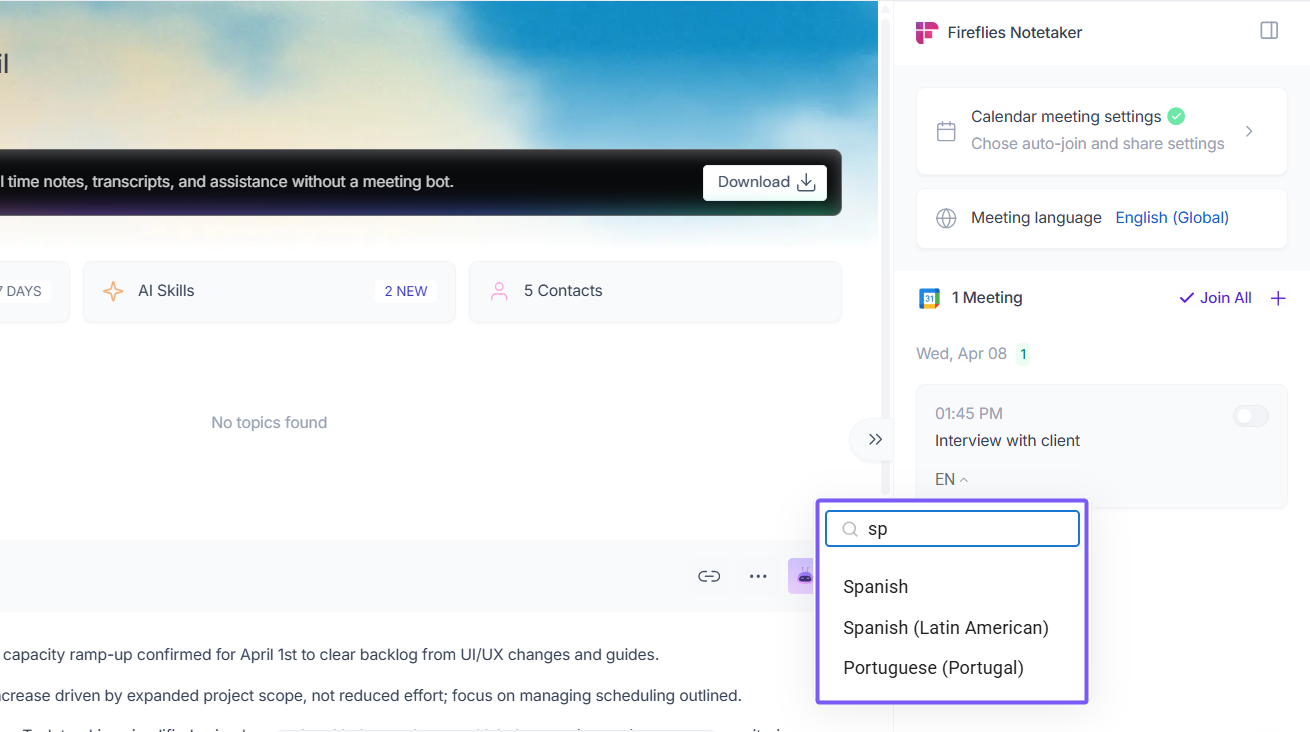
Only this meeting will be transcribed in the selected language, while your default settings remain unaffected.
Making Sense of It All
Quickly set your default language for consistent transcriptions across all meetings
Use Auto-detect if you regularly host meetings in different languages
Enable Multi-Language Mode (Beta) for meetings where multiple languages are spoken simultaneously
Customize individual meetings without changing your global settings
👉 Need more details on automatic joining? Learn about the Fireflies Auto-join and Email Recap settings