Why Fred did not join your meeting: Troubleshooting guide
Last updated: October 19, 2026
Fred is the Fireflies notetaker. If Fred didn't join your meeting, start by checking the meeting status to understand what happened, then follow the matching troubleshooting section below.
🔎 Check the Meeting Status
1. Log in to Fireflies.
2. Click the Notifications (bell) icon in the top-right corner.
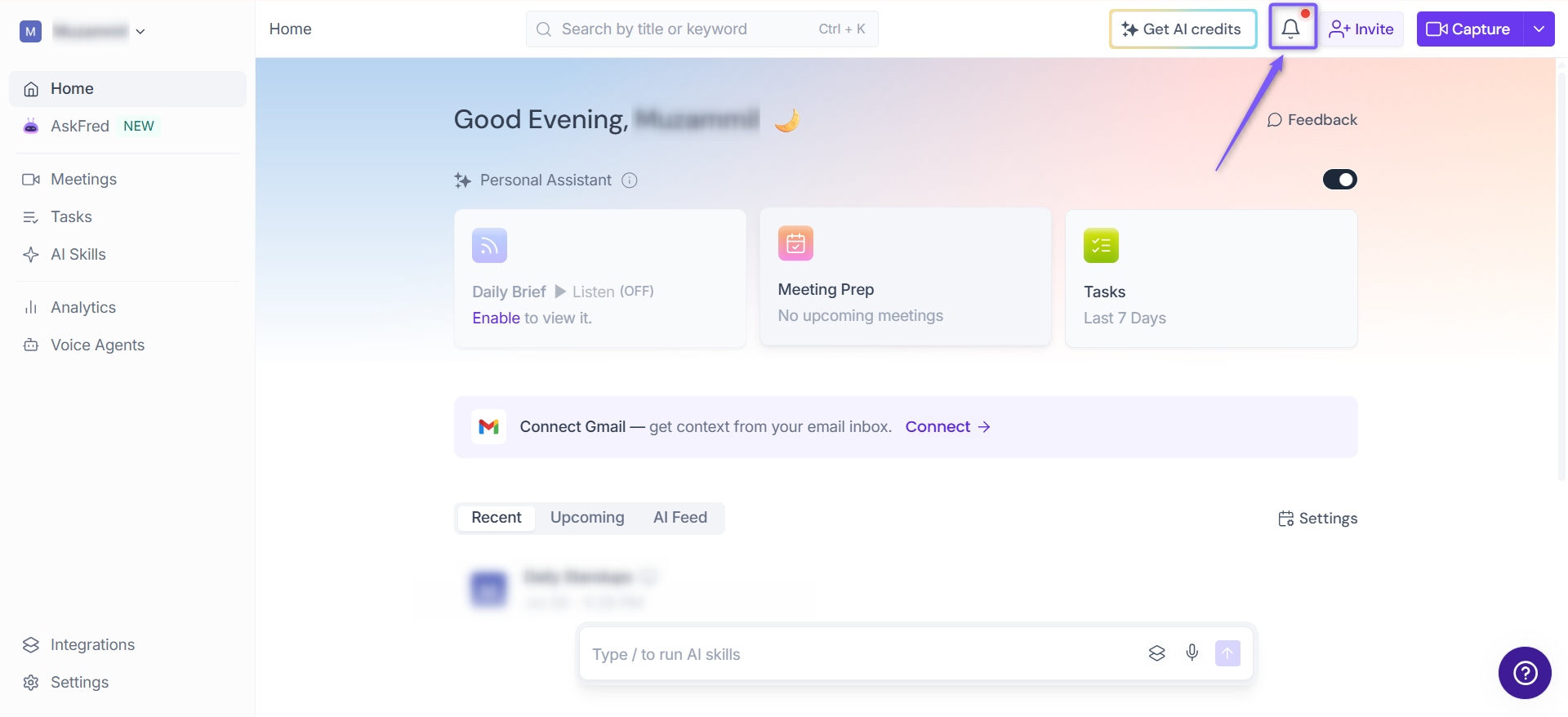
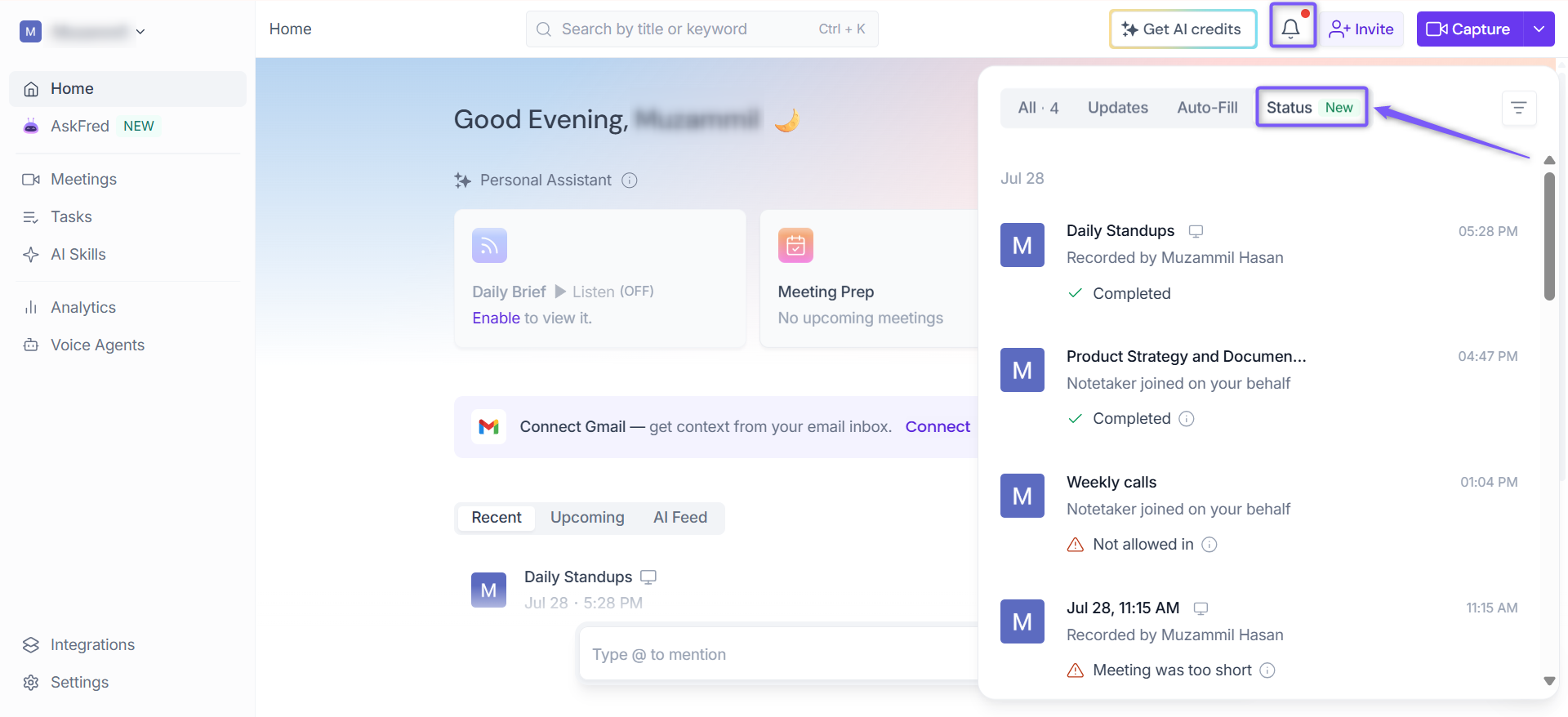
3. Open the Status tab.
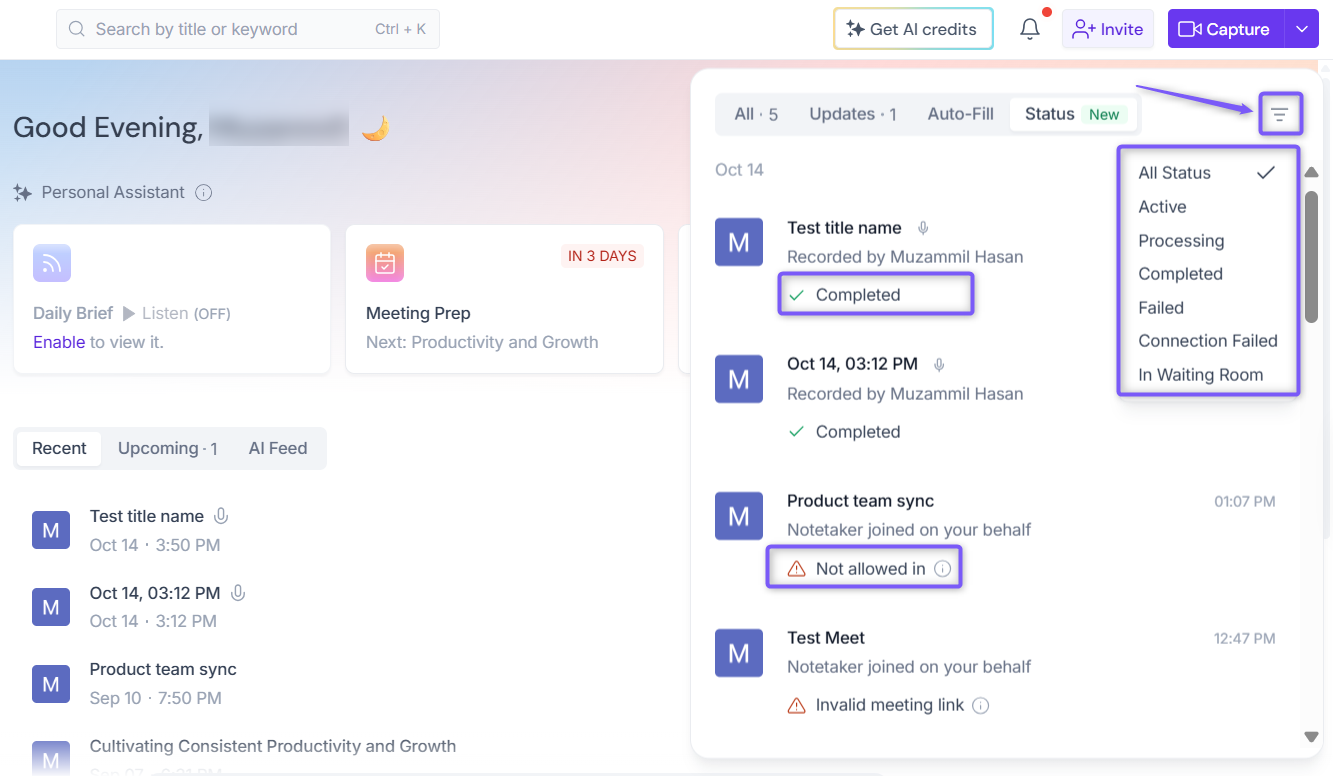
4. Find your meeting and review its status. Use the Filter icon to narrow the list if needed.
What you see | What it means | Go to |
|---|---|---|
✅Completed (no note) | Fred joined using your account. Nothing to fix. | None |
✅Completed, with "Joined on behalf of" a host or teammate | Fred joined from someone else's account. Your Auto-Join preferences or Meeting Rules may have prevented it from joining under your account. | Sections 1 and 4 |
🚫Denied Entry | The host or a participant rejected Fred's request to join. | Section 2 |
⛔In Waiting Room or Not allowed in | Fred waited in the lobby or waiting room but wasn't admitted. | Section 2 |
🔌Connection Failed | Fred couldn't connect to the meeting. This may be caused by the meeting link, platform settings, or an integration issue. | Sections 2, 3, and 5 |
Meeting requires sign-in or a similar login error | The meeting blocked Fred because of login, password, encryption, CAPTCHA, or domain restrictions. | Section 2 |
⏱Meeting was too short | The meeting ended in under 3 minutes, so no recap was created. | Section 6 |
⚠Could not be processed | Fred joined, but processing failed. Hover over the information icon for details. | Contact support |
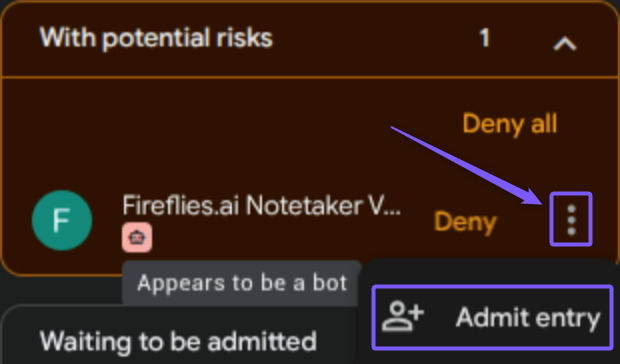
⚠ Google Meet: Unable to find “Admit” button
If Fireflies is in the waiting room but you don’t see the “Admit” button, it may appear under a “With potential risks” section in the participants panel.
💡 This is part of a Google Meet security update that helps hosts review participants before admitting them and does not indicate any risk.
To admit Fireflies, click the three dots (⋮) next to Fireflies Notetaker and select “Admit entry.”
Once you've identified the status, scroll down to the matching section below to find the right fix.
1. Check Your Auto-Join Preferences
Fred may skip your meeting if automatic joining is turned off or your preferences restrict which meetings Fireflies can join.
To check your settings:
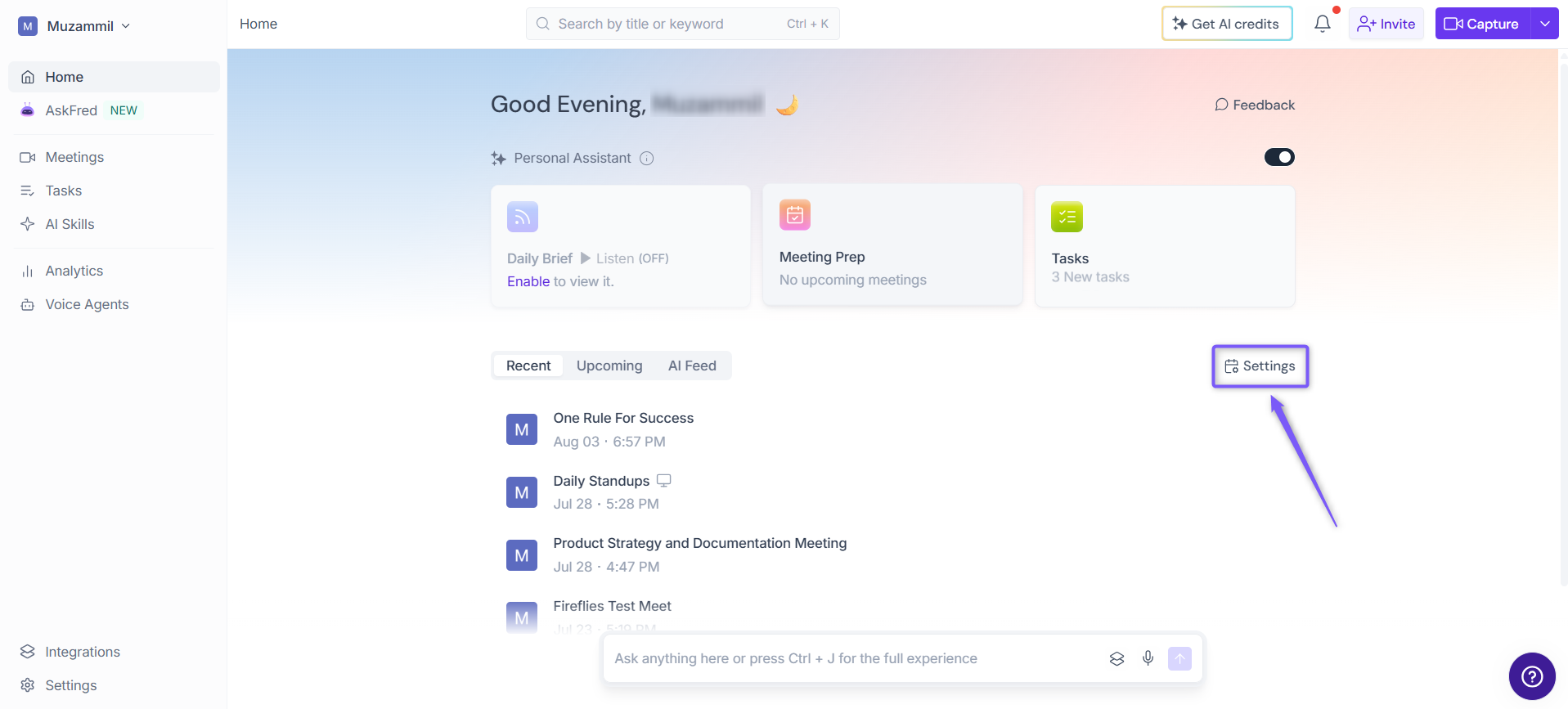
1. From the Fireflies Home page, click Settings on the right side of the page.
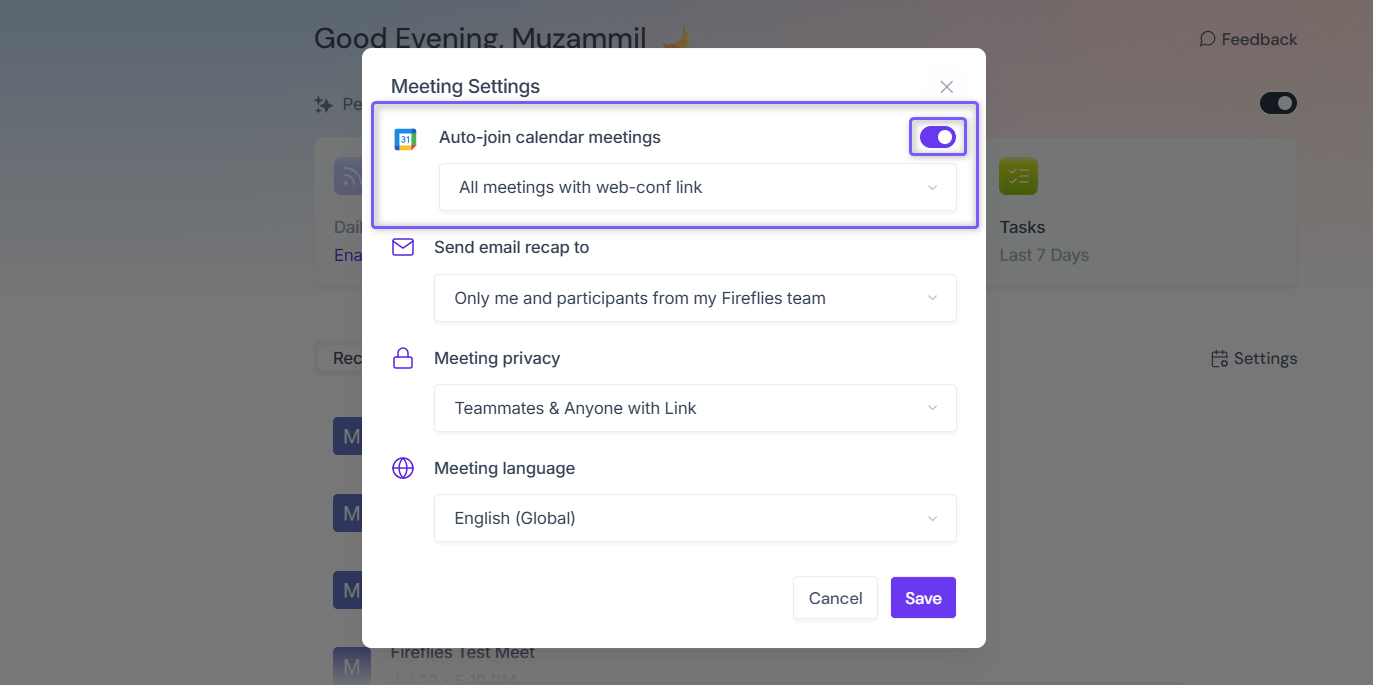
2. Check the Auto-join calendar meetings toggle. Make sure it's turned on if you want Fireflies to join meetings automatically.
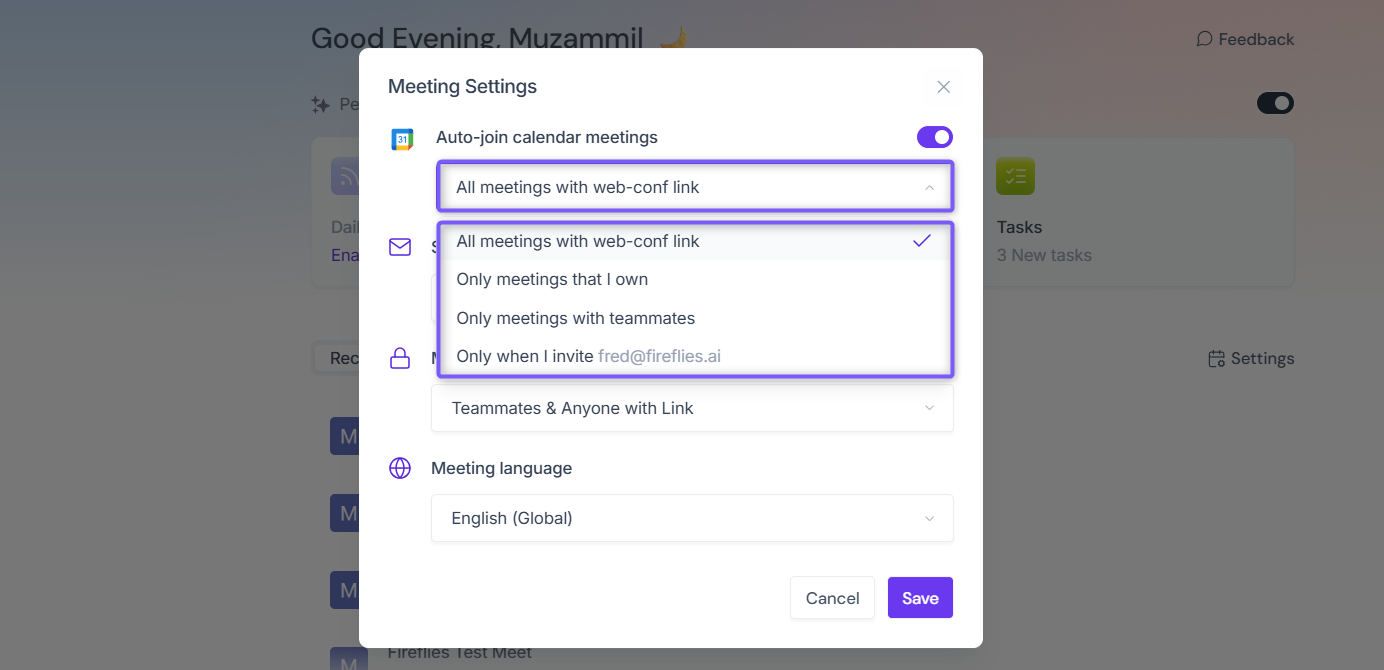
3. Select the option that matches your needs:
All meetings with web-conf link: Fireflies automatically joins meetings that have a web conferencing link.
Only meetings that I own: Fireflies joins only meetings you own.
Only meetings with teammates: Fireflies joins meetings with teammates.
Only when I invite fred@fireflies.ai: Fireflies joins only when you invite it manually.
Review your selection and save your changes.
Tip: If Only meetings I own is selected but you're only a participant, Fred may not join through your account. To confirm what happened, open Notifications → Status and check the meeting status.
👉🏻 For more details, see Fix Fireflies Auto-Join Settings.
2. Check your meeting platform settings if you see "Login Errors" (Zoom or Microsoft Teams)
Fred needs a few things to be set correctly on your video conferencing platform before the meeting link is created. If the link was generated before you updated your Zoom or Teams settings, Fireflies might still fail to join—even if everything looks right. The following are the admin settings that need to be configured by the team admin.
🔧 Zoom settings to verify:
Only authenticated users can join from Web client: Turn this OFF
End-to-end encryption (E2EE): Turn OFF
Waiting Room: Disable this
Join before host: Turn ON
Computer audio: Ensure it’s enabled for all participants
⚠ Important: Zoom settings must be configured before generating the meeting link. If not, Fireflies may not be able to join. Recreate the invite after fixing settings.
Visit 📄 Zoom setup checklist → for detailed steps
🔧 Microsoft Teams settings to verify:
Guest access: Turn ON (default is OFF)
Under Meeting Policies, the following settings should be ensured:
Lobby bypass: Allow guests to bypass lobby
Require a verification check from:Not Required
Anonymous users can join a meeting: Must be ON in both Meeting Settings and Meeting Policies (recent Microsoft 365 update)
💡 Test tip: Try opening your meeting link in an incognito window. If it asks you to sign in, your settings are likely blocking anonymous users.
Visit 📄 Teams setup checklist → for detailed steps
🔧 Google Meet Settings to verify:
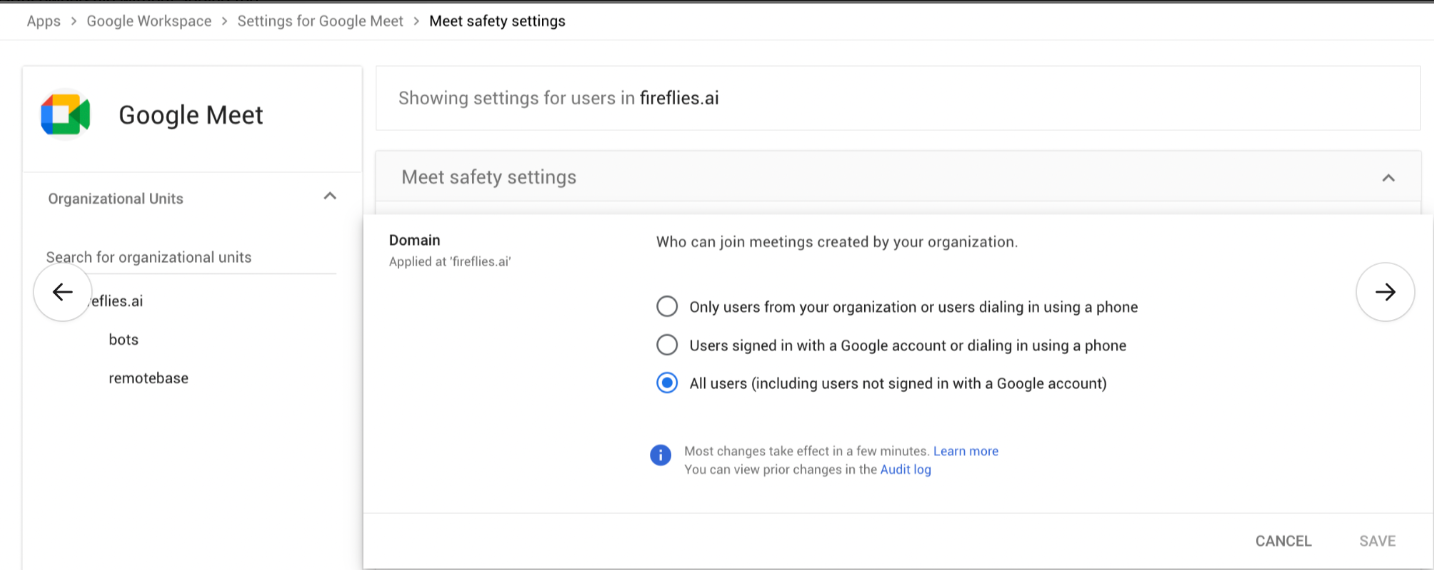
Go to your Google Workspace and select Google Meet in the left menu
Scroll down and Go to Meet Safety Settings
Select Domain and ensure that the option "All users (including users not signed in with a Google account" is selected
Visit 📄 Google Meet setup checklist → for detailed steps
3. Check your calendar + invite details
Fred won’t join if:
❌ Your calendar isn’t connected to Fireflies
❌ The meeting invite doesn’t contain a valid video conferencing link
❌ You invited Fred after the meeting had already started
❌ Your Zoom invite includes a password but doesn’t share it in the correct format
✅ Fixes:
Use the email address connected to your Fireflies account when creating events
Ensure your Google or Microsoft calendar is synced with Fireflies (📄 What calendars are supported?)
Double-check that your meeting invite includes a valid Zoom, Teams, or Meet URL—watch out for broken or incomplete links
If your Zoom meeting has a password, include it in the body of the invite or in the Zoom URL (📄 How do I invite Fireflies to Zoom meetings that have Passwords)
Enable Auto-Join or add Fred before the meeting begins, not after, since it will be too late for Fred to join
4. Check your Meeting Rules
Even if Auto-Join is ON, Meeting Rules always override it.
Bar Rules: Could block meetings with keywords like “1:1”, "confidential", or domains like
@client.comJoin Rules: Could restrict Fred to only join meetings with keywords like “demo”, “review”, or certain emails/domains
Know everything about 📄 How to set Meeting Rules →
5. Check for integration issues
If Zoom, or Microsoft Teams isn’t properly integrated:
Fireflies may not detect your meetings
Auto-join and Add to Live Meeting may not work
📄 Connect Zoom to Fireflies 📄 Connect Microsoft Teams
6. Other common reasons Fred didn’t join
✅ Fred was removed manually by someone in the meeting → No notes captured
✅ Fred left before 3 minutes → Needs at least 3 minutes to record
✅ Calendar not connected → Reconnect Google/Outlook in Settings
✅ Outlook profile error → If the account was recently deactivated and re-signed in with a mismatched Outlook profile, you'll see login errors.
✅ Onboarding incomplete → Go to app.fireflies.ai/setup to complete the setup.
✅ Incognito login test → Try joining your meeting link in an incognito window. If you can’t access it without logging in, Fireflies won’t be able to either.
✅ Google Meet: Fireflies appears under “potential risk” → This is part of a Google Meet security update and does not indicate any risk.
Still facing issues and none of this worked? Head to your Fireflies App and contact us via the Support Widget in the bottom-left corner.