How to Add Meetings to a Channel
Last updated: July 29, 2026
Once you've created a Channel, the next step is to add meetings to it.
Adding meetings to a Public or Private Channel helps you keep related conversations organized in one place. Whether you're grouping meetings by project, client, department, or workflow, Channels make it easier to find, manage, and share the meetings that matter most.
📝 Before You Start
Before adding meetings to a Channel, make sure:
A Public or Private Channel has already been created.
The meetings you want to add are available in Fireflies.
You have access to the Channel.
You can add or move meetings that you own or meetings where you were a participant.
Workspace Admins can add or move any meeting within the workspace between Channels.
Related: Learn About Fireflies Channels to Organize Your Meetings
🚀 Different Ways to Add Meetings to a Channel
Log in to your Fireflies account and click the Meetings tab from the left sidebar.
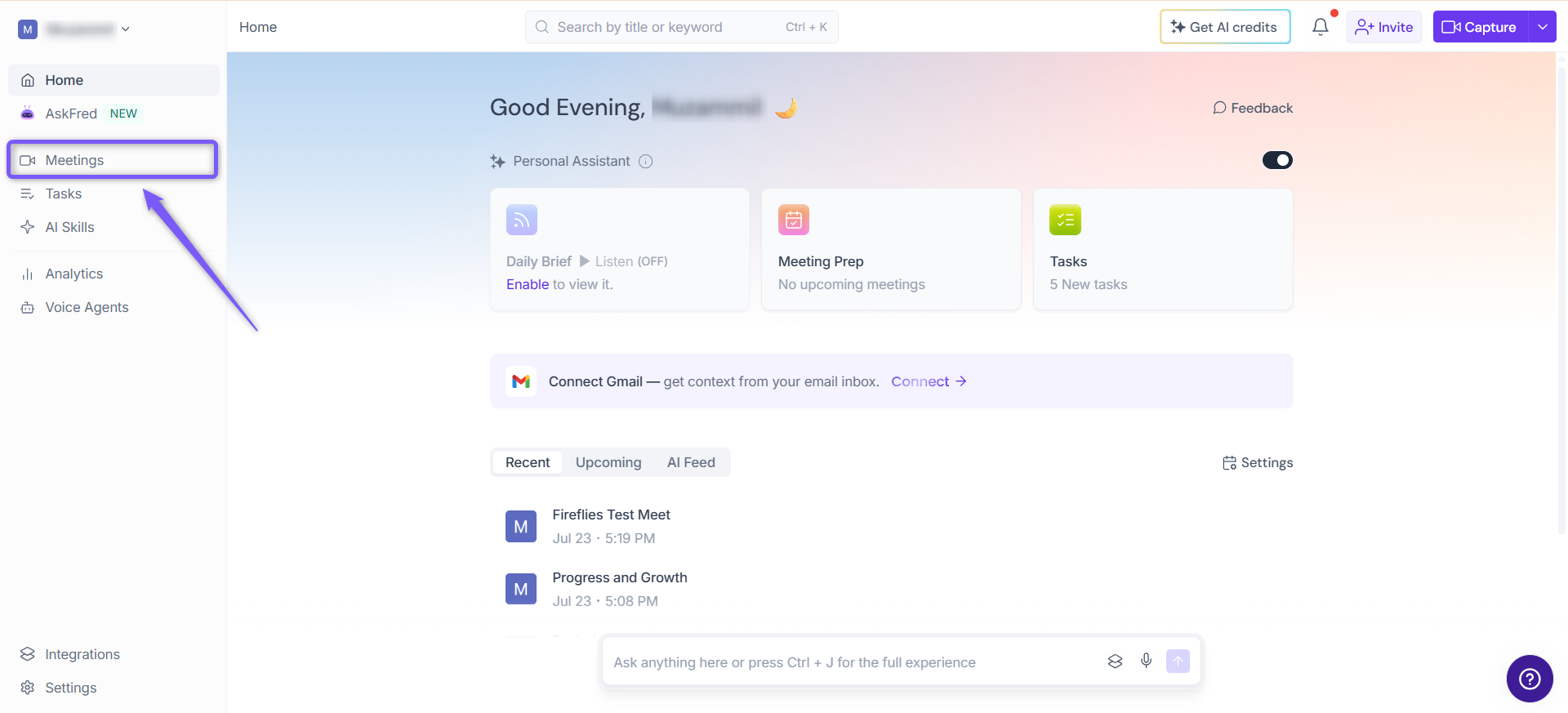
From there, you can add meetings to a Public or Private Channel using any of the following methods:
Method 1: Add Meetings Directly from a Channel
Use this method when you want to add one or more existing meetings from within a Channel.
1. Open the Public or Private Channel that you want to add meetings to.
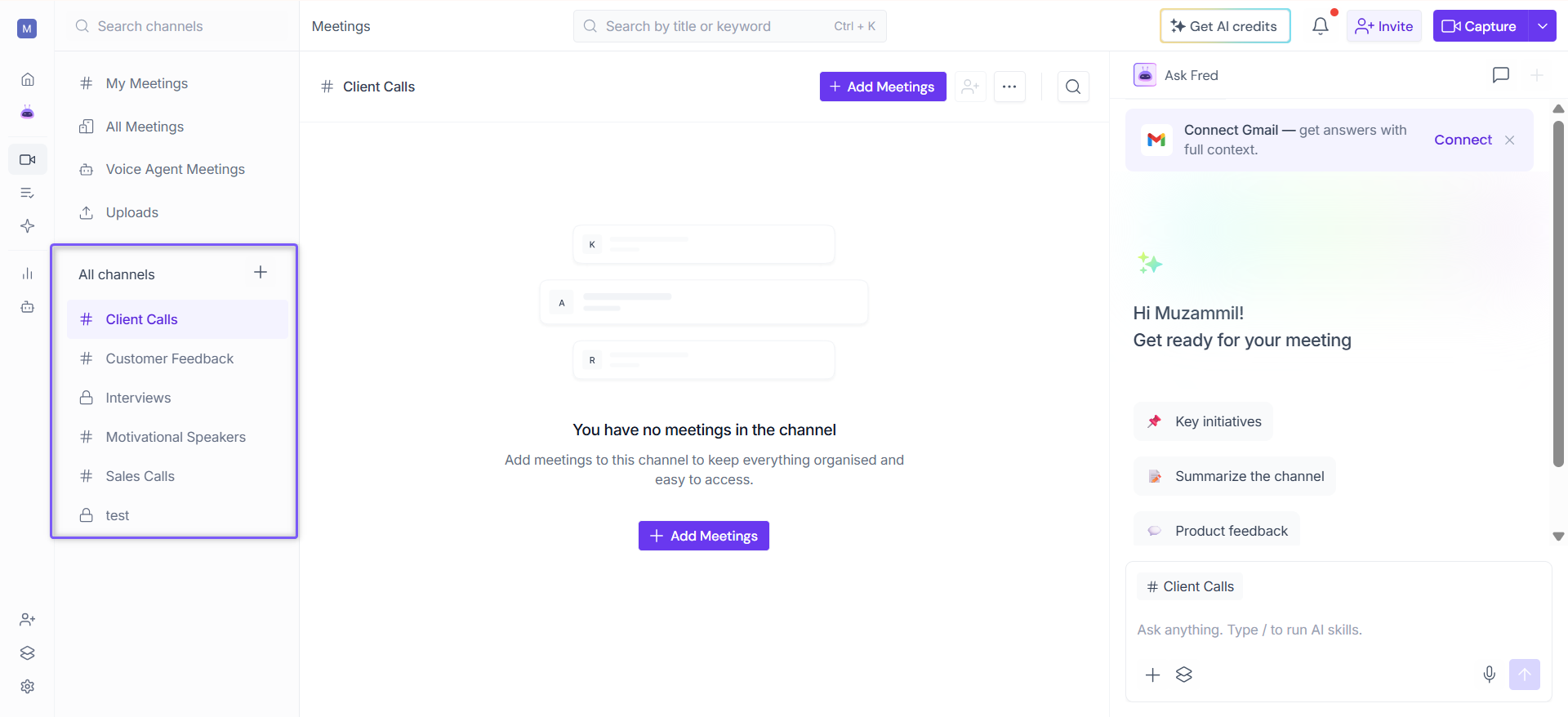
2. Click + Add Meetings.
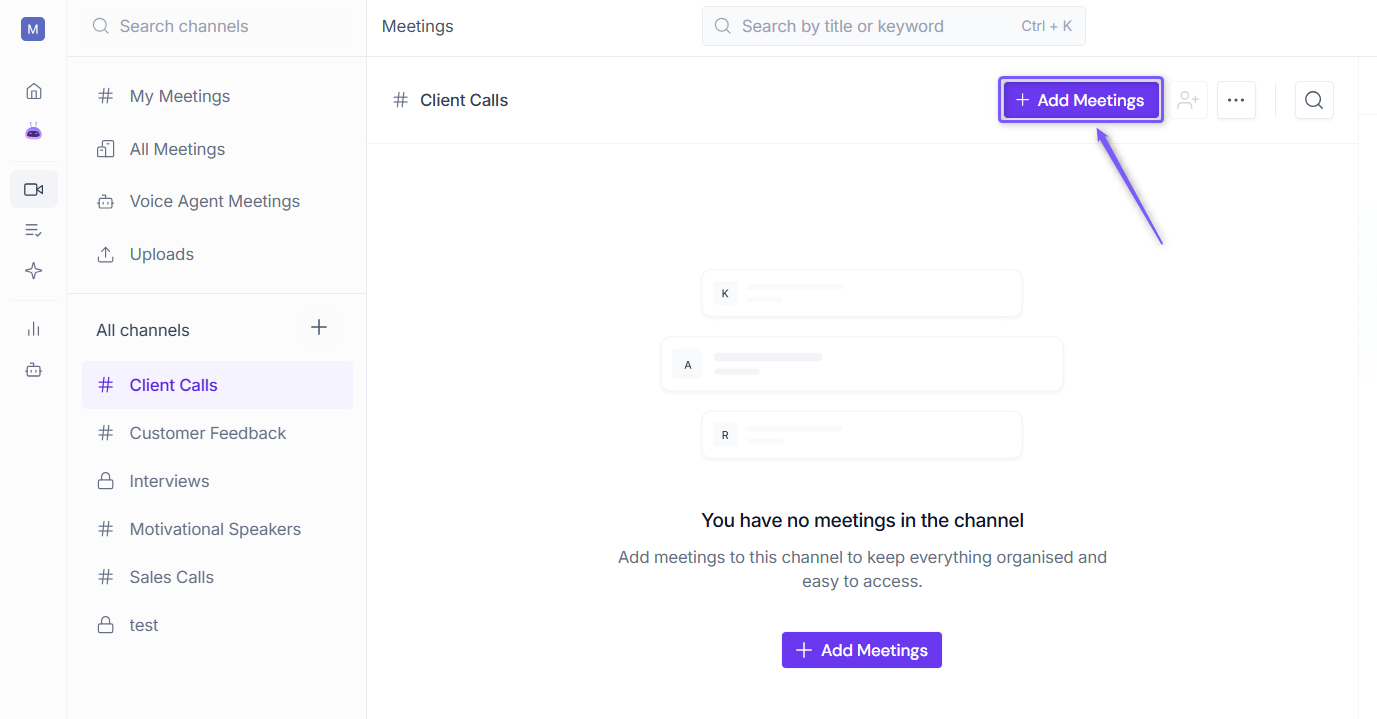
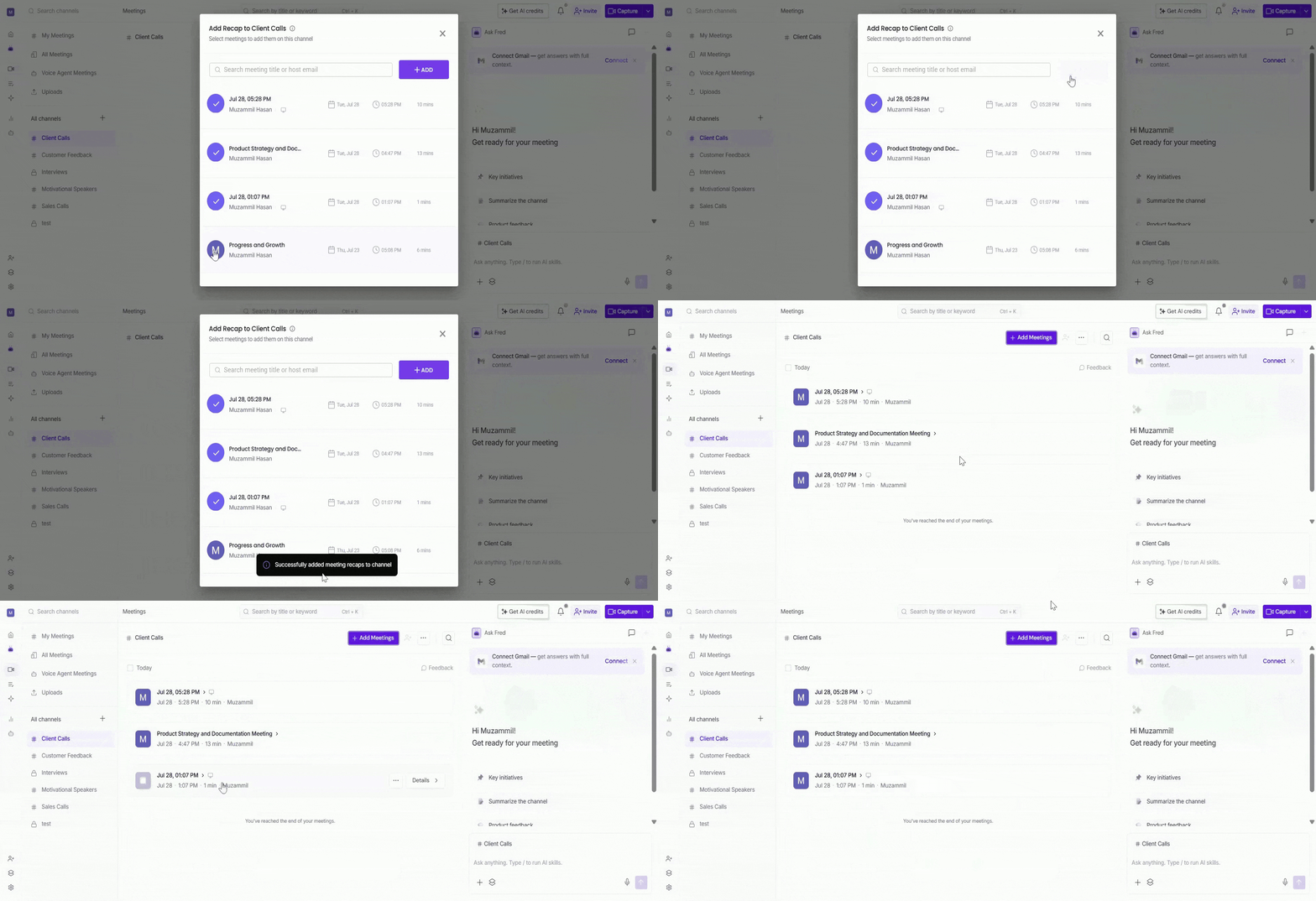
3. A dialog box appears, allowing you to search for meetings by title or host email, or select them directly from the list.
💡 Tip: You can add multiple meetings at once by selecting multiple meetings before clicking Add.;
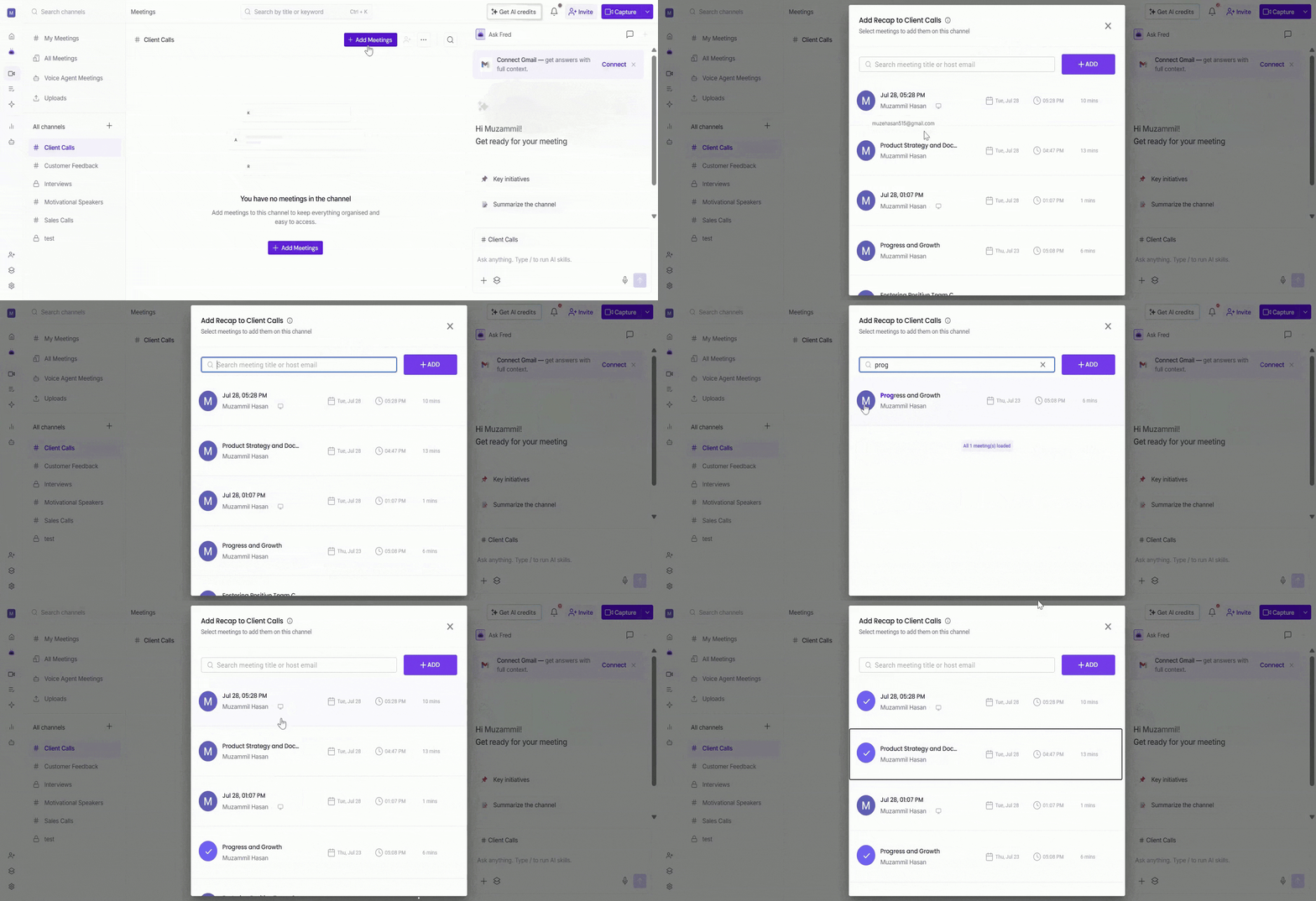
4. Once you've selected the meetings you want to add, click the Add button in the top-right corner
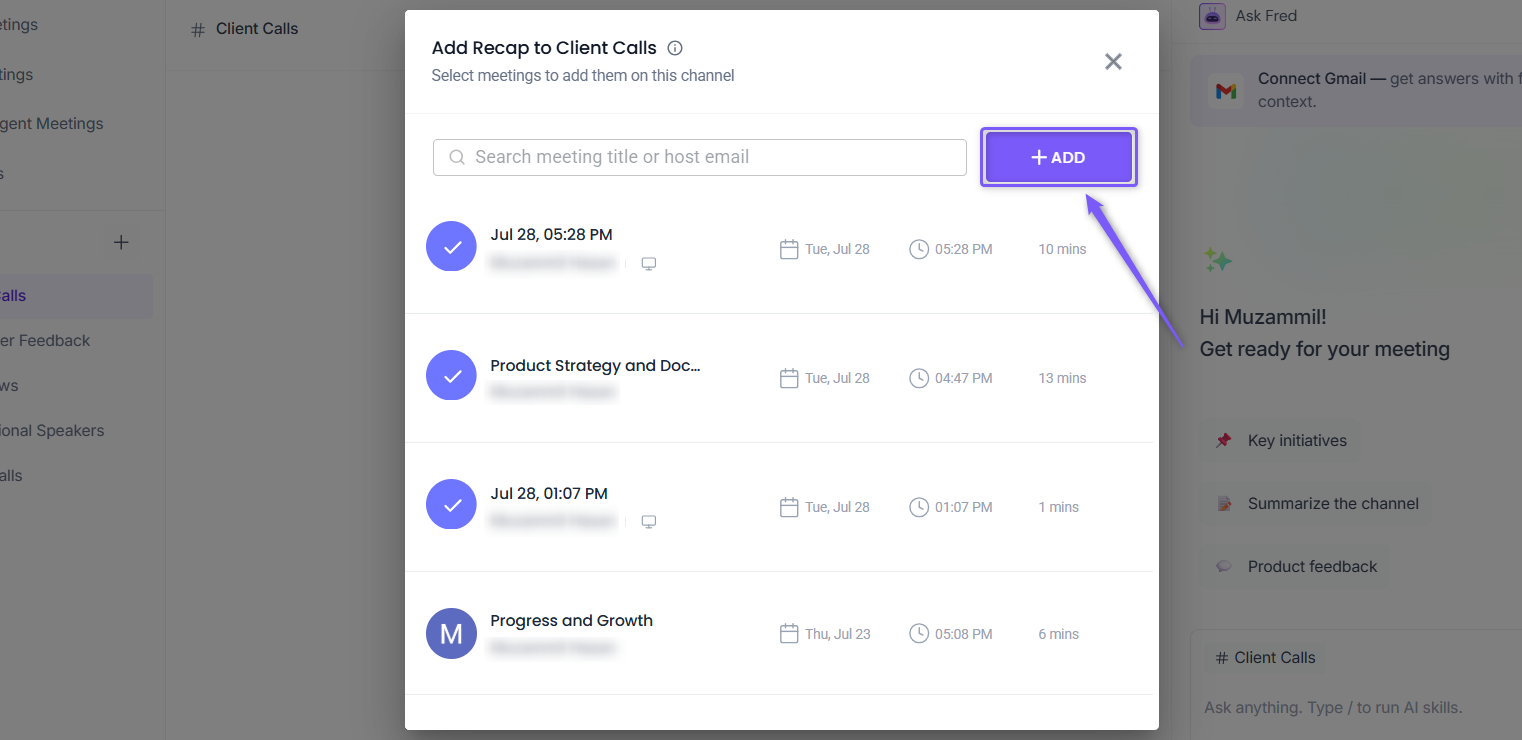
The selected meetings are added to the Channel and will appear in the Channel meeting list.
📌 If you don't see the newly added meetings immediately, refresh the page to load the latest Channel contents.
Method 2: Move Meetings to a Channel
Use this method when you want to move one or more existing meetings from another location into a Channel.
1. From the Meetings page, open the Channel or meeting view that contains the meetings you want to move (for example, My Meetings, All Meetings, or another Channel).
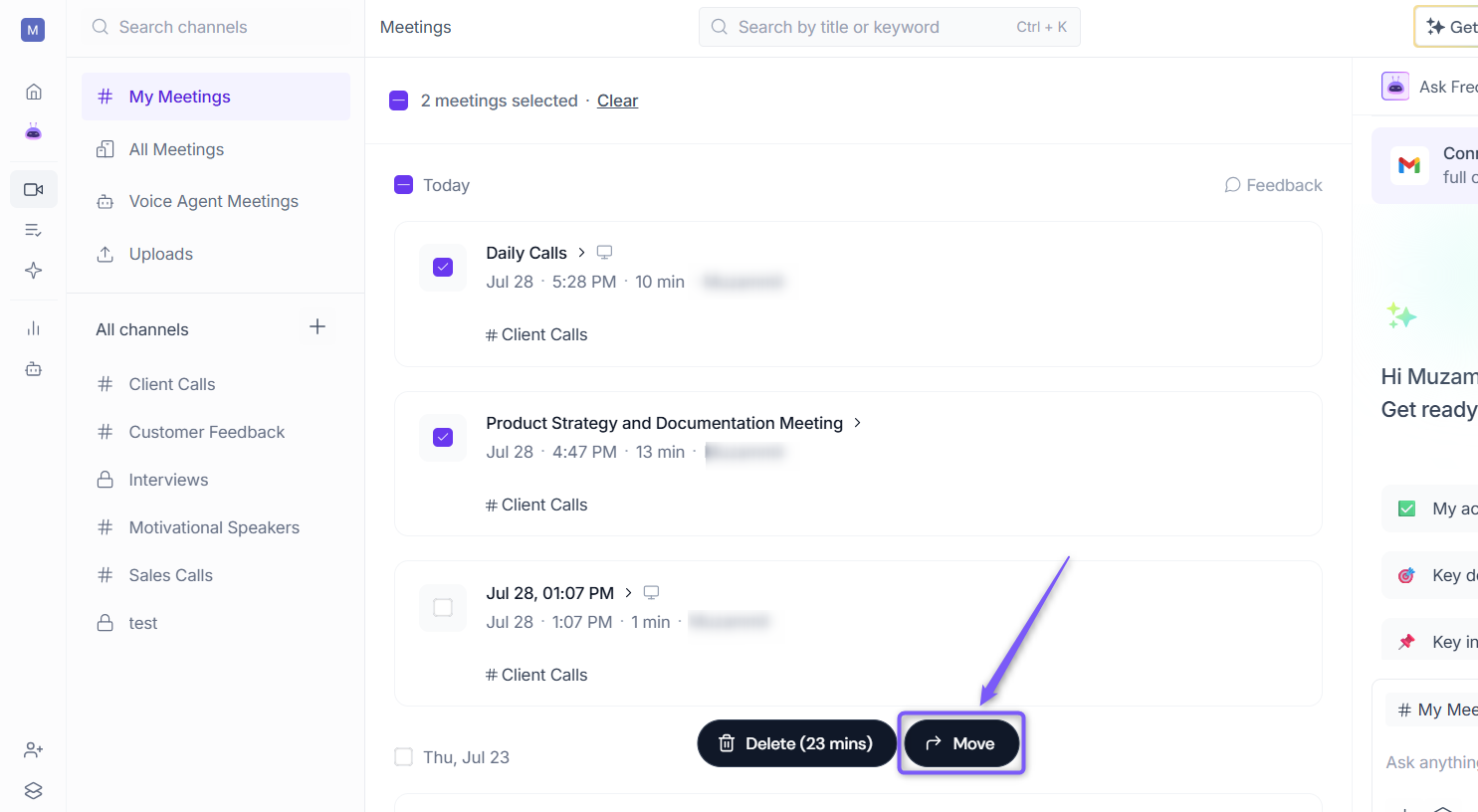
2. Use the checkboxes to select the meetings you want to move:
Select the checkbox next to an individual meeting to move a specific meeting.
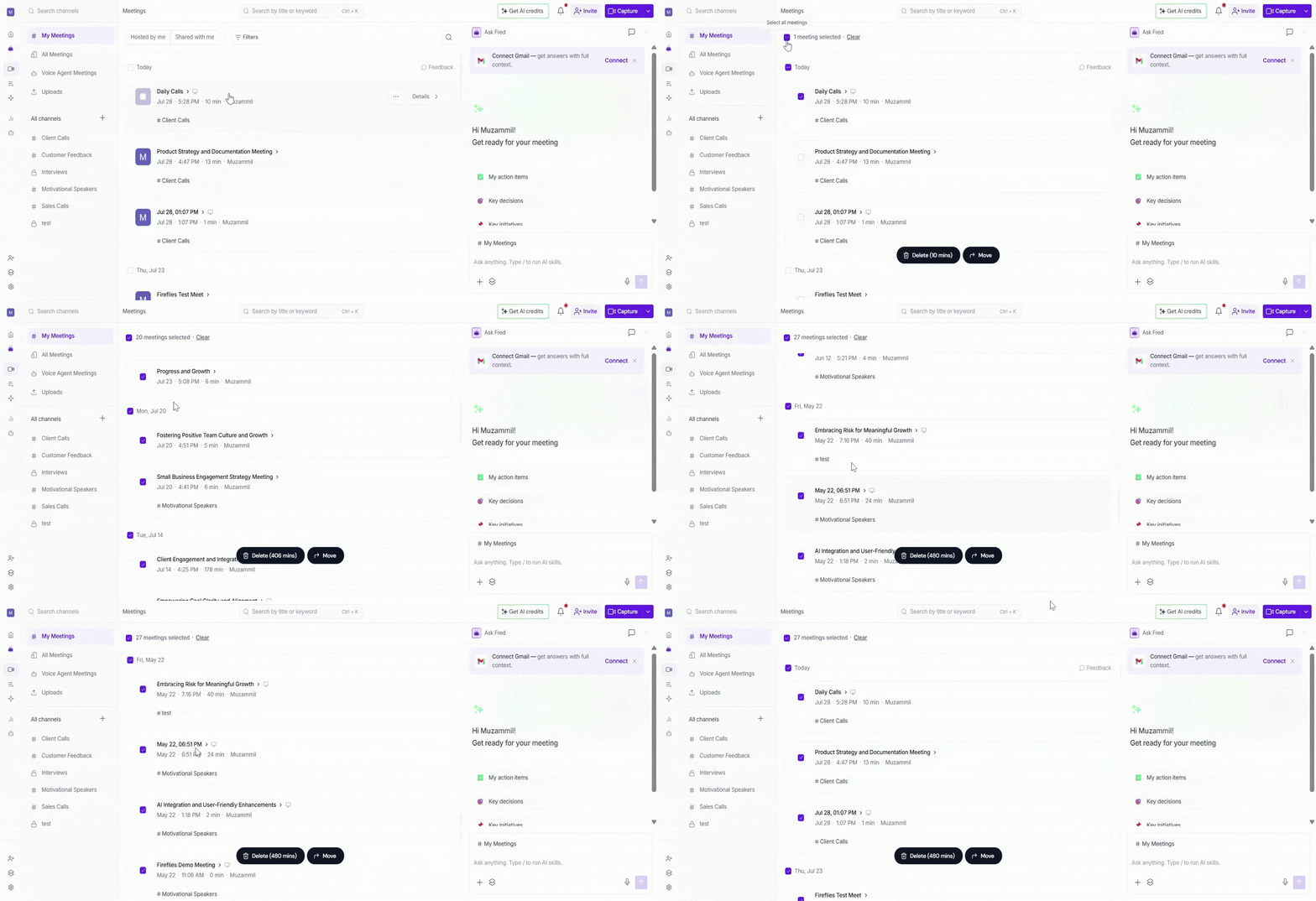
If multiple meetings are grouped under the same date, select the checkbox next to that date to select all meetings listed for that day.
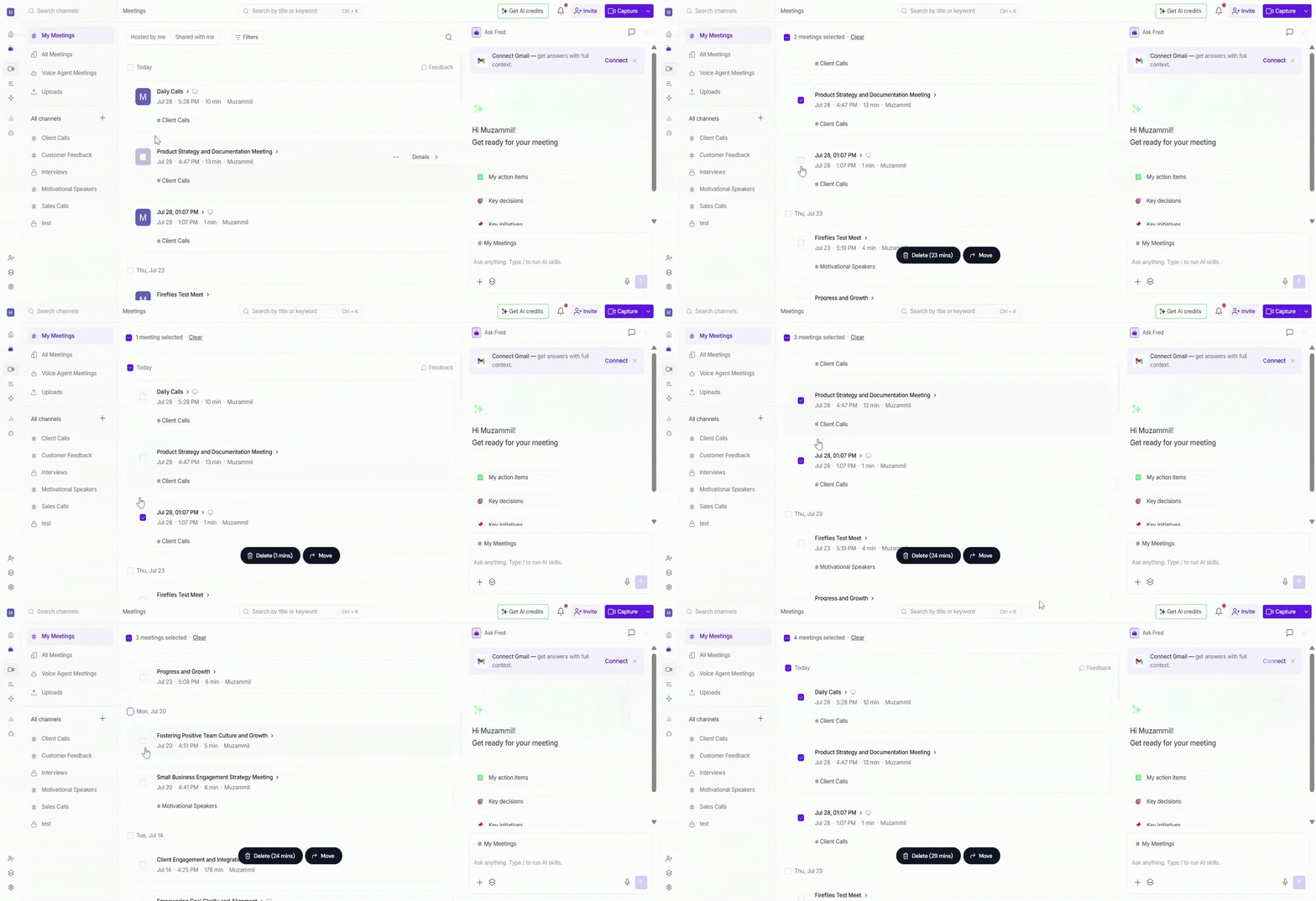
💡 To select meetings across all dates, first select any meeting to make the Select All checkbox appear at the top of the meetings list, then check the box to select all available meetings.
2. Click Move from the action bar at the bottom of the screen.
3. A dialog box will appear. Search for the channel by name, or select it directly from the list.
You can only select one Channel at a time when moving meetings. If you want to add meetings to another Channel, repeat the process and select a different Channel.
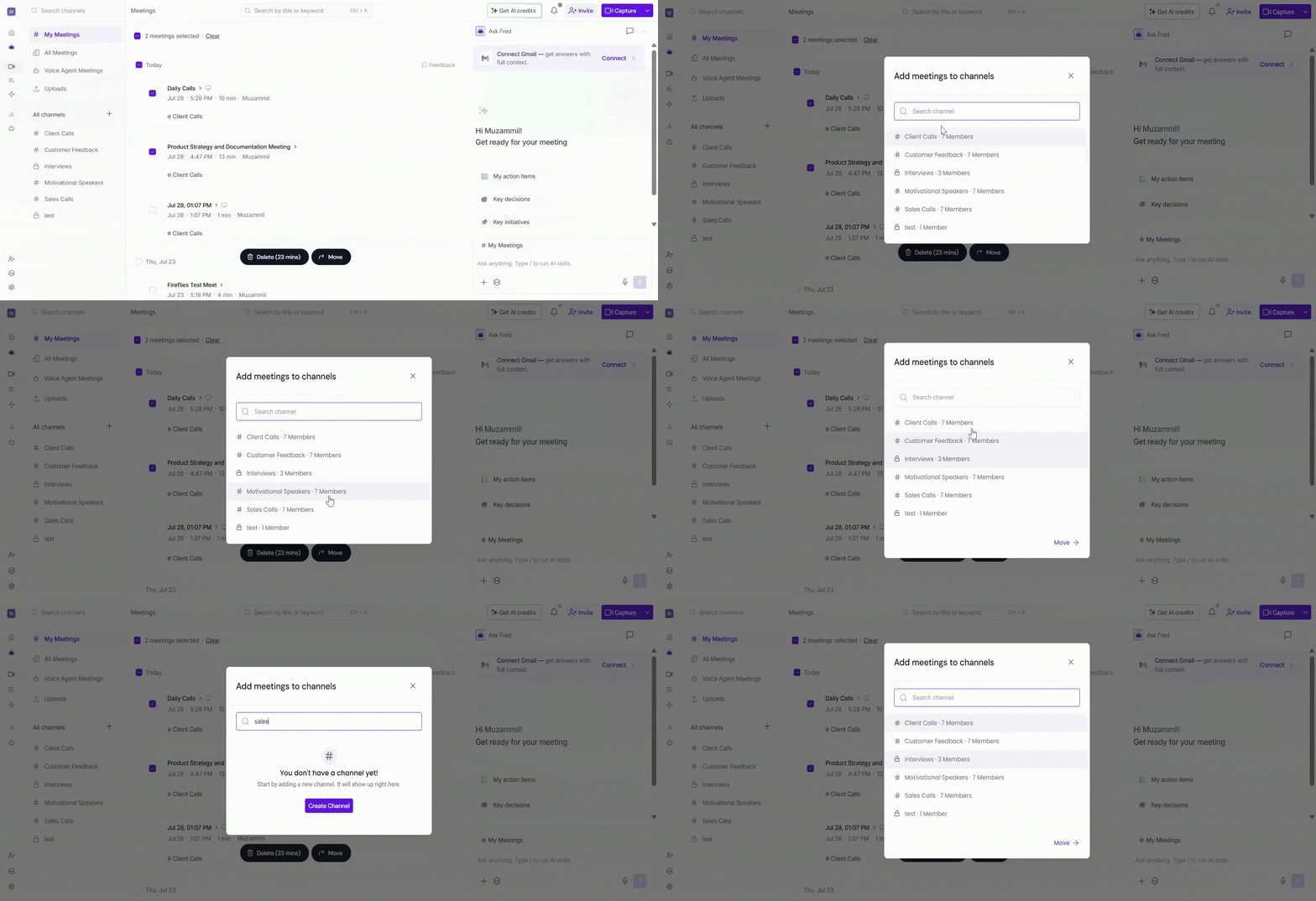
4. Click Move to confirm.
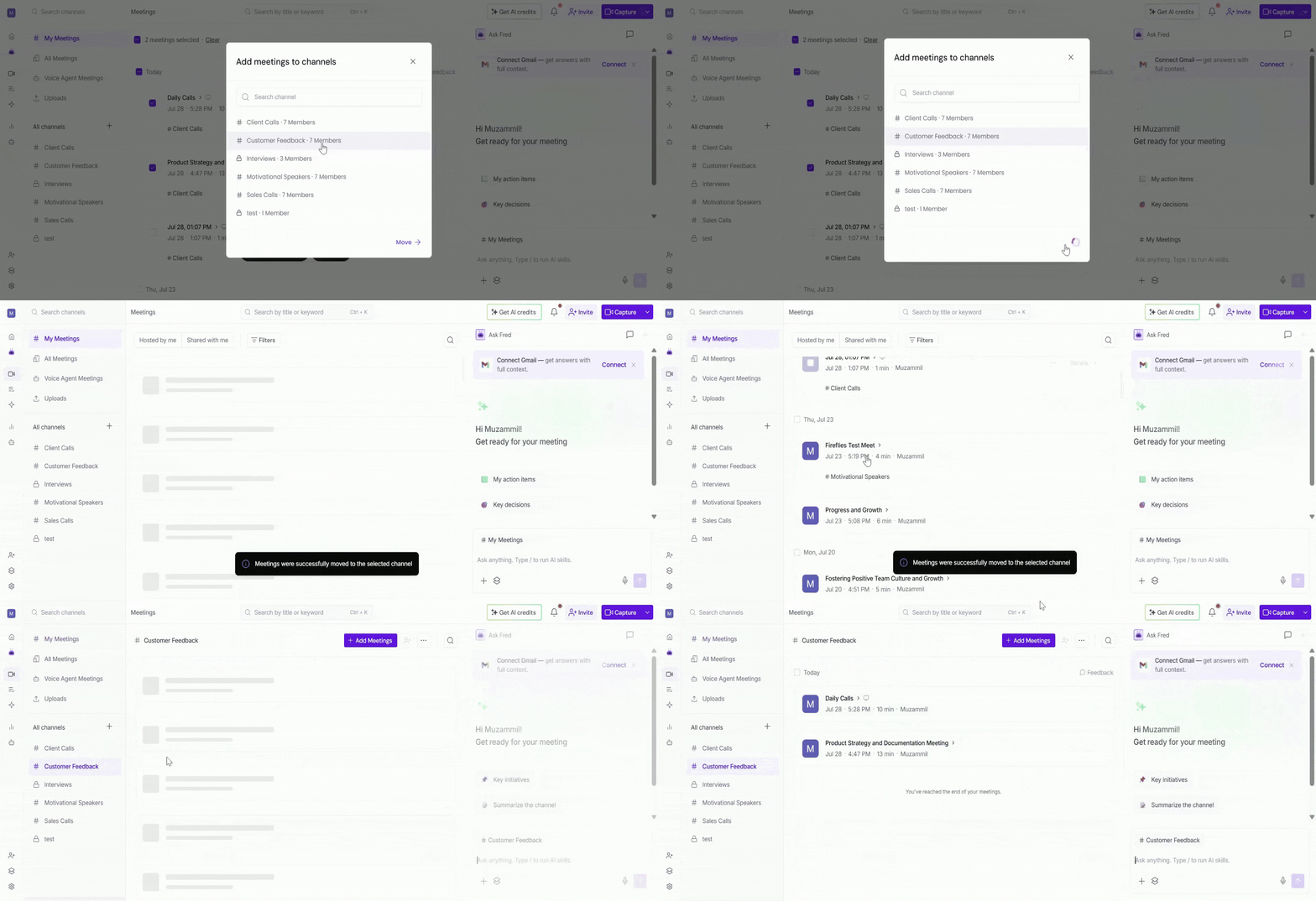
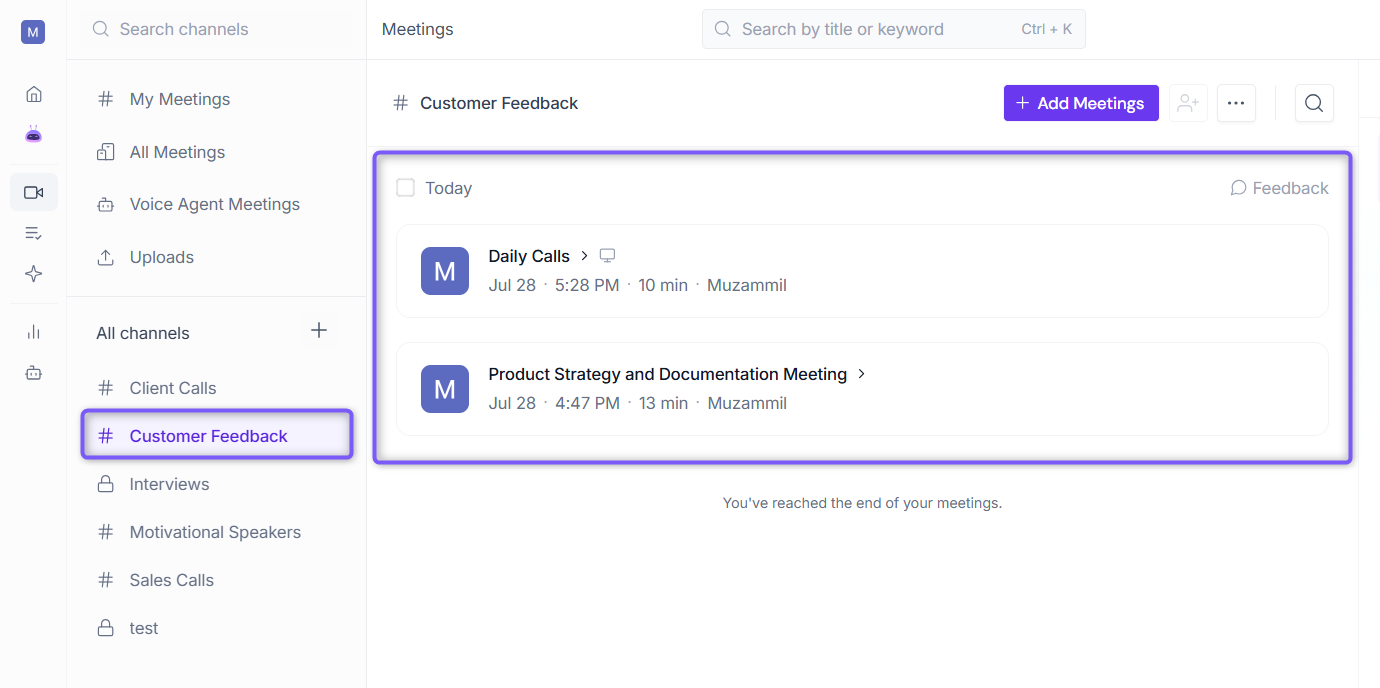
The selected meetings are moved to the chosen Channel and will appear in that Channel's meeting list.
Method 3: Automatically Route Meetings to a Channel
Rules Engine allows you to automatically add future meetings to specific Channels based on rules you configure. This helps ensure meetings are organized in the appropriate Channel without requiring manual action.
Automatic meeting routing via Rules Engine is available on the Enterprise plan only. Only Workspace Admins can create and manage Rules Engine rules.
1. Open the Public or Private Channel that you want future meetings to be automatically added to.
2. Click the ellipsis (...) icon in the top-right corner of the Channel page, then select Auto Route.
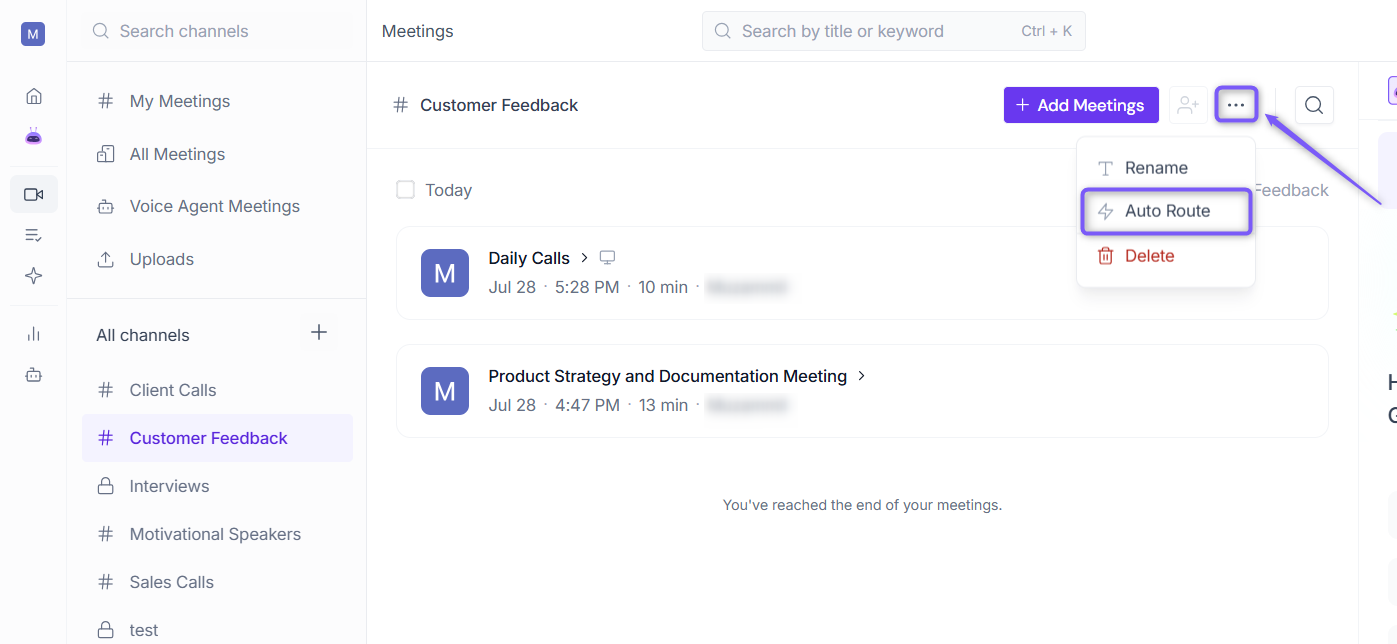
3. The rule builder opens with the selected Channel already set as the destination, so you can start configuring the routing conditions right away.
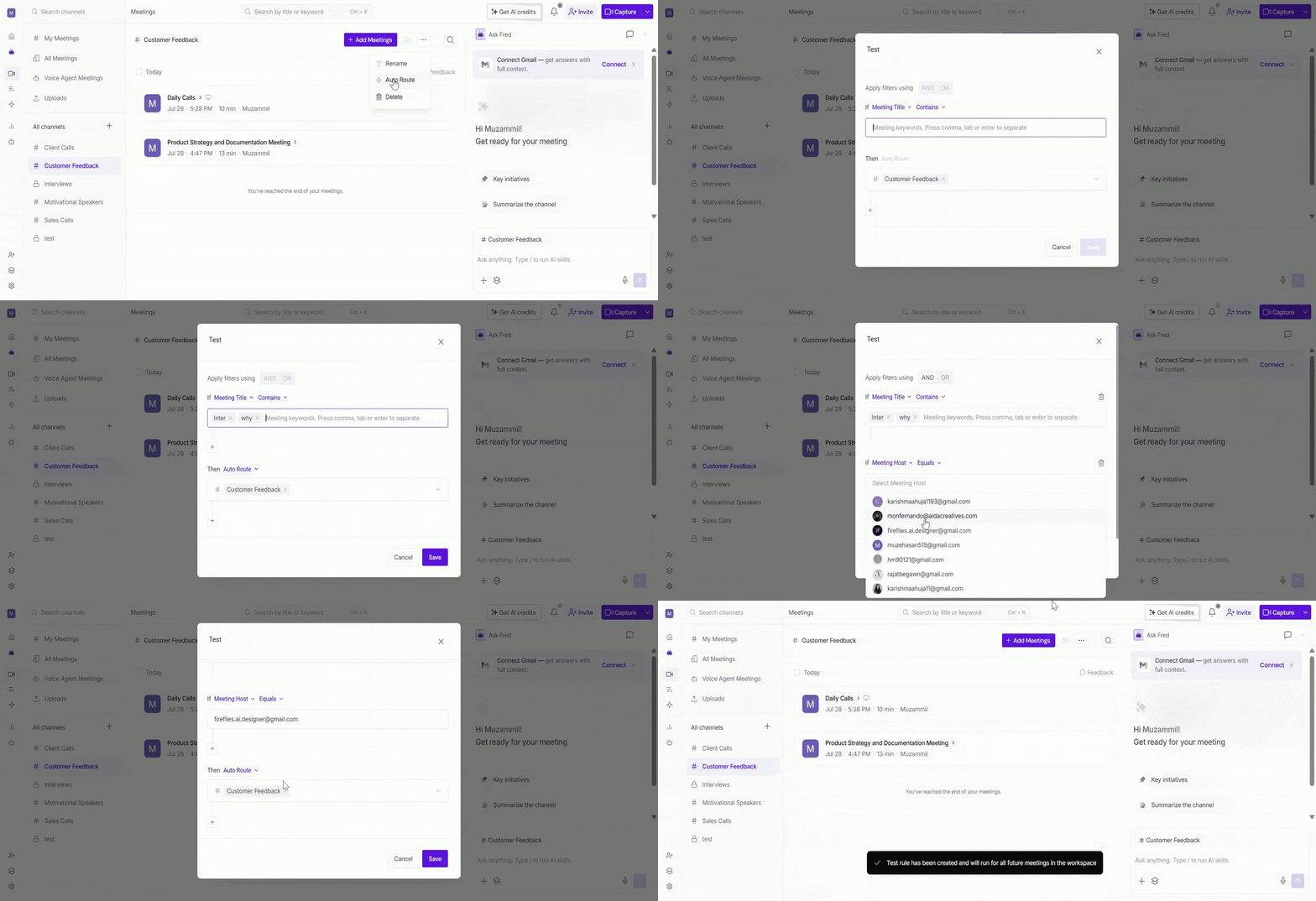
Once the rule is active, future meetings that match the configured conditions will be automatically routed to the selected Channel.
📌 Learn More: For detailed steps on creating, managing, editing, and deleting routing rules, see Fireflies Rules Engine: Route, Share, and Control Meeting Visibility.
⚠ Note:
You can add or move meetings that you own or meetings where you were a participant.
Workspace Admins can add or move any meeting within the workspace between Channels.
When a meeting is moved from a Public Channel to a Private Channel, only members of the Private Channel can access it.
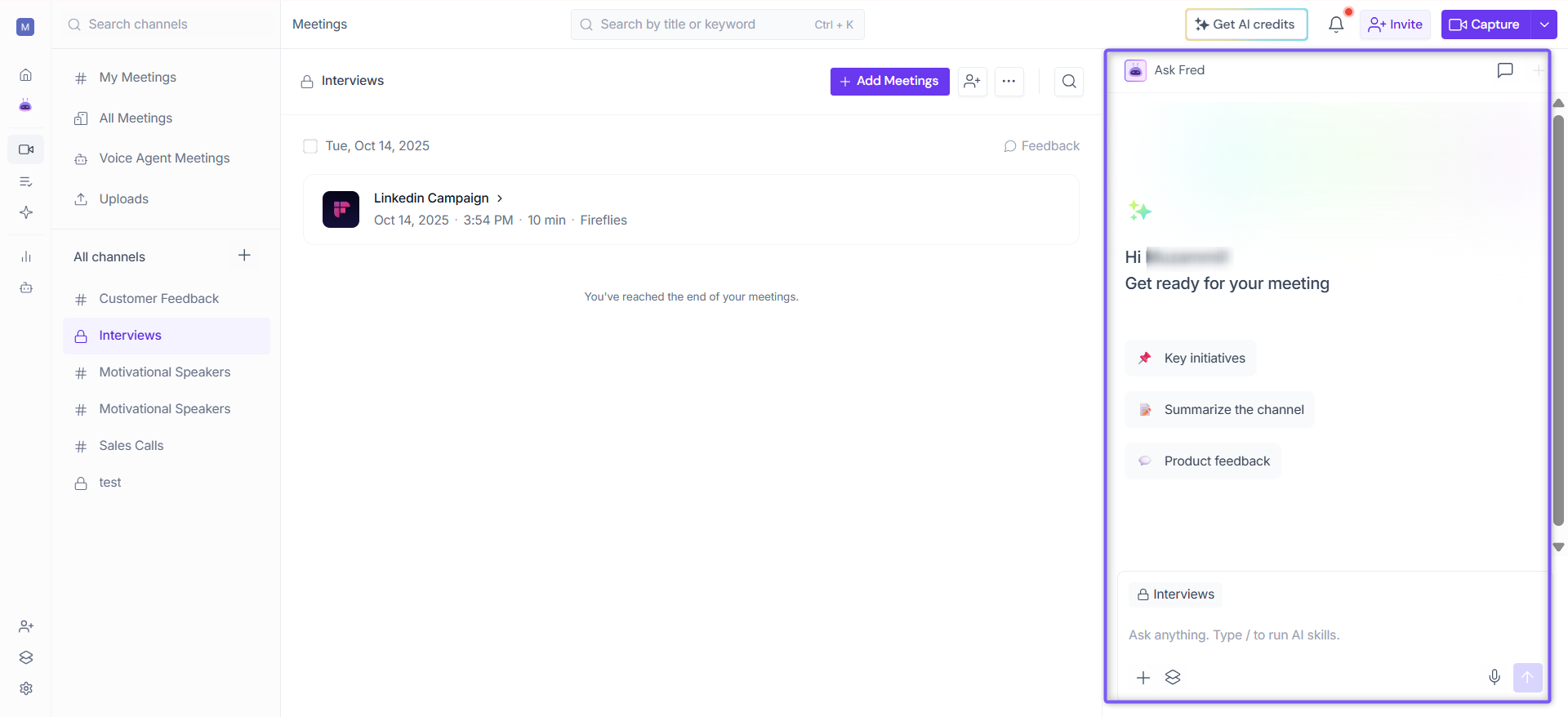
💡 Get answers across your Channel: Need a quick summary, key decisions, action items, or answers from multiple meetings in a Channel? Use the AskFred panel on the right to analyze all meetings in the selected Channel and get AI-powered insights without opening each meeting individually.
📌 Want to learn more? Check out Global AskFred: Get Answers from Past Meetings, Connected Apps, and Web Search.
❓ Frequently Asked Questions
1. Can I add multiple meetings to a Channel at once?
Yes. You can select and add multiple meetings at the same time when using the Add Meetings or Move options.
2. Can I move meetings between Channels?
Yes. Meetings can be moved from one Channel to another using the Move option.
3. Can I add meetings to both Public and Private Channels?
Yes. Meetings can be added to either Public or Private Channels, depending on your access permissions.
4. Can I add meetings to a Channel automatically?
Yes. Enterprise workspaces can use Rules Engine to automatically route future meetings to specific Channels based on predefined conditions.
5. I don't see the Auto Route option. What should I do?
If the Auto Route option is not available, check the following:
Ensure your workspace is on the Enterprise plan, as automatic meeting routing is not available on other plans.
Ensure you are a Workspace Admin, as only Workspace Admins can create and manage Rules Engine rules.
If you're unsure whether you have Workspace Admin access, check with your workspace owner or administrator.
6. Can I remove a meeting from a Channel later?
Yes. Meetings can be removed from a Channel or moved to a different Channel at any time.
Related: How to Manage Fireflies Channels and Organize Your Meetings
Need More Help?
If you have questions or need assistance about Channels, click the chat button (purple) in the bottom-right corner of your Fireflies dashboard to start a conversation with Support, or contact the team through the Support link.